How to charge Apple Pencil
“`html
The Apple Pencil has transformed the way we interact with our iPads, making tasks like drawing, note-taking, and navigating a breeze. But to unlock its full potential, you need to know how to charge Apple Pencil effectively. Whether you own the first-generation or the second-generation model, understanding the charging process is crucial for ensuring your device is always ready when inspiration strikes. In this article, we’ll break down everything you need to know about charging your Apple Pencil, including tips, tricks, and troubleshooting advice.
1. Understanding the Two Generations of Apple Pencil
First things first, it’s vital to recognize the differences between the first and second-generation Apple Pencils, as the charging methods vary significantly. The first-generation Apple Pencil, released in 2015, is cylindrical and has a removable cap that reveals a Lightning connector. On the other hand, the second-generation model, introduced in 2018, features a flat edge and uses a magnetic connection for charging.
The design changes not only affect the aesthetic but also the convenience of charging. The first-generation model can be charged directly by plugging the Lightning connector into the iPad, while the second-generation requires you to attach it magnetically to the side of your compatible iPad. This design innovation not only makes charging easier but also allows for a better storage solution. Knowing these differences is crucial for mastering how to charge Apple Pencil efficiently.
2. Charging the First-Generation Apple Pencil
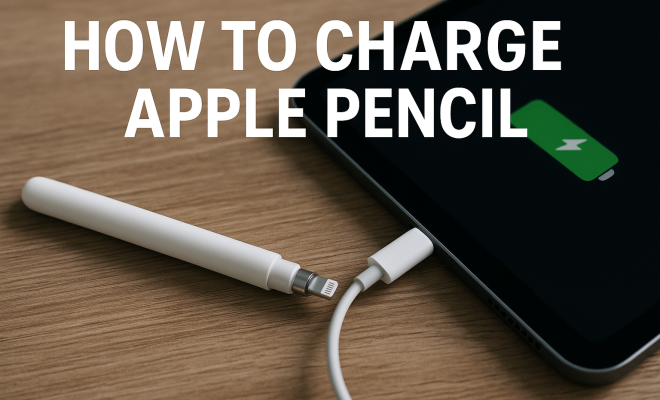
Charging the first-generation Apple Pencil is straightforward but requires some care. To charge, simply remove the cap from the end of the Apple Pencil to reveal the Lightning connector. Insert this connector into the Lightning port of your iPad. You should see a small charging icon appear on the screen, indicating that the charging process has begun.
If you prefer, you can also use the provided Lightning adapter, which allows you to charge the Apple Pencil using any standard Lightning cable. This method can be more convenient for users who have their iPad connected to a power source or wish to charge their Pencil while using it on a different device. Keep in mind that the first-generation Apple Pencil takes about 15-30 minutes to reach a full charge, providing approximately 12 hours of usage.
3. Charging the Second-Generation Apple Pencil
Charging the second-generation Apple Pencil is a seamless experience. To charge, simply attach the Pencil to the magnetic side of your compatible iPad. You’ll hear a slight snap when it securely connects, and the iPad will automatically initiate the charging process. This model allows users to charge their Apple Pencil while keeping it readily accessible, which is especially beneficial for artists and professionals who rely on their devices.
Unlike the first-generation model, the second-generation Apple Pencil doesn’t have a specific charge time since it charges wirelessly. However, it takes approximately 15 seconds of charging to provide enough power for around 30 minutes of use. For a full charge, expect it to take about 2 hours. The convenience of this charging method is one of the many reasons why users are increasingly switching to the second-generation Apple Pencil.
4. Recognizing the Battery Life and Usage
Understanding the battery life of your Apple Pencil is key to optimizing your usage and ensuring you always have power when you need it. The first-generation model boasts about 12 hours of usage once fully charged. The second-generation, although similar in usage time, benefits from the more efficient charging method. (See: Apple Pencil on Wikipedia.)
Knowing how to check the battery level is also essential. You can find this information in the Batteries widget on your iPad. If you find that your Pencil is frequently running low on battery, it may be time to change your charging habits. Regularly charging your Apple Pencil, especially if you use it daily, will maintain its performance and longevity.
5. Common Charging Problems and Solutions
Even though charging your Apple Pencil is relatively simple, you may run into some common problems. For the first-generation model, a frequent issue is the Pencil not charging when connected to the iPad. Ensure that the Lightning connector is clean, as dust and debris can obstruct the connection. Sometimes, simply unplugging and re-plugging the Pencil can help establish a connection.
For the second-generation model, if the Pencil isn’t charging when attached magnetically, make sure that both your iPad and the Pencil are updated to the latest software. Restarting your iPad can also resolve connectivity issues. If problems persist, consider reaching out to Apple Support for further troubleshooting.
6. Maximizing Battery Life: Tips and Tricks
To extend the battery life of your Apple Pencil, consider adopting some best practices. First, avoid letting the battery completely deplete before charging. Lithium-ion batteries, which both generations use, perform best when kept between 20% and 80% charge. Regularly charging your Pencil when it drops below 50% can help maintain optimal battery health.
Additionally, if you’re not using your Apple Pencil for an extended period, consider turning it off or simply removing it from the iPad to prevent accidental use and further battery drain. Lastly, be mindful of the temperature; extreme heat or cold can negatively affect battery performance, so store your Pencil in a suitable environment.
7. Future of Apple Pencil and Charging Technology
As technology continues to evolve, so does the Apple Pencil. There are ongoing rumors about the next iterations of the Pencil and potential upgrades to the charging methods. Features such as solar charging and enhanced wireless capabilities are being discussed in tech circles. Keeping an eye on updates from Apple can provide insights into how charging may further improve in the future.
Moreover, the increasing integration of augmented reality (AR) applications into iPads suggests that the Apple Pencil may evolve to support these functionalities more robustly. This means that understanding how to charge Apple Pencil efficiently today can prepare you for the future as new features and enhancements roll out.
8. Comparative Analysis of Charging Methods
When comparing the charging methods of the two Apple Pencil generations, it’s clear that user experience has significantly improved with the second-generation model. The convenience and speed of magnetic charging allow for a more integrated workflow, especially in professional settings where time and accessibility are key.
For instance, artists can quickly attach the Pencil to their iPads while juggling multiple projects, ensuring they don’t lose momentum. In contrast, the first-generation model’s method, which requires physical connection through the Lightning port, can interrupt the creative flow. This difference highlights how important it is to consider not just the charging process itself but how it fits within users’ broader workflows. (See: CDC on device charging safety.)
In terms of efficiency, the second-gen Apple Pencil charges faster and offers a more straightforward way to maintain power. Charging it for just 15 seconds can give you enough battery for a quick 30-minute session, which is a game-changer for those who might have forgotten to charge it fully before a meeting or presentation.
9. Expert Perspectives on Apple Pencil Usage
Industry professionals, including artists and educators, emphasize the importance of understanding how to charge Apple Pencil correctly for optimal use. Many recommend developing a routine around charging the Pencil, similar to how one might charge a phone. For example, setting a daily reminder to check the Pencil’s battery level can prevent unexpected power loss during critical tasks.
Experts also suggest pairing the Apple Pencil with specific applications designed to enhance productivity. Apps like Procreate or Notability become even more powerful when users have an adequately charged Pencil. These apps often rely on pressure sensitivity and tilt functions, which can be compromised if the Pencil runs low on charge.
Additionally, professionals highlight the value of using Apple Pencil for digital collaboration. Many have moved towards paperless workflows, and a fully charged Apple Pencil can facilitate smooth, real-time edits during virtual meetings or in shared projects.
10. Frequently Asked Questions (FAQ)
Q1: How can I tell if my Apple Pencil is charging?
A: For the first-generation Apple Pencil, check for the charging icon that appears on your iPad screen when it’s connected. For the second-generation model, you can see the charging status in the Batteries widget on your iPad when it’s attached magnetically.
Q2: How long does it take to charge the Apple Pencil fully?
A: The first-generation Apple Pencil takes about 15-30 minutes for a full charge, while the second-generation model takes around 2 hours for a complete charge. However, just a 15-second charge on the second-gen Pencil provides about 30 minutes of usage.
Q3: Is it bad to leave my Apple Pencil attached to my iPad for long periods?
A: While it’s convenient to keep the second-generation Apple Pencil attached to your iPad, doing so for extended periods isn’t harmful. However, it’s still wise to periodically check the charge levels to prevent complete depletion.
Q4: Can I use my Apple Pencil while it’s charging?
A: For the first-generation Apple Pencil, it’s not possible to use it while charging. However, with the second-generation Pencil, you can use it while it’s attached to the iPad for charging, making it more versatile during use.
Q5: What should I do if my Apple Pencil is not charging?
A: First, check that the connection is clean. For the first-generation, ensure the Lightning connector is free of debris. For the second-generation, verify that there are no software updates pending for your iPad. If issues persist, restarting your iPad can help, or you may need to reach out to Apple Support for assistance.
11. Additional Tips for Efficient Use
Knowing how to charge Apple Pencil is just the start. Here are some additional tips to help you get the most out of your device:
- Use the Right Apps: Explore apps that leverage the unique features of the Apple Pencil. Apps like Affinity Designer or Adobe Fresco can help you create stunning designs that fully utilize pressure sensitivity and tilt.
- Adjust Settings: On your iPad, adjust the settings for your Apple Pencil in the Settings app. You can customize double-tap gestures for quicker access to functions you use most.
- Practice Regular Maintenance: Regularly wipe down the Pencil and the charging area of your iPad to avoid dirt accumulation, which can hinder connection quality.
12. Battery Management Insights
Battery management is a critical aspect of using your Apple Pencil effectively. With advancements in battery technology, understanding optimal usage can prolong your device’s life:
- Keep Software Updated: Ensure that your iPad’s software is always up-to-date. Updates can include improvements for battery management, which may help with charging efficiency.
- Monitor Usage: Pay attention to how often you use your Pencil. If you find yourself frequently running low on battery, consider adjusting your charging routine to accommodate your usage patterns.
- Battery Health Tips: If you notice decreased performance, check the battery health feature on your iPad. This can give you insights into whether your Pencil may need servicing.
13. Real-World Examples of Apple Pencil Usage
To illustrate the versatility of the Apple Pencil, consider these real-world applications:
- Graphic Design: Freelance designers often use the Apple Pencil within design software to create illustrations that demand precision. The ability to sketch directly on the iPad screen paired with efficient charging means they stay productive without interruptions.
- Education: Teachers and students alike utilize the Apple Pencil for digital note-taking. The ability to annotate PDFs or create visual notes enhances learning experiences, especially when the Pencil is always charged and ready.
- Architecture: Architects are increasingly relying on Apple Pencil for creating architectural sketches and CAD designs. The seamless interaction reduces the time needed for manual adjustments and revisions.
14. Conclusion: The Importance of Charging Your Apple Pencil
Knowing how to charge Apple Pencil properly is fundamental for maximizing its performance and ensuring seamless usage. Whether you own the first or second-generation, following these tips will help you keep your Apple Pencil charged and ready when creativity strikes. By integrating these strategies into your routine, you can enhance your workflow, safeguard against power interruptions, and fully enjoy the capabilities of your Apple Pencil.
“`
Trending Now
Frequently Asked Questions
How do I charge my Apple Pencil?
To charge your Apple Pencil, first identify which generation you have. For the first-generation model, remove the cap to expose the Lightning connector and plug it into your iPad's Lightning port. For the second-generation model, simply attach it magnetically to the side of a compatible iPad.
What is the difference between the first and second generation Apple Pencil?
The first-generation Apple Pencil is cylindrical with a removable cap that reveals a Lightning connector for charging. In contrast, the second-generation model has a flat edge and charges magnetically when attached to the side of a compatible iPad, offering a more convenient storage solution.
How long does it take to charge an Apple Pencil?
Charging times can vary, but generally, it takes about 15-30 minutes to charge an Apple Pencil to full capacity. You can check the battery status on your iPad to see how much charge is left and how long it will take to reach full power.
Can I use my Apple Pencil while it is charging?
You cannot use the first-generation Apple Pencil while it is charging since it connects directly to the iPad's Lightning port. However, you can still use the second-generation Apple Pencil while it charges magnetically on the side of your iPad.
What should I do if my Apple Pencil won't charge?
If your Apple Pencil isn't charging, first check the connection and ensure it's properly attached or plugged in. For the first generation, inspect the Lightning connector for debris. For the second generation, try removing it and reattaching it. If problems persist, consider resetting your iPad or checking for software updates.
What did we miss? Let us know in the comments and join the conversation.