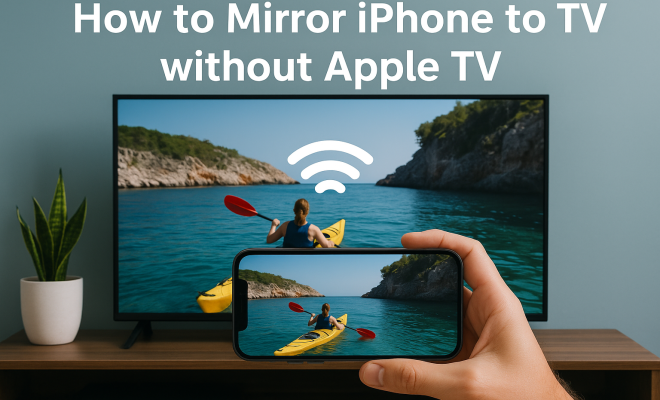
How to mirror iPhone to TV without Apple TV
“`html
In the age of streaming and smart technology, sharing content from your iPhone to a larger screen like your TV has never been easier. If you’re looking to mirror iPhone to TV without Apple TV, you’re in luck! There are several methods available that can help you connect your mobile device to your TV seamlessly. In this article, we’ll explore the top 10 ways to achieve this, covering everything from third-party apps to native functionalities found in many smart TVs.
1. Using Chromecast
If you want to mirror iPhone to TV without Apple TV, Google’s Chromecast is a fantastic option. This compact device plugs into your TV’s HDMI port and allows you to cast content from your iPhone directly. To get started, you’ll need to:
- Set up your Chromecast by connecting it to the same Wi-Fi network as your iPhone.
- Download the Google Home app from the App Store.
- Follow the app’s instructions to connect it to your Chromecast.
- Open a compatible app (like YouTube or Netflix) and tap the cast icon to mirror your content.
Chromecast is versatile and works with many popular streaming apps, making it a great choice for sharing videos and music from your iPhone.
2. Smart TV with AirPlay Support
Many modern smart TVs now come with built-in AirPlay support, enabling you to mirror iPhone to TV without Apple TV. Brands like Samsung, LG, and Sony often have this feature. To utilize it, ensure your TV is on the same Wi-Fi network as your iPhone and follow these steps:
- Swipe down from the upper-right corner of your iPhone to access Control Center.
- Tap on ‘Screen Mirroring’ and select your TV from the list.
This feature allows you to display your entire iPhone screen on the TV, making it perfect for sharing photos, videos, and even presentations.
3. Using an HDMI Adapter
If wireless connections aren’t your thing, consider using a Lightning to HDMI adapter. This method is straightforward and reliable, providing a direct connection from your iPhone to the TV. Here’s how it works:
- Connect the Lightning adapter to your iPhone.
- Plug an HDMI cable into the adapter and connect the other end to your TV.
- Switch your TV to the appropriate HDMI input.
This wired method offers a stable connection with no lag, making it ideal for gaming or watching high-definition videos.
4. Third-Party Apps
Numerous third-party apps can help you mirror iPhone to TV without Apple TV. Apps like ApowerMirror and LetsView can facilitate a wireless connection between your device and your TV. Typically, you would download the app on both your iPhone and TV, ensuring they’re on the same network, then follow the in-app instructions to connect. This provides an excellent alternative for those who lack built-in features or prefer a different user interface.
These apps often come with additional features, such as screen recording and annotation tools, enhancing your viewing experience.
5. Using Miracast
Miracast is another technology that allows you to mirror iPhone to TV without Apple TV. While it’s primarily an Android technology, some TVs support Miracast. To use this feature:
- Make sure your TV supports Miracast and is connected to the same Wi-Fi network.
- On your iPhone, you’ll need to use a compatible third-party app that supports Miracast, like AirServer.
- Follow the app’s instructions to connect to your TV.
While it may not be as straightforward as other options, it’s worth exploring for those with compatible devices.
6. Using DLNA Apps
Digital Living Network Alliance (DLNA) is a standard for sharing media over a network. Many smart TVs support DLNA, and there are several apps available on the App Store that can help you mirror iPhone to TV without Apple TV. Some popular options include 8Player and AllCast. (See: Learn about AirPlay technology.)
To use these apps, you typically need to:
- Download a DLNA app on your iPhone.
- Connect your iPhone and TV to the same Wi-Fi network.
- Open the app, select the media you wish to share, and choose your TV as the playback device.
This method is especially effective for streaming photos and videos from your iPhone’s library to your television.
7. Using Roku Devices
If you have a Roku device, you can easily mirror iPhone to TV without Apple TV. Roku supports screen mirroring through its iOS app. To connect:
- Ensure your Roku device is updated and connected to the same Wi-Fi as your iPhone.
- Download the Roku app from the App Store.
- Open the app and select ‘Devices’ to find your Roku.
- Tap on ‘Screen Mirroring’ from the app to start mirroring your iPhone’s screen.
This setup not only allows for screen mirroring but also provides access to various streaming services directly from the app.
8. Using Amazon Fire TV Stick
The Amazon Fire TV Stick is another device that allows you to mirror iPhone to TV without Apple TV. Similar to Chromecast, it plugs into your TV’s HDMI port and connects via Wi-Fi. Here’s how to use it:
- Ensure your Fire TV Stick is connected to the same Wi-Fi network as your iPhone.
- Enable screen mirroring in the Fire TV settings.
- On your iPhone, swipe down to access Control Center and select Screen Mirroring to find your Fire TV Stick.
This method not only allows you to mirror your iPhone but also gives you access to a wide range of streaming content through the Fire TV interface.
9. Using Xbox or PlayStation Consoles
If you own an Xbox or PlayStation, you can use these gaming consoles to mirror iPhone to TV without Apple TV. Both consoles have apps that allow for media sharing. Here’s how to do it:
- Download the Xbox or PlayStation app on your iPhone.
- Ensure both devices are on the same network.
- Follow the app’s instructions to connect to your console and share media.
This option is particularly appealing for gamers who want to share their gameplay or stream media while enjoying gaming.
10. Using a Lightning to VGA Adapter
For those with older TVs that don’t support HDMI, a Lightning to VGA adapter can help you mirror iPhone to TV without Apple TV. This method is straightforward but requires a bit of setup. Here’s what you’ll need to do:
- Connect the Lightning adapter to your iPhone.
- Plug a VGA cable into the adapter and connect the other end to your TV.
- Switch your TV to the VGA input.
This is a reliable option for displaying content from your iPhone on older televisions and is especially helpful for presentations or classroom settings.
Why You Might Want to Mirror Your iPhone to TV
Mirroring your iPhone to a TV can enhance your media consumption in various ways. Here are a few reasons to consider:
- Improved Viewing Experience: Watching videos or playing games on a larger screen can significantly enhance your experience, making it more immersive.
- Sharing with Friends and Family: Whether it’s a family photo slideshow, a favorite movie, or a gaming session, mirroring allows everyone to see and participate together.
- Presentations: If you need to display work-related content, mirroring can help you present materials effectively in meetings or classrooms.
- Convenience: Using apps or wireless technologies can help keep your space tidy without the hassle of wires and can make connecting your devices as simple as a few taps.
Common Issues When Mirroring iPhone to TV
While the methods discussed are generally straightforward, you may encounter some issues. Here are a few common problems and ways to troubleshoot them:
- Connection Issues: Ensure your devices are on the same Wi-Fi network. If not, they may not be able to communicate effectively.
- Lag or Delay: If you experience lagging, try moving closer to your Wi-Fi router or disconnecting other devices using the same network.
- Screen Resolution Problems: Adjust your TV settings to ensure the resolution matches your iPhone’s output for the best quality.
- App Compatibility: Some apps may not support mirroring. Always check if the app you wish to use has casting functionality.
Tips for the Best Mirroring Experience
To maximize your mirroring experience, consider these helpful tips: (See: Understanding smart technology's impact.)
- Ensure your iPhone and TV are both updated to the latest software versions to avoid bugs and compatibility issues.
- Disconnect any unused devices from your Wi-Fi network to improve connectivity performance.
- Use high-quality HDMI or VGA cables to ensure a clear and stable connection when using wired methods.
- Consider using a power source for Chromecast or Fire TV Stick to prevent them from turning off during use.
FAQ: Mirror iPhone to TV Without Apple TV
1. Can I use my old TV to mirror my iPhone?
Yes, as long as you have a compatible adapter (like Lightning to VGA) or a device like Chromecast, you can mirror your iPhone to older TVs.
2. Is there a lag when using wireless methods?
There can be some lag with wireless methods, especially if your Wi-Fi connection is weak. Using wired connections typically provides a smoother experience.
3. Does mirroring drain my iPhone battery?
Yes, mirroring does consume battery power since it continuously transmits data. It’s a good idea to keep your iPhone plugged in if you’re planning a long session.
4. Can I mirror content from any app?
Not all apps support mirroring directly. Some apps require you to use their native casting functions, while others may allow for general screen mirroring.
5. Are there any fees for using third-party apps?
Many third-party apps are free, but some may offer premium features for a fee. Always check the app details for pricing information.
Alternative Methods for Mirroring iPhone to TV
If you’ve explored the primary methods mentioned above and are still looking for more options, there are additional ways you can mirror your iPhone to your TV without using Apple TV. These methods vary in complexity and compatibility, but they can prove useful depending on your setup and preferences.
Using a Smart HDMI Cable
Smart HDMI cables, such as MHL or SlimPort cables, offer another way to connect your iPhone directly to the TV without needing any adapters. These cables have built-in converters that allow you to connect your iPhone directly to the HDMI port of your television.
- Connect the smart HDMI cable to your iPhone.
- Plug the other end into the HDMI port on your TV.
- Switch your TV to the appropriate HDMI input.
This option is convenient for quick setups and can be an excellent choice for those who travel frequently and need a reliable way to connect to various TVs.
Using Screen Mirroring with VLC Media Player
If you’re looking for a slightly different method of mirroring content, consider using a versatile media player like VLC. The VLC app can also stream video content to supported smart TVs, which can help you mirror your iPhone screen if you primarily want to watch videos.
- Download VLC on your iPhone and ensure your TV supports DLNA.
- Open VLC and select the media you want to play.
- Select your TV as the playback device within the app.
This method is particularly useful for those with a library of videos on their device, offering an easy way to watch them on a larger screen.
Using Web-Based Solutions
There are various web-based solutions that can help mirror your iPhone’s content to your TV. Websites like AirPlay for Chrome allow users to cast their screen to a Chrome browser running on smart TVs. Similarly, some web applications can allow you to stream media from your iPhone to a web-enabled TV. However, they may require some setup and technical knowledge.
Technical Considerations for Smooth Mirroring
A seamless mirroring experience often relies on various technical factors. Understanding these elements can help ensure that you have a smooth and enjoyable experience when mirroring your iPhone to your TV. (See: Latest trends in streaming technology.)
Wi-Fi Bandwidth
Wi-Fi bandwidth is crucial for a successful mirroring experience, especially when using wireless methods. If your network is congested with multiple devices actively using the internet, this can lead to lag and interruptions. Consider upgrading your internet plan or using a dual-band router to improve performance.
Device Compatibility
Before attempting to mirror your iPhone to your TV, double-check the compatibility of your devices. Some older TVs or streaming devices may not support the latest mirroring technologies, which can limit your options. Refer to the user manual or manufacturer’s website for guidance on supported features.
Network Security
Ensure that your network is secure and private, as using public Wi-Fi can expose your device to potential security risks. If possible, set up a secure home network that limits access to trusted devices only.
Future Trends in Screen Mirroring Technology
As technology continues to advance, the methods of screen mirroring are expected to evolve as well. Here are some trends to watch for:
Increased Integration with Smart Home Devices
As smart home technology becomes more prevalent, we can expect improved integration between devices. Future TVs may come equipped with even better mirroring capabilities, allowing for more streamlined connectivity with smartphones, tablets, and other smart devices.
Enhanced Resolution and Quality
With the rise of 4K and HDR content, future mirroring solutions will likely prioritize higher resolution streaming. This means that new technologies may allow for higher quality video transmission without sacrificing speed or reliability.
Wireless Technologies Advancements
Advancements in wireless technology, such as Wi-Fi 6 and beyond, promise to improve screen mirroring capabilities significantly. These technologies can provide faster speeds and lower latency, making for a smoother and more enjoyable experience.
Conclusion: Embrace the Flexibility of Mirroring
Mirroring your iPhone to a TV without Apple TV opens up a world of possibilities for enjoying your favorite content on a bigger screen. Whether you opt for wired methods or explore wireless solutions, there are plenty of options available to suit your needs. As technology continues to advance, the experience will only get better. Embrace the flexibility of these methods, and enjoy sharing your iPhone content with friends and family in the comfort of your living room!
“`
Trending Now
Frequently Asked Questions
How can I mirror my iPhone to my TV without Apple TV?
You can mirror your iPhone to your TV without Apple TV by using several methods, including Chromecast, smart TVs with AirPlay support, or a Lightning to HDMI adapter. Each option allows for seamless connection and viewing of content from your iPhone on a larger screen.
Can I use Chromecast to mirror my iPhone to my TV?
Yes, you can use Chromecast to mirror your iPhone to your TV. Simply connect the Chromecast to your TV's HDMI port, ensure both devices are on the same Wi-Fi network, and use the Google Home app to cast content from compatible apps like YouTube or Netflix.
What smart TVs support AirPlay for iPhone mirroring?
Many modern smart TVs from brands like Samsung, LG, and Sony support AirPlay, allowing you to mirror your iPhone directly to the TV. Ensure your TV is connected to the same Wi-Fi network as your iPhone, and use the Screen Mirroring feature in the Control Center.
Is there a way to connect my iPhone to my TV with a cable?
Yes, you can connect your iPhone to your TV using a Lightning to HDMI adapter. This wired method provides a reliable connection and allows you to mirror your iPhone's display directly to the TV without relying on wireless technology.
What apps can I use to mirror my iPhone to my TV?
You can use various apps to mirror your iPhone to your TV, particularly if using Chromecast. Popular apps include YouTube, Netflix, and any other that supports casting. For AirPlay, most native iPhone apps can directly mirror content to compatible smart TVs.
What did we miss? Let us know in the comments and join the conversation.