How to use iPhone in recovery mode
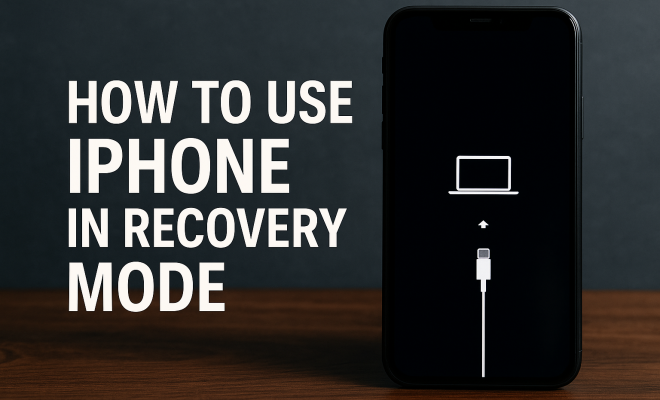
“`html
The iPhone recovery mode is a crucial feature that can help you troubleshoot and resolve significant software issues on your device. Whether you’ve encountered a stubborn software glitch, an update error, or your iPhone is simply unresponsive, understanding how to use recovery mode can be a lifesaver. In this guide, we’ll explore everything you need to know about iPhone recovery mode, from its purpose to step-by-step instructions on activating it, and practical tips for getting the most out of this tool.
1. What Is iPhone Recovery Mode?
iPhone recovery mode is a special state that allows your device to communicate with iTunes or Finder on your computer. When your iPhone is in recovery mode, it’s able to restore or update the operating system, making it an invaluable tool for troubleshooting. This mode can help in various scenarios, particularly when the standard troubleshooting steps don’t resolve the issue.
Recovery mode is different from DFU (Device Firmware Update) mode, which is a more advanced state used for deeper issues. While recovery mode is accessible through iTunes or Finder, DFU mode requires a specific button combination and is typically used for restoring devices that aren’t recognized by iTunes. Understanding these distinctions can help you choose the right troubleshooting approach for your iPhone’s problems.
2. When Should You Use Recovery Mode?
There are several scenarios where using iPhone recovery mode becomes essential. If you encounter error messages during updates, a device stuck on the Apple logo, or your iPhone failing to start, recovery mode can often be the solution. Here are some common situations:
- Failed iOS Update: If an update is interrupted or fails, your device might require recovery mode to complete the process.
- Device Inoperability: A frozen screen or an iPhone stuck in a boot loop can often be resolved by restoring the device in recovery mode.
- iPhone Activation Issues: If you’re unable to activate your iPhone after a reset or during initial setup, recovery mode might help.
Recognizing the signs that indicate a need for recovery mode can save you time and frustration, ensuring a smoother recovery process.
3. How to Enter iPhone Recovery Mode: Step-by-Step
Entering recovery mode depends on the model of your iPhone, as the button combinations differ slightly across devices. Here’s a straightforward guide for various models:
iPhone 8 and Later
1. Connect your iPhone to your computer using a USB cable.
2. Press and quickly release the Volume Up button.
3. Press and quickly release the Volume Down button.
4. Press and hold the Side button until you see the recovery mode screen (a computer or iTunes icon with a cable).
iPhone 7 and 7 Plus
1. Connect your iPhone to your computer.
2. Press and hold the Volume Down and Side buttons simultaneously.
3. Keep holding until you see the recovery mode screen.
iPhone 6s and Earlier
1. Connect your device to your computer.
2. Press and hold the Home and Top buttons simultaneously.
3. Continue holding them until you see the recovery mode screen. (See: Wikipedia entry on iPhone.)
Once in recovery mode, your iPhone will be ready to interface with iTunes or Finder for further steps.
4. Using iTunes or Finder to Restore Your iPhone
After successfully entering recovery mode, the next step is to use iTunes (for Windows or macOS Mojave and earlier) or Finder (on macOS Catalina and later) to restore your iPhone. This process will erase all data on the device, so it’s crucial to have backups if possible. Here’s how to proceed:
1. Launch iTunes or Finder on your computer.
2. Your iPhone will be recognized in recovery mode, and you will see options to Restore or Update. Choose Restore.
3. Follow the prompts to restore your device.
The restoration process will take some time, and your iPhone may restart several times. When it completes, you’ll go through the initial setup process as if it’s a brand-new device.
5. Common Errors in Recovery Mode: Troubleshooting Solutions
Encountering errors while using recovery mode isn’t uncommon. Some users may face issues such as error 4013, error 9, or others during the restoration process. Knowing how to troubleshoot these errors can save you hours of frustration. Here’s a breakdown of some common errors and their solutions:
Error 4013
This error often indicates a hardware issue or a problem with the USB connection. Check your USB cable and try a different port or computer. Often, a faulty cable can be the culprit.
Error 9
Error 9 typically suggests that the update was interrupted, either due to a connection loss or a hardware issue. Restart your iPhone and computer, ensure you’re running the latest version of iTunes, and try again.
If problems persist, testing with different USB cables and ports and ensuring your operating system is updated may resolve the issue.
6. Data Recovery After Using Recovery Mode
One of the major downsides of using recovery mode to restore your iPhone is the potential loss of data. Unless you have a backup, restoring your device can erase everything. However, there are ways to recover lost data even after performing a recovery mode restore.
1. Use iCloud Backup: If you’ve previously enabled iCloud backups, you can restore your data during the setup process after restoring your iPhone.
2. iTunes/Finder Backup: If you’ve backed up your device using iTunes or Finder, you can restore your data from there as well.
3. Data Recovery Software: In cases where backups are unavailable, data recovery tools like Dr.Fone or EaseUS MobiSaver can potentially help recover lost data, although their success rates vary.
Having a regular backup routine can minimize the risk of data loss, making recovery much simpler in the future.
7. Preventing Issues That Lead to Recovery Mode
While recovery mode is a fantastic tool, it’s always better to prevent issues from arising in the first place. Here are some strategies you can employ to minimize the need for recovery mode:
- Regular Software Updates: Keeping your iPhone updated with the latest iOS version can prevent bugs and glitches that lead to recovery mode.
- Backup Your Data: Regular backups via iCloud or iTunes can save you from losing essential data during a restore.
- Avoid Jailbreaking: While jailbreaking can offer customization, it often leads to instability and can put your device at risk.
By implementing these preventive measures, you can greatly reduce the likelihood of encountering issues that require recovery mode.
8. Advanced Recovery Mode Techniques
For power users and those who frequently encounter issues, exploring advanced recovery mode techniques can be beneficial. Some users may opt to use DFU mode instead of recovery mode for more severe issues that recovery mode doesn’t resolve. DFU mode allows for deeper restorations, including downgrading iOS versions.
To enter DFU mode, the button combinations differ slightly based on your iPhone model. After entering DFU mode, you can connect your device to iTunes or Finder and follow similar restoration steps as recovery mode, but with more control over the device’s firmware.
However, exercising caution is paramount. Using DFU mode incorrectly can lead to more severe issues, so ensure you understand the implications before proceeding.
9. Common Questions About iPhone Recovery Mode
iPhone recovery mode can raise many questions, especially for those who are new to troubleshooting their device. Below are some frequently asked questions that can help clarify the process and enhance your understanding:
What happens to my data when I use recovery mode?
Using recovery mode typically results in the loss of all data on your iPhone if you choose to restore it. It’s crucial to have a backup, either via iCloud or iTunes, before proceeding with recovery mode.
Can I exit recovery mode without restoring my iPhone?
Yes, you can exit recovery mode without restoring your iPhone. Simply disconnect your iPhone from the computer, then force restart your device using the appropriate button combinations for your iPhone model.
Is recovery mode the same as DFU mode?
No, recovery mode and DFU mode are not the same. Recovery mode is used for troubleshooting and restoring the iOS, while DFU mode is for deeper firmware-level issues and allows for more advanced manipulations, such as downgrading iOS versions.
Why is my iPhone stuck in recovery mode?
If your iPhone is stuck in recovery mode, it may be due to a failed restoration or update process. You can try to restore it again using iTunes or Finder. If it still doesn’t exit recovery mode, you might need to seek professional help.
How often should I back up my iPhone?
Ideally, you should back up your iPhone regularly—at least once a week is recommended. If you make significant changes to your data or settings, consider backing up immediately after.
10. Real-Life Examples of Recovery Mode Success
Understanding how recovery mode can effectively resolve issues is best illustrated through real-life examples. Here are a couple of success stories from users who were able to restore their devices after encountering significant problems:
Example 1: The Stubborn Update
One user reported that their iPhone 11 was stuck on the Apple logo after attempting to update to the latest iOS version. After trying the usual troubleshooting steps, they decided to put their device into recovery mode. Following the restoration process using iTunes, their iPhone was restored to factory settings, allowing them to set it up as new. They managed to recover their data from a recent iCloud backup without any issues.
Example 2: Boot Loop Nightmare
A different user experienced a boot loop problem with their iPhone X, where the device continuously restarted. After several failed attempts to reboot normally, they entered recovery mode and restored the device using Finder. This process not only fixed the boot loop but ensured the device could be used again. Although they lost some data, they had an older backup stored in iTunes, which allowed them to recover most of their important files.
11. Using Third-Party Tools for Recovery
For those who may not have backup options available, third-party tools can often assist in recovery. These tools vary in functionality and success rates, and it’s essential to choose reputable software to avoid further complications. Here’s a look at some popular options:
- Dr.Fone: This tool offers a user-friendly interface and powerful recovery features, allowing users to retrieve lost data from iPhones without extensive technical knowledge.
- EaseUS MobiSaver: Known for its simplicity, this software can scan your iPhone for recoverable data even after a factory reset.
- Tenorshare UltData: Offers a comprehensive solution that supports recovery from both device and iTunes/iCloud backups, making it a versatile option for users.
While these tools can be effective, always ensure you are aware of their limitations and understand that there is no guarantee all data will be recoverable. Regular backups remain the best form of protection against data loss.
12. Final Thoughts on iPhone Recovery Mode
Understanding iPhone recovery mode is not just about resolving issues; it’s about empowering yourself as a user. Knowing when and how to use this feature can save you time, stress, and potentially expensive repair costs. It’s also crucial to stay proactive—regular updates, backups, and careful usage can prevent many of the common scenarios that lead to needing recovery mode.
Remember, every device may face issues at some point. Being prepared and informed allows you to tackle any challenges head-on. Whether you’re troubleshooting a minor glitch or dealing with a more complex issue, recovery mode is a valuable tool in your iPhone toolkit.
13. Understanding the Technical Aspects of Recovery Mode
To grasp recovery mode better, it’s helpful to know some technical details about how it works. Recovery mode operates through a low-level USB protocol that allows your iPhone to communicate with your computer. This communication enables you to perform a restore or update without the usual operating system booting up completely. In recovery mode, essential iOS components are loaded in a minimal state, which helps with diagnostics and restoration.
When you put your iPhone into recovery mode, it does not boot into the full iOS environment, which is why you can troubleshoot issues that hinder the normal operation of the device. This low-level access is essential for allowing users to recover devices that seem entirely non-functional.
14. Statistics on Common iPhone Problems
Understanding the prevalence of issues that lead to recovery mode can provide context to its importance. Research indicates that approximately 20% of smartphone users encounter software-related issues annually. Among iPhone users, around 15% report problems specifically tied to system updates. Additionally, boot loops and unresponsive devices account for about 10% of user-reported problems, making recovery mode a frequent necessity.
These statistics highlight that recovery mode is not just a rarely-used feature but a critical tool many users may need at some point. Its role in resolving issues quickly can significantly enhance user satisfaction and device longevity.
15. Expert Perspectives on Recovery Mode
Experts in the field of technology and mobile devices stress the importance of understanding recovery mode for iPhone users. Tech analysts often point out that while recovery mode can be daunting for some, it empowers users to take control of their devices. Tim Cook, Apple’s CEO, has stated that making technology accessible and user-friendly is a key priority for the company, which is evident in the simplicity of entering recovery mode.
Additionally, many tech support professionals emphasize that users should familiarize themselves with recovery mode before any issues arise. Having knowledge of this feature can help reduce panic during a crisis and provide a clearer path to resolution. User education around this tool is an essential part of fostering a confident user base.
16. Future of iPhone Recovery Techniques
As technology continues to evolve, so do the methods for troubleshooting devices. Future updates to the iOS may introduce more user-friendly methods for resolving software issues without the need for recovery mode. Innovations in AI and machine learning could lead to smarter diagnostics that fix problems seamlessly in the background, reducing the need for users to manually enter recovery mode altogether.
However, until such advancements are realized, recovery mode will remain an essential part of the iPhone troubleshooting toolkit. Users are encouraged to stay updated on the latest iOS releases as Apple is always working on enhancing user experience and device reliability.
17. FAQ: Additional Questions About iPhone Recovery Mode
To further assist users, here are more frequently asked questions surrounding iPhone recovery mode:
What can I do if I forgot my iPhone passcode?
If you forget your passcode, you will need to use recovery mode to erase your device. This process will delete all data, including the passcode, allowing you to set up the device as new or restore from a backup.
Can recovery mode fix hardware problems?
No, recovery mode is primarily for software-related issues. If you suspect a hardware problem, such as a damaged screen or battery issues, consult a professional repair service.
Is recovery mode safe for my device?
Yes, recovery mode is a safe procedure designed by Apple. However, you should always ensure you have backups before proceeding, as restoring your device will erase all data.
Can I use recovery mode on any iPhone model?
Yes, recovery mode is available on all iPhone models. The method to enter recovery mode may differ depending on the device, but the feature is universally accessible.
What if my computer doesn’t recognize my iPhone in recovery mode?
If your computer doesn’t recognize your iPhone in recovery mode, try a different USB cable, use another USB port, or restart both your computer and iPhone. Ensure that you have the latest version of iTunes or Finder as well.
“`
Trending Now
Frequently Asked Questions
What is iPhone recovery mode used for?
iPhone recovery mode is used to troubleshoot and resolve significant software issues on your device. It allows your iPhone to communicate with iTunes or Finder, enabling you to restore or update the operating system when facing problems like update errors or an unresponsive device.
How do I enter recovery mode on my iPhone?
To enter recovery mode, connect your iPhone to your computer and open iTunes or Finder. Depending on your iPhone model, press and hold the appropriate button combination until you see the recovery mode screen. This process varies slightly between different models, so ensure you follow the correct steps for your device.
When should I use iPhone recovery mode?
You should use iPhone recovery mode if your device is stuck on the Apple logo, experiencing a frozen screen, or if an iOS update fails. It’s an effective solution for resolving issues that standard troubleshooting steps cannot fix.
What is the difference between recovery mode and DFU mode?
Recovery mode allows your iPhone to communicate with iTunes or Finder for restoring or updating the operating system, while DFU (Device Firmware Update) mode is a more advanced state used for deeper issues. DFU mode requires a specific button combination and is typically used when the device isn’t recognized by iTunes.
Can recovery mode fix a bricked iPhone?
Yes, recovery mode can often fix a bricked iPhone by allowing you to restore the device to factory settings or update the operating system. If your iPhone is unresponsive or stuck, using recovery mode may help you regain functionality.
Agree or disagree? Drop a comment and tell us what you think.