How to set up email forwarding
“`html
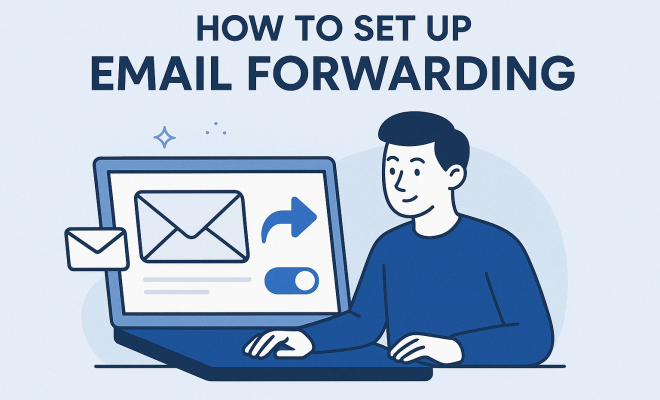
Email communication is integral to our daily lives, whether for work, personal use, or managing various online accounts. One feature that can streamline your email management is email forwarding. By setting up email forwarding, you can ensure that all your messages arrive at a single inbox, making your life significantly easier. In this comprehensive guide, we’ll dive into what email forwarding is, why it matters, and, most importantly, how to set it up effectively.
1. What is Email Forwarding?
Email forwarding is a service that sends incoming emails from one address to another, usually to a designated primary email account. For instance, if you have multiple email accounts, like a personal Gmail and a business Outlook account, email forwarding allows you to consolidate messages into one inbox. This not only simplifies your communication but also ensures that you never miss important correspondence.
Forwarding can be configured in various ways, including automatic forwarding, where all emails are redirected to another address, or selective forwarding, where only emails meeting specific criteria are forwarded. Understanding these options is crucial for setting up a system that works for you.
2. Why is Email Forwarding Important?
The digital world has made it common for individuals to manage multiple email accounts. Whether it’s due to job changes, personal preferences, or account creation for different purposes, the need for email forwarding has never been greater. Email forwarding not only helps in organizing your inbox but also saves time and prevents important messages from being overlooked.
Moreover, businesses benefit from email forwarding by enabling employees to receive messages sent to their former addresses, ensuring continuity in communication. This can be especially vital for customer service, support, and other client-facing roles where timely responses count.
3. Understanding Different Types of Email Forwarding
There are primarily two types of email forwarding: automatic forwarding and conditional forwarding. Automatic forwarding sends all incoming emails from one address to another without exception. This is ideal for someone looking to consolidate emails from an old account to a new one.
Conditional forwarding, on the other hand, allows users to set specific rules about which emails should be forwarded and which should not. For example, you might want to forward only emails from specific contacts or those that contain particular keywords. This can help you manage your inbox more effectively, preventing unnecessary clutter.
4. Step-by-Step Guide to Setting Up Email Forwarding
Setting up email forwarding can differ based on your email service provider, but the general principles remain largely the same. Whether you’re using Gmail, Outlook, or another service, here’s a straightforward guide:
For Gmail:
- Log into your Gmail account.
- Click on the gear icon in the top-right corner and select ‘See all settings.’
- Navigate to the ‘Forwarding and POP/IMAP’ tab.
- Click on ‘Add a forwarding address,’ enter the email you want to forward to, and follow the verification steps.
- Once verified, you can choose to keep Gmail’s copy in the inbox, archive it, or delete it.
- Save changes.
For Outlook:
- Open your Outlook account.
- Click on the gear icon and select ‘View all Outlook settings.’
- Choose ‘Mail’ > ‘Forwarding.’
- Enable forwarding, input the email address you want to forward to, and decide whether to keep a copy of forwarded messages.
- Save your settings.
The process for other email providers is similar—just locate the settings menu, find the forwarding option, and follow the prompts. Always watch for verification steps! (See: Email forwarding on Wikipedia.)
5. Best Practices for Email Forwarding Setup
To make the most of your email forwarding setup, consider these best practices:
- Keep Your Forwarding Address Updated: If your forwarding address changes, ensure you update it in your email settings to prevent lost messages.
- Limit Forwarding to Necessary Accounts: Forwarding emails from too many accounts can lead to confusion. Stick to essential emails that contribute to your streamlined communication.
- Monitor Your Inbox Regularly: Even with forwarding set up, periodically check your original accounts to catch any emails that might have slipped through.
- Use Filters: If your email service supports it, set up filters to manage incoming messages. This will help to categorize forwarded emails and reduce clutter.
- Be Cautious with Sensitive Content: If you’re forwarding emails that contain sensitive information, ensure that the receiving address is secure and that you trust it completely.
Following these best practices can enhance your email management and help maintain a professional appearance for communication.
6. Common Issues and Troubleshooting
Even with a simple email forwarding setup, issues can arise. Here are some common problems and how to troubleshoot them:
- Forwarded Emails Not Arriving: Ensure that the forwarding address is correct and that it hasn’t been blocked or filtered by the receiving server.
- Missing Emails: If emails are missing, check both sender and recipient spam folders, and verify the original account’s settings to ensure no filters are deleting them.
- Delayed Emails: Sometimes forwarding can take time, especially if the servers are busy. If delays persist, check for any announcements from your email service provider regarding outages or maintenance.
In most cases, these issues can be resolved by double-checking settings or consulting the support section of your email provider.
7. Email Forwarding vs. Email Aliases
While email forwarding is an excellent tool for consolidating communications, it’s important not to confuse it with email aliases. An email alias is an alternative address that directs to the same inbox but doesn’t actually create a new account. For example, you might have an alias like [email protected] that forwards to your main email.
The key differences lie in functionality and use cases. Email forwarding is more about redirecting messages from one account to another, while aliases allow users to present different email addresses without setting up separate accounts. Both options have their merits, depending on how you wish to manage your communications.
8. The Role of Email Forwarding in Business
Email forwarding is especially valuable for businesses, enhancing communication and streamlining operations. Companies often use forwarding to ensure that emails sent to generic addresses, like support@ or sales@, reach the appropriate team member. This helps in maintaining professionalism and ensuring that no customer queries go unanswered.
Furthermore, during transitions like employee departures or role changes, email forwarding can ensure continuity. By maintaining access to previous email addresses, businesses can prevent potential disruptions in communication. This is particularly critical for client-facing roles, where timely responses can significantly affect customer satisfaction.
9. Future Trends in Email Management
As technology evolves, so do our email management practices. AI-driven solutions and advanced filtering systems are emerging, promising to enhance the efficiency of email forwarding. These tools can help prioritize messages based on sender importance or keywords, making email management even more streamlined.
With data privacy becoming increasingly vital, secure and compliant email forwarding options are likely to gain traction. Businesses will need to ensure they not only manage emails effectively but also protect sensitive information. As these trends develop, staying informed will be key to optimizing your email practices.
10. Essential Tools for Email Forwarding
Using the right tools can significantly enhance your email forwarding experience. Here are some popular tools and services that can help you manage email forwarding more effectively:
- Google Workspace: If you’re using Gmail, Google Workspace offers robust features for business users, making it easy to set up and manage email forwarding for multiple users and domains.
- Microsoft 365: Microsoft Outlook is another powerful platform that includes comprehensive email forwarding options, allowing businesses to create rules that suit their communication needs.
- Zoho Mail: Zoho provides email services for businesses with advanced forwarding capabilities and impressive filtering options.
- Mailgun: For developers, Mailgun offers email forwarding solutions that can be integrated into applications, ensuring messages are routed correctly without manual intervention.
Choosing the right tool depends on your specific needs, whether personal or business-related. Evaluate features, costs, and compatibility with your existing systems before making a decision. (See: CDC email communication guidelines.)
11. Comparing Email Forwarding Services
When it comes to email forwarding, not all services are created equal. Here’s a quick comparison of three popular providers: Gmail, Outlook, and Yahoo Mail.
| Feature | Gmail | Outlook | Yahoo Mail |
|---|---|---|---|
| Automatic Forwarding | Yes | Yes | Yes |
| Conditional Forwarding | Yes | Yes | No |
| Integration with Other Services | Excellent | Good | Limited |
| Mobile App Functionality | Robust | Robust | Basic |
Gmail stands out with its excellent integration with other Google services, making it a favored choice for many users. Outlook offers substantial features suitable for professional environments, while Yahoo Mail, although still popular, may not provide as many advanced options for email forwarding.
12. Common Misconceptions About Email Forwarding
There are several misconceptions about email forwarding that can lead to confusion. Here are a few clarifications:
- Email Forwarding is Free: While many providers offer free email forwarding, some businesses may need premium features that incur costs.
- All Emails are Safe to Forward: Not all emails should be forwarded, especially those containing sensitive information. Always assess the content before forwarding.
- Email Forwarding is Complicated: Many people believe that setting up forwarding is technical and complicated. In reality, most providers make this process user-friendly and accessible.
Understanding these misconceptions can help you use email forwarding effectively without falling prey to common pitfalls.
13. Frequently Asked Questions about Email Forwarding
Here are some frequently asked questions regarding email forwarding:
What happens if I delete the original email after forwarding?
If you delete the original email after it has been forwarded, it won’t affect the forwarded copy in your primary inbox. Once an email is forwarded, it exists independently in the receiving account.
Can I forward emails from multiple accounts to one account?
Yes, you can set up email forwarding from multiple accounts to a single inbox. This is one of the primary benefits of using email forwarding, allowing you to manage communications from different accounts in one place.
Are there any limits to forwarding emails?
Most email providers have some limitations regarding the number of emails you can forward in a day or limits on the size of attachments. It’s best to check the specific policies of your email service.
How can I stop email forwarding?
To stop email forwarding, simply return to your email settings and disable the forwarding option. Make sure to save any changes. If you have filters or rules set up, check those as well to ensure forwarding is completely turned off.
Can forwarding affect email deliverability?
In some cases, forwarding can impact deliverability if the receiving server flags forwarded emails as spam. Keeping your forwarding settings organized and avoiding excessive forwarding can help maintain your email’s reputation and deliverability. (See: Email management strategies from NY Times.)
14. Advanced Email Forwarding Techniques
While basic email forwarding is fantastic for most users, you might explore advanced techniques to manage emails more efficiently. Here are some strategies worth considering:
- Using Rules for Custom Forwarding: Some email providers allow you to create complex rules for forwarding. For example, you can set rules to forward only emails from specific domains or with certain subject lines. This becomes particularly useful in business settings where you want to prioritize urgent communications.
- Time-Based Forwarding: Some users might find it beneficial to forward emails only during certain hours. For instance, if you’re on vacation or unavailable, you could set up a temporary forwarding rule to redirect emails to a colleague or assistant.
- Forwarding with a Delay: While this might seem counterintuitive, delaying email forwarding can be useful in certain scenarios. If you want to ensure that you’ve reviewed the emails before they’re sent out to another inbox, you can set up a delay in certain systems, adding an extra layer of control.
These advanced techniques can help you fine-tune how you manage your communications, making email forwarding a more tailored experience.
15. Case Studies: Email Forwarding in Action
Understanding how organizations use email forwarding can provide deeper insights into its benefits. Here are a few case studies:
- Case Study 1: A Freelance Graphic Designer
Emily, a freelance graphic designer, manages multiple clients through different email accounts. By utilizing email forwarding, she consolidates all client communications into her primary Gmail account. This approach minimizes missed messages and allows her to respond quickly, enhancing client satisfaction and retention. - Case Study 2: A Small Business Owner
John runs a small online store and initially used a generic email for customer service inquiries. After experiencing a high volume of emails, he implemented email forwarding to route messages to specific team members based on the subject line. This system improved response times and overall customer service quality. - Case Study 3: A Non-Profit Organization
A local non-profit organization uses email forwarding to manage communication from various volunteers. They set up an email forwarding system that directs inquiries to the appropriate department heads. As a result, they efficiently manage volunteer communications and improve engagement.
These examples highlight the flexibility and effectiveness of email forwarding across different scenarios, showcasing its universal applicability.
16. Email Forwarding Security Considerations
While email forwarding is a convenient tool, security cannot be overlooked. Here are some considerations to keep in mind to protect your information:
- Use Secure Connections: Always ensure that both the sending and receiving email services support secure connections (e.g., HTTPS or TLS). This encryption helps protect your emails during transit.
- Be Wary of Phishing Attempts: Forwarded emails can sometimes be used in phishing attempts. Always verify the source of emails before responding or clicking on links, especially if they seem suspicious.
- Password Management: Regularly update your passwords and enable two-factor authentication (2FA) where possible. This adds an additional layer of security to both your primary and forwarding email accounts.
By staying vigilant and implementing these security measures, you can enjoy the benefits of email forwarding while minimizing potential risks.
Email forwarding setup is not just a convenient feature; it can be a powerful tool for managing your digital life. By understanding its functionality, types, and best practices, you can take control of your inbox and streamline your communication effectively. Whether you’re an individual looking to simplify your personal email or a business striving for seamless communication, mastering email forwarding can make all the difference.
“`
Trending Now
Frequently Asked Questions
What is email forwarding?
Email forwarding is a service that redirects incoming emails from one address to another, typically to a primary email account. This feature allows users to consolidate messages from multiple accounts into a single inbox, simplifying email management and ensuring important messages are not missed.
Why is email forwarding important?
Email forwarding is crucial for managing multiple email accounts efficiently. It helps organize your inbox, saves time, and ensures that important communications are not overlooked. For businesses, it allows continuity by forwarding messages sent to former employee addresses, which is vital for customer service.
How do I set up email forwarding?
To set up email forwarding, access the settings of your email service provider. Look for the forwarding option, enter the email address you want your messages to be forwarded to, and save the changes. Some services offer options for automatic or selective forwarding based on specific criteria.
Can I forward emails from multiple accounts?
Yes, you can forward emails from multiple accounts to a single inbox. Most email providers allow you to set up forwarding for each account individually, enabling you to consolidate all your communications into one primary email address for easier management.
What are the types of email forwarding?
There are generally two types of email forwarding: automatic forwarding, where all incoming emails are redirected to another address, and selective forwarding, where only specific emails that meet certain criteria are forwarded. Understanding these options helps tailor the forwarding setup to your needs.
Have you experienced this yourself? We’d love to hear your story in the comments.