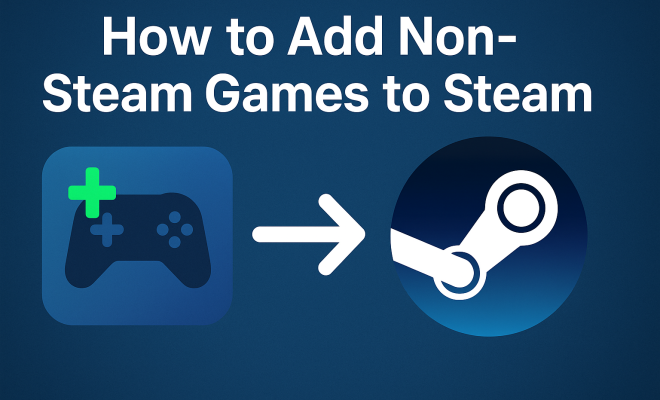
How to add nonSteam games to Steam
“`html
For gamers, Steam is more than just a platform—it’s a gateway to an expansive library of games, an active community, and a multitude of features that enhance gameplay. But what if you have games outside this ecosystem? The good news is that you can add nonSteam games to Steam, bringing them into one convenient location and making it easier than ever to manage your gaming experience. In this article, we’ll explore how to do this effectively, why you might want to, and some tips to ensure everything runs smoothly.
1. Understanding Steam’s Library
Steam, developed by Valve Corporation, is a digital distribution platform that allows users to purchase, download, and play games. Its library includes a vast array of titles, from independent games to AAA blockbusters. One reason gamers prefer Steam is the ability to manage their collections in one place, enjoying features like cloud saves, achievements, and social interactions. However, many players have non-Steam games they wish to add to this ecosystem.
Adding nonSteam games can streamline your gaming experience. It allows you to launch all your favorite titles from a single interface, taking advantage of Steam’s features for those games as well. Whether you’re playing a smaller indie game, a title from another digital store, or even an older game installed directly from a disk, adding them to Steam can save time and enhance usability.
2. Why Add Non-Steam Games?
There are several benefits to adding nonSteam games to Steam that every gamer should consider. Firstly, the organization factor is significant. If you have multiple games spread across various platforms, having them all accessible through Steam simplifies your gaming sessions. You can avoid the hassle of jumping between different launchers.
Secondly, Steam offers features that enhance gameplay. By adding your nonSteam titles, you can benefit from the Steam Overlay, which allows you to chat with friends, take screenshots, and even stream your gameplay. Furthermore, Steam’s Big Picture mode provides an excellent interface for playing games on a TV, making it easier to game from your couch.
3. The Basics: How to Add Non-Steam Games
Adding nonSteam games to your Steam library is a straightforward process. Here’s a step-by-step guide to get you started:
- Open Steam and log into your account.
- In the top menu, click on the “Games” tab.
- Select “Add a Non-Steam Game to My Library.”
- A new window will pop up, listing all the applications on your computer. Browse through this list to find the game you want to add.
- Check the box next to the game, then click “Add Selected Programs.”
Once completed, your nonSteam game will appear in your Steam library. While this makes it accessible, you may need to tweak some settings for optimal performance.
4. Optimizing Your Non-Steam Game Launch Options
After adding a nonSteam game to your Steam library, you might want to customize how it launches. To do this, right-click on the game in your library and select “Properties.” In the General tab, you can use the “Launch Options” field to enter specific commands that could enhance performance or modify how the game runs.
For example, if the game supports specific resolutions or launch parameters, you can enter those here. Additionally, if you’re using mods or specific settings, this is where you can specify them before you launch the game. Being able to tweak these options can significantly improve your gaming experience.
5. Dealing with Compatibility Issues
Sometimes, when you add nonSteam games to Steam, you might encounter compatibility issues. This can happen with older games or those that require specific settings to run correctly. If you find that your game doesn’t launch or runs poorly, consider checking the following: (See: Steam digital distribution platform.)
- System Requirements: Make sure your PC meets the game’s minimum requirements.
- Compatibility Mode: Right-click the game executable, go to Properties, then the Compatibility tab to run the game in compatibility mode for older versions of Windows.
- DirectX and Visual C++ Redistributables: Ensure that your system has the necessary DirectX version and Visual C++ Redistributables that the game might depend on.
By taking these steps, you can address most compatibility issues and enjoy your nonSteam games seamlessly.
6. Using Steam’s Overlay with Non-Steam Games
One of the most significant advantages of adding nonSteam games to Steam is the opportunity to use the Steam Overlay. This feature enables players to access community features without leaving the game. However, not all nonSteam games are compatible with the overlay. To check if your added game supports this feature, simply launch the game from your Steam library.
If the overlay is working, you can chat with friends, look at guides, and take screenshots. For those who value multiplayer gaming or community interaction, this can significantly enrich the gameplay experience. If the overlay doesn’t activate, you may have to adjust the game’s properties to ensure compatibility.
7. Managing Game Updates and Patches
When you add nonSteam games to Steam, it’s essential to remember that Steam doesn’t automatically handle updates for those games. This means you’ll need to manage updates manually. Some games, especially those downloaded from other platforms or websites, may have their update mechanisms. Be sure to regularly check for any patches that improve performance or fix bugs.
To do this efficiently, consider joining community forums or checking the official website for the game. Keeping your titles up to date ensures you have the best possible experience and reduces the risk of encountering issues related to outdated software.
8. Exploring Steam Features with Non-Steam Games
By adding nonSteam games to Steam, you can leverage many of the platform’s unique features. For example, Steam Cloud saves allow you to store game progress online, making it accessible from different devices. This is especially useful for games that may not have cloud save functionality on their own.
In addition, if you’re a fan of achievements, you can track your progress for your nonSteam games in a similar way to Steam titles. While not every nonSteam game will have integrated achievements, you can still set personal goals or milestones. This can add a layer of motivation and enjoyment to your gaming sessions.
9. Advanced Customization: Adding Shortcuts and Icons
Once you’ve added your nonSteam games, you may want to take it a step further by customizing how they appear in your library. Steam allows you to change the icons and names of your nonSteam games for better personalization. To do this:
- Right-click on the game in your library and select “Properties.”
- In the Properties window, look for the options to change the game’s name or upload a custom icon. This can help differentiate your games visually.
Using distinct icons can make it easier to find your games at a glance, especially if you have a large library. It’s a small touch, but it contributes to a more enjoyable and tailored gaming experience.
10. Comparing Steam with Other Platforms for Non-Steam Games
While Steam is a powerful platform for managing games, other services also provide similar functionalities. It’s worth comparing Steam with other platforms like Epic Games Store, Origin, and GOG Galaxy when considering adding nonSteam games. Here’s a brief overview: (See: CDC Youth Risk Behavior Survey.)
- Epic Games Store: While the Epic Games Store is primarily focused on its library, it also allows users to add non-Epic games. However, its features are not as robust as Steam’s, particularly when it comes to social features and customizations.
- Origin: Origin from Electronic Arts allows you to add non-Origin games too. Yet, it lacks the universal access to features like Steam Workshop or the extensive user community found on Steam.
- GOG Galaxy: GOG Galaxy offers a strong integration feature that supports adding games from other platforms, including Steam. It’s designed for users who want a more unified gaming experience, but it might not have the same level of game discovery as Steam.
Ultimately, it depends on personal preference and the specific features you value as a gamer. Each platform has its own strengths and weaknesses, so it may be worth exploring alternatives if you’re actively using multiple services for your gaming library.
11. Frequently Asked Questions (FAQs)
Can I add any game to Steam, or are there restrictions?
You can add most nonSteam games to your Steam library. However, some games may have unique launch requirements or may not work well with the Steam Overlay. It’s best to test each game individually.
How do I know if a nonSteam game will work with the Steam Overlay?
To determine if the Steam Overlay works with your nonSteam game, try launching it from your Steam library. If the overlay activates (you’ll see the Steam interface), it’s compatible. If not, you may need to adjust settings or check community forums for compatibility reports.
What if my nonSteam game is not showing up in the list to add?
If your game does not show up in the list, ensure that it’s installed on your computer and is recognized by your operating system. You can also try navigating directly to the game’s executable file via the “Browse” option when adding a nonSteam game.
Can I use mods with my nonSteam games once added?
Yes, you can still use mods with your nonSteam games after adding them to Steam. Depending on how the game handles mods, you might need to adjust launch options or install mods through specific mod management tools.
Is there a limit to how many nonSteam games I can add?
There’s no official limit to how many nonSteam games you can add to your Steam library. However, performance may vary based on your system specifications, so consider the capacity of your hardware when adding a large number of games.
Do my nonSteam games benefit from Steam sales or discounts?
No, sales and discounts are exclusive to games purchased through the Steam store. However, adding nonSteam games to your library allows you to track and organize them alongside your Steam purchases, making it easier to manage your entire collection.
How can I troubleshoot issues with nonSteam games in Steam?
If you encounter problems with nonSteam games, first check for updates from the original source of the game. You can also consult the Steam community forums for similar issues or specific fixes shared by other users. Additionally, consider verifying the integrity of the game files if they’re available through another platform.
12. Benefits of Community Integration
One of the unique aspects of Steam is its vibrant community. By adding nonSteam games, you gain access to community hubs where players discuss strategies, tips, and modding options. This connection can lead to a deeper understanding of the game you’re playing and can help you discover new content, such as fan-made mods or enhancements that can elevate your gaming experience. (See: New York Times on Steam gaming trends.)
Additionally, many games have dedicated forums where players share user-generated content. Engaging in these forums can enhance your experience by giving you insights into gameplay tips, mod recommendations, and troubleshooting advice from fellow gamers. Community support often proves invaluable, especially for lesser-known titles or indie games.
13. Understanding the Legal Implications
Before adding nonSteam games, it’s wise to consider the legal implications of modifying or integrating games into another platform. Generally, as long as you own the game and adhere to its licensing agreements, you should be safe. However, some titles may have restrictions on the use of mods or redistribution.
Always ensure you respect copyright laws and the terms of service for each game. This includes knowing whether a game can be legally modified or shared. Some developers embrace modding communities, while others may not allow any alterations. Knowing where your game stands can prevent potential issues down the line.
14. Advanced Tips for Power Users
For those who like to dig deeper into their gaming experience, consider using third-party tools that can enhance your nonSteam games. Tools like “Steam Grid DB” allow you to create custom artwork for your nonSteam games, making your library visually appealing. This tool pulls game art from a community-driven database, giving your library a polished look.
Another advanced tip involves the use of scripts or batch files that can automate certain processes when launching games. For instance, if your game requires specific settings to be adjusted before you launch, you can create a batch file to handle this. When you launch the game through Steam, it can run the script beforehand, ensuring you always play under the correct conditions.
15. Final Thoughts: Enhancing Your Gaming Experience
Adding nonSteam games to Steam can be a simple yet transformative step for any gamer. It allows for better organization, access to Steam’s features, and an overall enhanced gaming experience. Whether you’re a casual player or a hardcore gamer, having all your titles in one library makes it easier to dive into gaming whenever you want.
As you explore this integration, remember to keep your games updated, optimize launch options, and enjoy the benefits of Steam’s community features. The world of gaming is vast, and with Steam, you can bring all your favorite titles together, regardless of where they originated. Embrace the full potential of your gaming library and enjoy every moment of your gaming adventures. Happy gaming!
“`
Trending Now
Frequently Asked Questions
How do I add non-Steam games to my Steam library?
To add non-Steam games to your Steam library, open Steam and go to the 'Library' section. Click on 'Add a Game' in the bottom left corner, then select 'Add a Non-Steam Game'. Browse your computer to find the game executable file and add it. This allows you to access and launch your non-Steam games directly from Steam.
Why should I add non-Steam games to Steam?
Adding non-Steam games to Steam helps streamline your gaming experience by consolidating all your titles in one place. You can utilize Steam's features like cloud saves, achievements, and the Steam Overlay for chat and screenshots, making it easier to manage and enjoy your gaming sessions.
Can I use Steam features with non-Steam games?
Yes, when you add non-Steam games to your Steam library, you can use various Steam features such as the Steam Overlay, which allows you to chat with friends, take screenshots, and access community features, enhancing your overall gameplay experience.
What types of games can I add to Steam?
You can add a wide variety of non-Steam games to Steam, including indie titles, games from other digital stores, and even older games installed from physical disks. As long as you can locate the game's executable file, you can include it in your Steam library.
Is it easy to organize non-Steam games in Steam?
Yes, organizing non-Steam games in Steam is straightforward. By adding them to your library, you can access all your games from one interface, making it easier to find and launch them without switching between multiple gaming platforms or launchers.
What did we miss? Let us know in the comments and join the conversation.