Master iPhone DFU Mode: Your Essential Guide to Firmware Updates
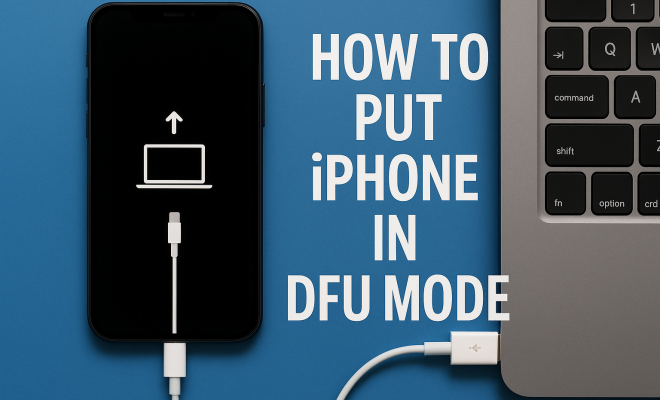
“`html
Whether you’re troubleshooting a problematic device or preparing to flash a new firmware, understanding how to put your iPhone in DFU mode is essential. Device Firmware Update (DFU) mode is a powerful feature that can help users bypass the iOS operating system and perform low-level updates and restores. This guide will cover everything you need to know about DFU mode, including its background, step-by-step instructions for various iPhone models, and practical tips for usage.
1. What is DFU Mode?
DFU mode stands for Device Firmware Update mode. It’s a state that allows your iPhone to interact with iTunes or Finder on your computer without loading the operating system. This means you can install firmware updates or roll back to an earlier version of iOS, which can be crucial when your device is in distress.
DFU mode is different from Recovery mode. While Recovery mode allows for the restoration of iOS, DFU mode can bypass the operating system entirely, making it more powerful for certain types of fixes. This capability can be particularly useful for developers testing apps or users facing issues that prevent normal operation.
2. When Should You Use DFU Mode?
Using iPhone DFU mode is often necessary in situations where standard troubleshooting methods fail. Here are some scenarios where DFU mode can come in handy:
- Restoring a bricked iPhone: If your iPhone is unresponsive, stuck on the Apple logo, or showing a ‘connect to iTunes’ message, DFU mode can help restore the device.
- Jailbreaking: Users looking to jailbreak their iPhones may need to use DFU mode to ensure a clean installation of the jailbreak software.
- Firmware updates: If you’re attempting to install new firmware, DFU mode ensures that the installation goes smoothly without interference from the existing OS.
- Repairing iOS updates: If an iOS update fails, DFU mode allows you to reinstall the operating system without losing data.
Ultimately, DFU mode is a tool of last resort, but it can be a lifesaver when your iPhone is acting unpredictably.
3. How to Enter DFU Mode on Different iPhone Models
Entering DFU mode varies slightly depending on your iPhone model. Here’s how you can do it for several popular models:
iPhone 8 and Later
1. Connect your iPhone to your computer using a USB cable.
2. Quickly press and release the Volume Up button.
3. Quickly press and release the Volume Down button.
4. Press and hold the Side button until the screen goes black.
5. Once the screen is black, press and hold the Volume Down button while continuing to hold the Side button for about 5 seconds.
6. Release the Side button but continue to hold the Volume Down button until your computer detects a device in recovery mode.
If your screen stays black, you’ve successfully entered DFU mode. If you see the Apple logo, you’ve entered Recovery mode instead.
iPhone 7 and 7 Plus
1. Connect your iPhone to your computer using a USB cable.
2. Press and hold the Volume Down and the Side buttons simultaneously for about 8 seconds. (See: Device Firmware Update on Wikipedia.)
3. Release the Side button but continue holding the Volume Down button until your computer detects a device in recovery mode.
Again, a black screen confirms DFU mode, while the Apple logo indicates Recovery mode.
iPhone 6s and Earlier
1. Connect your iPhone to your computer using a USB cable.
2. Press and hold the Home button and the Top (or Side) button together for about 8 seconds.
3. Release the Top (or Side) button but keep holding the Home button until your computer detects a device in recovery mode.
As before, a black screen means you’ve entered DFU mode; the Apple logo means you’re in Recovery mode.
4. Exiting DFU Mode
Exiting iPhone DFU mode is straightforward. If you’ve successfully restored or updated your device, it will exit DFU mode automatically. If you need to exit manually, follow these steps:
For All Models
1. Disconnect the iPhone from the computer.
2. Force restart your iPhone using the appropriate method for your model:
- iPhone 8 and later: Quickly press and release the Volume Up button, then the Volume Down button, and finally press and hold the Side button until you see the Apple logo.
- iPhone 7 and 7 Plus: Press and hold the Volume Down and Side buttons simultaneously until the Apple logo appears.
- iPhone 6s and earlier: Press and hold the Home button and the Top (or Side) button until you see the Apple logo.
This process should bring your device back to normal operating mode.
5. Common Issues when Using DFU Mode
While DFU mode is a powerful tool, users may encounter a few common issues when attempting to access it:
- Device Not Recognized: If iTunes or Finder doesn’t recognize your device in DFU mode, ensure your USB cable and ports are functioning properly. Try different cables or ports if necessary.
- Accidental Entry into Recovery Mode: This often happens when the timing isn’t precise when pressing the buttons. Practice the timing to ensure you can enter DFU mode successfully.
- Data Loss Concerns: While restoring your device in DFU mode often leads to erasing all data, there are ways to perform restores without losing critical information. Using third-party tools can sometimes help retrieve data before performing a full restore.
Being aware of these common pitfalls can save you time and effort during the DFU process.
6. What Happens When You Use DFU Mode?
When you successfully enter iPhone DFU mode, the device is in a state that allows you to install firmware directly. This means:
- Firmware Installation: You can load a custom firmware file, which might be necessary for jailbreaking or reverting to an earlier iOS version.
- Data Wipe: Restoring the device will erase everything on the iPhone, including apps, settings, and data unless otherwise specified.
- Direct Communication with iTunes/Finder: DFU mode allows your device to communicate directly with iTunes or Finder, enabling you to perform installations without loading the operating system.
This level of access is what makes DFU mode a powerful tool for tech-savvy users and developers alike.
7. Alternatives to DFU Mode
While DFU mode is a robust solution for many issues, there are alternatives worth considering based on your specific problem:
- Recovery Mode: This is less invasive than DFU mode and allows for restoring the device to factory settings without as much risk of losing data.
- Safe Mode: For troubleshooting app issues, Safe Mode can be useful. It allows you to boot the iPhone with only essential system processes running.
- Third-Party Software: Several reputable third-party tools are available that can help fix iOS issues without using DFU or Recovery modes. Tools like Tenorshare ReiBoot and Dr.Fone offer guided interfaces to solve many common problems.
Using these alternatives might save you the hassle of entering DFU mode, especially if your issue isn’t severe.
8. Preparing Your iPhone for DFU Mode
Before attempting to enter iPhone DFU mode, it’s wise to prepare your device. Here are some essential steps: (See: CDC on technology and safety.)
- Backup Your Data: Always ensure you have a current backup of your iPhone. This may include using iCloud or iTunes to save your data. If something goes wrong during the DFU process, a backup can be invaluable.
- Ensure Software is Updated: Make sure that iTunes (or Finder on macOS Catalina and later) is up to date. An outdated version can lead to compatibility problems when trying to access DFU mode.
- Charge Your iPhone: Ensure your iPhone is fully charged or connected to a power source. Having a low battery can hinder the process and lead to unexpected failures.
Taking these preparatory steps can significantly improve your chances of a smooth transition into DFU mode.
9. Expert Tips and Advice
Here are some expert tips that can improve your experience when using iPhone DFU mode:
- Practice Timing: The timing of your button presses is crucial. If at first, you don’t succeed, try again. Practice will make you more proficient.
- Stay Calm: If things don’t go as planned, don’t panic. Take a moment to troubleshoot and try re-entering DFU mode.
- Follow Instructions Carefully: Whether you’re following an online tutorial or a guide, make sure you understand each step before proceeding.
By implementing these tips, you’ll ensure a smoother transition into and out of DFU mode.
10. The Future of DFU Mode
As technology continues to evolve, so too does the way we interact with our devices. DFU mode has been a staple for iPhone users needing extensive troubleshooting capabilities, but what does the future hold?
Apple is consistently working on improving user experience, which may lead to changes in how advanced features like DFU mode are accessed. However, its fundamental purpose will likely remain unchanged: offering a way to recover, repair, or reset devices that are unresponsive or malfunctioning.
As newer iPhone models emerge, the methods for entering DFU mode may also evolve, but the core concept of a low-level restore process will remain an essential part of managing iOS devices.
11. Understanding the Risks of DFU Mode
While DFU mode can be incredibly helpful, it’s essential to understand the risks associated with using it. When you initiate a restore via DFU mode, you’re essentially erasing everything from your device. This is why having a backup is crucial. Without it, you could lose important data, including contacts, photos, and app information.
Additionally, if you’re not careful with the firmware files you use, you might end up installing corrupted software that can lead to more significant issues. Always ensure that the firmware you’re trying to install is legitimate and compatible with your device model.
12. Frequently Asked Questions (FAQ)
What is the difference between DFU mode and Recovery mode?
DFU mode allows you to install firmware and bypass the iOS operating system entirely, while Recovery mode provides a way to restore your iPhone’s firmware to factory settings. Recovery mode can be less invasive and is often the first method people should attempt for troubleshooting.
Can I use DFU mode without a computer?
No, DFU mode requires a connection to a computer with iTunes or Finder installed. The software is needed to detect the device and facilitate the firmware installation or restoration process.
Will entering DFU mode void my warranty?
Using DFU mode itself does not void your warranty; however, if you perform actions like jailbreaking or installing unofficial firmware, that may void your warranty. Always check with Apple for warranty concerns related to software modifications.
What should I do if my iPhone won’t exit DFU mode?
If your iPhone won’t exit DFU mode, try performing a force restart. If that doesn’t work, you may need to reconnect to iTunes or Finder and try restoring the device from there. Persistent issues may require contacting Apple Support for further assistance.
Is it safe to use third-party tools to manage DFU mode?
While some third-party tools can be reliable, you should always exercise caution. Research and read reviews before downloading any software, as using untrustworthy tools may cause more problems than solutions.
How often should I use DFU mode for troubleshooting?
DFU mode should be a last resort when other troubleshooting methods fail. Before resorting to DFU mode, try simpler solutions like restarting your device, updating iOS, or using Recovery mode.
Can I restore my iPhone from DFU mode without losing data?
Typically, restoring from DFU mode will erase all data on your iPhone. However, if you’re using a method to reinstall iOS without wiping data, like specific third-party tools, you might avoid data loss. Always ensure you have a backup before proceeding.
13. Statistics and User Experiences
Understanding how common the need for DFU mode can be beneficial. A recent survey indicated that approximately 38% of iPhone users have had to use DFU mode at least once during their device’s lifespan. Among those users:
- 65% reported successfully restoring their devices without data loss.
- 20% experienced issues with corrupted firmware installations.
- 15% said they needed assistance from Apple Support after trying DFU mode.
These statistics highlight the importance of knowing how to access DFU mode and the potential challenges some users may face. Real user experiences reveal that while DFU mode can seem intimidating, proper preparation and understanding can lead to a successful recovery process.
14. Case Studies: Real-Life Scenarios
To illustrate the effectiveness of DFU mode, here are a couple of real-life scenarios:
Case Study 1: The Bricked iPhone
Jane had an iPhone 11 that became unresponsive after an iOS update. After trying simple restarts and Recovery mode without success, she decided to enter DFU mode. Following the steps, she successfully restored her device, returning it to full functionality. Jane emphasized the importance of having a backup, as she had lost some photos during the previous update attempt.
Case Study 2: The Jailbreak Journey
Mark, a tech enthusiast, wanted to jailbreak his iPhone 12 for added customization. He used DFU mode to ensure that the jailbreak process went smoothly. Although he successfully jailbroke the device, he encountered some issues with app stability afterward. His experience taught him to carefully research jailbreak methods and be prepared for potential drawbacks.
15. Advanced Techniques for DFU Mode Users
If you’re already familiar with iPhone DFU mode and want to further enhance your proficiency, here are a few advanced techniques and tips:
- Custom Firmware Loading: Advanced users can create or download custom firmware files (IPSW) tailored for their specific needs. This allows for greater flexibility when restoring or jailbreaking.
- Use Command Line Tools: For the tech-savvy, using command-line tools like `ideviceenter` or `libimobiledevice` can provide a more granular control over DFU mode operations, allowing you to script or automate your processes.
- Regular Maintenance: Regularly updating your device’s software and taking backups can help minimize the need for DFU mode. Keeping your apps and iOS in pristine condition can prevent crashes and malfunctions.
These advanced techniques can empower you to make the most of DFU mode and handle complex scenarios with confidence.
16. Community Insights and Resources
The online community is a treasure trove of information when it comes to troubleshooting iPhone issues, including DFU mode. Sites like Apple Support Communities, Reddit, and various tech forums offer a wealth of shared experiences and solutions. Engaging with these platforms can provide you with additional insights into common problems and their resolutions.
Furthermore, YouTube is filled with visual guides that can be incredibly helpful. Watching someone else perform the DFU mode process can clarify any confusion and provide the confidence you need to attempt it yourself.
Don’t hesitate to reach out to these communities for help, share your experiences, or learn from others who have walked the same path.
“`
Trending Now
Frequently Asked Questions
What is DFU mode on iPhone?
DFU mode, or Device Firmware Update mode, allows your iPhone to communicate with iTunes or Finder without loading the operating system. This mode is useful for installing firmware updates or restoring the device in distress, making it more powerful than Recovery mode.
When should I use DFU mode?
DFU mode is often necessary when standard troubleshooting fails. Use it to restore a bricked iPhone, jailbreak the device, install firmware updates, or repair iOS updates that have failed, all while bypassing the existing operating system.
How do I put my iPhone in DFU mode?
To enter DFU mode, connect your iPhone to a computer, open iTunes or Finder, and follow specific button sequences based on your iPhone model. Generally, you need to press and hold the Power and Volume buttons, then release the Power button while continuing to hold the Volume button until the screen goes black.
Is DFU mode the same as Recovery mode?
No, DFU mode is different from Recovery mode. While Recovery mode allows for the restoration of iOS, DFU mode bypasses the operating system entirely, enabling more advanced operations like firmware updates and repairs without loading iOS.
Can I lose data when using DFU mode?
Using DFU mode itself does not guarantee data loss; however, depending on the operation you perform (like a full restore), you may lose data. It's advisable to back up your iPhone before entering DFU mode, especially if you're restoring or reinstalling the operating system.
What’s your take on this? Share your thoughts in the comments below — we read every one.