How to AirPlay from iPhone to TV
“`html
In today’s digital age, sharing content has never been easier, especially with the seamless integration of devices. One of the most effective methods to stream content from your iPhone to your TV is through AirPlay. Whether you want to showcase vacation photos, stream movies, or play music, AirPlay offers a straightforward way to enhance your viewing experience. In this guide, we’ll explore the ins and outs of how to AirPlay iPhone to TV, ensuring you can enjoy your content on the big screen without a hitch.
1. Understanding AirPlay Technology
AirPlay is a proprietary protocol suite developed by Apple Inc. that allows wireless streaming between devices. It was first launched in 2010 under the name AirTunes, focusing on audio streaming, but it evolved to support video as well. Today, AirPlay enables users to stream music, video, and photos from their Apple devices to compatible smart TVs and speakers.
Using AirPlay means you don’t need to rely on cables or complicated setups. Instead, it creates a local network, facilitating the transfer of data between your iPhone and your TV. With the introduction of AirPlay 2, users can now enjoy additional features such as multi-room audio and enhanced buffering capabilities, making it a favorite among Apple users.
2. Compatibility: What You Need
Before attempting to AirPlay your iPhone to your TV, ensuring compatibility is crucial. Most modern smart TVs are compatible with AirPlay, including models from brands like Samsung, LG, Sony, and Vizio. However, if your TV doesn’t support AirPlay natively, you can still use an Apple TV as an intermediary device, which will allow you to stream content from your iPhone seamlessly.
Your iPhone must also be updated to the latest iOS version to take advantage of all the features AirPlay has to offer. As a general rule, ensure both your iPhone and your TV (or Apple TV) are connected to the same Wi-Fi network, because AirPlay relies on this network to function correctly. Without this connection, your devices will not be able to communicate.
3. How to Set Up AirPlay on Your iPhone
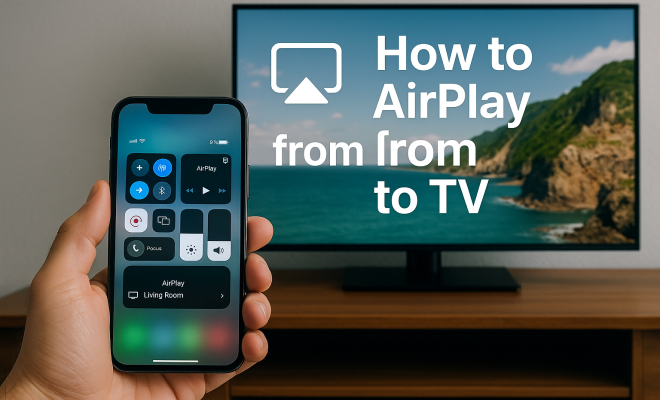
Setting up AirPlay on your iPhone is a breezy process. Start by ensuring your iPhone is connected to the same Wi-Fi network as your TV or Apple TV. Then, unlock your iPhone and swipe down from the upper-right corner of the screen to access the Control Center. If you’re using an iPhone with a Home button, swipe up from the bottom of the screen.
In the Control Center, look for the “Screen Mirroring” or “AirPlay” icon, usually depicted as two overlapping rectangles. Tapping this icon will present you with a list of available devices. Select your TV or Apple TV from the list. If prompted, enter the code displayed on your TV screen into your iPhone to establish the connection. That’s it! Your iPhone is now set up to AirPlay to your TV.
4. Streaming Video Content
Streaming video content from your iPhone to your TV using AirPlay is one of the most popular uses of this feature. Whether you’re binge-watching your favorite series on Netflix or enjoying a YouTube video, the process is quite similar. Open the app that has the content you want to watch, and start playing the video.
Once the video is playing, tap on the AirPlay icon, usually found in the video player controls. This will enable you to select your TV or Apple TV for streaming. After a moment, the video will begin playing on your big screen, allowing you to enjoy a cinematic experience right from your iPhone. Remember, if you wish to stop streaming, just tap the AirPlay icon again and select “iPhone” to return to using your device.
5. Streaming Music and Podcasts
AirPlay isn’t just for videos; it’s also perfect for music and podcasts. If you’re hosting a party or just want to enjoy your favorite tunes, AirPlay makes it effortless. For music streaming, open your preferred music app, such as Apple Music or Spotify, and start playing a song. (See: AirPlay technology overview.)
Tap the AirPlay icon in the music player interface and select your TV or Apple TV from the list. The audio will now play through your TV’s speakers. This feature can also support multi-room audio, allowing you to stream music simultaneously to multiple speakers if you have compatible devices set up in different rooms. This makes AirPlay an excellent choice for creating an immersive sound environment.
6. Mirror Your iPhone Screen
Sometimes, you’ll want to mirror your entire iPhone screen rather than just stream specific content. This is particularly useful for presentations, gaming, or showing off photos. To start screen mirroring, open the Control Center as discussed earlier, and tap on the “Screen Mirroring” option.
Select your TV or Apple TV, and your iPhone screen will appear on the big screen. This feature allows you to demonstrate apps, photos, or anything else on your iPhone in real-time. Just keep in mind that there may be slight input lag, especially if you’re playing fast-paced games, so it’s best used for casual viewing and presentations rather than competitive gaming.
7. Troubleshooting Common Issues
Even with the ease of AirPlay, users may encounter some common issues. One frequent problem is that the iPhone and TV aren’t connecting. Ensure both devices are on the same Wi-Fi network, as mismatches can prevent them from recognizing each other. If they still aren’t connecting, try restarting both your iPhone and your TV.
Another issue could be lag or buffering during streaming. This can often be rectified by checking your Wi-Fi connection. If your Wi-Fi is weak, consider moving closer to the router or reducing the number of devices connected to your network. Finally, make sure your iPhone and TV software is up to date, as outdated software can sometimes lead to connectivity issues.
8. Advanced Features of AirPlay 2
With the introduction of AirPlay 2, Apple brought several advanced features that enhance the user experience. One of the standout capabilities is the ability to stream audio to multiple devices simultaneously. This means you can use AirPlay 2 to play music not just on your TV but also on compatible speakers throughout your home. Imagine hosting a gathering where your favorite playlist is perfectly synced across various rooms, creating an immersive soundscape.
AirPlay 2 also introduces improved buffering, which means less lag and interruptions during playback. This is particularly beneficial when streaming high-definition content, as it ensures a smoother viewing experience. If you’re a music lover, the ability to control playback on different devices from a single interface makes it easier to switch up the ambiance as needed.
9. Exploring Alternative Streaming Solutions
While AirPlay is a fantastic option for Apple users, it’s worth noting that there are alternative solutions available for streaming content to your TV. Chromecast, for instance, is a popular platform that allows users to cast content from Android or iOS devices to their TVs. Similarly, Roku devices offer a variety of streaming methods, including screen mirroring and casting from mobile devices.
Each platform has its strengths and weaknesses. Chromecast’s integration with Google services allows for voice command capabilities through Google Assistant, making it a versatile choice for those who prefer hands-free control. On the other hand, Roku tends to have a broader range of streaming channels available, which can be appealing if you’re looking for content variety.
10. FAQ: Common Questions About AirPlay
What is AirPlay?
AirPlay is a streaming protocol by Apple that allows users to stream audio and video content from one device to another, such as from an iPhone to a TV or speaker. (See: CDC's media release on AirPlay.)
Can I use AirPlay without Wi-Fi?
Unfortunately, AirPlay requires a Wi-Fi connection to function. However, if both devices support peer-to-peer AirPlay, you can connect them directly without a traditional Wi-Fi network, although this feature is limited and may not work with all devices.
Do I need an Apple TV to use AirPlay?
No, you don’t necessarily need an Apple TV. Many modern smart TVs have AirPlay built-in, allowing for direct streaming from your iPhone. However, an Apple TV can enhance the experience and provide additional features.
Why is my AirPlay not working?
Common reasons for AirPlay issues include both devices not being on the same Wi-Fi network, outdated software, or interference from other devices. Restarting your devices often resolves connectivity problems.
Is AirPlay available on all Apple devices?
Most modern Apple devices, including iPhones, iPads, and Macs, support AirPlay. Ensure your device is updated to the latest iOS or macOS version for the best experience.
Can I stream videos from third-party apps using AirPlay?
Yes, many third-party apps support AirPlay. Apps such as Netflix, Hulu, and YouTube all include AirPlay functionality to stream videos directly to your TV.
11. Using AirPlay for Gaming
If you’re a gamer, you’ll be pleased to know that AirPlay can also be used for playing games on the big screen. Many iOS games support screen mirroring, allowing you to enjoy your gaming experience with larger visuals. To use AirPlay for gaming, simply start the game on your iPhone and follow the same steps to mirror your screen to your TV.
Do note, though, that there may be some input lag depending on your Wi-Fi connection and the speed of your network. This makes AirPlay great for casual gaming but perhaps not ideal for fast-paced competitive games where milliseconds can make a difference.
Take advantage of AirPlay by hosting game nights with friends, where everyone can gather around the TV to enjoy multiplayer games. It can turn a simple game into a fun social event, allowing everyone to be part of the action.
12. Creating a Home Theater Experience with AirPlay
For those who love movies, AirPlay can help create an impressive home theater experience. By combining your iPhone with a compatible smart TV or Apple TV, you can watch movies in a way that rivals the cinema. Start by ensuring that your TV has a high-definition display and good sound system. The combination of quality visuals and sound will elevate your viewing experience.
Utilize AirPlay to stream movies from various platforms, including Netflix, Disney+, and Amazon Prime Video. Just make sure you have the appropriate subscriptions. You can even use AirPlay to stream from your iTunes library if you have a collection of movies stored there.
Consider setting the mood by dimming the lights and arranging comfortable seating. You can even prepare snacks to enhance your movie-watching experience. With AirPlay, you can enjoy a wide range of content, from classic films to the latest releases, all from the comfort of your home.
13. Future Developments in AirPlay Technology
As technology continues to evolve, so does AirPlay. Apple has made significant efforts to enhance the user experience with regular updates and new features. One area of potential development is the integration of more smart home devices with AirPlay, allowing users to control their entire ecosystem from a single interface.
Another exciting prospect is the possibility of increased compatibility with non-Apple devices. As users seek seamless integration of various platforms, Apple may expand AirPlay’s reach. This could mean that even more brands and types of devices could support AirPlay, making it a universal streaming solution.
Moreover, advancements in Wi-Fi technology, such as Wi-Fi 6, could enhance streaming quality and reduce latency, making AirPlay even more efficient. This means better performance, especially for high-definition content, and a more reliable connection overall.
14. Conclusion: Elevate Your Viewing Experience with AirPlay
With the right setup and understanding of how to AirPlay iPhone to TV, you can transform your entertainment experience. Whether it’s sharing cherished memories, enjoying movies, or blasting your favorite music, AirPlay opens up a world of possibilities right from your iPhone. By following the steps outlined in this guide, you’ll become an AirPlay pro in no time, ready to impress friends and family with your seamless streaming skills.
As technology continues to evolve, keeping abreast of updates and new features will ensure you make the most of your AirPlay experience. So grab your iPhone, connect to your TV, and start exploring the vast array of content now available on the big screen!
“`
Trending Now
Frequently Asked Questions
How do I enable AirPlay on my iPhone?
To enable AirPlay on your iPhone, swipe down from the top-right corner of the screen to access the Control Center. Tap on the 'Screen Mirroring' or 'AirPlay' option, then select your Apple TV or compatible smart TV from the list to start streaming.
What TVs are compatible with AirPlay?
Most modern smart TVs from brands like Samsung, LG, Sony, and Vizio support AirPlay. If your TV does not have built-in AirPlay, you can use an Apple TV as an intermediary to stream content from your iPhone.
Do I need Wi-Fi to use AirPlay?
Yes, both your iPhone and the TV or Apple TV must be connected to the same Wi-Fi network for AirPlay to function correctly, as it relies on this network to communicate and stream content.
Can I use AirPlay to stream videos from apps?
Absolutely! AirPlay allows you to stream videos from various apps on your iPhone directly to your TV. Just look for the AirPlay icon within the app and select your TV to start streaming.
What should I do if AirPlay is not working?
If AirPlay is not working, ensure both devices are on the same Wi-Fi network, restart your iPhone and TV, and check for software updates. Additionally, confirm that AirPlay is enabled on your TV settings.
What’s your take on this? Share your thoughts in the comments below — we read every one.