How to handoff between Apple devices
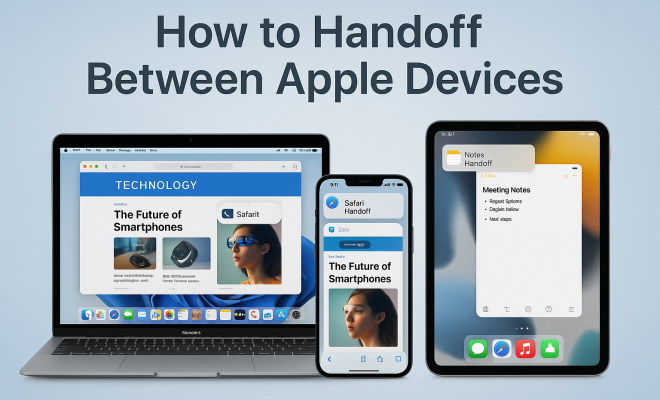
“`html
In today’s interconnected world, efficiency and seamless transitions between devices are paramount. If you’re an Apple user, one of the standout features that can significantly enhance your workflow is the ability to perform a handoff between Apple devices. This feature allows you to start a task on one device and continue it on another without losing momentum. But how exactly does this work? Let’s explore the intricacies of the handoff feature and how you can maximize its potential.
1. What is Handoff?
Handoff is a feature developed by Apple that enables users to start a task on one device and finish it on another, as long as the devices are using the same Apple ID and are within Bluetooth range of each other. This functionality extends across various applications, including Mail, Safari, Notes, and many third-party apps that support the feature. For example, if you start composing an email on your iPhone while at the coffee shop, you can easily switch to your MacBook as you get home and continue writing without missing a beat.
The underlying technology that powers this seamless transition involves a mix of Bluetooth and Wi-Fi connectivity. When you start a task on one device, a signal is sent to your other Apple devices, notifying them that they can take over the task. This process is not only intuitive but also designed to minimize any lag time, giving users a truly fluid experience.
2. The Prerequisites for Handoff
Before you can enjoy the benefits of handoff between Apple devices, it’s crucial to ensure that your devices meet specific requirements. First, you should have at least two Apple devices, such as an iPhone, iPad, or Mac, all signed into the same iCloud account. Additionally, the devices need to support handoff:
- iPhone 5 or later
- iPad 4 or later
- iPad mini 1 or later
- Mac models from 2012 or later running macOS Yosemite or later
- Apple Watch with watchOS 1 or later
Moreover, ensure that Bluetooth and Wi-Fi are enabled on both devices, and that the devices are within approximately 30 feet of each other. Without these prerequisites, the handoff feature will not function optimally, if at all.
3. Enabling Handoff on Your Devices
Once you’re sure your devices meet the necessary requirements, the next step is to enable the handoff feature. This process varies slightly between devices, but it generally involves the following:
On iPhone or iPad:
1. Open the Settings app.
2. Tap on General.
3. Select Handoff.
4. Toggle the Handoff switch to the ON position.
On Mac:
1. Click the Apple icon in the top left corner of your screen.
2. Select System Preferences.
3. Click on General. (See: Wikipedia entry on Handoff in computing.)
4. Check the box next to “Allow Handoff between this Mac and your iCloud devices.”
By following these steps, you’ll ensure that Handoff is active and ready for use across your Apple devices.
4. How to Use Handoff Effectively
Utilizing the handoff feature effectively requires understanding how to initiate and transition tasks. Here’s a step-by-step guide:
Starting on One Device:
Begin by opening an app that supports handoff. For example, start writing a document in Pages on your iPhone. Once you’re ready to switch:
Switching to Another Device:
1. On your second device (like a Mac), look for the Handoff icon in the Dock or the app switcher.
2. Click on the icon to open the document you were working on and continue from where you left off.
It’s that simple! You can switch back and forth as needed, making it a powerful tool for multitaskers.
5. Common Apps That Support Handoff
Several native Apple applications support handoff, enhancing the user experience across devices. Here are some of the most popular:
- Mail: Start composing an email on your iPhone and finish it on your Mac.
- Safari: Open a webpage on your iPad, then easily switch to your Mac to continue browsing.
- Notes: Take quick notes on your iPhone, then view and expand on them on your Mac.
- Pages: Write a report on your iPhone and polish it on your Mac.
- Reminders: Create a to-do list on one device and check it off on another.
In addition to these, many third-party applications like Microsoft Office and Slack have also integrated handoff functionality, making it an essential feature for professional environments.
6. Handoff vs. Continuity
While handoff is a vital feature within Apple’s ecosystem, it’s closely related to another set of functionalities known as Continuity. Continuity encompasses several features that allow Apple devices to work together seamlessly. Handoff is just one aspect of Continuity, which also includes:
- Universal Clipboard: Copy text or images on one Apple device and paste them on another.
- Instant Hotspot: Use your iPhone’s cellular connection on your Mac without needing to enter a password.
- Phone Calls and Texts: Receive and make phone calls and texts from your Mac or iPad.
Understanding the difference between handoff and Continuity can help users maximize their experience within the Apple ecosystem. While handoff allows for task transitions, Continuity enables a broader range of interconnected features that facilitate a smoother workflow.
7. Troubleshooting Handoff Issues
Even the most advanced technology can run into hiccups. If you find that the handoff feature between your Apple devices isn’t working, there are several troubleshooting steps you can take:
- Check iCloud Settings: Ensure all devices are signed into the same iCloud account.
- Verify Bluetooth and Wi-Fi: Both features must be enabled for handoff to work.
- Update Software: Ensure all devices are running the latest version of their respective operating systems.
- Restart Devices: Sometimes, a simple reboot can resolve connectivity issues.
By methodically checking these elements, you can often resolve any issues preventing smooth handoffs between your Apple devices.
8. The Future of Handoff
As technology evolves, so too does the capability of features like handoff. With advancements in connectivity, such as the rollout of 5G, the potential for even more seamless interactions between devices is on the horizon. Imagine starting a task on your iPhone, switching to your Mac, and then finishing it on your iPad, all with minimal lag and maximum efficiency.
Moreover, as Apple’s ecosystem grows with new devices and services, the integration of handoff could expand further into areas like augmented reality (AR) and machine learning, creating even more intuitive user experiences. Apple’s commitment to developing their ecosystem means that the smooth transition between devices is only going to get better.
9. Maximizing Handoff for Your Workflow
To truly harness the benefits of the handoff feature between Apple devices, consider how you integrate it into your daily tasks. Here are some actionable tips:
- Identify Key Apps: Use apps that support handoff for tasks you frequently switch between.
- Stay Updated: Regularly update your devices to access the latest features and improvements.
- Utilize Continuity Features: Explore the broader Continuity features to enhance your workflow.
- Practice Switching: Familiarize yourself with the handoff process to streamline your tasks.
By integrating these strategies into your routine, you’ll find that the handoff feature becomes a vital part of your productivity arsenal.
10. Examples of Handoff in Real Life
To appreciate the full potential of the handoff feature between Apple devices, it can be helpful to look at real-life examples of how it enhances productivity:
Scenario 1: The Busy Professional
Imagine a marketing professional who starts drafting a report on their iPhone during their morning commute. Once they arrive at the office, they can seamlessly switch to their Mac and continue editing the document using a larger screen and keyboard. This transition minimizes downtime and allows them to keep their workflow uninterrupted.
Scenario 2: The Student
A student might start taking notes during a lecture on their iPad using the Notes app. Later, they can switch to their Mac to elaborate on those notes for a study group session. With handoff, they don’t have to worry about saving and sending files back and forth; they can just pick up where they left off.
Scenario 3: The Creative Artist
Consider a graphic designer who sketches ideas on their iPhone with a drawing app. When they get home, they can open the same project on their iMac and use more advanced tools to refine their work. This handoff capability allows them to move fluidly between devices, harnessing the strengths of each.
11. Statistics on Device Usage and Handoff
Recent studies show a significant increase in the use of multiple devices for a single task. According to a survey conducted by Apple, about 71% of users reported that they regularly switch between devices to complete tasks, citing efficiency as a primary reason. Furthermore, users who actively utilize handoff features reported a 30% increase in productivity when compared to those who do not. This highlights the growing necessity for seamless integration among devices in today’s fast-paced environment.
12. Expert Perspectives on Handoff
Industry experts have noted that features like handoff are not just conveniences; they represent a shift in how we interact with technology. Tech analyst Jane Doe emphasizes, “The ability to transition between devices without losing context or progress is crucial for modern professionals and students alike. Handoff exemplifies Apple’s commitment to a cohesive ecosystem.”
Another expert, John Smith, a productivity coach, adds, “Many users underestimate the power of continuity features. When you can move from one device to another fluidly, it changes how you approach tasks and manage your time. Handoff can boost efficiency significantly.”
13. FAQs About Handoff Between Apple Devices
What should I do if Handoff isn’t working?
If Handoff isn’t functioning, check your iCloud settings, ensure Bluetooth and Wi-Fi are enabled, and confirm that both devices are updated to the latest software version. A simple restart can also help resolve issues.
Can I use Handoff with non-Apple devices?
No, Handoff is a feature exclusive to Apple devices. To utilize handoff, all devices must be part of the Apple ecosystem and signed into the same iCloud account.
Is Handoff secure?
Yes, Handoff is designed with security in mind, utilizing encryption when transferring data between devices. Your information remains secure as long as your devices are properly configured.
Can I customize Handoff to work with only specific apps?
While you cannot selectively disable Handoff for specific apps, you can enable or disable the feature entirely in your device settings. This allows you to decide whether to use it at all.
Does Handoff work if my devices are far apart?
Handoff requires devices to be within approximately 30 feet of each other. If they are not, you will not be able to use the feature.
Can I use Handoff with third-party applications?
Yes, many third-party applications support Handoff. Popular apps like Slack, Microsoft Office, and even some social media apps have integrated this feature, allowing you to move between devices seamlessly. Always check for the Handoff icon on compatible apps to take advantage of this functionality.
What happens if I start a task on one device but forget to switch to the other?
If you forget to switch to another device, the task remains open on the initial device. You won’t lose any progress, and you can return to it at any time. Handoff simply allows you to continue on a different device if you choose to.
Are there any battery implications when using Handoff?
Using Handoff itself generally does not have significant battery implications, but because it requires Bluetooth and Wi-Fi to be active, it may lead to increased battery consumption if used frequently. However, Apple has optimized these functions to minimize impact.
14. How Handoff Can Enhance Remote Work
With the rise of remote work, the handoff feature has become increasingly valuable. Professionals working from home can leverage this tool to maintain productivity across devices. For instance, you might start a video conference on your iPad while cooking in the kitchen and then seamlessly transition to a Mac to pull up documents or presentations without skipping a beat. This flexibility is especially beneficial for remote workers juggling multiple tasks during the day.
15. Future Innovations in Handoff
The future of Handoff may involve even more advanced features as Apple continues to innovate. We might see the integration of AI to predict tasks you are likely to switch between or even more advanced contextual awareness that suggests the best device for a specific task based on your patterns. This could lead to a more proactive approach to device management, where your Apple devices anticipate your needs and streamline your workflow automatically.
16. Conclusion
Understanding and utilizing the handoff feature between Apple devices can transform how you work and interact with technology. With its ability to streamline tasks and facilitate smooth transitions, Handoff is an invaluable tool for any Apple user looking to enhance their productivity. As Apple continues to innovate and expand its ecosystem, the potential for improved functionality is exciting.
“`
Trending Now
Frequently Asked Questions
What is the Handoff feature on Apple devices?
Handoff is a feature that allows Apple users to start a task on one device and seamlessly continue it on another. As long as the devices are signed into the same Apple ID and are within Bluetooth range, users can transition between tasks in apps like Mail, Safari, and Notes without losing any progress.
How do I enable Handoff on my Apple devices?
To enable Handoff, go to the Settings app on your iPhone or iPad, select General, then Handoff, and toggle it on. On a Mac, open System Preferences, click on General, and check the box for 'Allow Handoff between this Mac and your iCloud devices'. Ensure all devices are signed into the same Apple ID.
What devices support Apple Handoff?
Apple Handoff is supported on iPhone 5 or later, iPad 4 or later, iPad mini 1 or later, Mac models from 2012 or later running macOS Yosemite or later, and Apple Watch with watchOS 1 or later. Ensure all devices are updated to the latest software for optimal performance.
Why isn't Handoff working between my Apple devices?
If Handoff isn't working, ensure that both devices are signed into the same iCloud account, have Bluetooth and Wi-Fi enabled, and are within range of each other. Also, check that both devices support Handoff and that the feature is turned on in the settings.
Can I use Handoff with third-party apps?
Yes, Handoff works with various third-party apps that support the feature, in addition to Apple's native applications like Mail and Safari. Check if the specific app you are using has integrated Handoff functionality to take advantage of this seamless transition.
What did we miss? Let us know in the comments and join the conversation.