How to use iPhone as webcam
“`html
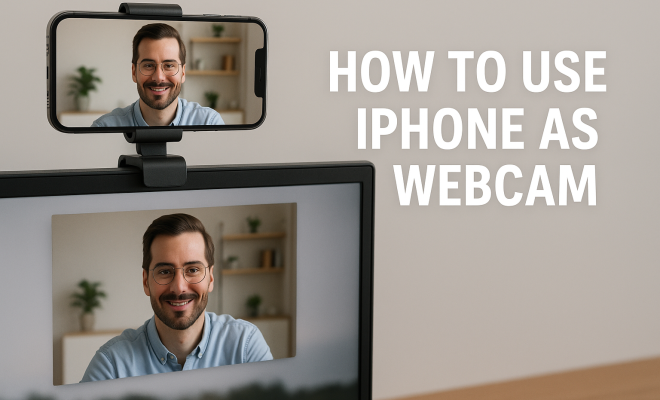
In an era where remote work and virtual meetings have become the norm, having a good webcam is essential. While many people rely on built-in webcams on their laptops or external options, you might not realize that your iPhone can double as a high-quality webcam. This article dives deep into how to use your iPhone as a webcam, exploring its advantages, the necessary apps, and practical tips to ensure a seamless experience.
1. The Rise of the iPhone Webcam
When the pandemic forced many into remote work, the demand for quality webcams skyrocketed. Traditional webcams were often sold out, prompting individuals to look for alternative solutions. Enter the iPhone. With its superior camera technology and processing capabilities, it became a popular choice for those needing a reliable webcam solution. Apple even acknowledged this trend, providing users with tools to enhance their video calls.
Using your iPhone as a webcam not only offers better image quality than most built-in laptop cameras but also allows for versatility in terms of angles and mobility. Whether you’re in a meeting, streaming, or just catching up with friends, your iPhone can be your go-to device.
2. Choosing the Right Method
There are various methods to utilize your iPhone as a webcam. The choice often depends on your specific needs and the software you plan to use for video conferencing. Here, we break down the primary options:
- Using Dedicated Apps: Several applications are designed explicitly for turning your iPhone into a webcam.
- Using Continuity Camera: If you have a Mac, Apple’s Continuity Camera feature allows you to use your iPhone as a webcam seamlessly.
- Using USB Connection: For those needing a more stable connection, a USB cable can be used with certain apps.
Each method has its pros and cons. For instance, apps like EpocCam and Reincubate Camo offer flexibility and ease, while Continuity Camera provides a hassle-free integration if you’re within the Apple ecosystem.
3. Downloading and Setting Up Webcam Apps
Let’s explore some popular apps you can use to set up your iPhone as a webcam:
- EpocCam: This app is widely popular for its ease of use. After downloading the app on your iPhone, you’ll also need to install the corresponding driver on your computer. Once installed, you can connect via Wi-Fi or USB.
- Reincubate Camo: Known for its high-quality video, Camo allows you to customize video output settings, including frame rates and resolutions. After downloading it on both your iPhone and PC, you just need to connect via USB.
- ManyCam: Offers additional features like filters and effects, which can be great for streaming or educational purposes. Set it up similarly to the previous apps.
Installing these apps is relatively straightforward. Follow the instructions provided on the app’s website or within the app itself to ensure proper setup. Once installed, granting necessary permissions like camera access is crucial for functionality.
4. Using Continuity Camera with Mac
If you’re a Mac user, Apple provides a nifty feature called Continuity Camera, which allows your iPhone to be used as a webcam without any third-party apps. To use this feature, ensure both your iPhone and Mac are on the same Wi-Fi network and signed into the same Apple ID.
To start, simply open any compatible application on your Mac that supports video input, such as FaceTime or Zoom. Select your iPhone as the camera source, and your iPhone’s camera will activate automatically. This seamless integration can be a game-changer for those who frequently switch between devices.
Additionally, Continuity Camera offers other features like Center Stage, which automatically adjusts the camera to keep you in focus during video calls, enhancing the overall quality of your interactions. (See: CDC on telework and remote meetings.)
5. Positioning Your iPhone for Optimal Use
Positioning is key when using your iPhone as a webcam. You want to ensure that the camera is at eye level for the most natural appearance during video calls. Here are some tips for achieving that:
- Use a Tripod: Investing in a small tripod can help stabilize your iPhone and provide the perfect height for video calls.
- DIY Stands: If you’re looking for a budget-friendly option, you can use everyday items like books or stacks of boxes to elevate your iPhone.
- Lighting Considerations: Good lighting is crucial. Position your iPhone facing a light source, like a window, to ensure your face is well-lit and clear.
Experimenting with angles and distances can significantly enhance your video quality. Don’t hesitate to test different setups until you find the one that works best for you.
6. Essential Accessories for a Better Experience
While using your iPhone as a webcam can be effective, a few accessories can take your setup to the next level. Here are a few must-have items:
- External Microphone: While the iPhone’s built-in microphone is decent, an external microphone can provide clearer audio, which is crucial for calls and recordings.
- Lighting Kits: A ring light or softbox can dramatically improve your lighting setup, ensuring that you look your best during video calls.
- Phone Holder or Mount: A reliable phone holder will keep your iPhone steady and in place, reducing the risk of shaky footage.
These accessories don’t have to break the bank. Many affordable options are available, and investing in a few can greatly enhance your video conferencing experience.
7. Troubleshooting Common Issues
Even with the best setup, you might encounter some challenges when using your iPhone as a webcam. Here are a few common issues and their solutions:
- Connectivity Problems: If you’re using a Wi-Fi connection, ensure that both devices are connected to the same network. For USB connections, confirm that the cable is functional.
- App Crashes: If your chosen app crashes unexpectedly, try restarting the app or your devices. Ensure the app is updated to the latest version.
- Poor Video Quality: Adjust settings within the app for resolution and frame rate. Ensuring ample lighting will also help improve video clarity.
Staying calm and methodical when troubleshooting can save time and frustration. Most issues can be resolved with a little patience and experimentation.
8. Privacy and Security Considerations
With increased usage of webcams, it’s essential to be mindful of privacy and security. Here are some tips to protect yourself when using your iPhone as a webcam:
- App Permissions: Only grant permissions to trusted applications. Review the permissions settings periodically to ensure no unauthorized apps have access.
- Use a Virtual Background: If you’re concerned about your background being visible, consider using a virtual background feature available in many video conferencing apps.
- Regularly Update Software: Keeping your iPhone and any webcam apps updated is crucial for security. Updates often contain patches for vulnerabilities.
By taking these precautions, you can enjoy a more secure experience while using your iPhone as a webcam, providing peace of mind during virtual interactions.
9. Current Trends and Future Potential
As technology continues to evolve, the use of smartphones as webcams is becoming more mainstream. New apps and features are regularly being developed, enhancing the functionality of devices. For example, recent trends suggest an increased focus on remote work tools, and companies are investing in software that integrates seamlessly with smartphones.
Moreover, as more users become aware of the capabilities of their devices, the demand for high-quality webcams is likely to increase. With advancements in camera technology and software, your iPhone might soon become the standard for video calls and streaming.
By understanding how to use your iPhone as a webcam effectively, you’re not just keeping up with the trends—you’re setting the bar for quality and adaptability in an ever-changing digital landscape. (See: BBC article on webcam usage.)
10. Comparing iPhone Webcam Quality with Traditional Webcams
When considering your options for video calls, it’s important to understand how your iPhone’s webcam stacks up against traditional webcams. Most built-in laptop cameras have lower resolutions, often around 720p, while modern iPhones boast cameras capable of shooting in 4K. This significant difference in resolution can lead to sharper, clearer images during your video sessions.
For example, the iPhone 13 and later models have advanced features like Deep Fusion and Smart HDR, which enhance image processing for better low-light performance and color accuracy. Traditional webcams may struggle in similar conditions, resulting in grainy or poorly lit images. By using your iPhone, you’re getting access to cutting-edge technology that’s continually updated with software improvements.
In terms of lenses, iPhones typically feature wider and more versatile options, including ultra-wide lenses, which allow for more creative framing during calls. This can be especially useful for group calls or situations where you want to show off your surroundings.
Furthermore, the ease of transitioning between different camera modes and settings on an iPhone, paired with its touchscreen interface, makes it user-friendly for all experience levels. For those looking for high-quality video, using an iPhone as a webcam is often superior to relying on an external or built-in webcam.
11. Frequently Asked Questions (FAQ)
Q1: Can I use my iPhone as a webcam with Windows?
Yes, you can use your iPhone as a webcam with Windows by utilizing third-party applications like EpocCam or Reincubate Camo. Just ensure to follow the installation instructions to set up both the app on your iPhone and the corresponding software on your Windows PC.
Q2: Is there a lag when using an iPhone as a webcam?
Generally, there shouldn’t be significant lag when using a wired connection via USB. However, if you’re connecting over Wi-Fi, there might be some latency based on your network stability. To minimize this, make sure you’re on a strong Wi-Fi connection or switch to USB for a more reliable experience.
Q3: What video conferencing apps support the iPhone as a webcam?
Most major video conferencing platforms, including Zoom, Skype, Microsoft Teams, and Google Meet, support using your iPhone as a webcam when using compatible apps. Just select your iPhone camera as the video source in the app settings.
Q4: Will using my iPhone as a webcam drain its battery?
Yes, using your iPhone as a webcam can drain the battery quickly, especially if the screen remains on during use. To mitigate this, consider connecting your iPhone to a power source while using it as a webcam, or check if the app has a battery-saving mode.
Q5: Are there any privacy concerns with using my iPhone as a webcam?
Like any webcam, using your iPhone as a webcam can raise privacy concerns. It’s important to ensure that the apps you use are reputable and have clear privacy policies. Additionally, regularly review app permissions and consider using a privacy cover for your camera when not in use.
12. Best Practices for Using Your iPhone as a Webcam
To make the most out of your iPhone webcam experience, here are some best practices:
- Test Before Important Calls: Always do a test run before important meetings to check video quality, sound clarity, and lighting.
- Close Unnecessary Apps: To improve performance, close other apps running in the background that may consume resources.
- Use Airplane Mode: To avoid interruptions during your calls, consider putting your iPhone in airplane mode while connected to Wi-Fi. Just remember to turn off airplane mode after your call.
- Keep Your iPhone Updated: Regularly check for iOS and app updates to take advantage of the latest enhancements and security features.
- Engage with the Camera: Look directly at the camera when speaking; this creates a more engaging and personal connection with your audience.
13. Exploring Advanced Features and Settings
For users who want to maximize their iPhone’s webcam capabilities, exploring advanced features and settings within the selected app can make a significant difference. For instance, apps like Reincubate Camo allow for adjustments in the following areas:
- Resolution and Frame Rate: You can customize how clear and smooth your video appears. Higher resolutions like 1080p or 4K are ideal, but ensure your internet connection can handle it if streaming.
- Image Adjustments: Some apps offer options to tweak brightness, contrast, and saturation. This can be especially beneficial if you’re in a poorly lit room, as it helps enhance your appearance.
- Overlays and Filters: If you’re using your iPhone for streaming, consider applying filters or overlays to improve production quality. Many apps come with built-in options to add logos or graphics to your stream.
Experimenting with these features can help you find the perfect setup that not only looks good but feels comfortable for extended use.
14. Real-World Use Cases for iPhone Webcam
The versatility of using an iPhone as a webcam opens doors to various real-world applications. Here are some scenarios where it shines:
- Professional Meetings: Whether you’re in a corporate environment or working remotely as a freelancer, using your iPhone can elevate your professional image with its superior video quality.
- Content Creation: Many YouTubers and streamers utilize their iPhones as secondary cameras to capture unique angles or as the main camera when starting out due to its high-quality output.
- Online Tutoring: Educators are leveraging the iPhone’s camera capabilities to create engaging lessons, utilizing features like document scanning and annotation tools.
- Virtual Events: Many organizations are hosting virtual conferences and workshops, and an iPhone provides a reliable solution for high-quality streaming.
In these cases, having the ability to use a familiar device can streamline processes and improve user engagement.
15. The Future of Webcam Technology
The landscape of webcam technology is changing rapidly. With rising demands for better communication tools, manufacturers are constantly innovating. Here are some trends we can expect to see:
- AI Integration: Future webcams may incorporate AI for features like background removal, virtual make-up, and even automatic framing based on user movement.
- Augmented Reality (AR): As AR technology matures, expect to see more integrated features allowing users to interact with virtual objects during calls.
- Improved Connectivity: With advancements in 5G technology, higher quality video streaming will become seamless, making it easier to use your iPhone as a webcam without worrying about lag.
- Increased Focus on Security: As privacy concerns grow, expect more robust security measures for webcam usage, including biometric features for user authentication.
Staying ahead of these trends can not only prepare you for what’s next but also keep your setup relevant as technology evolves.
16. Conclusion: Embracing the iPhone Webcam Future
As remote work and virtual communication become increasingly integrated into our daily lives, the ability to leverage devices we already own, like your iPhone, opens up new avenues for creativity and engagement. The iPhone webcam offers a powerful solution that combines quality, flexibility, and ease of access. Whether for business meetings, streaming, or connecting with loved ones, using your iPhone as a webcam is a step toward adapting to the evolving digital landscape. By implementing the tips and tricks discussed in this article, you’ll not only enhance your video quality but also improve your overall communication experience.
“`
Trending Now
Frequently Asked Questions
Can I use my iPhone as a webcam?
Yes, you can use your iPhone as a webcam. With its superior camera quality and processing power, it serves as an excellent alternative to traditional webcams. Various apps and methods, such as Apple's Continuity Camera or dedicated webcam apps, make this process simple and effective.
What apps do I need to turn my iPhone into a webcam?
To turn your iPhone into a webcam, you can use dedicated apps like EpocCam or Reincubate Camo. These applications are designed specifically for this purpose and provide the necessary tools for a seamless video conferencing experience.
How do I connect my iPhone to my computer as a webcam?
You can connect your iPhone to your computer as a webcam using several methods. The most common ways include using dedicated apps over Wi-Fi, Apple's Continuity Camera feature for Mac users, or a USB connection for a more stable setup.
What are the advantages of using an iPhone as a webcam?
Using an iPhone as a webcam offers numerous advantages, including superior image quality compared to built-in laptop cameras, versatility in angles and mobility, and the convenience of using a device you already own for video calls and streaming.
Is using an iPhone as a webcam better than a traditional webcam?
In many cases, yes! An iPhone typically provides better image quality and flexibility than standard built-in webcams. Its advanced camera technology allows for clearer, more professional-looking video, making it a popular choice for remote work and virtual meetings.
What’s your take on this? Share your thoughts in the comments below — we read every one.