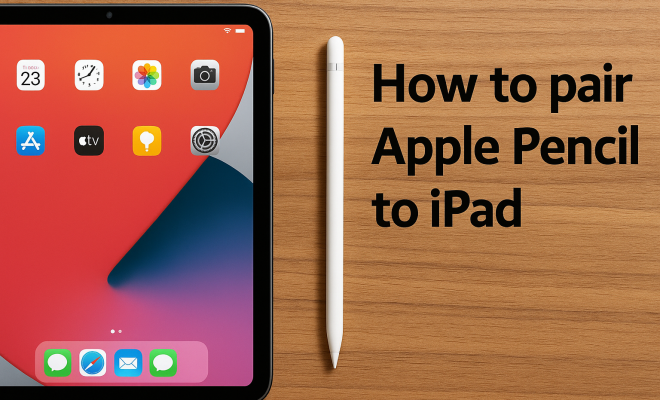
How to pair Apple Pencil to iPad
“`html
Getting the most out of your Apple Pencil starts with knowing how to pair Apple Pencil to iPad. Whether you’re a student, an artist, or just someone who enjoys note-taking, the Apple Pencil can enhance your experience significantly. This guide will walk you through the process of pairing your Apple Pencil to your iPad, while also offering some useful tips and insights to maximize its potential.
1. Understanding the Apple Pencil
The Apple Pencil is not just another stylus; it represents a leap in technology that allows users to interact with their iPads in a more natural and intuitive way. Launched in 2015 alongside the iPad Pro, the Apple Pencil was designed for precision, responsiveness, and ease of use. The device is available in two versions: the original Apple Pencil and the Apple Pencil (2nd generation), each compatible with different models of iPads.
The original Apple Pencil uses a Lightning connector for charging and pairing, while the second generation features a more seamless design that attaches magnetically to the iPad for both charging and pairing. Understanding these differences is essential, as it affects not only the pairing process but also the overall user experience.
2. Compatibility Check
Before you dive into the pairing process, it’s crucial to ensure that your iPad is compatible with the Apple Pencil you own. The original Apple Pencil works with a range of iPads, including:
- iPad Pro (12.9-inch) – 1st and 2nd generation
- iPad Pro (10.5-inch)
- iPad Pro (9.7-inch)
- iPad (6th generation and later)
- iPad mini (5th generation)
- iPad Air (3rd generation)
The Apple Pencil (2nd generation) is compatible with:
- iPad Pro (12.9-inch) – 3rd generation and later
- iPad Pro (11-inch) – all generations
Knowing your iPad’s model is essential because attempting to pair an incompatible Apple Pencil will not work, and you’ll be left frustrated. You can check your iPad model by going to Settings > General > About, where you will find your model name and number.
3. How to Pair Apple Pencil to iPad: Step-by-Step Instructions
Once you’ve confirmed compatibility, it’s time to pair your Apple Pencil to your iPad. The process is straightforward and only takes a few moments. Here’s how:
For the Original Apple Pencil:
- Remove the cap from the end of your Apple Pencil to expose the Lightning connector.
- Plug the Apple Pencil into the Lightning port of your iPad.
- After a few seconds, a pairing prompt should appear on your iPad’s screen. Tap Pair.
- Once paired, you can remove the Apple Pencil from the iPad and start using it.
For the Apple Pencil (2nd generation):
- Ensure that your iPad supports the Apple Pencil (2nd generation).
- Simply attach the Apple Pencil magnetically to the side of your iPad.
- A pairing prompt will appear on your screen. Tap Pair.
- Your Apple Pencil will automatically charge while attached to your iPad.
If you run into issues during the pairing process, make sure your iPad is updated to the latest version of iPadOS, as software updates often contain bug fixes and improvements that can affect connectivity.
4. Using Your Apple Pencil Effectively
Now that you’ve successfully paired your Apple Pencil to your iPad, it’s time to explore how to use it effectively. The Apple Pencil allows for a range of functionalities, such as:
- Drawing and Sketching: With apps like Procreate and Adobe Fresco, you can create stunning artwork with the precision and responsiveness of the Apple Pencil. Its pressure sensitivity allows for varying line thickness, making your creations look more professional.
- Note-Taking: Using apps like Notability or GoodNotes, you can take notes written in your own handwriting, which can then be converted to text, organized, and searched later. This is a game-changer for students and professionals alike.
- Markup and Annotation: The Apple Pencil lets you mark up PDFs or photos directly, making it easier to edit documents and collaborate with others.
Finding the right app for your needs can make a significant difference. Don’t hesitate to explore different options to find the one that fits your style best.
5. Common Issues and Troubleshooting
Even with a seamless pairing process, issues can arise while using your Apple Pencil. Here are some common problems and their solutions: (See: Apple Pencil Wikipedia page.)
Apple Pencil Not Pairing:
If your Apple Pencil isn’t pairing, start by restarting your iPad. Sometimes, simply rebooting the device can resolve connectivity issues. If that doesn’t work, check the battery level of your Apple Pencil. If it’s low, charge it for a while before attempting to pair again.
Inaccurate Tracking:
If you experience issues with your Apple Pencil not responding accurately, it could be due to a dirty screen or a software glitch. Clean your iPad’s screen gently with a microfiber cloth and ensure that your device is running the latest software updates.
Battery Issues:
The Apple Pencil has a respectable battery life, but if you find it running out quickly, check if it’s due to excessive use. The 2nd generation model has a feature that shows the battery level when you attach it magnetically, which can help you keep track.
6. Maintaining Your Apple Pencil
To ensure that your Apple Pencil remains in good condition, proper maintenance is crucial. Here are some tips:
- Use a Screen Protector: If you frequently draw or write with your Apple Pencil, consider using a matte screen protector. This can give you more control and a paper-like feel when using the pencil.
- Store It Properly: Keep your Apple Pencil in a protective case or in a designated spot when not in use. This prevents physical damage and helps keep it charged.
- Charge Regularly: Make it a habit to charge your Apple Pencil regularly, especially if you use it frequently. This helps prevent unexpected battery drain.
Taking these steps can prolong the longevity of your device and ensure the best performance.
7. Apple Pencil Alternatives
While the Apple Pencil is a fantastic tool, there are alternatives available on the market that you might want to consider. Several brands offer styluses that are compatible with iPads, such as:
- Logitech Crayon: This stylus is geared toward education and comes with a lower price point. It’s compatible with many iPad models and offers a reliable drawing experience.
- Adonit Note: Known for its precision, the Adonit Note is a more affordable stylus option. It has a comfortable grip and supports palm rejection.
- Wacom Bamboo Sketch: This stylus is favored by artists for its ergonomic design and pressure sensitivity, making it a great option for sketching and drawing.
When considering alternatives, weigh your specific needs and the applications you plan to use. Some styluses might not have all the features of the Apple Pencil, but they can still perform well for basic tasks.
8. Current Trends and Future of Apple Pencil Technology
As technology evolves, so does the potential for enhanced features in tools like the Apple Pencil. Current trends suggest a focus on improved battery life, enhanced pressure sensitivity, and possibly even haptic feedback, which would allow users to ‘feel’ their strokes on the screen.
Additionally, as virtual and augmented reality become more prominent, the integration of pencils and styluses with these technologies could revolutionize how we interact with digital content. Apple is likely to continue innovating in this space, so keeping an eye on future updates and releases is worthwhile.
Overall, the Apple Pencil has transformed how users create, collaborate, and communicate on iPads. With its user-friendly design and powerful capabilities, learning to pair Apple Pencil to iPad is just the beginning of unlocking its full potential.
9. Advanced Tips for Using Your Apple Pencil
Once you’ve gotten the hang of basic functionality, there are a few advanced tips that can elevate your Apple Pencil experience:
- Gesture Shortcuts: Both versions of the Apple Pencil support gesture shortcuts. For instance, double-tapping on the flat edge of the Apple Pencil (2nd generation) lets you switch between tools in compatible apps like Procreate. Familiarizing yourself with these shortcuts can speed up your workflow.
- Customize Settings: Apps like GoodNotes and Notability often allow customization of the Apple Pencil’s functionality. You can adjust pressure sensitivity, line thickness, and more to suit your personal drawing or writing style.
- Experiment with Brushes: If you’re an artist, take the time to experiment with different brushes and settings in your drawing app. The Apple Pencil’s pressure sensitivity can create a vast range of artistic effects.
10. Statistics and Usage Data
Understanding how the Apple Pencil is used across different demographics can provide valuable insight into its impact. According to a recent survey, over 70% of students using iPads for their studies reported that the Apple Pencil significantly improved their note-taking efficiency. Additionally, artists using the Apple Pencil noted a 50% increase in production speed when transitioning from traditional media to digital. These statistics highlight not just the utility of the device, but also its role in enhancing creativity and productivity.
11. Expert Perspectives on Using the Apple Pencil
Industry professionals often share insightful perspectives on the Apple Pencil’s role in their workflows. For example, graphic designer Jamie McKnight notes, “The Apple Pencil has allowed me to bridge the gap between traditional sketching and digital artistry. The precision and responsiveness are unmatched, making it an essential tool in my creative kit.”
Similarly, educator Dr. Sarah Johnson emphasizes its educational benefits, stating, “Students are more engaged when they can use tools that mimic real-life actions like writing or drawing. The Apple Pencil helps them connect with digital content in a way that’s familiar and intuitive.”
12. Frequently Asked Questions (FAQ)
What should I do if my Apple Pencil won’t charge?
If your Apple Pencil (2nd generation) isn’t charging, first ensure it’s correctly attached to the magnetic side of your iPad. If it still isn’t charging, try restarting your iPad or checking for dust or debris on the magnetic connector. For the original Apple Pencil, confirm that the Lightning connector is clean and free of obstructions.
Can I use the Apple Pencil with any iPad?
No, the Apple Pencil is compatible only with certain iPad models. Always check compatibility to ensure that your iPad can work with the version of the Apple Pencil you have.
How do I know which generation of Apple Pencil I have?
The original Apple Pencil has a smooth, round body and a removable cap that covers the Lightning connector. The 2nd generation Apple Pencil has a flat edge that allows it to attach magnetically to compatible iPads and does not have a removable cap.
Is the Apple Pencil waterproof?
No, the Apple Pencil is not waterproof. It’s best to keep it away from liquids to avoid potential damage.
How long does the Apple Pencil battery last?
The Apple Pencil (1st generation) offers about 12 hours of use per charge, while the 2nd generation can last for 12 hours as well but has an additional advantage of fast charging when magnetically attached to the iPad.
Can I use the Apple Pencil for gaming?
While the Apple Pencil is designed primarily for creativity and productivity, some games that support drawing or handwriting inputs can benefit from its precision. However, it’s not a conventional gaming tool.
What apps are best for Apple Pencil users?
Some of the best apps for Apple Pencil users include Procreate for artists, GoodNotes and Notability for note-taking, and Adobe Fresco for painting. It really depends on your specific needs and creative style.
13. Understanding the Benefits of Pressure Sensitivity
One of the standout features of the Apple Pencil is its pressure sensitivity. This technology allows artists and note-takers to create lines that vary in thickness based on how much pressure is applied. This is crucial for artists who want to replicate the feel of traditional drawing instruments. For example, applying light pressure can create delicate, thin lines, while heavier pressure can produce bold strokes.
This feature becomes particularly invaluable in applications like Procreate, where different brush settings can yield an array of textures and effects. Artists can adjust their technique based on how the pencil interacts with the app, offering a level of control that enhances creativity.
14. Apple Pencil in Professional Settings
The Apple Pencil isn’t just a tool for casual users; it’s increasingly being adopted in professional settings. Many graphic designers, architects, and engineers are leveraging the precision of the Apple Pencil for their work. For instance, architects can use apps like Morpholio Trace to create accurate sketches and annotations over blueprints directly on their iPads.
In collaborative environments, professionals can share their work with colleagues instantly, making it easier to iterate on designs and concepts. This capability bridges the gap between traditional sketching and digital workflows, allowing for a more fluid design process.
15. Comparing Apple Pencil to Other Input Devices
When evaluating the Apple Pencil against other input devices like traditional styluses or even fingers, several factors come into play. Traditional styluses often lack the pressure sensitivity and precision that the Apple Pencil offers. While fingers can be used for casual interactions, they are not suitable for tasks requiring fine detail, such as drawing or detailed notes.
Take the Logitech Crayon, for example. While it provides a solid experience for basic tasks and is more affordable, it doesn’t offer the same level of pressure sensitivity or tilt functionality as the Apple Pencil. Users looking for the highest quality experience, especially in creative fields, often find that the Apple Pencil justifies its price point.
16. Long-Term Benefits of Using the Apple Pencil
Investing in an Apple Pencil can yield long-term benefits. For students, it can replace traditional note-taking methods, allowing for a more organized and efficient study process. The ability to convert handwriting to text can help keep notes searchable and easily editable.
For professionals, the Apple Pencil can streamline workflows, making it easier to annotate documents, sketch ideas, or create presentations. The time saved can lead to increased productivity, ultimately making the investment worthwhile.
17. Future Developments and Features to Watch For
As Apple continues to innovate, we can expect enhancements that improve the Apple Pencil’s functionality. Features like improved latency and more customizable settings are on the horizon. Additionally, Apple’s focus on integrating augmented reality (AR) suggests that future iterations of the Apple Pencil may have capabilities that allow for even more interactive experiences, especially in educational settings.
With each new iOS update, users can anticipate enhancements that could further refine how the Apple Pencil works with various applications. Staying informed about these developments can help users maximize their experience and fully leverage the capabilities of the Apple Pencil.
“`
Trending Now
Frequently Asked Questions
How do I connect my Apple Pencil to my iPad?
To connect your Apple Pencil to your iPad, ensure your iPad is compatible with your Apple Pencil model. For the original Apple Pencil, plug it into the Lightning connector on your iPad. For the second generation, attach it magnetically to the side of the iPad. Follow any on-screen prompts to complete the pairing process.
What iPads are compatible with the Apple Pencil?
The original Apple Pencil is compatible with various iPads, including the iPad Pro (1st and 2nd generation), iPad (6th generation and later), and iPad mini (5th generation). The Apple Pencil (2nd generation) works with iPad Pro models from the 3rd generation onward, including the 11-inch and 12.9-inch versions.
Why won't my Apple Pencil connect to my iPad?
If your Apple Pencil won't connect to your iPad, check the compatibility between your iPad model and the Apple Pencil version. Also, ensure that Bluetooth is enabled on your iPad and that the Apple Pencil is charged. Restarting your iPad can also help resolve connectivity issues.
How can I check if my iPad is compatible with Apple Pencil?
To check if your iPad is compatible with the Apple Pencil, go to Settings > General > About on your iPad. Compare the model number listed with Apple's compatibility list for the original and second-generation Apple Pencil to confirm compatibility.
What is the difference between the two Apple Pencil models?
The original Apple Pencil features a Lightning connector for charging and pairing, while the second generation attaches magnetically to the iPad for charging and pairing. The second generation also includes double-tap functionality for easier tool switching, enhancing user experience for drawing and note-taking.
Have you experienced this yourself? We’d love to hear your story in the comments.