How to use shortcuts app on iPhone
“`html
The iPhone shortcuts app is more than just a tool; it’s a transformative feature that can simplify your daily tasks and enhance your mobile experience. Whether you’re a seasoned user or just starting to explore its capabilities, understanding how to effectively utilize this app can lead to a significant boost in productivity. In this article, we’ll delve into the key aspects of the iPhone shortcuts app, exploring its functionality, practical applications, and some hidden gems that can change the way you interact with your device.
1. Understanding the Basics of the Shortcuts App
The iPhone shortcuts app, introduced with iOS 12, allows users to automate everyday tasks through a series of customizable actions. Think of it as a personal assistant that executes tasks with a single tap or voice command. Users can create their own shortcuts or use pre-made ones available in the app’s gallery. The versatility of this app comes from its ability to integrate with various applications on your iPhone, enabling you to perform complex tasks seamlessly.
Shortcuts can be simple, like sending a text message to a friend, or complex, involving multiple steps across different apps. The app provides a user-friendly interface that allows for easy navigation and customization. For instance, to create a shortcut, you just select the actions you want to combine, set the parameters, and save it. It’s as straightforward as it sounds, and once you get the hang of it, the possibilities are endless.
2. Creating Your First Shortcut
Getting started with the iPhone shortcuts app is easier than you might think. Begin by opening the app and tapping on the “Create Shortcut” button. From here, you’ll see a list of actions categorized by app. You can search for specific actions or browse through the categories to find what you need. For instance, if you want to create a shortcut that sends your current location via text, you would select the “Send Message” action, add the “Get Current Location” action, and then specify the recipient.
Once you’ve selected your actions, you can rearrange them by dragging and dropping. This flexibility allows you to customize your shortcut to fit your specific needs. After saving your newly created shortcut, you can add it to your Home Screen for easy access, or even use Siri to trigger it with a voice command. This integration turns your shortcuts into a powerful tool, making them accessible anytime you need them.
3. Utilizing Pre-Made Shortcuts
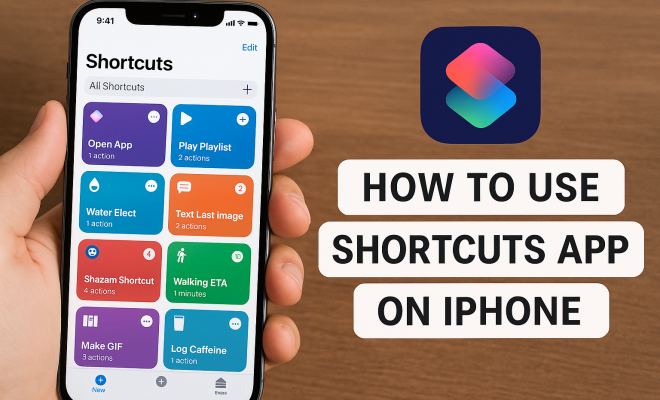
If creating shortcuts from scratch seems daunting, the iPhone shortcuts app offers a gallery filled with pre-made options that cater to various needs. You can find shortcuts for travel, home automation, productivity, and more. To access these, simply open the app, tap on “Gallery,” and explore the available collections. For example, you might discover a shortcut that automatically logs your water intake or one that sends your ETA to a friend when you’re on your way.
Using pre-made shortcuts not only saves time but also serves as inspiration for creating your own. You can tweak these shortcuts to suit your preferences, adding or removing actions as needed. This feature is particularly beneficial for beginners who want to get more familiar with the app’s capabilities without starting from scratch.
4. Integrating with Other Apps and Services
One of the standout features of the iPhone shortcuts app is its ability to integrate with various third-party apps and services. This integration opens the door to a multitude of possibilities. For instance, you can create a shortcut that automatically uploads your photos to a cloud service, or one that posts updates to your social media accounts. The app connects with popular services like Evernote, Spotify, and Google Maps, among others.
To take advantage of these integrations, simply select the app actions that you want to include in your shortcut. This functionality allows for a seamless workflow, enabling you to perform tasks across different platforms without the need to switch between apps constantly. As a result, your productivity can soar, making the iPhone shortcuts app an invaluable tool for anyone looking to streamline their daily routine.
5. Advanced Features: Using Variables
For those looking to delve deeper into the capabilities of the iPhone shortcuts app, understanding variables is essential. Variables allow you to store and use information within your shortcuts, making them dynamic and adaptable. For example, you can create a shortcut that sends a message containing the current weather conditions by using variables to pull in real-time data.
To use variables, you’ll need to create actions that define what information you want to capture. You can then reference this information in subsequent actions. This might seem complex at first, but once you get the hang of it, you’ll realize how powerful and flexible your shortcuts can become. By leveraging variables, you can create shortcuts that respond intelligently to different situations, making your iPhone even smarter. (See: iOS Shortcuts on Wikipedia.)
6. Setting Up Automations for Daily Tasks
Automation is a game-changer for anyone looking to maximize their use of the iPhone shortcuts app. With the automation feature, you can set your iPhone to perform specific actions automatically based on triggers such as time of day, location, or even when you connect to Wi-Fi. For instance, you can create an automation that sends a message every morning at 8 AM or adjusts your phone settings when you arrive at work.
To create an automation, navigate to the “Automation” tab in the shortcuts app and tap on “Create Personal Automation.” From here, you can choose your trigger and specify the actions that should take place. Automations can simplify repetitive tasks, freeing up your time for more important activities. Plus, with the right setups, you can make your iPhone work proactively to enhance your daily life.
7. Sharing Shortcuts with Others
Another fantastic feature of the iPhone shortcuts app is the ability to share your creations with others. This not only allows you to showcase your innovative shortcuts but also enables you to benefit from the creativity of the community. Sharing is straightforward: simply select the shortcut you want to share, tap the share button, and choose the method of sharing—through AirDrop, message, email, or a link.
Additionally, there are various online platforms and social media groups dedicated to sharing shortcuts. These communities often feature unique and creative shortcuts that can enhance your experience. By participating in these exchanges, you can discover new functionalities and ideas that you might not have considered otherwise.
8. Exploring Accessibility Features
The iPhone shortcuts app is also a powerful tool for enhancing accessibility on your device. Users with disabilities can create shortcuts that cater specifically to their needs, making it easier to perform tasks that might otherwise be challenging. For instance, voice commands can be used to activate shortcuts that simplify navigation or control smart home devices.
Apple has made significant strides in making its devices accessible to everyone, and the shortcuts app plays a vital role in this mission. By customizing shortcuts, users can create a setup that works best for them, whether it’s simplifying text-to-speech, adjusting settings based on environmental factors, or enabling features that assist with mobility challenges.
9. Keeping Your Shortcuts Organized and Updated
As you create more shortcuts, it’s important to maintain organization. The iPhone shortcuts app allows you to categorize your shortcuts, making it easier to find what you need when you need it. You can create folders for different types of shortcuts—like productivity, entertainment, or daily routines—helping you keep everything tidy.
Additionally, regularly reviewing and updating your shortcuts is essential to ensure they remain functional and relevant. As apps update and change, the actions within your shortcuts might need adjustments. Taking the time to maintain your shortcuts will ensure that they continue to serve you well over time.
10. Real-World Examples of Useful Shortcuts
Let’s take a closer look at some real-world examples of shortcuts that can make a significant difference in your daily life. These examples not only illustrate the app’s versatility but also provide practical solutions you can implement right away.
10.1 Morning Routine Shortcut
Imagine waking up and wanting to streamline your morning routine. You can create a shortcut that turns off your alarm, provides you with the weather forecast, and opens your calendar to show your appointments for the day—all triggered by saying, “Good morning!” to Siri. This saves time and sets a positive tone for your day.
10.2 Travel Companion
If you travel frequently, a shortcut can help you prepare for your trips. By creating a shortcut that gathers essential travel information—like your flight status, hotel reservation details, and car rental information—within seconds, you can save time and reduce stress. This shortcut could also send a text to a friend or family member with your estimated time of arrival based on real-time traffic conditions.
10.3 Home Automation
For users who have smart home devices, the shortcuts app can serve as a central hub. You can create a shortcut that allows you to turn off all lights, adjust your thermostat, and lock your doors with a single command. This is especially useful when you’re heading out or settling in for the night.
11. Statistics on User Adoption
Understanding how users are engaging with the iPhone shortcuts app can shed light on its value. According to a recent survey, approximately 60% of iPhone users have utilized the shortcuts app at least once, with around 25% using it regularly. Among these users, 70% report an increase in productivity, citing that automating tasks has saved them several hours a week. (See: CDC Health Communication Shortcuts.)
Furthermore, as the app continues to evolve, new updates and features are being introduced, which are likely to drive even greater adoption. This trend reflects a broader movement towards automation and efficiency in our daily lives, signaling that shortcuts will remain a crucial tool for many iPhone users.
12. Expert Perspectives on Automation and Productivity
Experts in productivity and technology have weighed in on the impact of automation through tools like the iPhone shortcuts app. For instance, productivity coach Anna White emphasizes that “automation is the key to freeing up mental space. By systematizing repetitive tasks, we can focus on what truly matters.” This aligns with the experiences of many users who report that the shortcuts app allows them to reclaim time in their daily schedules.
Moreover, tech analyst Mark Green points out that as artificial intelligence and machine learning continue to develop, the potential for shortcuts to become even more intuitive is significant. “Imagine a future where your iPhone could anticipate your needs based on your habits and preferences,” he suggests. This perspective illustrates that the current functionalities of the shortcuts app are just the beginning of what may be possible.
13. Frequently Asked Questions about the iPhone Shortcuts App
13.1 What is the difference between a shortcut and an automation?
A shortcut is a single action or a series of actions that can be executed manually or through Siri. In contrast, an automation automatically triggers actions based on specific conditions, such as time or location, without user input.
13.2 Can I use shortcuts with third-party apps?
Yes! The iPhone shortcuts app integrates with many third-party applications, allowing you to create shortcuts that incorporate actions from those apps, enhancing your overall workflow.
13.3 Are there any privacy concerns with using shortcuts?
While using shortcuts, it’s important to be mindful of the information you include. For example, sharing shortcuts that involve personal data or sensitive information can pose privacy risks. Always review the actions included in your shortcuts.
13.4 How do I delete a shortcut?
To delete a shortcut, open the Shortcuts app, navigate to the “My Shortcuts” tab, tap on the shortcut you want to remove, and select the delete option. This will permanently remove it from your device.
13.5 Can I run shortcuts on other Apple devices?
Yes, you can run shortcuts on any Apple device that supports the Shortcuts app, including iPads and Macs. If you have iCloud set up, your shortcuts will sync across all your devices.
14. Looking Ahead: The Future of the Shortcuts App
The iPhone shortcuts app is already a powerful tool for enhancing productivity and simplifying daily tasks, but its potential seems limitless. As technology continues to evolve, we can expect further integration with artificial intelligence, improved voice recognition, and more. This could lead to smarter shortcuts that adapt to your routines and preferences over time.
Additionally, as user feedback shapes future updates, the app may introduce even more features to enhance usability. Concepts like collaborative shortcuts, where multiple users can contribute to a single automation, could become a reality, further enriching the user experience.
15. Common Mistakes to Avoid When Using the Shortcuts App
Even experienced users can make mistakes when creating shortcuts. Here are a few common pitfalls to avoid: (See: New York Times on iPhone Shortcuts.)
15.1 Overcomplicating Shortcuts
One of the biggest mistakes is overcomplicating your shortcuts. While you might be tempted to add as many actions as possible, simplicity often yields the best results. Try to keep your shortcuts focused on one task or a few related tasks to minimize confusion and ensure efficiency.
15.2 Ignoring Permissions
Another common issue arises when users overlook the necessary permissions for shortcuts to function properly. For instance, if a shortcut requires access to your location or contacts, you must grant those permissions for it to work correctly. Always check the permissions needed for your shortcuts to avoid frustration down the line.
15.3 Failing to Test Shortcuts
Many users create shortcuts but forget to test them before relying on them. It’s essential to run your shortcuts to ensure they perform as expected. This step helps you catch any errors or unintended actions before they become a hassle.
16. Pro Tips for Mastering the Shortcuts App
If you want to become a shortcuts pro, here are some tips to enhance your experience:
16.1 Take Advantage of Focus Modes
Apple’s Focus modes can be integrated with your shortcuts. By creating shortcuts that adjust your settings based on the Focus mode you’re in—like turning on Do Not Disturb during work hours—you can enhance your productivity further.
16.2 Use Icons and Colors for Organization
Customizing icons and colors for your shortcuts can make them easier to find and more visually appealing. This small change can significantly improve your workflow by allowing you to identify shortcuts quickly.
16.3 Explore Scripting Actions
If you’re comfortable with a bit of coding, the shortcuts app offers scripting actions that let you add conditional logic to your shortcuts. This could allow your shortcuts to behave differently based on certain conditions, making them even more powerful.
17. Conclusion
The iPhone shortcuts app is a powerful feature that can transform how you interact with your device. By understanding its capabilities, from creating personalized shortcuts to utilizing advanced features like variables and automations, you can maximize your productivity and enhance your daily routine. Whether you’re streamlining simple tasks or integrating complex workflows, this app has the potential to become an invaluable part of your iPhone experience.
“`
Trending Now
Frequently Asked Questions
How do I create a shortcut on my iPhone?
To create a shortcut on your iPhone, open the Shortcuts app and tap on the 'Create Shortcut' button. You can then select from a list of actions categorized by app or search for specific actions. Combine the actions you want, set any parameters, and save your shortcut for easy access.
What can I do with the Shortcuts app on iPhone?
The Shortcuts app allows you to automate a variety of tasks on your iPhone, such as sending messages, playing music, or controlling smart home devices. You can create simple shortcuts or complex automations that involve multiple steps and apps, enhancing your productivity and user experience.
Are there pre-made shortcuts available for iPhone?
Yes, the Shortcuts app features a gallery of pre-made shortcuts that users can browse and use. These shortcuts cover a range of functions and can be customized to better fit your needs, making it easy to get started with automating tasks.
Can I use voice commands with the Shortcuts app?
Absolutely! The Shortcuts app is designed to work with Siri, allowing you to trigger your shortcuts using voice commands. This feature makes it convenient to perform tasks hands-free, enhancing the overall functionality of your iPhone.
Is the Shortcuts app available on all iPhones?
The Shortcuts app was introduced with iOS 12, so it is available on iPhones running iOS 12 or later. If your iPhone is updated to a compatible version, you can access and utilize the app to automate your tasks.
What did we miss? Let us know in the comments and join the conversation.