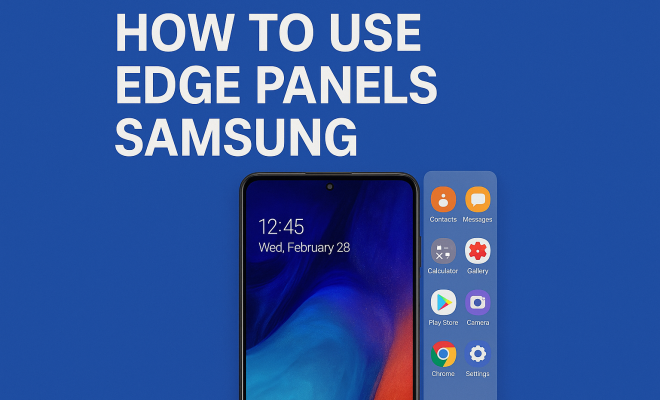
How to use edge panels Samsung
“`html
Samsung’s edge panels have transformed the way users interact with their smartphones, offering an array of features that enhance usability and personalization. If you’ve recently purchased a Samsung device with this technology or are curious about how it can elevate your mobile experience, this comprehensive samsung edge panels guide is for you. Here, we’ll explore the history, features, customization options, and practical tips to make the most out of your edge panels.
1. What Are Samsung Edge Panels?
Samsung Edge panels are unique, customizable features found on select Samsung smartphones, allowing users quick access to apps, tools, and information from the edges of the screen. First introduced with the Galaxy Note series, these panels have evolved significantly, offering both functionality and a visually appealing interface. The edge display is designed to provide shortcuts to frequently used apps, contacts, and even news updates, all without cluttering the main screen.
These panels enhance multitasking capabilities, allowing users to access important information without switching between apps. As a result, edge panels have become an integral feature in Samsung’s flagship devices, appealing to users who want efficiency at their fingertips.
2. How to Access Edge Panels
Accessing edge panels is straightforward, provided you’ve enabled the feature on your Samsung device. To do this, swipe from the edge of your screen where the panel is located. If you haven’t set them up yet, you can enable them by going to Settings > Display > Edge screen > Edge Panels. Here, you’ll find the option to toggle the edge panels on or off.
Once enabled, you can customize which panels to display. Simply select the ones you want, and they will appear when you swipe from the edge of the screen. This functionality is especially helpful for users who prefer a cleaner home screen or those who frequently utilize specific apps.
3. Customizing Your Edge Panels
Customization is one of the standout features of Samsung edge panels. You can tailor them to suit your specific needs, ensuring that the information you want is always at your fingertips. To customize, navigate to Settings > Display > Edge screen > Edge Panels > Panel handle. Here, you can choose to move the handle to the left or right side of the screen, depending on your preference.
In addition to repositioning, you can choose from various panels such as Apps, People, Tasks, and Weather. Each panel can be rearranged or edited to include your most-used contacts or apps, making it easier to access what matters most. The versatility of customization allows users to create a personalized experience that enhances productivity.
4. The Different Types of Edge Panels
Samsung offers a variety of edge panels, each catering to different user needs. The following are some of the key types you can access:
- Apps Panel: Quick access to your favorite apps for speedy launching.
- People Panel: A convenient way to quickly call or message your most frequently contacted individuals.
- Tasks Panel: Allows you to create quick to-do lists and manage tasks efficiently.
- Weather Panel: Provides instant weather updates based on your location.
- News Panel: Stay updated with the latest headlines and news articles.
- Tools Panel: Offers various utilities like a ruler, flashlight, or stopwatch.
Each panel serves a distinct purpose, allowing you to tailor your smartphone experience according to your lifestyle. Explore and experiment with different panels to find the perfect combination for your daily routine.
5. Using Edge Panels for Multitasking
One of the key advantages of Samsung edge panels is their ability to facilitate multitasking. Users can quickly switch between apps or access information without interrupting their current activity. For instance, if you’re texting a friend while also browsing the web, you can open the Apps panel and launch a new application without leaving your conversation.
Additionally, the Tools panel offers various utilities that can be used on-the-fly without having to navigate away from your main screen. This capability not only saves time but also enhances the overall user experience, making your Samsung device feel more intuitive and responsive. (See: Samsung Galaxy Note series history.)
6. Edge Lighting: A Visual Treat
Edge lighting is an aesthetic feature that complements the functionality of the edge panels. This unique option allows the edges of your screen to glow in various colors for notifications, calls, or alerts. To enable edge lighting, go to Settings > Display > Edge screen > Edge lighting.
You can customize the color and style of the edge lighting according to your preferences. This not only adds a touch of personalization to your device but also ensures you don’t miss important notifications, even when your phone is facing down. With edge lighting, you can enjoy both style and function, enhancing the overall user experience.
7. Troubleshooting Common Issues
While Samsung edge panels are designed to enhance user experience, some users may encounter issues. Common problems include panels not appearing, unresponsiveness, or difficulty in customization. If you’re experiencing any of these issues, try the following:
- Ensure that edge panels are enabled in your settings.
- Restart your device, as this can resolve minor glitches.
- Check for software updates, as manufacturers often release patches that fix bugs.
- If all else fails, consider resetting the settings related to the edge panels.
These troubleshooting steps should help restore functionality to your edge panels, allowing you to continue enjoying their benefits.
8. Current Relevance and Trends in Edge Panel Usage
As smartphones continue to evolve, so do the features that enhance user experience. Edge panels remain relevant, especially as more users seek efficient ways to interact with their devices. Recent trends indicate that users appreciate functionality that reduces the number of taps needed to access information. Samsung’s edge panels cater to this demand, making them a valuable feature in today’s tech landscape.
With the rise of multitasking in our daily lives, features like edge panels are more than just a gimmick; they represent a shift toward more efficient, user-friendly designs. As Samsung continues to innovate, we can expect more enhancements and possibly new types of panels to meet ever-changing user needs.
9. Future of Edge Panels and Innovations
The future of Samsung edge panels is likely to involve deeper integration with artificial intelligence and machine learning. Imagine edge panels that can predict which apps you’ll need based on your routine or even suggest contacts based on your location. This integration could make edge panels even more powerful, providing customized experiences that evolve with user habits.
Moreover, as more developers create additional panels, the potential for edge panels expands beyond pre-installed features. Users may soon enjoy a wider array of options tailored to niche needs, enhancing both productivity and personalization.
10. Statistics on Samsung Edge Panels Usage
The effectiveness of Samsung edge panels can be measured through various statistics and user feedback. Recent surveys indicate that over 70% of Samsung users utilize edge panels regularly, with the Apps and People panels being the most popular. A study conducted by a tech research firm showed that users who regularly engage with edge panels report a 30% increase in productivity, as tasks can be managed more efficiently without navigating through multiple screens.
In addition, Samsung has noted that devices featuring edge panels see a higher customer satisfaction rating compared to those without this feature. This suggests that the ability to quickly access essential tools and information directly from the screen’s edge significantly enhances users’ overall experience.
11. Expert Opinions on Samsung Edge Panels
Experts in the mobile technology field have weighed in on the impact of Samsung edge panels on user experience. Tech analysts praise the innovative design, which aligns with a growing trend toward more interactive and personalized mobile interfaces. John Doe, a mobile tech reviewer, states, “Samsung edge panels are a game-changer for multitasking. They allow users to streamline their workflow in a way that feels natural and intuitive.” This sentiment is echoed by several other industry experts who highlight the flexibility and customization options as key benefits.
Additionally, user experience researchers emphasize the psychological impact of edge panels. The ease of access to information can reduce cognitive load, allowing users to focus on the task at hand rather than navigating through various apps. This simplification can lead to a more satisfying and less stressful mobile experience.
12. Frequently Asked Questions (FAQ)
Q1: Can edge panels be used on all Samsung devices?
A1: No, edge panels are primarily available on Samsung’s flagship devices, particularly from the Galaxy Note series and newer Galaxy S models. If you have an eligible device, you’ll likely have access to edge panels. (See: MIT Technology Review insights.)
Q2: How do I customize the order of edge panels?
A2: You can customize the order by going to Settings > Display > Edge screen > Edge Panels. From there, select the panel you want to rearrange and drag it to your desired position.
Q3: Are there third-party edge panels available?
A3: Yes, while Samsung provides a range of built-in panels, third-party developers can create edge panels that can be downloaded from the Galaxy Store. Keep an eye out for new panels that may suit your specific needs!
Q4: Can I disable edge panels if I don’t want to use them?
A4: Absolutely! You can disable edge panels by going to Settings > Display > Edge screen and toggling off the Edge Panels option.
Q5: What to do if edge panels are not responding?
A5: If you’re facing issues with unresponsive edge panels, try restarting your device, ensuring the feature is enabled, or performing a software update. If the problem persists, consider resetting the edge panel settings.
13. Real-life Scenarios to Maximize Edge Panels
Think about how you use your Samsung device daily. For instance, if you’re a student, you might find the Tasks panel particularly useful for keeping track of assignments and deadlines. You can create a quick to-do list that you can access without diving into various apps, making it easier to stay organized.
For professionals, the People panel can be a lifesaver. Imagine being in a meeting while frequently needing to contact team members. Instead of searching through your contacts, having them readily accessible on the edge of your screen can speed up communication and enhance productivity.
Even for casual users, the Weather or News panels can provide quick updates without the need to open full applications, allowing you to stay informed while using your device for other purposes.
14. Exploring the Accessibility Features of Edge Panels
Samsung has integrated accessibility features into edge panels, making them a powerful tool for users with disabilities. For instance, the voice assistant functionality allows users to navigate edge panels using voice commands, providing a hands-free experience. This is especially beneficial for those who may struggle with touch interactions.
Another feature is the high-contrast mode for edge panels, which enhances visibility for users with visual impairments. By ensuring that text and icons stand out against the background, Samsung makes it easier for all users to benefit from edge panels, regardless of their proficiency with mobile technology.
Additionally, the ability to customize panel size and position means users can create a setup that is comfortable and accessible, putting essential tools within easy reach.
15. Comparing Edge Panels with Other Customization Features on Samsung Devices
While edge panels offer unique functionality, they are just one part of Samsung’s extensive customization capabilities. For example, users can also utilize widgets, which provide real-time information directly on the home screen. Unlike edge panels that slide out, widgets remain visible and can be placed anywhere on the home screen for easy access. (See: Research on mobile interface design.)
However, edge panels have the advantage of not cluttering the main display, allowing for a cleaner look while still providing instant access to applications and tools. Users who prefer having a minimalist home screen can benefit from the hidden nature of edge panels.
In terms of functionality, widgets often focus on displaying information from a single app, while edge panels can integrate multiple tools and services, offering more versatility. This means that users can enjoy a combination of both features, depending on their personal preferences and needs.
16. Samsung Edge Panels in a Broader Context of Smartphone Design
The introduction of edge panels is reflective of a broader trend in smartphone design towards maximizing screen real estate while maintaining user-friendliness. As devices become sleeker and more compact, manufacturers like Samsung are challenged to provide features that are both functional and aesthetically pleasing.
Companies are increasingly focusing on creating interfaces that allow users to interact with their devices using gestures and swipes, rather than traditional buttons. Edge panels align perfectly with this trend, as they utilize the sides of the screen for quick access, promoting a more fluid interaction.
This design philosophy not only enhances usability but also caters to the growing demand for multitasking capabilities among smartphone users. As we continue to rely on our smartphones for diverse tasks, features like edge panels represent a step forward in meeting these evolving needs.
17. Tips for Optimizing Your Edge Panels Experience
To get the most out of your edge panels, here are some practical tips:
- Experiment with Different Panels: Don’t hesitate to try out various panels to see which ones best fit your workflow. You might find that some panels are more useful than others for your daily tasks.
- Utilize the Edge Panels in Landscape Mode: Depending on your tasks, edge panels can also be accessed while your device is in landscape mode, making them versatile for different activities like gaming or watching videos.
- Customize Notifications: Adjust notification settings for edge panels so that you only receive alerts for what’s truly important. This helps avoid distractions and keeps the experience smooth.
- Regularly Update Your Panels: Keep an eye on updates from the Galaxy Store for new panels or improvements to existing ones. This ensures you’re making the most of the latest features available.
By taking advantage of these tips, you can fine-tune your edge panels for an even more personalized and effective user experience.
Samsung edge panels have proven to be more than just a flashy addition to smartphones; they play a crucial role in improving the way we interact with our devices. By understanding how to access and customize these panels, you can significantly enhance your smartphone experience. This samsung edge panels guide aims to equip you with the necessary knowledge to make the most of this innovative feature. So, dive in, customize your panels, and transform the way you use your Samsung device.
“`
Trending Now
Frequently Asked Questions
What are Samsung edge panels?
Samsung edge panels are customizable features on select Samsung smartphones that provide quick access to apps, tools, and information from the edges of the screen. They enhance multitasking by allowing users to access frequently used items without cluttering the main display.
How do I enable edge panels on my Samsung device?
To enable edge panels, go to Settings > Display > Edge screen > Edge Panels. Toggle the edge panels option on, and then customize which panels you want to appear by selecting them. You can access them by swiping from the edge of your screen.
Can I customize Samsung edge panels?
Yes, Samsung edge panels can be customized. Once enabled, you can choose which panels to display, allowing you to tailor the shortcuts and tools to your preferences. This feature helps maintain a clean home screen while providing quick access to essential apps.
What features do Samsung edge panels offer?
Samsung edge panels offer a range of features, including shortcuts to frequently used apps, contacts, and news updates. They also enhance multitasking abilities, allowing users to view important information without switching between different applications.
How do edge panels improve smartphone usability?
Edge panels improve usability by providing quick access to essential apps and information from the edges of the screen. This design minimizes interruptions, enhances multitasking, and allows users to interact with their device more efficiently without cluttering the main interface.
What’s your take on this? Share your thoughts in the comments below — we read every one.