How to customize edge lighting Samsung
“`html
Samsung phones have long been renowned for their exquisite design and innovative features, and one standout capability is edge lighting. This feature not only enhances the aesthetic appeal of your device but also provides practical notifications. Whether you want to personalize your phone’s look or make sure you never miss important alerts, knowing how to customize edge lighting Samsung can greatly enhance your user experience. In this article, we’ll explore ten essential tips that will guide you through the customization process and help you get the most out of this feature.
1. Understanding Edge Lighting
Before diving into the customization options, it’s crucial to grasp what edge lighting is. Edge lighting activates a glow around the edges of your Samsung phone’s screen whenever you receive notifications, incoming calls, or alerts. This function not only looks stylish but also allows you to see notifications at a glance, even when your phone is face down. The lighting can be set to different colors and styles, making it a unique way to express your personality.
Samsung introduced edge lighting with the Galaxy S8, further enhancing it in subsequent models like the Galaxy S9, S10, and beyond. The feature is compatible with a variety of applications, providing a customizable visual cue that can be tailored to your preferences. This makes it significantly easier to differentiate between alerts without needing to pick up the phone.
2. Enabling Edge Lighting
To start customizing edge lighting on your Samsung device, you first need to enable it. This can typically be done through the settings menu. Go to Settings, then navigate to Display and look for the Edge screen option. Once inside, you’ll find the Edge lighting feature. Toggle it on, and your device is ready to showcase edge lighting whenever you receive a notification.
Samsung makes it convenient to access these settings. Depending on your device model, the pathway might slightly vary, but the general navigation remains similar. Enabling this feature is your first step toward taking full advantage of edge lighting.
3. Choosing Your Edge Lighting Style
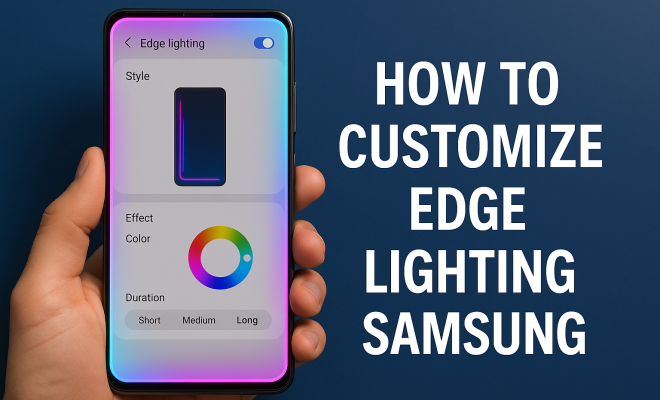
Once you’ve enabled edge lighting, the next step is to choose the style that suits you best. Samsung offers several predefined styles, including Basic, Glow, and Multicolor. Each style has its visual characteristics, from a simple light to a more vibrant and dynamic appearance. You can experiment with these options to see which one you prefer.
For instance, the Basic style might appeal to those who appreciate minimalism, while the Multicolor style can add a lively touch to notifications. Selecting the right style not only enhances aesthetics but can also help in recognizing notifications quickly.
4. Customizing Edge Lighting Colors
One of the key features of edge lighting is the ability to customize its colors. You can choose different colors for different apps or notifications, allowing for a highly personalized experience. To customize colors, go back to the Edge lighting settings and select Colors. Here, you can pick from a palette of colors or even use your own custom color.
For example, you might set your message alerts to blue, while emails could glow in green. This differentiation helps you identify the source of a notification at a glance. It’s a simple yet effective way to streamline your response to alerts that matter most.
5. Adjusting Edge Lighting Duration
Understanding how long the edge lighting stays on is another aspect of customization. You can set the duration to ‘short’, ‘medium’, or ‘long’ based on your preference. This adjustment can be particularly useful if you find the lighting too distracting or if you prefer it to be more subtle.
To change the duration, navigate back to the edge lighting settings and look for the Duration option. Adjusting this setting can lead to a more comfortable user experience, ensuring that notifications do not overwhelm you while still keeping you informed. (See: Samsung company overview.)
6. Setting Notifications by App
Samsung allows users to customize edge lighting notifications by specific applications. This means you can assign different edge lighting colors and styles for each app, making your phone experience truly personal. To do this, go to the Notifications settings within the app you wish to customize.
For example, if you rely heavily on social media notifications, you could configure Facebook to have a bright edge lighting that immediately grabs your attention, while keeping more casual apps like a news feed in a dimmer tone. This tailored approach ensures you can prioritize your notifications effectively.
7. Creating Custom Edge Lighting Effects
Beyond standard colors and styles, Samsung also allows you to create custom edge lighting effects. This feature gives you the power to take your edge lighting to the next level. To create a custom effect, navigate to the Edge lighting settings and select Effects. Here, you can mix and match styles and colors to craft a unique visual experience.
For example, you could set a pulsing effect for incoming calls, making it more noticeable compared to standard notifications. This level of customization means that every alert can feel unique, tailored to your personal style and needs.
8. Using Edge Lighting with the Always On Display
A cool feature of Samsung’s edge lighting is its compatibility with the Always On Display (AOD). If you use AOD, you can have notifications glow even when your screen is off. This functionality ensures you stay updated without having to unlock your device constantly.
To enable this feature, go to Always On Display settings and check the option for edge lighting. This integration is especially advantageous for users who prefer a minimalist approach but still want to stay informed. It allows you to keep your device looking sleek while also being functional.
9. Testing Edge Lighting in Different Environments
Another aspect to consider while customizing edge lighting is how it appears in different environments. Depending on your lighting conditions, the visibility of edge lighting can vary significantly. It’s a good idea to test how your chosen colors and styles look in both bright daylight and dimmer settings.
For instance, a bright color like yellow may stand out in low light but could be less visible during bright sunlight. Adjusting the colors based on these considerations can improve your overall experience, ensuring that notifications are noticeable regardless of your surroundings.
10. Staying Updated with Software Improvements
Finally, don’t overlook the importance of keeping your Samsung device up-to-date. Samsung frequently rolls out software updates that enhance existing features or introduce new ones. Regularly checking for updates can ensure that you have the latest options for customizing edge lighting.
To check for updates, navigate to Settings, then Software Update. Keeping your device current ensures you can enjoy the best performance and features that Samsung has to offer, including edge lighting.
11. Advanced Customization Techniques
For those who want to go a step further in customizing edge lighting, consider using third-party applications. There are various apps available on the Google Play Store designed to enhance notification settings, including edge lighting. These apps often provide additional features such as more color options, effects, and even the ability to schedule when edge lighting is active.
One popular app is Light Flow, which allows for comprehensive control over notifications and edge lighting. With this app, you could set specific colors for different contacts or types of notifications, enabling a highly detailed level of customization that the native settings might not offer. Such tools can help to create an even more personalized experience that caters precisely to your preferences.
12. Using Edge Lighting for Alerts Beyond Notifications
While most users think of edge lighting for incoming calls or messages, it can also be leveraged for other alerts. For instance, you can set up reminders, calendar events, or even alarms to trigger edge lighting. This can be useful for staying organized, as you can see a flash of color on your screen as a reminder to check your upcoming schedule or task. (See: Center for Disease Control and Prevention.)
To set this up, explore the specific settings within your calendar or reminder applications that allow you to link notifications with edge lighting. This way, you not only get visual alerts for calls and texts but also for important meetings or deadlines. It’s a small change that can make a big difference in your daily productivity.
13. Edge Lighting as a Wellbeing Tool
Edge lighting can also serve as a tool for mindfulness and wellbeing. By customizing colors and styles of your notifications, you can create a calming experience that promotes less screen time. For example, using softer colors for less critical notifications can help you feel less overwhelmed by alerts, allowing you to focus more on the task at hand.
Additionally, you could set edge lighting to indicate scheduled breaks or focus periods. By developing a routine where specific colors signify when to work and when to take a break, you can use this feature as a gentle reminder to maintain a healthy balance between productivity and relaxation.
14. Comparative Edge Lighting Features Between Models
Different Samsung models may offer varying capabilities when it comes to edge lighting. For example, the Galaxy Note series often includes enhanced features tailored for productivity, such as more robust options for customizing edge lighting during meetings. The S series might focus more on aesthetic versatility, allowing for more vibrant effects and styles.
When considering which Samsung device to purchase, particularly if edge lighting is a priority for you, it’s beneficial to compare the specifications and features across models. Look for user reviews that discuss edge lighting performance to get insights on how it behaves in real-world use. This can help you choose a model that best meets your needs regarding this feature.
15. FAQs About Customizing Edge Lighting on Samsung Devices
What models support edge lighting?
Edge lighting is available on various Samsung models, starting from the Galaxy S8 and continuing through the S9, S10, Note series, and more recent devices. If you’re unsure, check the specifications for your specific model.
Can I customize edge lighting for third-party apps?
Yes, many third-party apps can utilize the edge lighting feature. However, you may need to enable notifications for those apps within the settings. Make sure to check both the app’s settings and your phone’s notification settings to ensure proper functionality.
How do I reset edge lighting settings if I’m not satisfied?
If you want to revert to default edge lighting settings, you can do so through the edge lighting settings menu. Look for an option to reset preferences or clear custom settings to restore factory defaults.
Will edge lighting affect battery life?
Edge lighting uses minimal power, so it should not significantly affect your device’s battery life. However, using particularly vibrant colors or effects in a consistent manner may have a small impact over time, especially if you frequently receive notifications.
Can I turn off edge lighting for specific apps?
Absolutely! You can manage edge lighting settings per app. Go into the notifications section for a specific app and disable edge lighting for that app if you prefer not to have visual alerts.
16. Incorporating Edge Lighting into Your Daily Routine
Integrating edge lighting into your daily routine can enhance your productivity and overall user experience. For instance, you could set up your edge lighting to signal important tasks or deadlines. Assign specific colors or effects for different priorities, so you immediately know which task requires your attention without even picking up your phone. (See: New York Times technology news.)
Imagine a scenario where your edge lighting flashes red for urgent emails, green for calendar events, and blue for social media notifications. This allows you to quickly assess the importance of alerts based on color alone. It adds a layer of efficiency to your workflow, making notifications less of a distraction and more of a helpful tool.
17. The Psychology Behind Color Choices
Your choice of colors can significantly influence your emotions and reactions. When customizing edge lighting, think about what each color represents to you. For example, blue often evokes feelings of calmness, making it suitable for less urgent notifications, while red is associated with urgency and can be effective for critical alerts.
Colors like green can represent balance, and thus may be appropriate for reminders or tasks that require a moderate level of urgency. By being mindful of how color affects you, you can create a notification system that not only gets your attention but also aligns with your emotional state and productivity goals.
18. Combining Edge Lighting with Other Features
Samsung devices come packed with features that can complement edge lighting. For instance, pairing edge lighting with the Do Not Disturb mode can help you maintain focus during specific hours while still allowing critical notifications to shine through. You can customize edge lighting to activate for select contacts or apps even when in Do Not Disturb mode, ensuring that you don’t miss out on essential alerts.
Additionally, using edge lighting alongside vibration settings allows for a more holistic notification strategy. Consider setting your phone to vibrate in conjunction with specific edge lighting effects for a multi-sensory alert system, making it even less likely for you to miss important messages.
19. Feedback and Personalization
Taking the time to evaluate how well your edge lighting settings serve your needs can lead to a more satisfying user experience. After a week or so of use, reflect on whether the colors, durations, and styles work for you. Are you receiving too many alerts? Are some notifications more important than others? Don’t hesitate to refine your settings based on your observations.
Engaging with the community can also provide insights into how others are using edge lighting effectively. Forums and social media platforms often have discussions about unique settings and experiences that can inspire your customization journey.
In summary, learning how to customize edge lighting Samsung is a valuable skill that enhances both the visual appeal and functionality of your device. From enabling the feature to choosing colors, adjusting durations, and classifying notifications, each step allows you to create a personalized experience that suits your lifestyle. By following these tips and exploring further customization techniques, you can transform the way you interact with notifications on your Samsung phone, making it not just a device, but a reflection of your style.
“`
Trending Now
Frequently Asked Questions
How do I enable edge lighting on my Samsung phone?
To enable edge lighting on your Samsung phone, go to Settings, then navigate to Display. Look for the Edge screen option, and inside it, toggle on the Edge lighting feature. This will activate the visual alerts around your screen edges whenever you receive notifications.
Can I customize the color of edge lighting on Samsung?
Yes, you can customize the color of edge lighting on your Samsung device. Once edge lighting is enabled, you can access additional settings to choose different colors and styles for notifications, allowing you to personalize your phone's appearance.
What is edge lighting on Samsung phones?
Edge lighting is a feature on Samsung phones that creates a glow around the edges of the screen when you receive notifications, calls, or alerts. It enhances the aesthetic appeal of the device and allows you to see notifications at a glance, even when the phone is face down.
Is edge lighting available on all Samsung models?
Edge lighting was introduced with the Samsung Galaxy S8 and is available on subsequent models like the Galaxy S9, S10, and later. However, availability may vary by specific device model, so it's best to check your phone's settings.
How can I change the style of edge lighting?
To change the style of edge lighting on your Samsung phone, go to the Edge lighting settings after enabling it. There, you can select from various lighting styles, such as bubble, glitter, or multi-color effects, to match your personal preferences.
What’s your take on this? Share your thoughts in the comments below — we read every one.