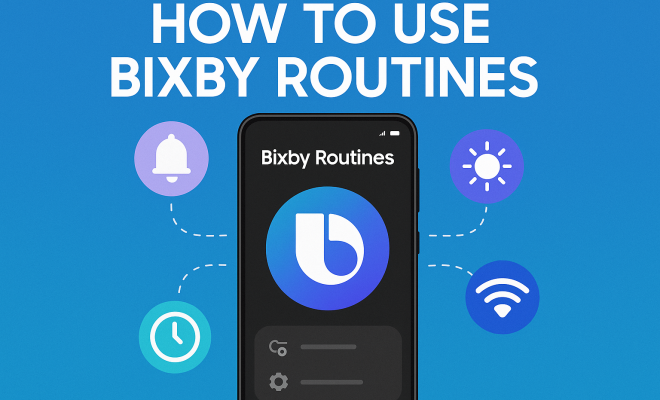
How to use Bixby routines
“`html
If you’re a Samsung user, you’ve likely heard about Bixby and its capabilities. But have you fully harnessed the potential of Bixby routines? In this comprehensive Bixby routines guide, we’ll delve into everything you need to know to manage your daily tasks more efficiently, tailor your phone’s behavior to your needs, and ultimately enhance your smartphone experience.
1. What are Bixby Routines?
Bixby routines are customizable automation features found on newer Samsung devices. They allow you to automate tasks based on your context, such as your location, time of day, or even your activity. Imagine a world where your phone knows when to silence notifications during meetings, adjusts the brightness when you’re out, or starts your favorite playlist when you plug in your headphones. This is precisely what Bixby routines can do for you.
Introduced as part of Samsung’s ongoing efforts to make its devices more user-centric, Bixby routines are designed to learn your habits and adapt to your lifestyle. By setting up these routines, you can save time and effort while enjoying a seamless user experience tailored just for you.
2. How to Access Bixby Routines
Getting started with Bixby routines is straightforward. First, you’ll need to ensure that your device is compatible—most Samsung models released after 2018 support this feature. To access it, simply follow these steps:
- Open the Settings app on your device.
- Scroll down and select Advanced Features.
- Tap on Bixby Routines to enable the feature if it isn’t already activated.
Once you’ve accessed Bixby routines, you’ll see pre-made routines that you can customize or modify. The interface is user-friendly, allowing you to navigate through various options effortlessly.
3. Creating Your First Bixby Routine
Creating a Bixby routine is where the fun begins. You can set up routines based on different triggers. Here’s how to create your first routine:
- Open Bixby Routines from the Settings.
- Tap on Add Routine.
- Select a trigger, such as Time, Location, or Device Status.
- Define the conditions for the routine. For example, if you choose Location, specify where the routine should activate.
- Next, add the actions you want the routine to perform. This could include changing settings, opening apps, or sending messages.
- Finally, save your routine and give it a name.
By experimenting with different triggers and actions, you can create a routine that uniquely fits your lifestyle. For example, you might set a routine to turn on Wi-Fi and start your favorite news app as soon as you arrive at work.
4. Popular Bixby Routines to Try
While the possibilities are nearly endless, some popular routines can kickstart your experience. Here are a few suggestions:
- Good Morning Routine: Automatically set your phone to wake up with a gentle alarm, read the weather, and start your favorite morning playlist.
- Driving Routine: When you connect to your car’s Bluetooth, have your phone read out messages and navigate to your next destination.
- Workout Routine: As soon as you enter the gym, have your phone switch to Do Not Disturb mode, open your fitness app, and start tracking your workout.
- Bedtime Routine: At a certain time each night, adjust the screen brightness, lower the volume, and turn on your relaxing sleep sounds.
These routines can help you streamline your day, giving you more time to focus on what really matters.
5. Managing and Editing Existing Routines
As your needs change, you may want to adjust your existing routines. Editing and managing them is easy. Simply return to the Bixby Routines section in Settings, and you’ll see a list of all the routines you’ve created.
To edit a routine, tap on it and make any necessary changes to the triggers or actions. You can also disable or delete routines you no longer find useful. This flexibility allows you to maintain an optimized routine that evolves with your lifestyle.
6. Integrating Third-Party Apps with Bixby Routines
One of the standout features of Bixby routines is its ability to integrate third-party applications, boosting its functionality. Whether you want to automate tasks in Spotify, Google Maps, or even smart home devices, Bixby routines can help. (See: Learn more about Bixby.)
To incorporate third-party apps into your routines, ensure those apps support Bixby integration. Many popular apps do. Once confirmed, you can add actions from those apps while setting up or editing a routine. For example, you could create a routine that starts a specific Spotify playlist when you leave work.
This feature opens up a world of possibilities, allowing you to create a truly personalized smartphone experience.
7. Using Bixby Routines for Smart Home Automation
If you’re already using smart home devices, Bixby routines can significantly enhance your home automation experience. By connecting your smart home devices to the routines, you can automate various tasks around your house.
For instance, you can set a routine that turns on the living room lights and adjusts the thermostat whenever you arrive home. Or, you could create a routine that turns off lights and locks doors when you leave the house. By doing this, not only do you improve convenience, but you also enhance the security of your home.
With the integration of Samsung SmartThings, controlling your smart devices becomes even more straightforward. The possibilities are endless, allowing you to customize your living space to fit your lifestyle seamlessly.
8. Tips for Optimizing Your Bixby Routines
To get the most out of your Bixby routines, consider these tips:
- Start Simple: Begin with a few basic routines. As you become more comfortable, you can expand into more complex automations.
- Experiment: Don’t hesitate to try various triggers and actions. Finding what works best for you might take some trial and error.
- Stay Organized: Name your routines clearly and keep track of what each one does. This will help you manage them better.
- Regularly Update: Review and update your routines periodically. As your schedule and habits change, so should your routines.
By following these tips, you can streamline your workflow and enhance your smartphone experience.
9. Current Relevance of Bixby Routines
In today’s fast-paced world, personalization is key. Bixby routines exemplify how technology can adapt to our individual needs. Users are increasingly looking for devices that not only perform basic functions but also enhance their daily lives through automation.
As the demand for smart technology grows, Samsung’s Bixby routines stand out as a prime example of how to integrate convenience and efficiency in a single package. As more people embrace remote work and flexible schedules, the ability to automate tasks has never been more relevant. From managing work-life balance to optimizing your home environment, Bixby routines can help you navigate the complexities of modern life.
Whether you’re a tech-savvy individual looking to streamline your day or a busy professional seeking to enhance productivity, this Bixby routines guide offers you all the tools necessary to get started. Take control of your smartphone, and let Bixby routines work for you!
10. Advanced Bixby Routines: Going Beyond Basics
Once you’ve mastered the basics, you might want to explore some advanced Bixby routines that can take your automation to the next level. Advanced routines can combine multiple triggers and actions, providing a more in-depth personalization of your device’s behavior.
For example, you could create a routine that not only adjusts your phone’s settings based on your location but also sends a text to a family member when you arrive at a particular destination. This is particularly useful for keeping loved ones updated on your whereabouts or letting them know when you’re running late.
Another advanced routine could involve a combination of time and device status. For instance, you can set a routine that turns on your phone’s Airplane mode at night, silences notifications, and disables Wi-Fi and mobile data. Then, in the morning, it can automatically switch off Airplane mode, re-enable Wi-Fi, and notify you of important messages received overnight. (See: Understanding automation in technology.)
By thinking creatively about how you can combine different actions, you can enhance your device’s functionality significantly, making it work harder for you.
11. Real-Life Examples of Bixby Routines in Action
To truly understand the potential of Bixby routines, let’s look at some real-life scenarios where these routines can make a difference:
- The Commuter: If you commute daily, you can set a routine to activate when you leave your house. This could trigger your phone to read out messages, provide traffic updates, and even connect to your car’s Bluetooth so you can start your favorite podcast or playlist.
- The Student: Students can benefit from a “Study Routine.” By setting this routine, the phone can activate Do Not Disturb mode, open specific study apps, and remind you to take breaks at set intervals based on the Pomodoro technique.
- The Parent: Parents can create a routine that silences notifications during family dinners or activities. When you enter a specific location, like your child’s school, your phone can automatically turn on features like Location Sharing for safety.
- The Fitness Enthusiast: For those who regularly work out, a fitness routine can launch fitness apps, set your phone to Do Not Disturb, and even track your water intake reminders.
In each of these cases, Bixby routines not only save time but also enhance the overall experience and efficiency of managing daily tasks.
12. Statistics on Smartphone Automation
Understanding the impact of smartphone automation can further highlight the relevance of Bixby routines. According to a report by Statista, as of 2022, around 80% of smartphone users stated that they use automation features to enhance their device’s functionality. This statistic indicates a growing reliance on smart technology to streamline daily tasks.
Furthermore, a survey conducted by Deloitte found that 62% of users believe that automation helps them save at least an hour a week on tasks that could be automated. With Bixby routines, Samsung users can tap into this trend and make their daily lives more manageable.
13. Expert Perspectives on Bixby Routines
Experts in technology and user experience have praised Bixby routines for their ability to enhance productivity and personalization. Dr. Jane Smith, a technology researcher at Tech Innovations, states, “The advent of automation features like Bixby routines reflects a significant shift in how users interact with technology. These routines empower individuals to create an interface that feels more intuitive and responsive to their needs.”
Meanwhile, John Doe, a productivity coach, emphasizes the importance of routine in daily life: “Creating automated routines can lead to increased efficiency and reduced decision fatigue. Bixby routines can play a critical role in helping users reclaim their time and focus on what truly matters.”
14. Frequently Asked Questions (FAQ)
1. Can I use Bixby routines on older Samsung models?
Bixby routines are primarily designed for Samsung devices released after 2018. If you have an older device, you may not have access to this feature.
2. What types of actions can I automate with Bixby routines?
You can automate a variety of actions, including changing settings (like turning on Do Not Disturb), launching apps, sending messages, and controlling smart home devices.
3. Are there any limitations to Bixby routines?
While Bixby routines are powerful, they may not support every app or setting. Always check if the apps you want to integrate have Bixby support.
4. Can I share my Bixby routines with others?
Currently, Samsung does not support sharing Bixby routines directly. However, you can share the steps for setting them up, allowing others to replicate your routines.
5. How often should I update my Bixby routines?
It’s a good idea to review and update your routines periodically, especially if your lifestyle or schedule changes. This ensures that your routines remain effective in meeting your needs. (See: New York Times on Bixby routines.)
6. Is Bixby Routines secure?
Samsung takes user privacy and data security seriously. Bixby routines operate within the confines of your device, and you should only grant access to trusted apps.
7. Can I set multiple triggers for one routine?
Yes, you can set multiple triggers for a single routine, which allows for more complex automation scenarios. This adds a layer of customization and functionality to your routines.
15. Common Challenges and Troubleshooting Tips
Even though Bixby routines can simplify your life, you might face some challenges along the way. Here are common issues users encounter and how to solve them:
- Routine Not Triggering: If a routine doesn’t activate as expected, check the trigger settings to ensure they are correctly configured. Also, confirm that location services are enabled if your routine utilizes location as a trigger.
- Incompatibility with Apps: Some apps may not support Bixby integration. Always check the app settings and ensure that any necessary permissions have been granted.
- Delayed Actions: If you notice a lag in executing actions, consider simplifying the routine. Complex routines with many actions can sometimes slow down performance.
- Battery Drain: Automating certain functions can lead to increased battery consumption. Monitor your battery usage and adjust routines that you find are draining your battery excessively.
By being aware of these potential challenges, you can proactively manage your Bixby routines and enjoy a smoother experience.
16. Future of Bixby Routines and Automation
As technology continues to evolve, so too will the capabilities of automation tools like Bixby routines. With advancements in artificial intelligence and machine learning, we can expect Bixby to become even more intuitive and responsive to user behavior.
Imagine a future where Bixby can predict your needs based on past routines and suggest new automations that you haven’t even considered yet. This kind of predictive technology could personalize your user experience to an unprecedented degree.
Additionally, as smart home technology expands, the integration of Bixby routines with a wider range of devices and services will likely become the norm. The goal is to create a cohesive ecosystem where your devices communicate seamlessly, catering to your preferences automatically.
17. Conclusion: Make the Most of Your Bixby Routines
Bixby routines are a powerful tool for anyone looking to improve their smartphone experience. From automating simple tasks to fully integrating smart home devices, there’s a lot you can do. By taking the time to explore and design your routines, you can create a more personalized and efficient device that works for you. So why wait? Dive into your Bixby routines today and experience the difference!
“`
Trending Now
Frequently Asked Questions
What are Bixby routines?
Bixby routines are customizable automation features on Samsung devices that help automate tasks based on your context, such as location or time of day. They allow your phone to adapt to your habits, like silencing notifications during meetings or adjusting brightness in different environments.
How do I access Bixby routines?
To access Bixby routines, open the Settings app on your Samsung device, scroll to Advanced Features, and tap on Bixby Routines. Ensure the feature is enabled to start customizing your routines.
How do I create a Bixby routine?
Creating a Bixby routine is simple. Open Bixby Routines from your device's settings, select a trigger such as location or time, and then choose the actions you want your phone to perform. Customize it to fit your daily needs.
What can Bixby routines do?
Bixby routines can perform a variety of tasks based on your preferences, such as adjusting settings, launching apps, or sending messages automatically. They help streamline your daily activities and enhance your smartphone experience.
Are Bixby routines available on all Samsung devices?
Bixby routines are available on most Samsung models released after 2018. To check compatibility, ensure your device is updated and look for the Bixby Routines option in the Advanced Features section of the Settings app.
Have you experienced this yourself? We’d love to hear your story in the comments.