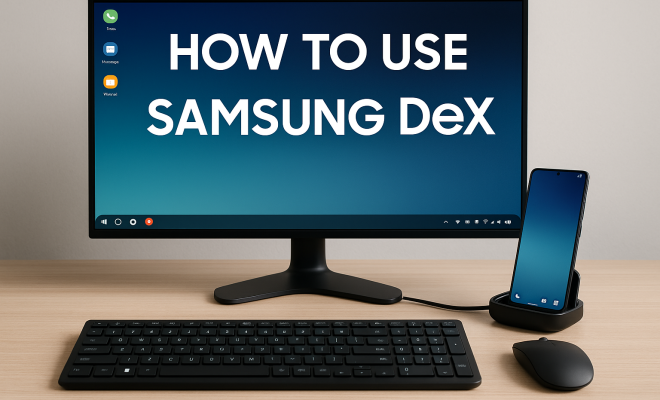
How to use Samsung DeX
“`html
In an age where our smartphones hold more power than ever, Samsung DeX stands out as a transformative tool that can greatly enhance productivity and multitasking capabilities. If you’ve ever wondered how to leverage your Galaxy device into a desktop-like experience, this comprehensive Samsung DeX guide will cover everything you need to know, from its background and functionality to practical tips for maximizing your use of the platform.
1. What is Samsung DeX?
Samsung DeX, short for Desktop Experience, is a feature that allows users to turn their compatible Samsung Galaxy devices into a desktop computing experience. Launched in 2017 with the Galaxy S8 and S8+, DeX aims to bridge the gap between mobile and desktop environments. The feature allows users to connect their smartphones or tablets to a monitor, keyboard, and mouse, effectively transforming portable devices into a workstation.
At its core, Samsung DeX provides a familiar desktop interface. You can use apps in a windowed format, drag and drop files, and multitask seamlessly as you would on a traditional computer. This feature not only enhances productivity for professionals and students alike but also caters to creatives and gamers looking for a more immersive experience on larger screens.
2. Setting Up Samsung DeX
Getting started with Samsung DeX is straightforward. First, ensure that your device is compatible; most recent Galaxy smartphones and tablets, including the Galaxy S21, S20, Note20, and Tab S series, support DeX. Here’s how to set it up:
- 1. Gather Your Equipment: You’ll need a compatible device, a monitor, and a USB-C to HDMI cable (or adapters) to connect your device to the display. Alternatively, you can use a DeX Station or DeX Pad for a more integrated experience.
- 2. Connect Your Device: Plug your device into the monitor using the HDMI cable. If you’re using a DeX Station or Pad, simply dock your phone.
- 3. Launch DeX: Your device will automatically switch to DeX mode once connected. If not, swipe down from the top of your screen, tap on the DeX notification, and select ‘Start DeX.’
Once in DeX mode, you’ll see a desktop-like interface where you can access your apps and files. It’s worth exploring the settings to customize your experience further, including display resolution and keyboard shortcuts.
3. Supported Devices
Samsung DeX isn’t available on all devices. As of now, a wide range of devices support this feature, including flagship models from the Galaxy S series, Note series, and the Galaxy Tab series. Notably, the Galaxy S22, S21 FE, and the Galaxy Z Fold series also support DeX.
To check for compatibility, visit Samsung’s official website or refer to your device’s user manual. It’s essential to keep your device updated, as newer software versions can enhance DeX functionality and introduce new features.
4. Using Apps in Samsung DeX
One of the most significant advantages of Samsung DeX is its ability to run multiple applications simultaneously. You can open apps in windows, resize them, and arrange them just like you would on a PC. Most popular applications, including Microsoft Office, Google Workspace, and various productivity apps, are fully compatible with DeX.
For instance, you can have your email open in one window while taking notes in another. This multitasking capability is particularly beneficial for professionals working on presentations or reports. Moreover, you can drag files between apps, making it easier to manage documents and images. Just remember to take advantage of keyboard shortcuts to speed up your workflow. (See: Samsung DeX on Wikipedia.)
5. File Management in Samsung DeX
Managing files in Samsung DeX is intuitive. The platform mimics a traditional desktop environment, complete with a ‘Files’ app where you can navigate your device’s storage and access cloud services like Google Drive or OneDrive. You can easily drag and drop files, create folders, and organize your documents.
If you need to transfer files between your phone and the connected monitor, simply use a USB drive or cloud storage. Samsung DeX also supports drag-and-drop functionality if your monitor supports touch; this feature allows you to seamlessly transfer files from your mobile device to the desktop.
6. Samsung DeX for Gaming
Gaming on Samsung DeX can significantly enhance your experience. Many mobile games can be played on a larger screen, providing better graphics and improved controls with a keyboard and mouse. Titles like Fortnite, Call of Duty Mobile, and others are optimized for DeX, creating a console-like experience.
To enable gaming on DeX, simply launch your game from the apps menu. The performance will largely depend on your device’s specifications, but many users report smoother gameplay and better graphics when using DeX. It’s also worth noting that gamers can connect their Bluetooth controllers for an even more immersive experience.
7. Customizing Your DeX Experience
Samsung provides various customization options to tailor the DeX interface to your liking. You can modify display settings, such as resolution and scaling, to optimize your viewing experience. Additionally, keyboard shortcuts can be modified or created to speed up your workflow.
You can also set up virtual desktops, allowing you to separate different tasks and projects. For example, one virtual desktop can be dedicated to work, while another could focus on entertainment or personal projects. This feature improves organization and helps you focus on what you’re doing at the moment.
8. Challenges and Limitations of Samsung DeX
While Samsung DeX offers a remarkable experience, it’s not without its challenges. One significant limitation is that not all apps are optimized for DeX. Some applications may not function correctly, leading to a frustrating user experience.
Additionally, the performance can vary based on the device being used, especially with older models. Users have reported that while DeX works seamlessly with flagship devices, mid-range devices may struggle with more demanding applications. Moreover, connectivity issues can sometimes arise, particularly with multi-display setups, which may require troubleshooting.
9. The Future of Samsung DeX
As technology continues to evolve, the future of Samsung DeX looks promising. Samsung is keen on expanding DeX’s capabilities, potentially integrating it further into their ecosystem, including smart home devices and wearables. Recent updates have improved performance and user experience, indicating that Samsung is committed to enhancing DeX.
Looking ahead, we may also see advancements in compatibility with third-party applications, enabling even broader usage across different sectors. Developers are increasingly recognizing the potential of mobile-first solutions, leading to a richer app ecosystem that enhances the DeX experience.
Whether you’re a student, a professional, or a gamer, Samsung DeX unlocks the potential of your mobile devices. By following this Samsung DeX guide, you’ll discover how to transform your smartphone or tablet into a powerful desktop workstation. (See: Mobile computing research on ScienceDirect.)
10. Getting the Most Out of Samsung DeX
To truly harness the potential of Samsung DeX, consider these practical tips:
- Utilize Multi-Window Feature: Take advantage of the multi-window feature to enhance your productivity. You can run multiple apps side by side, making it easier to reference information while working.
- Keyboard Shortcuts: Familiarize yourself with keyboard shortcuts, as they can make navigating DeX much smoother. For instance, using Alt + Tab lets you switch between open applications quickly.
- External Storage: If you’re working with large files or multimedia, consider using external storage options. You can connect USB drives to your device while in DeX mode, allowing for easy access to additional storage.
- Docking Stations: If you’re using DeX regularly, investing in a good docking station can simplify your setup. Many docks provide additional ports for USB devices, HDMI output, and even power delivery for charging.
11. Real-World Use Cases for Samsung DeX
Samsung DeX has found its way into various professional scenarios, illustrating its versatility. Here are some real-world examples:
- Remote Work: Many professionals have started using DeX as a portable office solution. By connecting their Galaxy devices to monitors in co-working spaces, they can maintain productivity without needing a full laptop.
- Creative Work: Designers and editors benefit from the larger screen real estate when using graphic design and video editing applications. This allows for a more detailed view of their work, which is crucial for fine-tuning projects.
- Presentations: With DeX, you can turn your smartphone into a presentation tool. Use your phone to control slides and display them on a larger screen, making it convenient for meetings and webinars.
- Education: Students can use DeX in classrooms. By connecting to projectors or monitors, they can share their work and collaborate in real-time, enhancing the learning experience.
12. Statistics on Samsung DeX Usage
While specific statistics on DeX usage can vary, some surveys and reports illustrate its impact:
- Increased Productivity: Based on a study by Samsung, users reported a 30% increase in productivity when utilizing DeX for remote work tasks.
- Device Preference: A survey found that 67% of professional users prefer using Samsung DeX over traditional laptops for their mobile office needs.
- App Optimization: Approximately 75% of popular productivity apps are now optimized for DeX, showing an increasing trend among developers to cater to this platform.
13. Common FAQs about Samsung DeX
What devices support Samsung DeX?
Samsung DeX is supported on various devices, primarily the Galaxy S series (S8 and later), Note series (Note 8 and later), and Galaxy Tab series. Always check Samsung’s official website for the most updated compatibility list.
Can I use Samsung DeX without a monitor?
Yes, Samsung DeX allows you to use it wirelessly with compatible smart TVs and monitors. Just ensure that both your phone and the display are on the same Wi-Fi network.
Are there any apps that don’t work on Samsung DeX?
While many popular apps are compatible, some apps, particularly games or those designed solely for mobile use, may not work as intended. It’s a good idea to test the apps you rely on before fully committing to using DeX for your tasks.
Can I use Samsung DeX with a Bluetooth mouse and keyboard?
Absolutely! You can connect Bluetooth peripherals to enhance your DeX setup. This allows for seamless navigation, similar to using a desktop computer.
How do I exit Samsung DeX mode?
To exit DeX mode, simply disconnect your device from the monitor or click on the DeX icon in the notification area and select ‘Exit DeX.’ Your device will revert to its standard mobile mode.
Is Samsung DeX secure for business use?
Samsung DeX includes several layers of security, including Samsung Knox, which protects your data both in transit and at rest. However, always ensure that your device software is up to date and follow best practices for data security. (See: CDC on mobile computing safety.)
14. Advanced Tips for Samsung DeX Users
If you’re already familiar with the basics of Samsung DeX, here are some advanced tips to elevate your experience even further:
- Screen Mirroring: You can mirror your Samsung device’s screen to a compatible display while using DeX. This is particularly useful for presentations or collaborative work, allowing others to see what you’re doing in real-time.
- Use Samsung Flow: Samsung Flow enables you to share notifications, files, and even clipboard content between your Galaxy device and other Samsung devices. This seamless integration can help streamline your workflow.
- Automate Tasks: Consider using automation apps to create workflows that enhance your productivity while using DeX. For example, setting up scripts to open specific applications when you connect to DeX can save time.
- Explore Third-Party Apps: There are numerous apps designed specifically for use with DeX. Explore options like remote desktop applications or creative software that enhances your productivity on a larger screen.
15. Troubleshooting Common Issues with Samsung DeX
Even with its many advantages, users might face issues while using Samsung DeX. Here’s a quick troubleshooting guide for common problems:
- Connection Issues: If your device isn’t connecting, ensure that your HDMI cables are securely plugged in and check if your monitor is set to the correct input source.
- Performance Lag: If you experience lag or slow performance, close any unnecessary applications running in the background on your device. It may also help to restart your device.
- App Compatibility Problems: If an app is not working correctly, check for updates for both the app and your device’s operating system. Sometimes reinstalling the app can also resolve issues.
- Sound Issues: If you’re not hearing any audio, ensure that the audio output is set to the correct device. You can check settings in the DeX interface to see where the audio is directed.
16. Beyond Samsung DeX: Competing Technologies
While Samsung DeX is a powerful tool, it’s worth noting that there are other similar technologies available. For instance:
- Microsoft’s Continuum: This feature for Windows 10 Mobile devices allows users to connect their phones to a monitor for a PC-like experience. However, the platform has seen reduced support as Microsoft shifted focus away from mobile.
- Apple’s Universal Control: Apple recently introduced a feature that allows seamless control of multiple devices with a single keyboard and mouse, bridging the gap between macOS and iPadOS environments.
- Chrome OS Flex: This lightweight operating system enables users to run a full desktop experience on older hardware, especially beneficial for those looking to repurpose old laptops.
Each of these solutions has its unique strengths, but Samsung DeX remains a standout option for Samsung device users due to its deep integration with the Galaxy ecosystem.
17. Community and Resources for Samsung DeX Users
Finding help and community support can enhance your experience with Samsung DeX. Here are some useful resources:
- Samsung Community Forums: Engage with other users, share experiences, and ask questions to get community-driven support.
- YouTube Tutorials: A plethora of video content is available to help you navigate advanced features and troubleshoot common issues with DeX.
- Online Blogs and Review Sites: Websites dedicated to technology often feature guides, tips, and best practices for optimizing your Samsung DeX experience.
18. Conclusion
Samsung DeX is more than just a feature; it’s a glimpse into the future of mobile productivity. As devices become more powerful and versatile, embracing tools like DeX can elevate how we work and play. Whether you’re looking to enhance productivity, create art, or simply enjoy a bigger display for your favorite mobile games, this Samsung DeX guide has provided you with the foundational knowledge to get started. With these tips and insights, you’re well on your way to making the most out of your Samsung DeX experience.
“`
Trending Now
Frequently Asked Questions
What is Samsung DeX and how does it work?
Samsung DeX, or Desktop Experience, allows users to transform compatible Samsung Galaxy devices into a desktop-like environment. By connecting the device to a monitor, keyboard, and mouse, users can enjoy a familiar interface, multitask, and use apps in a windowed format, enhancing productivity and providing a seamless experience.
How do I set up Samsung DeX?
To set up Samsung DeX, ensure your device is compatible. Gather a monitor and a USB-C to HDMI cable or use a DeX Station. Connect your device to the monitor, then launch DeX. Your device will automatically switch to the desktop interface, ready for use.
Which devices are compatible with Samsung DeX?
Most recent Samsung Galaxy smartphones and tablets are compatible with Samsung DeX, including models like the Galaxy S21, S20, Note20, and Tab S series. Check your device specifications to confirm DeX support before setting it up.
Can I use Samsung DeX for gaming?
Yes, Samsung DeX can enhance gaming experiences by allowing users to play mobile games on a larger monitor with a keyboard and mouse. This setup provides a more immersive experience, making it ideal for gamers who prefer a desktop-like environment.
What accessories do I need for Samsung DeX?
To use Samsung DeX, you will need a compatible Samsung Galaxy device, a monitor, and a USB-C to HDMI cable or adapters. Alternatively, a DeX Station or DeX Pad can provide a more integrated and convenient setup for connecting your device.
What’s your take on this? Share your thoughts in the comments below — we read every one.