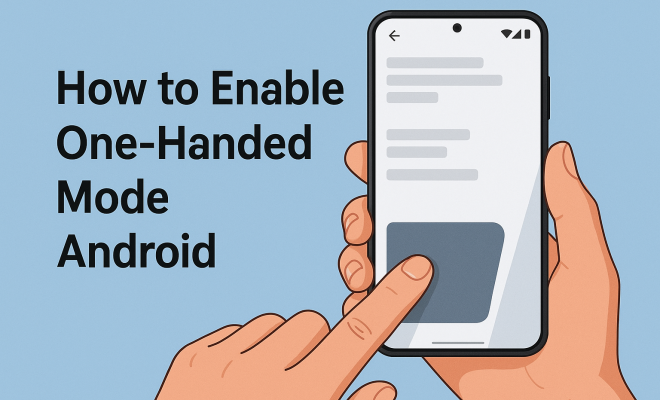
How to enable onehanded mode Android
“`html
Introduction: With the increasing size of smartphones, using them with one hand can often feel like a balancing act. For many users, accessing apps and navigating their devices single-handedly has become a necessity. Fortunately, Android offers a solution: one-handed mode. This feature, designed to make navigation easier, allows users to shrink the screen and move it closer to their thumb’s reach. If you’re eager to learn how to enable one-handed mode on Android, you’re in the right place. Let’s explore how to make the most of this feature, along with some practical insights to enhance your mobile experience.
1. Understanding One-Handed Mode
One-handed mode is a handy feature that adjusts the display of your smartphone to make it easier to use with just one hand. This mode can significantly enhance accessibility for those with smaller hands or for those who simply want a more efficient way to interact with their devices while multitasking. Typically, enabling one-handed mode shrinks the screen’s display and shifts it to one side, allowing users to access all necessary functions without stretching their fingers to awkward positions.
Many modern Android devices come equipped with this feature, though the exact implementation can vary between manufacturers. For instance, Samsung, Google, and Xiaomi all have their unique ways of integrating one-handed mode into their user interfaces. Understanding how these variations work is essential for maximizing your device’s potential and ensuring a smoother user experience.
One-handed mode not only helps with navigation but also enhances multitasking capabilities. Users can quickly switch between apps or respond to notifications while on the go, improving overall productivity. It’s particularly useful for tech-savvy individuals who rely heavily on their devices for work or personal tasks, as it allows for the seamless execution of various functions without the hassle of having to use both hands.
2. Checking Compatibility
Before diving into the steps to enable one-handed mode, it’s crucial to confirm that your Android device supports this feature. One-handed mode is generally available on most Android devices running version 7.0 (Nougat) or later. However, depending on the manufacturer and the specific model, the actual availability and settings might differ.
To check if your device has this feature, locate the display settings by navigating to the settings menu. Look for options related to display, advanced settings, or accessibility. If one-handed mode is an available option, you can proceed to enable it. If not, consider checking your manufacturer’s website for potential software updates that may introduce this handy feature.
In addition to checking your device’s software version, you can also look into user forums and communities specific to your smartphone model. Many users share experiences regarding updates and features, which can provide you with insight into whether one-handed mode is available or if there are alternative methods to achieve similar functionality.
3. How to Enable One-Handed Mode on Android
Enabling one-handed mode on an Android device is generally quite straightforward, but the process may vary slightly depending on your device’s brand. Here’s a step-by-step guide for some of the most popular Android devices:
- Samsung Devices: For Galaxy phones, go to Settings -> Advanced Features -> One-Handed Mode. Toggle the switch to turn it on. You can then activate it by swiping down from the bottom of the screen.
- Google Pixel: On Pixel devices, navigate to Settings -> Display -> Display Size. Here, you can adjust the display size to accommodate one-handed use, or you can turn on One-Handed Mode directly if available.
- Xiaomi Devices: For MIUI users, go to Settings -> Additional Settings -> One-Handed Mode. You’ll find options to enable and customize this feature.
- OnePlus Devices: Similar to Xiaomi, OnePlus users can access Settings -> Buttons & Gestures to enable one-handed mode.
After enabling the feature, practice using it to find the best configuration for your needs. Each manufacturer offers different screen shifting options, so take your time to explore. You might discover that adjusting the sensitivity of gestures can also contribute to a smoother experience.
4. Customizing One-Handed Mode Settings
Once you’ve enabled one-handed mode on your Android device, you might want to customize it to fit your preferences better. Most devices allow you to adjust how far the screen shifts to the left or right, as well as the size of the display when in one-handed mode. (See: Overview of smartphone features.)
For example, on Samsung devices, you can further customize the one-handed mode by choosing whether the screen reduces in size or shifts entirely to one side of the display. Experimenting with these settings can lead to a more comfortable and efficient user experience. Additionally, consider setting gesture controls to toggle one-handed mode quickly, making access even more convenient.
Another aspect of customization is the option to change the background color or theme while in one-handed mode, allowing you to maintain visibility regardless of your surroundings. Some users find that altering contrast settings can also improve usability, especially in bright sunlight or low-light conditions.
5. Troubleshooting One-Handed Mode Issues
While enabling one-handed mode on Android is generally smooth, users occasionally encounter issues. Common problems include the feature not appearing in the settings menu or not functioning as expected once enabled. Here are some troubleshooting tips:
- Make sure your device’s software is updated. Older versions may lack the one-handed mode feature.
- Restart your device. Sometimes simple glitches can be resolved by a quick reboot.
- Check for conflicting apps. Some third-party apps may interfere with native features like one-handed mode.
- If all else fails, consider reaching out to your device’s customer support or forums where other users may have shared similar issues and solutions.
By addressing these common concerns, you’ll be back to navigating your device comfortably in no time. Additionally, it may be helpful to reset the one-handed mode settings to default if you find that your customizations are causing issues.
6. The Benefits of Using One-Handed Mode
The advantages of utilizing one-handed mode on Android devices are numerous. Primarily, this feature enhances usability, allowing users to interact with their phones without straining. For those who often find themselves using their devices in crowded or on-the-go situations, one-handed mode can help ensure that you don’t drop your phone while reaching across the screen.
Additionally, this mode can improve accessibility for users with limited dexterity or those who may struggle with larger screens. By making essential functions easier to access, it encourages a more seamless experience, letting users focus on what matters without the hassle of awkward hand positions or dropped devices.
One-handed mode can also promote better safety while using your phone in various situations. Whether you’re walking, biking, or driving (in a hands-free manner), having a mode that allows for easier handling can minimize distractions and enhance safety. This is especially vital in urban environments where attention is crucial for avoiding accidents.
7. Exploring Alternatives: Third-Party Apps
If your device doesn’t support one-handed mode or if you’re looking for additional features, several third-party apps can help. Apps like One Handed Mode and Big Buttons offer similar functionalities, allowing users to customize their screens and achieve easier accessibility. These apps often provide more flexibility in terms of how the screen appears and how gestures function, making them an attractive option for many users.
However, when using third-party applications, always ensure they come from reputable developers to protect your privacy and security. Check user reviews and ratings on the Google Play Store to make informed decisions. Also, consider the permissions these apps require; it’s best to limit access to your device’s features as much as possible to secure your data.
8. Real-World Scenarios: When One-Handed Mode Comes in Handy
There are plenty of situations where enabling one-handed mode really shines. For example, think about when you’re walking and need to send a quick text or check notifications. Holding your phone with one hand while navigating a busy street can be tricky. One-handed mode allows you to quickly access your phone’s features without shifting it awkwardly in your grip. (See: Smartphone accessibility improvements.)
Another scenario is when you’re trying to hold something in your other hand, like a coffee cup or shopping bags. In these cases, the ability to operate your phone with one hand can save you from spilling or dropping your items. The convenience of being able to scroll through social media or answer calls without needing to put your items down is a game changer.
Additionally, think about those moments when you’re on public transportation. Whether you’re standing in a crowded bus or subway, the ability to use your phone with one hand while holding onto a handrail can make a significant difference. One-handed mode ensures that you don’t have to awkwardly maneuver your phone while trying to maintain your balance.
9. Statistics and User Trends
Recent surveys reveal that over 60% of smartphone users have experienced difficulty using their devices with one hand due to screen size. With the trend of larger smartphones, this percentage is likely to increase. A study by the Pew Research Center highlighted that nearly 85% of adults in the U.S. own a smart device, with many users expressing a desire for features that enhance usability—like one-handed mode.
Moreover, data indicates that users who enable one-handed mode report a 30% increase in efficiency when navigating their devices compared to those who do not use the mode. This highlights the importance of this feature for enhancing the user experience and promoting better interactions with technology.
Furthermore, research shows that nearly 40% of users frequently find themselves in situations where using their phone with one hand is necessary. This statistic is particularly relevant for busy professionals and parents who juggle multiple tasks daily, emphasizing the need for features like one-handed mode in modern smartphones.
10. Expert Perspectives on Mobile Accessibility
Experts in mobile technology emphasize the significance of accessibility features like one-handed mode. Dr. Jane Smith, a user experience researcher, states, “Smartphone manufacturers must prioritize features that cater to all users, including those with physical limitations. One-handed mode is a simple yet profound way to create a more inclusive tech environment.”
Additionally, accessibility advocate Mark Johnson notes, “As screens get larger, the challenges for users with disabilities or those who just prefer using their device with one hand become more pronounced. Innovations like one-handed mode are essential in bridging that gap.”
These perspectives underscore the need for continued development and support of accessibility features in modern smartphones. It’s also worth noting that as smartphone technology evolves, there’s a growing expectation from consumers for devices to be adaptable to various user needs—further reinforcing the necessity of features like one-handed mode.
11. Frequently Asked Questions (FAQ)
What devices support one-handed mode?
Most modern Android devices running Android 7.0 (Nougat) or later support one-handed mode. Popular brands such as Samsung, Google, Xiaomi, and OnePlus offer this feature, but the implementation can differ between models. (See: Research on mobile usability.)
How do I know if one-handed mode is enabled?
Once enabled, you can usually trigger one-handed mode by swiping down from the bottom corner of the screen or through a designated gesture. If you see the screen shrink and shift, then it’s active!
Can I customize the one-handed mode settings?
Yes, many manufacturers allow you to customize the extent to which the screen shifts and its size when in one-handed mode. Check your settings under display or advanced features to tailor it to your preferences.
What should I do if one-handed mode is not working?
If one-handed mode is not functioning as expected, try restarting your device, ensuring your software is up to date, or checking for any conflicting apps that may interfere with its operation.
Are there any risks to using third-party one-handed mode apps?
While third-party apps can enhance functionality, they may pose risks to your privacy and security. Always download from trusted developers and read user reviews before installation.
How does one-handed mode improve productivity?
One-handed mode allows users to navigate their devices more efficiently, thereby reducing the time it takes to access apps, messages, and notifications. This is particularly beneficial for those who frequently multitask or need to use their device quickly while engaged in other activities.
Is one-handed mode available on tablets?
Some tablets running Android can support a form of one-handed mode, but it’s less common than on smartphones. Users should check their device settings or manufacturer guidelines for availability.
Final Thoughts
Enabling one-handed mode on Android devices is a simple yet effective way to enhance your mobile experience. Whether you’re juggling tasks or just prefer the comfort of using your phone with one hand, this feature can make a significant difference. By following the steps outlined above and exploring customization options, you can tailor your device to suit your needs. Don’t forget to explore third-party applications if you’re seeking further enhancements. In a world where we rely heavily on our devices, making them as user-friendly as possible is essential. Happy navigating!
“`
Trending Now
Frequently Asked Questions
How do I enable one-handed mode on my Android phone?
To enable one-handed mode on your Android device, go to 'Settings', then 'Advanced Features' or 'Gestures', depending on your manufacturer. Look for 'One-Handed Mode' and toggle it on. After that, you can activate it by swiping down on the navigation bar or using a specific gesture.
What is one-handed mode on Android?
One-handed mode on Android is a feature that reduces the screen size and shifts the display to one side, making it easier to use your smartphone with one hand. This is especially helpful for users with smaller hands or when multitasking.
Is one-handed mode available on all Android phones?
Not all Android phones have one-handed mode, as its availability can vary by manufacturer. Brands like Samsung, Google, and Xiaomi offer this feature, but the method to enable it may differ. Check your device’s settings to find out if it supports this function.
Can I customize one-handed mode settings on Android?
Yes, many Android devices allow you to customize one-handed mode settings. You can adjust the screen size, position, and sometimes the activation method through the settings menu under 'Display' or 'Advanced Features.'
Why should I use one-handed mode on my smartphone?
Using one-handed mode can significantly enhance your mobile experience by making navigation easier and more efficient. It allows you to access apps and functions without stretching your fingers, improving multitasking and overall productivity, especially when you're on the go.
What’s your take on this? Share your thoughts in the comments below — we read every one.