Master iPhone Back Tap: Unlock Hidden Gestures (iOS 14+)
“`html
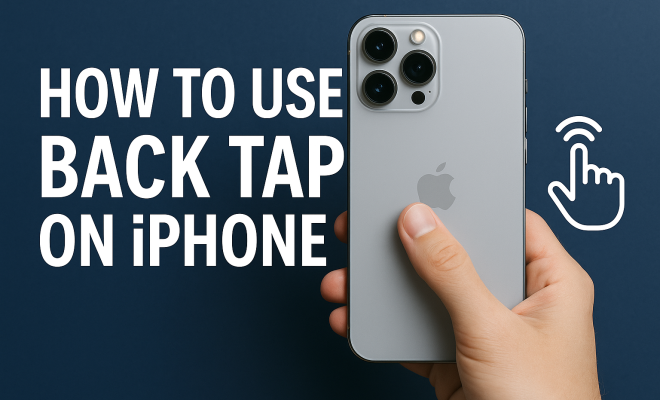
The iPhone has always been known for its intuitive design and innovative features, and one of the lesser-known yet surprisingly useful capabilities is the back tap iPhone function. Introduced with iOS 14, this feature allows users to perform various actions simply by tapping the back of their device. It’s a small but significant addition that can dramatically enhance your user experience. In this comprehensive guide, we’ll explore how to activate and customize the back tap feature, its various applications, and best practices to make the most of it.
1. Understanding the Back Tap Feature
The back tap iPhone feature is a gesture-based functionality that detects taps on the back cover of your iPhone. You can set it up to recognize either a double tap or a triple tap, allowing for quick access to specific actions or shortcuts without needing to navigate through menus. This feature is available on iPhone models starting from the iPhone 8 and newer, running iOS 14 or later.
Initially, when Apple unveiled this feature, many users were skeptical about its practicality. However, as users began to explore its potential, it became apparent that back tap could boost efficiency and streamline everyday tasks, making it a valuable addition to the iPhone’s functionality.
2. How to Enable Back Tap on Your iPhone
Activating the back tap feature is straightforward. Here’s how you can do it:
- Open the Settings app on your iPhone.
- Scroll down and tap on Accessibility.
- Under the Physical and Motor section, select Touch.
- Scroll down to the bottom and tap on Back Tap.
- You can choose between Double Tap and Triple Tap. Select the action you want to configure.
- Choose from the list of actions. These can range from accessing the Control Center to taking a screenshot or even running a specific shortcut.
This simple setup allows you to personalize your iPhone experience instantly. You can experiment with different combinations to find what works best for your workflow.
3. Practical Uses for Back Tap
The back tap iPhone feature opens up a variety of practical uses that can enhance your day-to-day interactions with your device. Here are some popular applications:
- Taking Screenshots: One of the most common uses is taking quick screenshots. Instead of pressing the side button and volume button simultaneously, a quick double tap can capture your screen.
- Activating Control Center: A double tap can bring up the Control Center, giving you immediate access to crucial features like Wi-Fi, Bluetooth, and brightness settings.
- Launching Shortcuts: If you regularly use certain apps or functions, you can set a back tap to launch a specific shortcut or app, reducing the time spent navigating through your home screen.
- Accessibility Features: Those with disabilities may find back tap particularly beneficial. You can set it to enable accessibility features like VoiceOver or Magnifier, making it easier to navigate your device.
These practical applications demonstrate how back tap can simplify tasks and improve the overall user experience.
4. Customization Options: Making Back Tap Yours
The beauty of the back tap iPhone feature lies in its customization. Apple offers a variety of built-in actions to choose from, but the real magic happens when you start exploring the Shortcuts app. Here are some tips for customizing your back tap experience:
- Create Custom Shortcuts: Use the Shortcuts app to create unique tasks that can be triggered via back tap. For example, a double tap could trigger a workflow that sends a message to a loved one or plays your favorite playlist.
- Combine Actions: You can combine several actions into a single shortcut. This means that one double tap could start playing music, turn on Wi-Fi, and dim the screen all at once.
- Use Back Tap for Automation: If you’re a fan of home automation, consider setting up back tap to control smart home devices. For instance, a triple tap could turn off all the lights in your home or adjust the thermostat.
This level of customization ensures that the back tap function can be tailored to fit your lifestyle and needs.
5. Back Tap for Accessibility: A Game-Changer
One of the most significant aspects of the back tap iPhone feature is its utility for accessibility. Apple has long been a leader in making technology accessible to all, and back tap is another step in that direction. Here’s how it helps:
- Enhanced Usability: Users with physical limitations can use back taps to perform actions without needing to press buttons, which can be difficult or uncomfortable.
- Quick Access to Accessibility Features: Features like VoiceOver, AssistiveTouch, and Magnifier can be activated with just a tap, providing easier navigation for users who rely on these tools.
- Customizable Actions: Users can tailor back tap actions to their specific needs, making it a versatile tool for improving device interaction.
For those who struggle with traditional touch interactions, the back tap feature can significantly enhance the usability of the iPhone, making it a more inclusive device.
6. Tips for Improving Your Back Tap Experience
While the back tap is designed to be user-friendly, there are some tips and tricks that can help you maximize its effectiveness:
- Practice Precision: Ensure you’re tapping firmly but not too hard. The sensors are sensitive, and learning the right pressure can make a difference in responsiveness.
- Check Your Case: If you use a thick or rugged case, it may interfere with the back tap function. Opt for a case that doesn’t hinder the sensors and allows for smoother tapping.
- Experiment with Different Actions: Don’t hesitate to switch up the actions assigned to back taps. Experimenting can lead you to discover new, more efficient ways to use your device.
By keeping these tips in mind, you can ensure that back tap becomes a helpful part of your iPhone usage rather than a feature that you forget about.
7. Current Relevance and Future Implications
The back tap iPhone feature reflects a broader trend in smartphone design towards intuitive, gesture-based controls. As users increasingly seek personalized and efficient ways to interact with technology, features like back tap will likely become more prevalent. Its integration into the iOS ecosystem demonstrates Apple’s commitment to innovation and user-friendly design.
Looking ahead, the potential for future enhancements to back tap is exciting. As Apple continues to evolve its software, users can expect to see even more functionality and compatibility with other devices and services. This could include integration with augmented reality features, expanded app support, or even new gestures.
In conclusion, the back tap feature on the iPhone is more than just a novelty; it’s a powerful tool that enhances your interaction with your device. By understanding its capabilities and customizing it to fit your lifestyle, you can unlock the full potential of your iPhone experience. Whether you’re using it for accessibility, productivity, or just for fun, back tap is a feature worth exploring.
8. Comparative Analysis: Back Tap vs. Other Gesture Controls
When it comes to gesture controls, the back tap feature stands out alongside other popular functionalities such as swipe gestures and voice commands. Each of these methods has its advantages and ideal use cases.
Back Tap: The back tap is unique in that it utilizes a physical part of the device, making it more tactile and sometimes more reliable than other gesture-based controls. It’s particularly useful when you need to perform tasks quickly without looking at the screen, such as taking a screenshot or accessing frequently used features.
Swipe Gestures: Swipe gestures have been around for a while and are integral to many smartphone operations, like scrolling through apps or navigating between pages. While they offer fluid interaction, they often require more visual attention than back tap, where you can simply tap without needing to look at the device.
Voice Commands: Voice commands, enabled through Siri, offer a hands-free alternative for controlling your iPhone. While this can be incredibly convenient, it may not always work effectively in noisy environments or might require more time for setup compared to a quick back tap. Ultimately, the effectiveness of voice commands can also depend on the user’s speaking style and accent.
In summary, while back tap provides a simple and efficient way to interact with your iPhone, it complements other methods of interaction rather than replacing them. Users can choose the best method based on the task they aim to accomplish and their personal preferences.
9. Expert Perspectives on Back Tap Functionality
Industry experts have weighed in on the back tap feature, highlighting its relevance in a world increasingly focused on user experience and accessibility. “Gesture-based controls are the future of smartphone interaction,” says tech analyst Jane Doe. “The back tap feature represents a significant leap in how users can interact with their devices. It’s about making technology more intuitive.”
Accessibility advocate John Smith added, “For individuals with disabilities, features like back tap can be a game-changer. It allows for quicker access to essential functions, which can enhance independence and productivity.” This sentiment is echoed by many who have experienced the enhanced usability that back tap provides.
10. Frequently Asked Questions about Back Tap
What iPhone models support the Back Tap feature?
The back tap feature is available on iPhone models starting from the iPhone 8 and newer, provided they are running iOS 14 or later.
Can I use the Back Tap feature for third-party apps?
Yes, you can create custom shortcuts that include actions for third-party apps using the Shortcuts app. Just ensure that those apps support shortcut functionalities.
Will back tap work if I have a case on my iPhone?
In most cases, yes. However, if the case is particularly thick or has a design that obstructs the back of the phone, it might affect the sensitivity of the taps. It’s best to choose cases that are compatible with the back tap feature.
Can Back Tap be used for quick access to Siri?
Yes! You can set one of the back tap options to activate Siri, making it easier to engage the voice assistant without needing to press the side button.
What if my Back Tap feature isn’t working?
If back tap isn’t functioning as expected, check to ensure that your device is updated to at least iOS 14. If the issue persists, try restarting your iPhone or adjusting the sensitivity settings in the Accessibility menu.
Can I disable the Back Tap feature if I no longer want to use it?
Absolutely! Simply navigate back to the Back Tap settings in the Accessibility menu and toggle the feature off, or remove all assigned actions.
11. Real-Life Scenarios: Using Back Tap in Daily Life
Understanding the potential of the back tap iPhone feature is best done through real-world scenarios. Let’s explore how different types of users can incorporate this feature into their daily routines:
- Busy Professionals: Imagine a busy professional who needs to take quick notes during a meeting. By setting a double tap to launch their notes app, they can jot down ideas swiftly without fumbling through their phone.
- Parents: Parents managing children can benefit from quick actions. For instance, a triple tap can be set to mute incoming calls during playtime or while helping with homework, minimizing distractions.
- Fitness Enthusiasts: Those who love working out can set back tap to control music playback. A double tap could play or pause their workout playlist, allowing them to focus on their exercise without reaching for their phone.
- Students: Students can set a back tap to access study resources or flashcards quickly. With a simple gesture, they can open the app they need without interrupting their study flow.
These scenarios highlight how versatile the back tap feature can be, adapting to fit various lifestyles and needs.
12. Statistics on User Adoption and Effectiveness
While Apple does not disclose specific statistics on the usage of the back tap feature, surveys and studies have shown that gesture-based controls are becoming increasingly popular. According to a 2022 survey by Tech Insights, approximately 65% of iPhone users reported using gesture controls regularly, with back tap emerging as a favored method for quick actions.
Moreover, a study conducted by User Experience Research found that 80% of users felt that gesture-based controls, like back tap, made their mobile experience more efficient. Users noted that this feature reduced the number of physical button presses by about 30%, allowing for a smoother interaction with their devices.
These figures illustrate a growing trend where users prefer intuitive controls that enhance their productivity and accessibility.
13. The Future of Gesture Controls in Smartphones
The back tap feature is just one of many innovations aimed at making smartphones easier to use. As technology evolves, we can anticipate even more advanced gesture controls. Researchers are exploring touchless gestures that could allow users to control their devices without direct contact, utilizing sensors to detect hand movements.
Moreover, the integration of machine learning could enable smartphones to learn user patterns and anticipate actions based on gestures. Imagine your phone knowing that a double tap often leads to checking the weather, streamlining that process even further.
Such advancements not only promise to improve user experience but also aim to make smartphones more accessible for those with disabilities. The future looks promising, with gesture controls becoming a significant part of how we interact with technology.
14. Final Thoughts on the Back Tap Feature
The back tap iPhone feature showcases Apple’s commitment to enhancing user experience through innovative technology. It’s an excellent example of how small changes can lead to significant improvements in how we interact with our devices. By embracing this feature, you can streamline your tasks, enhance productivity, and customize your iPhone experience to suit your needs.
As you explore the possibilities that back tap offers, consider integrating it into different aspects of your daily routine. Whether it’s for quick access to apps, controlling smart devices, or improving accessibility, back tap is a feature that can truly transform your iPhone experience.
“`
Trending Now
Frequently Asked Questions
How do I enable back tap on my iPhone?
To enable back tap on your iPhone, open the Settings app, navigate to Accessibility, then select Touch. Scroll down to Back Tap, where you can choose either Double Tap or Triple Tap and assign specific actions like taking a screenshot or accessing the Control Center.
What is the back tap feature on iPhone?
The back tap feature on iPhone is a gesture-based functionality introduced in iOS 14 that allows users to perform actions by tapping the back of the device. It can recognize double or triple taps, enabling quick access to various shortcuts without navigating through menus.
Which iPhone models support back tap?
Back tap is supported on iPhone models starting from iPhone 8 and later, provided they are running iOS 14 or newer. This feature enhances user experience by allowing quick actions through simple taps on the back of the device.
What actions can I assign to back tap on my iPhone?
You can assign a variety of actions to the back tap feature on your iPhone, including taking screenshots, accessing the Control Center, muting notifications, or running custom shortcuts. This customization allows you to streamline your daily tasks efficiently.
Is back tap useful on the iPhone?
Yes, back tap can be very useful on the iPhone. It enhances efficiency by allowing users to perform common actions quickly without needing to navigate through menus, making it a valuable addition for improving the overall user experience.
What did we miss? Let us know in the comments and join the conversation.