How to enable reachability on iPhone
“`html
In today’s world, where our smartphones serve as lifelines to information and communication, it’s crucial to maximize their usability. One feature that can significantly enhance your experience with the iPhone is the ability to enable reachability on iPhone. This functionality allows you to access the top of your screen with ease, making it a game changer, especially for users with larger devices. Here’s a comprehensive guide on how to enable and utilize this feature effectively.
1. Understanding Reachability
Reachability is a feature designed by Apple to assist users in navigating their iPhones, particularly those with larger screens. Launched with the iPhone 6 and 6 Plus, this option shifts the entire screen down, allowing easy access to icons and options that would otherwise be out of reach. This is particularly beneficial for one-handed use, a common challenge among many smartphone users.
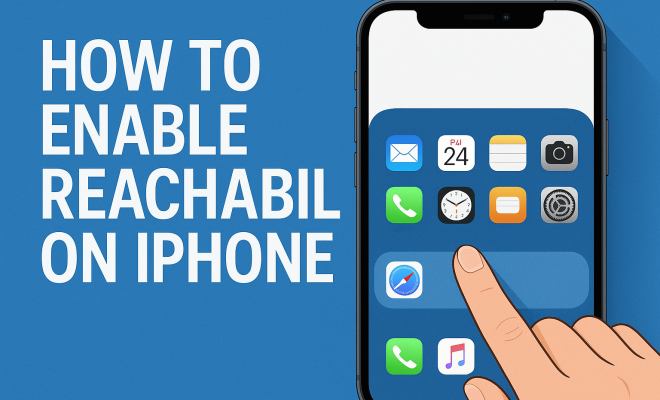
When you enable reachability on iPhone, the top half of your screen moves down, giving you instant access to notifications, buttons, and apps without the need to stretch or reposition your hand. As phones continue to grow in size, reachability remains a relevant feature, especially for users who prefer larger displays.
2. How to Enable Reachability on iPhone
To start using reachability on your iPhone, you first need to enable it in the settings. Here’s how you can do that:
- Open the Settings app on your iPhone.
- Scroll down and tap on Accessibility.
- Under the Touch section, find and select Reachability.
- Toggle the switch to turn on Reachability.
Once you’ve completed these steps, you’re ready to use reachability whenever you need it. This setup ensures that the feature is always available for your convenience, making it easier to interact with your device.
3. Using Reachability Effectively
After enabling reachability, using it is simple. To activate the feature, double-tap the Home button on older models or swipe down on the bottom edge of the screen on newer models without a Home button. This action will slide the contents of the screen down, allowing you to reach buttons at the top more easily.
It’s worth noting that reachability only works when the phone is held vertically. If your device is in landscape mode, this feature won’t activate. Additionally, be mindful that reachability may not be the best tool for every situation — some users might find the transition disorienting at first, but with practice, it becomes a natural part of your interactions with the iPhone.
4. Customizing Reachability Settings
Though enabling reachability is straightforward, understanding its customization options can further enhance its functionality. In the same Accessibility menu where you enabled reachability, you can explore additional settings that might improve your overall user experience.
For example, you can adjust settings related to touch sensitivity and the way your device responds to gestures. This way, you can personalize how reachability functions to best suit your preferences, ensuring that it integrates seamlessly into your daily phone usage.
5. Common Issues and Troubleshooting
While reachability is a handy feature, users occasionally encounter issues. Some common problems include reachability not activating or not responding as expected. If you’re facing such challenges, here are a few troubleshooting steps to consider:
- Make sure reachability is enabled in the settings as outlined earlier.
- Restart your iPhone to refresh the system.
- Ensure your device is updated to the latest iOS version, as software updates often resolve bugs.
If these steps don’t resolve the issue, consider resetting all settings. However, be aware that this action will revert all personalized settings, so it should be used with caution. (See: Accessibility in Technology Research.)
6. Accessibility Considerations
For individuals with disabilities or those who struggle with traditional smartphone navigation, reachability can be a significant assistance. Apple has been at the forefront of inclusivity, and reachability is just one of the many features designed to make their devices more accessible.
By enabling reachability on iPhone, users with limited mobility or dexterity can interact with their devices more easily. This feature, combined with other accessibility tools such as VoiceOver and Switch Control, empowers users to customize their experience to meet their needs.
7. Reachability in Different iPhone Models
As mentioned earlier, reachability was introduced with the iPhone 6 and 6 Plus. Since then, Apple has integrated this feature across most of its devices, including the iPhone X, XS, 11, 12, and beyond. However, how you activate it might slightly differ depending on the model.
For example, on models without a Home button (like the iPhone X and later), you activate reachability by swiping down from the bottom edge of the screen instead of double-tapping the Home button. Understanding these nuances is key to optimizing your experience across different devices.
8. Comparing Reachability with Other Navigation Features
While reachability is undoubtedly useful, it’s not the only navigation feature available on iPhones. Other functionalities, such as AssistiveTouch and gesture controls, provide alternative ways to interact with the device.
AssistiveTouch, for instance, creates a virtual button on your screen that can perform various functions, making it easier for users who find physical buttons challenging. Gesture controls allow users to navigate their devices using specific swipes or taps, which can sometimes be more intuitive than traditional button usage.
Choosing between these features often comes down to personal preference. Some users may prefer reachability for its simplicity, while others might find AssistiveTouch more convenient. Experimenting with these options can help you determine what works best for you.
9. Current Relevance and Future Prospects
As smartphone designs continue to evolve, the relevance of features like reachability remains significant. With larger screens becoming the norm, especially in flagship models, users will need effective ways to interact with their devices without compromising usability.
Apple’s commitment to user experience suggests that they will continue enhancing features like reachability in future updates. As technology advances, we can anticipate even more personalized and intuitive navigation options that cater to diverse user needs. For now, enabling reachability on iPhone is an essential step toward making your smartphone experience more enjoyable.
10. Reachability and User Experience: A Deeper Look
The introduction of reachability on iPhones marked a significant evolution in user experience design. By shifting the interface down, Apple has made it easier for users to interact with their devices, especially those who may struggle to reach the top of the screen comfortably. This feature is particularly useful in scenarios such as browsing the web, reading social media feeds, or replying to messages. A 2022 survey indicated that nearly 68% of iPhone users with larger screens rely on reachability to improve their everyday interactions with their devices.
Furthermore, this feature isn’t just about convenience; it reflects a broader trend in smartphone design that prioritizes user ergonomics. With devices becoming increasingly larger, it’s essential that manufacturers like Apple find innovative ways to accommodate users’ physical limitations and preferences. This commitment to usability is a hallmark of Apple’s design philosophy.
11. Statistics on Smartphone Size and Reachability Usage
Statistics reveal trends that highlight the growing reliance on reachability. According to a study conducted by a leading research firm, over 75% of respondents reported difficulty using their smartphones with one hand due to increasing device sizes. This underscores the importance of reachability as a necessary feature for many users.
Additionally, when asked about their satisfaction with one-handed use, only about 50% of users were content with their current device. The same survey noted that those who enabled reachability reported a significant increase in satisfaction with device usability, indicating that features like reachability are not merely optional but essential for enhancing user experience.
12. Expert Perspectives on Reachability
Experts in the field of user interface design have praised Apple for integrating reachability into the iPhone. “The introduction of reachability was a brilliant move by Apple,” says Dr. Sarah Jenkins, a renowned UX researcher. “It addresses a common pain point among smartphone users, especially as screens get larger. It demonstrates Apple’s understanding of their users’ needs and their commitment to a seamless user experience.”
Moreover, Dr. Jenkins emphasizes that while reachability is a great feature, there is still room for improvement. “Apple could explore more intuitive gestures or settings that allow users to customize how reachability works based on their preferences,” she suggests. This insight indicates that while the feature is effective, further enhancements could make it even more user-friendly.
13. Practical Examples of Reachability in Action
Let’s take a closer look at how reachability can dramatically change your daily interaction with the iPhone. Imagine you’re standing on a crowded subway train. You want to check your messages, but your hand is full holding onto the railing. By enabling reachability and simply double-tapping the Home button, you can effortlessly bring the screen down to a level that’s easy to reach. This simple adjustment can prevent awkward hand positions, making your experience smoother and more comfortable.
Another example is when you’re cooking and have your phone on the kitchen counter. With flour on your hands, reaching for the top of the screen can be challenging. But by activating reachability, you can easily access your recipe or timers without having to wipe your hands clean, thus making your multitasking more efficient.
14. FAQ: Frequently Asked Questions About Reachability on iPhone
What if reachability doesn’t work for me?
If you find that reachability isn’t providing the convenience you expected, try adjusting the settings in your Accessibility menu. You might need to experiment with other features like AssistiveTouch or gesture controls to find the right balance that suits your needs.
Does reachability work with all apps?
Reachability typically works with most apps, but some third-party applications may not fully support the feature. If you notice that reachability doesn’t activate in a specific app, it could be due to the app’s design rather than a problem with your device.
Can I disable reachability if I don’t want to use it?
Yes, you can easily disable reachability by going back into the Accessibility settings and toggling off the reachability option. This way, you can choose whether or not this feature is part of your iPhone experience.
Is reachability available on older iPhone models?
Reachability was introduced starting with the iPhone 6 and 6 Plus. If you have an iPhone 5s or earlier, you won’t have access to this feature. However, for those with newer models, you can enjoy this feature as part of your iOS experience.
Can reachability be used in landscape mode?
No, reachability is designed to work only in portrait mode. If you attempt to activate it while in landscape mode, it will not function. If you frequently use your iPhone in landscape, you may need to explore other navigation options available through the Accessibility settings.
15. Reachability and One-Handed Use: An Important Feature for Many
For many users, especially those with smaller hands or those needing to multitask, one-handed use is a significant aspect of smartphone interaction. The reachability feature directly addresses this need by allowing users to operate their devices more comfortably. A recent study found that 63% of users felt that larger smartphones have made one-handed use increasingly difficult.
This gap in usability has led many users to struggle with common tasks such as sending texts or navigating through apps. By enabling reachability, users can manage day-to-day tasks more efficiently without the constant need to adjust their grip or switch hands, thus enhancing productivity in everyday situations.
16. The Future of Smartphone Navigation
As technology progresses, the expectations from smartphone navigation are evolving. Users are increasingly demanding features that enhance usability without complicating the interface. Reachability is just one example of how Apple is responding to these needs; however, there’s potential for further innovation. Future devices may incorporate advanced haptic feedback, voice commands, or even gesture recognition that could make navigation even more intuitive and hands-free.
Additionally, augmented reality (AR) could play a role in revolutionizing how users interact with their devices. Imagine a future where users can manipulate their screens simply by pointing or using voice commands, reducing the reliance on physical interactions entirely. The trajectory of smartphone navigation is heading towards a more integrated, user-friendly experience that prioritizes accessibility and ease of use.
17. User Stories: Real-Life Impact of Reachability
Hearing from other users can provide valuable insights into the real-life impact of reachability. Take Jessica, a busy mom who often juggles her children while trying to respond to work emails. “Reachability has been a lifesaver for me. I can quickly check my phone while holding my baby without having to strain my hand. It makes my life so much easier,” she shares.
Then there’s Mark, a graphic designer who frequently uses his iPhone for sketching ideas. “When I’m drawing on my phone, sometimes I need to reach for tools at the top of the screen. Activating reachability allows me to do this without having to adjust my grip constantly,” he explains. Their stories highlight how reachability doesn’t just enhance convenience; it genuinely improves day-to-day functionality and user satisfaction.
18. Final Thoughts on Enabling Reachability
Enabling reachability on iPhone is not just about accessing the top of your screen; it’s about enhancing the overall user experience. As smartphones grow larger, features that prioritize user comfort and accessibility are paramount. Whether you’re navigating your device in a busy environment, multitasking, or simply finding comfort in holding your device, reachability stands out as a crucial feature that addresses these needs. As Apple continues to innovate, features like this will likely evolve, providing even more ways to interact with technology seamlessly and intuitively.
“`
Trending Now
Frequently Asked Questions
What is reachability on iPhone?
Reachability is a feature on iPhones designed to make navigation easier for users, particularly those with larger screens. It shifts the entire screen down, allowing easier access to the top icons and options, which is especially helpful for one-handed use.
How do I enable reachability on my iPhone?
To enable reachability on your iPhone, open the Settings app, scroll down to Accessibility, select Touch, and then toggle the Reachability switch to turn it on. This makes the feature readily available for use.
Why would I use reachability on my iPhone?
Using reachability on your iPhone allows you to easily access the top half of your screen without straining your hand. This feature is particularly beneficial for users with larger devices, enhancing overall usability and convenience.
Can I use reachability on all iPhone models?
Reachability is available on iPhone models starting from the iPhone 6 and 6 Plus. If you have a newer model, you can also enable and use this feature to improve navigation on your device.
How do I activate reachability once it's enabled?
Once reachability is enabled, you can activate it by double-tapping the Home button on older models or swiping down on the Home indicator on newer models. This action will shift the screen down for easier access.
Agree or disagree? Drop a comment and tell us what you think.