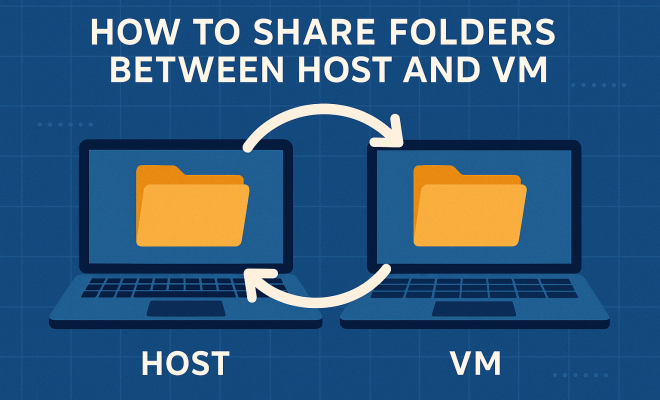
How to share folders between host and VM
“`html
In today’s tech-driven landscape, virtualization has become a common practice for developers, testers, and IT professionals. If you’re working with virtual machines (VMs), knowing how to share folders between host and VM is crucial for seamless collaboration and data management. Whether you’re using software like VMware, VirtualBox, or Hyper-V, this guide will equip you with the necessary knowledge to efficiently share files and folders, enhancing your productivity and workflow.
1. Understanding Virtual Machines and Hosts
Before diving into the specifics of folder sharing, let’s get a clear idea of what virtual machines and hosts are. A host machine is the physical computer that runs the virtualization software. It provides the hardware resources—like CPU, memory, and storage—needed for the virtual machines. In contrast, a virtual machine is essentially a software-based emulation of a physical computer. It operates within the host and can run its own operating system, applications, and files.
The flexibility offered by VMs allows developers to create isolated environments for testing and development, but it also presents challenges in terms of file sharing and data accessibility. This is where learning how to share folders between host and VM becomes essential.
2. Why Share Folders?
Sharing folders between your host and VM can significantly streamline your workflow. It enables quick access to files stored on your host without needing to go through cumbersome upload and download processes. Consider the following scenarios where folder sharing proves beneficial:
- Testing Applications: Developers can easily test applications across different operating systems without manually transferring files every time.
- Data Management: IT professionals can manage server configurations and logs more efficiently.
- Collaboration: Teams can collaborate on projects by sharing essential files without delays.
Overall, sharing folders enhances communication and saves time, allowing you to focus on what matters most—your projects.
3. Using VMware to Share Folders
If you’re using VMware, sharing folders between the host and VM is straightforward. VMware offers a feature called Shared Folders that allows you to designate specific folders on the host to be accessible from your VM. Here’s how to do it:
- Open your VMware application and select the VM you want to configure.
- Navigate to the VM Settings option and locate the Options tab.
- Under Shared Folders, enable the feature and add the folders you want to share.
- Start the VM and access the shared folders through the network path or within the designated drive on your VM.
This simple process allows for efficient sharing, but remember that Shared Folders are only available when VMware Tools is installed on the guest OS.
4. Sharing Folders in VirtualBox
Similar to VMware, VirtualBox provides an easy way to share folders between host and VM. Here are the steps to set it up:
- Open VirtualBox and select the desired VM.
- Go to the Settings and navigate to the Shared Folders section.
- Click on the Add Folder icon, select the host folder you wish to share, and choose whether to make it read-only or give full access.
- Once configured, start the VM and find the shared folder under the `/media/sf_
` directory if you’re using a Linux guest, or as a network drive in Windows.
Keep in mind that for Linux guests, you may need to add your user to the vboxsf group to access the shared folder. (See: Understanding virtual machines and hosts.)
5. Hyper-V Folder Sharing
For users of Microsoft’s Hyper-V, sharing folders requires a slightly different approach. As Hyper-V does not have a built-in shared folder feature like VMware or VirtualBox, you typically use a network share. Here’s how:
- Ensure that your VM is connected to a virtual switch that has access to your host network.
- On your host machine, create a folder you want to share, right-click, and select Properties.
- Go to the Sharing tab and click on Share. Select the users or groups you want to give access to and set permissions.
- On your VM, access the shared folder using the host’s IP address (e.g., \\192.168.1.100\sharedfolder).
This method might seem less convenient, but it’s effective for sharing files between VMs and hosts.
6. Linux to Linux: Using Samba for Sharing
If you’re operating in a Linux environment, using Samba can be an effective way to share folders between host and VM. Samba allows for seamless file sharing across different operating systems, including between Linux VMs and host machines. Here’s a brief guide:
- First, install Samba on your Linux guest: sudo apt install samba
- Edit the Samba configuration file (/etc/samba/smb.conf) to define the shared directories and their permissions.
- Restart the Samba service to apply the changes: sudo systemctl restart smbd.
- On your host machine, use the network path (e.g., \\
\ ) to access the shared folders.
This approach is highly effective for Linux-based development environments and provides a robust solution for file sharing.
7. Security Considerations
While sharing folders between your host and VM greatly enhances convenience, it also introduces security risks. Exposed shared folders can become entry points for unauthorized access if not managed properly. Here are some tips for keeping your shared folders secure:
- Limit Permissions: Only grant access to users who need it and avoid setting up write permissions unnecessarily.
- Use Strong Passwords: If using network shares, ensure that strong passwords protect access to shared folders.
- Regularly Update Software: Ensure your virtualization software and guest OS are up to date to patch any security vulnerabilities.
Taking these precautions helps you maintain a secure environment while leveraging the benefits of shared folders.
8. Troubleshooting Common Issues
Even with the best configurations in place, you may encounter issues when trying to share folders between host and VM. Here are some common problems and their solutions:
- Folder Not Accessible: Verify that the folder on the host is properly shared and that the necessary permissions are set. Also, ensure that the VM has the required software tools installed (e.g., VMware Tools or VirtualBox Guest Additions).
- Permission Denied Errors: If you’re using a Linux guest, check that your user is part of the correct group (e.g., vboxsf for VirtualBox).
- Network Connectivity Issues: If accessing a network share, confirm that the VM is connected to the correct virtual switch and has network access.
By systematically addressing these issues, you can minimize downtime and keep your projects moving forward.
9. Current Trends and Future Outlook
As virtualization technology continues to evolve, the methods for sharing folders between host and VM are likely to become more integrated and user-friendly. Features such as cloud integration and automated synchronization are gaining traction. For example, cloud-based services like Google Drive and Dropbox are increasingly being used to share files across platforms, reducing the need for traditional folder sharing altogether.
Moreover, with the rise of containerization technology (like Docker), the future may see even more seamless interactions between environments. As organizations continue transitioning to hybrid and multi-cloud architectures, understanding how to manage file sharing effectively across various platforms will be integral.
10. Comparing Different Virtualization Platforms
When it comes to sharing folders between hosts and VMs, different virtualization platforms have unique features and limitations. Here’s a quick comparison of VMware, VirtualBox, and Hyper-V: (See: Benefits of virtualization in technology.)
| Feature | VMware | VirtualBox | Hyper-V |
|---|---|---|---|
| Shared Folder Feature | Yes, with Shared Folders | Yes, with Shared Folders | No, uses network shares |
| Guest OS Compatibility | Wide range, including Windows, Linux, and macOS | Similar to VMware, good Linux support | Primarily Windows, some Linux |
| Ease of Use | Moderately easy, setup requires VMware Tools | Very user-friendly, straightforward setup | More complex, involves network setup |
| Performance | High performance, enterprise-level | Good performance, but can vary based on configuration | Excellent performance on Windows hosts |
| Free Version | No | Yes, completely free | Yes, included with Windows Pro and Enterprise editions |
This comparison can help you decide which platform best suits your file-sharing needs based on your specific projects and requirements.
11. Expert Perspectives on Virtualization Trends
Industry experts are increasingly emphasizing the importance of mastering file sharing in virtualized environments. According to a recent survey by TechRepublic, about 70% of IT professionals believe that virtualization skills are essential for the future of IT administration. They recommend that individuals not only focus on the technical aspects of virtualization but also on improving collaboration and sharing methodologies.
Experts like Stephen McCulloch, a leading consultant in virtualization, say, “Being able to efficiently share folders and files between hosts and VMs is essential for modern software development practices. As teams move towards agile methodologies, the need for immediate access to shared resources becomes even more critical.” This perspective highlights the growing recognition of file sharing as a vital component of effective team collaboration.
12. Best Practices for Sharing Folders
To get the most out of folder sharing between your host and VM, consider the following best practices:
- Document Everything: Keep a record of shared folders and their configurations. This documentation can be invaluable when troubleshooting issues.
- Automate Syncing: Use tools like rsync or cloud services to automate the syncing process, ensuring that the latest files are always available across platforms.
- Regular Audits: Periodically review and audit shared folders to ensure that permissions are appropriate and that no unnecessary access is granted.
- Educate Team Members: Provide training for team members on best practices for using shared folders, emphasizing security and efficiency.
Implementing these best practices can help you maintain an organized and secure file sharing environment.
13. Frequently Asked Questions
Here are some common questions and answers related to sharing folders between host and VM:
Q1: What is the best virtualization platform for file sharing?
A: The best platform often depends on your specific needs. VirtualBox is great for beginners due to its free access and ease of use. VMware excels in performance and compatibility, while Hyper-V works best in Windows environments.
Q2: Can I share folders between different operating systems?
A: Yes, most virtualization platforms allow you to share folders between different operating systems. For instance, you can share a folder from a Windows host to a Linux VM using SMB protocols.
Q3: What if I encounter permission issues when accessing shared folders?
A: Check the shared folder settings on the host for permissions and ensure that the VM has the necessary access rights. For Linux guests, confirming group membership may also be necessary. (See: Research on virtual machine technology.)
Q4: Is it secure to share folders between host and VM?
A: Sharing folders can pose security risks if not managed correctly. Always apply strong passwords and limit user permissions to enhance security.
Q5: Do I need additional software to share folders?
A: In most cases, virtualization platforms come with built-in tools for folder sharing (like VMware Tools or VirtualBox Guest Additions), but for specific scenarios, additional software may be needed for advanced sharing options.
14. Advanced Techniques for Folder Sharing
Once you understand the basics of sharing folders between host and VM, there are a few advanced techniques that can further enhance your file sharing capabilities:
- Using NFS for Linux Systems: Network File System (NFS) is a popular protocol for sharing files between Linux systems. It provides a powerful and efficient way to share folders and can be configured for better performance compared to Samba. By setting up NFS on your Linux host and guest, you can achieve faster data transfer speeds and better integration with Linux-based applications.
- Automating File Transfers with Scripts: If your projects require frequent file updates, consider automating transfers using shell scripts. You can create scripts that utilize rsync or SCP commands to synchronize directories between your host and VMs automatically, saving you time and reducing the risk of human error.
- Using Cloud Storage Solutions: Integrating cloud storage solutions like OneDrive or Google Drive allows access to shared files from anywhere, not just from the host or VM. This is particularly useful for distributed teams, as it simplifies collaboration and file management across different environments.
15. Performance Optimization for Shared Folders
When it comes to shared folders, performance can sometimes lag, especially if large files are involved. Here are some tips to optimize performance:
- Use SSDs: Using SSDs for both your host and VM can significantly reduce load times and enhance access speed for shared files.
- Reduce File Size: If possible, compress files before transferring them to reduce the amount of data being shared. This can save time during transfers and improve performance.
- Monitor Network Speeds: If you’re using network shares, ensure that your network infrastructure can handle the bandwidth required for fast file transfers. Upgrading to Gigabit Ethernet can make a noticeable difference in speed.
16. Real-World Use Cases
To better understand how sharing folders between host and VM impacts productivity and collaboration, consider these real-world scenarios:
- Web Development: A web developer can use a VM running Linux to test applications while maintaining a host Windows OS for development. By sharing folders, they can quickly push changes made in the code editor on the host to the VM for testing without hassle.
- Data Analysis: Data scientists often use VMs to simulate different working environments. By sharing large datasets stored on the host directly with the VM, they can perform analyses without the need for repetitive data transfers, thus speeding up their workflow.
- Training and Development: In training scenarios, trainers can create an environment for students to experiment with software configurations without affecting the host machine. Sharing folders allows access to necessary resources without risking the host’s stability.
In summary, mastering how to share folders between host and VM is an essential skill for anyone working in virtualization. By understanding the tools at your disposal and employing best practices, advanced techniques, and performance optimizations, you can optimize your workflows and enhance your productivity.
“`
Trending Now
Frequently Asked Questions
How do I share a folder between host and VM?
To share a folder between your host and VM, you need to configure shared folder settings in your virtualization software. For instance, in VirtualBox, you can add a shared folder from the VM settings under 'Shared Folders'. Ensure the VM has the necessary guest additions installed for seamless access.
What is the purpose of sharing folders between host and VM?
Sharing folders between a host and VM allows for efficient data management and collaboration. It eliminates the need for cumbersome upload and download processes, enabling developers and IT professionals to access files quickly, test applications across different operating systems, and streamline workflows.
Can I share folders in VMware and VirtualBox?
Yes, both VMware and VirtualBox support folder sharing. In VMware, you can enable shared folders in the VM settings under 'Options'. In VirtualBox, you can set up shared folders in the 'Shared Folders' section of the VM settings. Ensure you have the necessary tools installed for optimal performance.
Is it safe to share folders between host and VM?
Sharing folders between a host and VM can be safe if proper security measures are taken. Ensure that only trusted VMs have access to sensitive data and consider setting permissions to restrict access. Regularly update your virtualization software to protect against vulnerabilities.
What are the benefits of using shared folders in virtualization?
Using shared folders in virtualization offers several benefits, including improved workflow efficiency, quicker access to files, and enhanced collaboration among team members. It allows developers to test applications easily and IT professionals to manage configurations without manual file transfers.
What did we miss? Let us know in the comments and join the conversation.