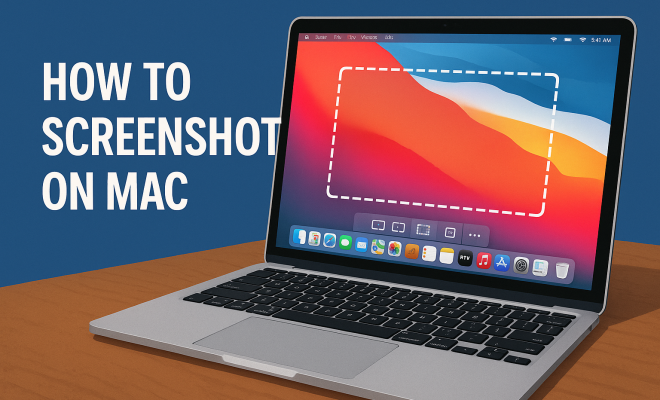
How to screenshot on Mac
“`html
Taking a screenshot on Mac is an essential skill for anyone who uses Apple’s operating system. Whether you’re capturing important information, sharing funny memes, or saving valuable content, knowing how to screenshot efficiently can save you time and enhance your productivity. This guide will explore the various methods, keyboard shortcuts, and practical applications for screenshots on a Mac so you can become a pro in no time.
1. Understanding the Basics of Screenshots on Mac
Before diving into the how-tos, it’s essential to grasp what a screenshot is. A screenshot, or screen capture, is an image of what is displayed on your screen. On a Mac, you have several options to capture your screen, either as a whole or just a portion. Apple has integrated this feature seamlessly into its operating system, making it accessible to users of all experience levels.
One of the great things about taking a screenshot on Mac is that it doesn’t require any third-party software. The built-in tools cover most users’ needs, providing flexibility and ease of use. With a few simple key combinations, you can capture anything from an entire screen to a selected window or a specific area.
2. Keyboard Shortcuts for Screenshots
There are several keyboard shortcuts that you can use to take a screenshot on Mac, each designed for different purposes. Here are the primary shortcuts:
- Command (⌘) + Shift + 3: This combination takes a screenshot of your entire screen. The image file will be saved automatically to your desktop.
- Command (⌘) + Shift + 4: This shortcut allows you to select a specific area of your screen to capture. After pressing these keys, your cursor will change to a crosshair, and you can click and drag to select the area you want.
- Command (⌘) + Shift + 4, then Spacebar: After pressing this combination, the cursor will change to a camera icon, allowing you to click on any open window to capture it.
- Command (⌘) + Shift + 5: This more recent addition allows you to access a screenshot toolbar that gives you options for capturing the screen, recording your screen, and choosing where to save your files.
These shortcuts are not just efficient; they are designed to cater to various screenshot needs. Practice them, and you’ll find yourself taking screenshots like a seasoned pro.
3. Where to Find Your Screenshots
After taking a screenshot on Mac, you’ll find the saved image on your desktop by default. The typical naming convention is “Screen Shot 2026 at [time].png.” However, you can change the default save location if you prefer to store your screenshots in a different folder. Simply access the screenshot toolbar by pressing Command (⌘) + Shift + 5 and click on the ‘Options’ button to select your desired location.
If you haven’t changed the settings, it’s good practice to periodically clean your desktop as it can become cluttered with numerous screenshots. Consider creating a dedicated folder for all your screenshots to keep things organized.
4. Editing Your Screenshots
Once you’ve captured a screenshot, you might want to make some edits before sharing it. macOS offers built-in editing tools that allow you to annotate, highlight, or crop your screenshots. After taking a screenshot, a thumbnail will appear in the corner of your screen for a brief moment. Clicking on it will open the editing interface.
In this interface, you can add text, arrows, or shapes, making your screenshots more informative or visually appealing. You can also crop the image, change its size, and even rotate it. These tools provide a quick way to enhance your screenshots without needing third-party software. (See: Understanding screenshots and their uses.)
5. Advanced Screenshot Options
If you want to take your screenshot game to the next level, consider using some advanced options. For instance, the screenshot toolbar invoked by Command (⌘) + Shift + 5 allows you to select whether you want to capture the entire screen, a specific window, or a selected portion of the screen. You can also choose to record your screen from this toolbar.
Additionally, when recording, you can select whether to capture audio, making it invaluable for creating tutorials or presentations. As a bonus, the ability to set a timer allows you to prepare your screen before the capture occurs.
6. Using Preview to Take Screenshots
Aside from keyboard shortcuts, you can also take a screenshot on Mac using the Preview application. This method is particularly useful if you want to edit your screenshots immediately. To do this, open Preview, click on “File” in the menu bar, then select “Take Screenshot.” Here, you can choose to capture the entire screen, a selected window, or a specific portion.
Using Preview gives you immediate access to various editing tools after taking a screenshot, including cropping and adjusting colors. This can be beneficial if you’re looking to refine your images further, as Preview includes more advanced editing features compared to the standard screenshot interface.
7. Troubleshooting Common Issues
Even with a straightforward process, users may encounter issues when trying to screenshot on Mac. One common problem is that screenshots aren’t saving to the specified location. If this happens, check your screenshot settings by using the screenshot toolbar and ensure that the save location is correctly set.
If your screenshots are not appearing on the desktop or saving at all, it’s possible that you’re running low on storage space. Make sure you have enough disk space available for new files. Additionally, consider restarting your Mac; this often resolves minor software glitches that could interfere with your ability to take screenshots.
8. Using Third-Party Applications
While macOS has robust screenshot features, some users may prefer third-party applications for added functionalities. Tools like Snagit, Skitch, or Lightshot offer advanced features like cloud storage, additional editing options, and integration with collaboration tools.
For instance, Snagit not only allows you to take screenshots but also provides comprehensive video recording functionalities. This makes it an excellent choice for creating tutorials or presentations. However, always consider whether the additional features are worth the cost of these applications, as many users find macOS’s built-in tools sufficient for their needs.
9. Practical Applications for Screenshots
Taking a screenshot on Mac can be incredibly useful in various scenarios. For students, capturing lecture slides or online articles can help in studying and organizing notes. For professionals, screenshots can serve as visual aids in presentations, making it easier to convey points.
Moreover, if you’re a content creator, screenshots can help you showcase products, document processes, or provide visual feedback. The versatility of screenshots makes them a crucial tool in both academic and professional settings.
10. Why Screenshots Matter in Today’s Digital Communication
In an increasingly fast-paced digital environment, the ability to quickly share information visually is more important than ever. Screenshots facilitate clear communication by allowing you to present information exactly as it appears on your screen, eliminating ambiguity. For example, if you need to report a technical issue, capturing a screenshot can provide context that might be lost in a textual description. (See: CDC's guidelines on digital content sharing.)
Statistics show that visual content is processed 60,000 times faster in the human brain than text. This means that using screenshots to convey complex information can significantly improve understanding and retention. Businesses often harness this power in their internal communications, training, and customer service interactions.
11. Expert Tips for Effective Screenshots
To maximize the impact of your screenshots, consider these expert tips:
- Mind the Clutter: Always clean up your desktop or any application windows before taking a screenshot. A clutter-free image will make it easier for viewers to focus on the crucial information.
- Use Annotations: Add annotations when necessary. Highlighting key areas or adding brief explanations can provide clarity, especially in instructional content.
- Maintain Quality: Ensure that your screenshots are of high resolution. Low-quality images can detract from your message and make it harder for viewers to engage with the content.
- Think About Accessibility: When sharing screenshots publicly, consider adding alt text or captions, particularly for visually impaired users who rely on screen readers.
- Keep Security in Mind: Be cautious about what you capture. Always check for sensitive information before sharing screenshots, especially in professional settings.
12. FAQs About Taking Screenshots on Mac
Q: Can I change the file format of my screenshots?
A: Yes, by default, screenshots are saved as PNG files. However, you can change the format to JPG, GIF, or TIFF via the Terminal app if desired. This involves entering a specific command that will alter the default setting.
Q: Is there a way to delay the screenshot on Mac?
A: Absolutely! When using the screenshot toolbar (Command + Shift + 5), you can set a timer for 5 or 10 seconds, which allows you to prepare your screen before the capture.
Q: Can I take screenshots of a scrolling window, like a webpage?
A: While macOS does not natively support capturing scrolling windows, third-party applications like Snagit allow you to do just that. Look for the scrolling capture feature in these tools for capturing long web pages or documents.
Q: How do I share my screenshots quickly?
A: After taking a screenshot, you can quickly share it using the share icon that appears in the editing interface. This allows you to send your screenshot through email, message, or social media without needing to save it first.
Q: What should I do if my screenshots are blurry?
A: Blurry screenshots might indicate that the resolution of the screen is too low. Ensure that your display settings are configured for the highest resolution, particularly if you’re using an external monitor.
13. Future of Screenshot Features on Mac
As technology continues to advance, Apple is likely to enhance screenshot capabilities further in future macOS updates. Users can expect features that improve editing functionality, such as better integration with machine learning for automated cropping and annotation suggestions. Additionally, cloud integration might allow for instantaneous sharing and storage, streamlining the workflow for users who rely heavily on screenshots.
Another possible improvement could be the introduction of collaborative tools, enabling users to annotate screenshots in real-time with teammates, facilitating better communication in professional settings.
14. Comparing Screenshot Methods: Built-in vs. Third-Party Tools
When deciding whether to utilize built-in screenshot functions or third-party tools on your Mac, it’s helpful to compare the pros and cons of each approach. Built-in screenshot options are straightforward and easily accessible, but they may lack some advanced features that dedicated applications provide.
For example, built-in tools allow for quick captures and basic editing. However, if you need features like advanced image manipulation, video recording, or cloud storage, third-party applications shine in these areas. Applications like Snagit and Lightshot have robust feature sets, including easy sharing options and enhanced organizational tools for managing screenshots. Depending on your needs, you may find that a combination of both built-in and third-party tools is the perfect solution for your workflow.
15. Creating Visual Documentation with Screenshots
Screenshots play a vital role in visual documentation, particularly in fields like software development, education, and customer support. By capturing workflows, error messages, or instructional content, you can create comprehensive documentation that assists users in navigating processes or troubleshooting problems.
In software development, for instance, maintaining clear visual documentation through screenshots can help communicate features or bugs more effectively than text alone. Similarly, educators can use screenshots to create tutorial materials for students, ensuring clarity and engagement in learning. The key is to focus on capturing clear, relevant information that enhances understanding.
16. Tips for Organizing Screenshots
With so many screenshots being taken, organizing them efficiently is essential for easy retrieval later. Here are some practical tips:
- Create a Folder Structure: Develop a logical folder hierarchy based on projects, dates, or categories. This can help you quickly locate the screenshots you need.
- Use Descriptive Filenames: Rename your screenshots with meaningful titles that reflect their content or purpose. This makes searching for specific images much easier.
- Leverage Tags: If you use macOS’s Finder, make use of tags for easy sorting. Tagging can help you group related screenshots together regardless of their folder location.
- Backup Your Screenshots: Consider using cloud storage solutions like iCloud or Google Drive to keep your screenshots backed up and accessible from multiple devices. This adds an extra layer of security while allowing you to manage your screenshots on the go.
17. Conclusion: Making Screenshots Work for You
In today’s digital age, knowing how to screenshot on Mac is a vital skill that can enhance your efficiency and communication. With a range of methods available, from basic keyboard shortcuts to more advanced editing options, you can capture and share information seamlessly. So whether you’re creating content, collaborating with colleagues, or simply saving precious memories, mastering screenshots on your Mac opens up a world of possibilities.
“`
Trending Now
Frequently Asked Questions
How do I take a screenshot on a Mac?
To take a screenshot on a Mac, use the keyboard shortcuts: Command (⌘) + Shift + 3 for a full screen capture, Command (⌘) + Shift + 4 to select a specific area, or Command (⌘) + Shift + 4 followed by Spacebar to capture a specific window.
What is the shortcut for taking a screenshot on Mac?
The primary shortcuts for taking screenshots on a Mac are: Command (⌘) + Shift + 3 for the entire screen, Command (⌘) + Shift + 4 for a selected area, and Command (⌘) + Shift + 5 for additional options including screen recording.
Where do screenshots go on a Mac?
Screenshots taken on a Mac are automatically saved to your desktop by default. You can change the save location in the screenshot options if desired.
Can I take a screenshot of just a part of my screen on a Mac?
Yes, you can take a screenshot of a specific area on your Mac by using the shortcut Command (⌘) + Shift + 4. This will change your cursor to a crosshair, allowing you to click and drag to select the area you want to capture.
Is there a way to edit screenshots on a Mac?
Yes, after taking a screenshot on a Mac, you can edit it using the built-in Preview app or by double-clicking the screenshot thumbnail that appears in the corner of your screen after capturing. This allows for basic editing features like cropping and adding annotations.
What’s your take on this? Share your thoughts in the comments below — we read every one.