AnyDesk Tutorial: Master Remote Access & Support
“`html
In an era where remote work has become the norm, efficient tools for remote access and support are essential. One such tool that has gained attention is AnyDesk. This comprehensive AnyDesk tutorial will help you understand how to effectively utilize this powerful software for both personal and professional needs.
1. What is AnyDesk?
AnyDesk is a remote desktop application that allows users to connect to computers and devices from anywhere in the world. Developed by AnyDesk Software GmbH in 2014, it aims to provide fast and reliable remote access. What sets AnyDesk apart from other remote desktop tools is its impressive frame rates, low latency, and unique DeskRT codec that helps in transmitting image data efficiently, even with low bandwidth.
The application serves a variety of purposes, from technical support and computer maintenance to online collaboration. The ease of use and cross-platform compatibility make it a go-to choice for both individuals and businesses seeking remote desktop solutions.
2. How to Install AnyDesk
Installing AnyDesk is a straightforward process. It supports multiple operating systems, including Windows, macOS, Linux, Android, and iOS. To get started, visit the AnyDesk website and download the appropriate version for your operating system. The installation process involves a few simple steps:
- Download: Click the download button on the website. The file size is relatively small, typically around 3 MB.
- Run the Installer: Open the downloaded file. The installation process is usually quick and requires minimal user intervention.
- Launch AnyDesk: Once installed, launch the application. You will see a unique AnyDesk ID assigned to your machine.
After installation, you’re ready to start connecting with others or set up remote access for your own devices.
3. Connecting to Another Device
Now that you’ve installed AnyDesk, connecting to another device is simple. To establish a remote session, follow these steps:
- Obtain the AnyDesk ID: Ask the person you want to connect with to share their AnyDesk ID, visible on their application interface.
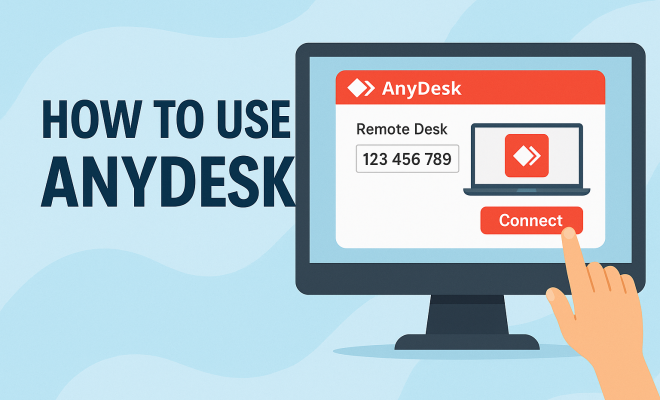
- Enter the ID: Input the provided ID in the “Remote Desk” field on your AnyDesk client.
- Request Access: Once the ID is entered, click on “Connect.” The remote user will receive a notification to accept or decline your request.
After they accept your request, you’ll have access to their screen, and the remote session begins. This allows you to view their desktop, offer support, or even control the device if permissions are granted.
4. Setting Permissions and Security Features
Security is paramount when it comes to remote access. AnyDesk includes various features to ensure secure connections. Before you start a session, it’s important to understand how permissions work. The host can adjust settings for each session: (See: Overview of remote desktop software.)
- Keyboard and Mouse Control: The host can choose to allow or deny remote control of their keyboard and mouse. This is especially useful when providing support without taking control.
- File Transfer: The option to transfer files securely during a session is beneficial. The host can enable or disable this feature based on their comfort level.
- Session Recording: Users can record sessions for future reference, which is great for training or troubleshooting purposes.
Additionally, AnyDesk employs TLS 1.2 encryption and RSA 2048 asymmetric key exchange to protect against unauthorized access, making it a secure choice for remote access.
5. Using AnyDesk for Support and Maintenance
For IT professionals and tech support teams, AnyDesk is an invaluable tool for providing support and maintenance. Here’s how to leverage it effectively:
- Remote Troubleshooting: You can quickly diagnose and solve issues without the need for on-site visits. This saves time and can enhance customer satisfaction.
- Software Installation: IT staff can remotely install software updates or troubleshoot programs, ensuring users have the latest tools without disrupting their workflow.
- System Audits: Regular checks can be performed remotely to ensure systems are running smoothly, minimizing downtime and maximizing productivity.
By using AnyDesk for these tasks, companies can streamline operations and reduce costs associated with traditional support methods.
6. Collaboration Made Easy
AnyDesk isn’t just for support; it’s also an excellent tool for collaboration. Teams can work together seamlessly, regardless of their physical locations. Some collaborative features include:
- Screen Sharing: Team members can share their screens in real-time, making discussions more productive as everyone can view the same content.
- Whiteboard Feature: AnyDesk includes a whiteboard function that allows users to draw or annotate during sessions, which is helpful for brainstorming or presentations.
- File Sharing: Users can transfer files back and forth effortlessly, facilitating collaboration on projects or sharing necessary documents.
With these features, AnyDesk enhances team collaboration, making it easier to achieve goals and meet deadlines.
7. Advanced Features Worth Exploring
Beyond the basics, AnyDesk offers several advanced features that can enhance your experience:
- AnyDesk Address Book: This feature allows users to save frequently contacted devices, making it quicker to connect in the future.
- Customizable User Interface: Users can customize the appearance of the AnyDesk client, including changing colors and logos, which is particularly useful for businesses.
- Unattended Access: This feature enables users to access devices without needing someone on the other end to accept the request, ideal for managing servers or unattended workstations.
These capabilities can significantly improve both individual and organizational efficiency when using remote access software.
8. Pricing Plans and Options
AnyDesk offers a range of pricing plans tailored to different needs, from individuals to large enterprises. The following are the primary options available:
- Free Version: Ideal for private use, this version provides basic functionality at no cost.
- Lite Plan: Priced affordably, it includes features suitable for freelancers and small businesses who require remote access capabilities without the bells and whistles.
- Professional Plan: This plan offers advanced features, including session recording and custom branding, making it suitable for larger teams.
- Enterprise Plan: Designed for corporations needing seamless integration and extensive features, including priority support.
Each plan comes with its own unique benefits, and prospective users should carefully evaluate their requirements to choose the most suitable option.
9. Troubleshooting Common Issues
While AnyDesk is generally reliable, users may occasionally encounter issues. Here are some common problems and their solutions: (See: Guidelines for effective telework.)
- Connection Issues: Ensure your internet connection is stable. If the connection is slow, it may affect the remote experience.
- Authentication Problems: If you cannot connect, verify that the other user has accepted your request and that you have the correct AnyDesk ID.
- Performance Lags: Adjust the quality settings in AnyDesk to optimize performance based on your current network conditions.
By addressing these common issues proactively, you can ensure a smoother experience while using AnyDesk.
10. AnyDesk vs. Competitors
When considering AnyDesk for your remote access needs, it’s beneficial to compare it with other popular solutions available in the market. Here’s a quick comparison with a few notable competitors:
- TeamViewer: While TeamViewer is a well-known name in remote access, it is often more expensive than AnyDesk. TeamViewer offers similar features, but AnyDesk’s low latency and efficient bandwidth usage make it a strong alternative for users in areas with slower internet connections.
- LogMeIn: LogMeIn is another powerful remote access tool, but it is generally more suited for businesses with larger budgets. AnyDesk offers competitive pricing and a simpler user interface, making it appealing for individual users and small businesses.
- Chrome Remote Desktop: This is a free alternative that’s easy to use, but it lacks the advanced features of AnyDesk. If you need more comprehensive support capabilities, AnyDesk is the better choice.
Ultimately, the choice will depend on your specific use case, budget, and desired features. AnyDesk’s combination of affordability and functionality makes it a compelling choice for many users.
11. Common Use Cases for AnyDesk
AnyDesk is versatile and can be used in various scenarios. Here are some common use cases:
- Technical Support: IT departments can provide quick assistance to employees, no matter where they are located. This is particularly useful during software installations or troubleshooting technical issues.
- Remote Work: With the rise of remote work, professionals can access their office computers from home, enabling seamless continuity of work.
- Educational Purposes: Educators can use AnyDesk for remote teaching, allowing them to demonstrate software or troubleshoot student computers during online classes.
- Personal Use: Families can use AnyDesk to assist elderly members with technology or help friends troubleshoot issues on their devices without being physically present.
These scenarios illustrate how AnyDesk fits into diverse environments, enhancing productivity and support capabilities across the board.
12. Expert Perspectives on Remote Access Tools
Industry experts have noted the increasing importance of remote access solutions in today’s digital landscape. According to a survey by Gartner, 74% of CFOs plan to permanently shift some employees to remote work, making tools like AnyDesk essential. Here are some insights from experts:
- Efficiency in Support: “Remote support tools not only enhance efficiency but also significantly reduce downtime for businesses,” says a senior analyst at Forrester Research.
- Cost-Effectiveness: An IT consultant highlighted that “investing in remote access solutions can lead to substantial savings in operational costs, especially for small and medium enterprises.”
- Future of Work: A futurist in technology trends emphasized, “As collaboration continues to evolve in remote environments, reliable remote access software will become a core component of team productivity.”
These perspectives underline the value of AnyDesk and similar tools in adapting to new work paradigms and enhancing operational efficiency across various sectors. (See: Latest news on remote work trends.)
13. Frequently Asked Questions (FAQs)
Here are answers to some common questions about AnyDesk:
- Is AnyDesk safe to use? Yes, AnyDesk uses advanced security measures, including end-to-end encryption and two-factor authentication, to ensure secure connections.
- Can I use AnyDesk on mobile devices? Absolutely! AnyDesk is available on Android and iOS, allowing you to access devices from your smartphone or tablet.
- Do both parties need to have AnyDesk installed? Yes, both the host and the remote user need to have AnyDesk installed to establish a connection.
- Can I use AnyDesk for file transfers? Yes, you can easily transfer files between connected devices during a remote session, making it convenient for collaboration.
- What happens if the connection drops? If the connection drops, you can easily reconnect using the same AnyDesk ID, unless the host has changed their access settings.
- How can I improve connection quality? If you’re experiencing lag, consider lowering the quality settings in AnyDesk and ensuring that both devices have stable internet connections.
- Can AnyDesk work without an internet connection? No, AnyDesk requires an internet connection for remote access, although it can work over local networks in some cases.
14. Tips for Optimal Usage of AnyDesk
To make the most out of your AnyDesk experience, here are some practical tips:
- Keep Software Updated: Always ensure you’re running the latest version of AnyDesk to benefit from security updates and new features.
- Utilize the Address Book: Save frequently accessed devices in your address book to streamline future connections and save time.
- Set Up Unattended Access Carefully: If you enable unattended access, make sure to configure strong passwords and only use this feature in trusted environments.
- Explore Advanced Settings: Familiarize yourself with advanced settings to tailor your experience to your specific needs, such as adjusting the quality settings based on your bandwidth.
- Conduct Regular Security Audits: Regularly review your settings and access permissions to ensure your connections remain secure and trusted.
15. Future Developments and Updates
As technology evolves, AnyDesk continues to innovate and expand its features. Users can look forward to enhancements such as:
- Improved AI Integration: Future updates may include AI-driven features that enhance user experience, automate routine tasks, and optimize performance based on user behavior.
- Expanded Cross-Platform Support: While AnyDesk already supports many platforms, users can expect continued expansion, making remote access even more seamless across devices.
- Enhanced Collaboration Tools: As remote work becomes more prevalent, AnyDesk is expected to introduce even more collaboration features to facilitate teamwork, such as integrated video conferencing tools.
Staying informed about these developments will allow users to leverage the full capabilities of AnyDesk, helping them stay ahead in a rapidly changing digital landscape.
16. Conclusion: Why Choose AnyDesk?
AnyDesk stands out in the crowded field of remote access solutions due to its combination of speed, security, and ease of use. Whether you’re a tech support professional, a business owner, or simply someone who needs to connect to a home computer while traveling, this tool offers a robust set of features to meet your needs.
As remote work becomes more ingrained in our daily lives, tools like AnyDesk will play a crucial role in how we connect, collaborate, and support each other from afar. Embracing this technology can enhance productivity and make remote interactions seamless, whether for business or personal use. This AnyDesk tutorial provides a solid foundation to start leveraging the platform’s capabilities effectively.
“`
Trending Now
Frequently Asked Questions
What is AnyDesk used for?
AnyDesk is a remote desktop application that allows users to access computers and devices from anywhere in the world. It is commonly used for technical support, computer maintenance, and online collaboration, providing fast and reliable connections with impressive frame rates and low latency.
How do I install AnyDesk?
To install AnyDesk, visit the AnyDesk website and download the appropriate version for your operating system. The installation process is straightforward: download the file, run the installer, and launch the application to receive your unique AnyDesk ID.
Is AnyDesk free to use?
Yes, AnyDesk offers a free version for personal use, allowing individuals to connect to remote devices without cost. However, for businesses or advanced features, paid plans are available to enhance functionality and support.
How do I connect to another device using AnyDesk?
To connect to another device with AnyDesk, launch the application and enter the unique AnyDesk ID of the remote device you wish to access. Once the connection request is accepted, you can begin the remote session seamlessly.
What platforms does AnyDesk support?
AnyDesk supports multiple operating systems, including Windows, macOS, Linux, Android, and iOS. This cross-platform compatibility makes it a versatile choice for users needing remote access across different devices.
What did we miss? Let us know in the comments and join the conversation.