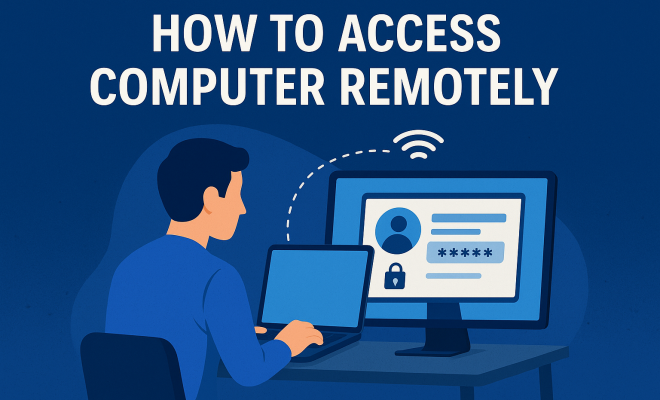
How to access computer remotely
“`html
In today’s fast-paced digital world, knowing how to access a computer remotely has become a crucial skill, whether for personal use or professional scenarios. Remote access allows you to operate your computer from another location, making it easier to collaborate with colleagues, troubleshoot issues, or access files on the go. In this article, we will explore the top seven methods for remote access computer functionality, the technology behind them, and practical insights to help you choose the best approach.
1. Understanding Remote Access
Before diving into the specific methods of remote access, it’s important to understand what remote access actually entails. Essentially, remote access allows a user to connect to a computer or network from a distant location. This connection can be made over the internet or through a private network. There are various protocols and software solutions designed to facilitate this connection, each serving different needs.
Remote access has become increasingly relevant in recent years, especially with the rise of remote work and distributed teams. By leveraging remote access technologies, individuals can maintain productivity regardless of their physical location. Understanding the implications of remote access — including security, performance, and ease of use — is essential for anyone considering implementing it.
2. Remote Desktop Protocol (RDP)
One of the most common methods for remote access is Remote Desktop Protocol (RDP), developed by Microsoft. RDP allows users to connect to a Windows computer over a network connection. It provides a graphical interface that mirrors the desktop of the remote machine, allowing users to control it as if they were sitting in front of it.
To use RDP, you’ll need to enable Remote Desktop on the host machine and ensure that the appropriate firewall ports are open. Additionally, it’s necessary to consider security measures, such as using a VPN to encrypt your connection, especially if you’re accessing sensitive data. RDP is particularly popular among IT professionals who need to manage servers or assist users remotely.
3. Virtual Network Computing (VNC)
Another popular method for remote computer access is Virtual Network Computing (VNC). VNC is platform-independent, meaning it can be used across different operating systems like Windows, macOS, and Linux. This flexibility makes it an attractive option for diverse environments.
VNC operates by transmitting the keyboard and mouse events from the client to the server and sending the graphical screen updates back to the client. Various VNC software options exist, such as TightVNC, RealVNC, and UltraVNC, each with unique features and capabilities. VNC can be particularly useful for teams working with varied systems, ensuring smooth collaboration without being limited to a single operating platform.
4. Third-Party Remote Access Software
For those who prefer a more user-friendly solution, there are numerous third-party remote access software options available. Programs like TeamViewer, AnyDesk, and LogMeIn provide extensive features while simplifying the remote access setup process. These solutions often come with built-in security, file transfer capabilities, and cross-platform support, making them ideal for users who may not have extensive technical knowledge.
TeamViewer, for example, allows remote access with just a few clicks, utilizing a unique ID and password for each session. This means users can connect without needing to configure network settings or deal with complicated protocols. However, many of these services operate on a subscription model, so it’s essential to weigh the cost against the benefits they offer.
5. Using a VPN for Remote Access
A Virtual Private Network (VPN) can play a crucial role in remote access computer connectivity. By encrypting your internet connection, a VPN provides an additional layer of security for your remote access activities. VPNs allow users to connect to a remote network as if they were physically present, making it ideal for accessing sensitive company data or personal files securely. (See: Remote access software overview.)
When setting up a VPN for remote access, choose a reputable provider that offers strong encryption protocols. It’s also important to ensure the VPN service has servers in locations that suit your needs for speed and connectivity. Many businesses now require VPN usage for remote access, making it an indispensable tool for secure online operations.
6. Mobile Remote Access
As mobile devices become more ingrained in our daily lives, remote access from smartphones and tablets has grown in popularity. Many remote access solutions now offer dedicated mobile apps that allow users to connect to their computers on the go. This capability is especially useful for professionals who need to access files or troubleshoot issues while traveling.
Apps like Microsoft Remote Desktop, TeamViewer, and Chrome Remote Desktop provide seamless mobile experiences. Users can perform tasks from their mobile devices, including file management, application use, and even support for clients. However, it’s essential to keep in mind that screen size limitations can affect usability, so not all tasks may be as straightforward on a mobile device as they would be on a desktop.
7. Security Considerations for Remote Access
With remote access comes the responsibility of ensuring that your data remains secure. Cybersecurity threats are constantly evolving, and remote access points can be targets for attacks. Therefore, implementing robust security measures is non-negotiable. Use strong, unique passwords for all remote access accounts and enable two-factor authentication whenever available.
Regularly update your software and operating systems to protect against vulnerabilities. Firewalls and antivirus software should be installed and kept updated as well. Educating yourself and your team about phishing attacks and other common threats can help safeguard your remote access setup. By prioritizing security, you can enjoy the benefits of remote access computer technology without compromising your sensitive information.
8. Comparing Remote Access Solutions
When considering remote access solutions, it’s important to evaluate several factors to determine which option best meets your needs. Let’s break down some key elements.
- Performance: Depending on your internet speed and the type of remote access technology used, performance can vary significantly. RDP typically offers better performance for Windows users, while VNC may lag behind in high-latency situations.
- Cost: While some options like RDP come free with Windows, third-party solutions may require subscription fees. Analyze your budget and the importance of features when making your choice.
- User Experience: For users who aren’t tech-savvy, ease of installation and usability is paramount. Solutions like TeamViewer often excel in this area with a minimal learning curve.
- Security Features: Look for solutions that offer end-to-end encryption, two-factor authentication, and session logging for accountability.
By weighing these considerations, you can find a remote access solution that balances functionality and security while catering to your specific needs.
9. Real-Life Applications of Remote Access
Remote access technology is not just a convenience; it has real-world applications across various industries. Here are a few examples:
- IT Support: Technicians can quickly resolve issues without being physically present, saving time and enhancing service levels.
- Healthcare: Medical professionals can access patient records and provide remote consultations, which can be crucial in times of crisis or for patients in remote areas.
- Education: Teachers and students can utilize remote access tools for virtual classrooms, enhancing learning opportunities regardless of location.
- Travel and Hospitality: Employees can manage bookings and customer inquiries from anywhere, providing flexibility and responsiveness.
These applications illustrate how remote access computer capabilities are reshaping industries and providing users with the tools they need to work efficiently and effectively.
10. Future Trends in Remote Access Technology
The landscape of remote access technology is continually evolving. Key trends shaping the future include:
- Increased Focus on Security: As cyber threats become more sophisticated, remote access solutions will likely incorporate more advanced security features to protect user data.
- Integration with Cloud Services: Many remote access tools are starting to integrate seamlessly with cloud storage and applications, providing users with fluid access to their resources from anywhere.
- AI and Machine Learning: These technologies will enhance the user experience by optimizing connectivity, predicting issues before they arise, and providing more personalized support.
- Remote Work Normalization: As remote work becomes more commonplace, solutions will continue to focus on improving collaboration and connectivity among remote teams.
Keeping an eye on these trends can help organizations prepare for the future and adapt their remote access strategies accordingly. (See: CDC on telework and remote access.)
11. FAQ About Remote Access Computer
Here are some frequently asked questions about remote access computers:
What is remote access?
Remote access allows users to connect to a computer or network from a different location, enabling control and access to resources as though they were physically present.
Is remote access secure?
When implemented correctly with appropriate security measures like strong passwords, two-factor authentication, and encryption, remote access can be secure. Always use trusted software and keep it updated.
Can I access my home computer from work?
Yes, as long as remote access is properly configured on your home computer, you can access it from your workplace using the necessary software or protocols.
Do I need special hardware for remote access?
Typically, no special hardware is needed, but the host computer should have the necessary software installed and internet access. However, for better performance, especially in high-demand situations, investing in higher-end hardware may be beneficial.
Can I use remote access for gaming?
Yes, remote access solutions can be used for gaming, but the performance may not be optimal due to latency and bandwidth limitations. Solutions with high speeds and low latency are preferable for gaming.
What are the best remote access software options?
Some of the best remote access software options include TeamViewer, AnyDesk, Chrome Remote Desktop, LogMeIn, and Microsoft Remote Desktop. Each of these has unique features that cater to different user needs, such as ease of use, cross-platform compatibility, or advanced functionality.
How can I improve the performance of my remote access setup?
To enhance performance, ensure that both your local and remote computers have high-speed internet connections. Reducing the resolution of the remote display, optimizing the software settings, and closing unnecessary applications on both ends can also help improve response times.
What should I do if I encounter connection issues?
If you experience connection issues, first check your internet connectivity on both devices. Ensure that the remote access software is running and configured correctly. Restarting the software or the devices may also resolve temporary glitches. If problems persist, consult the support documentation for your specific remote access solution.
12. The Importance of User Education
Even with robust tools and protocols in place, the human element remains a critical factor in the effectiveness of remote access solutions. Educating users on best practices is essential to minimizing security risks. Regular training sessions can equip employees with knowledge about recognizing phishing attempts, using strong passwords, and safeguarding sensitive information when accessing their computers remotely. (See: NIST Cybersecurity Framework.)
Consider creating a user-friendly guide or resources that outline the procedures for establishing remote connections, troubleshooting common problems, and emphasizing the importance of security. Encouraging a culture of security awareness will empower users to leverage remote access technology effectively while protecting themselves and the organization.
13. Case Studies: Remote Access in Action
To understand the tangible benefits of remote access technology, let’s look at a few case studies across different sectors:
Case Study 1: A Tech Startup
A small tech startup implemented TeamViewer for their development team working from various locations. The software allowed developers to easily access shared code and collaborate in real-time on projects. They reported a 30% increase in productivity due to reduced downtime and improved communication. TeamViewer’s file transfer feature helped streamline their workflow by allowing easy sharing of project files.
Case Study 2: A Healthcare Provider
A healthcare provider adopted a secure VPN solution to allow doctors to access patient records from remote locations, ensuring compliance with HIPAA regulations. The remote access capability enabled the healthcare professionals to conduct virtual visits and consultations, significantly improving patient care during the pandemic. They noted a 50% increase in patient satisfaction scores due to the convenience of remote consultations.
Case Study 3: An Educational Institution
An educational institution utilized Microsoft Remote Desktop to facilitate remote learning for students during lockdown. Teachers could share their screens and interactive tools with students, replicating the classroom experience. They found that engagement levels remained high, with a 20% increase in student participation in online classes compared to traditional face-to-face sessions.
These case studies demonstrate how effective remote access solutions can enhance collaboration, improve service delivery, and adapt to changing needs in various sectors.
14. Final Thoughts on Remote Access Computer Technology
As we navigate an increasingly digital world, mastering remote access computer technology is essential for individuals and organizations alike. Whether you’re a remote worker, a tech support agent, or a business leader, understanding the different tools and methods available will empower you to harness the full potential of remote access. By prioritizing security and user education, you can ensure that remote access remains a valuable asset in your digital toolkit.
“`
Trending Now
Frequently Asked Questions
What is remote access and how does it work?
Remote access allows users to connect to a computer or network from a different location, typically over the internet or a private network. It enables users to control the remote machine as if they were physically present, making it ideal for troubleshooting, collaboration, and accessing files on the go.
What are the common methods for remote access?
Some common methods for remote access include Remote Desktop Protocol (RDP), Virtual Network Computing (VNC), and third-party software like TeamViewer or AnyDesk. Each method has its own advantages and is suited for different needs, such as ease of use, security, and performance.
How do I set up Remote Desktop Protocol (RDP)?
To set up RDP, you need to enable Remote Desktop on the Windows host machine, configure firewall settings to allow RDP connections, and ensure you have the necessary credentials. Additionally, using a VPN is recommended to secure your connection.
Is remote access secure?
Remote access can be secure if proper measures are taken. Using encryption methods like VPNs, strong passwords, and two-factor authentication can significantly enhance security. It's essential to understand potential vulnerabilities and implement appropriate safeguards.
Can I access my computer remotely from my phone?
Yes, you can access your computer remotely from your phone using various remote access apps, such as TeamViewer or Microsoft Remote Desktop. These apps allow you to control your computer and access files directly from your mobile device, providing flexibility and convenience.
Agree or disagree? Drop a comment and tell us what you think.