How to enable developer mode on Android
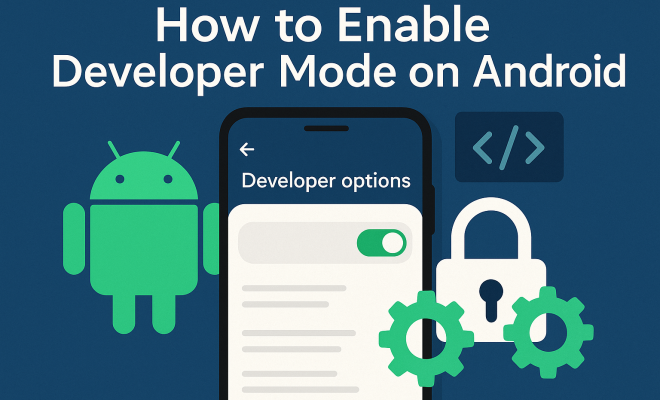
“`html
For many Android users, the operating system offers a wealth of features that remain hidden beneath the surface. One of the most intriguing aspects of Android is its Developer Options, a tool that can unlock advanced functionality for those willing to dig a little deeper. If you’ve ever wondered how to enable developer mode on Android, you’re in the right place. This guide will walk you through the process and explain why this feature can be a game changer for your device.
1. What Is Developer Mode?
Developer Mode, also known as Developer Options, is a hidden menu in Android devices that provides a variety of advanced settings primarily intended for app developers. It allows users to tweak settings that can optimize performance, improve debugging, and even influence how the device interacts with applications. While primarily aimed at developers, many of these settings can enhance the experience for average users as well.
When you enable developer mode on Android, you gain access to features like USB debugging, which allows you to connect your device to a computer for advanced troubleshooting or app development. Other options include showing CPU usage on-screen, enabling a strict mode for visual debugging, and setting background process limits to improve performance.
2. Why Should You Enable Developer Mode?
You might be asking yourself, why go through the trouble of enabling Developer Mode? The answer lies in the customization and control you gain over your device. For instance, if you’re a tech enthusiast or an app developer, enabling this mode allows you to test applications more effectively. You can also improve battery life by restricting background activity or gain insights into your device’s performance.
Even if you aren’t a developer, there are practical benefits to enabling Developer Mode. Options like ‘Stay Awake’ keep your screen on while charging, which is particularly useful for presentations or during long downloads. Additionally, you can simulate different network conditions, allowing you to test how your apps perform under varied circumstances.
3. How to Enable Developer Mode
The process to enable developer mode on Android is relatively simple and varies slightly depending on your device’s brand and Android version. Here’s a step-by-step guide:
- Open your device’s Settings app.
- Scroll down and select About Phone or About Device.
- Find the Build Number entry, which may be under a sub-menu like Software Information.
- Tap the Build Number seven times consecutively. You should see a message indicating that you’re now a developer.
- Return to the main Settings menu, and you’ll see a new option for Developer Options.
Once you’ve completed these steps, you can explore various features that can be beneficial for enhancing your Android experience.
4. Understanding Developer Options
Once you’ve successfully enabled developer mode on Android, you’ll find a plethora of options under Developer Options. While it’s easy to be overwhelmed by the number of features, here are a few key settings that are worth exploring:
- USB Debugging: This is essential for connecting your device to a computer for development purposes. It allows for the transfer of data and communication between your phone and your PC.
- OEM Unlocking: If you plan to root your device or install custom ROMs, enabling OEM unlocking is vital.
- Animation Scales: You can adjust or disable animations to improve device performance and responsiveness.
- Background Process Limit: This allows you to limit the number of processes that run in the background, which can help conserve battery life.
By understanding these options, you can tailor your Android experience to better meet your needs.
5. Performance Optimization
One of the most compelling reasons to enable developer mode on Android is the opportunity for performance optimization. Through various settings, you can significantly enhance your device’s speed and responsiveness.
For instance, by adjusting the Animation Scale settings—located under Developer Options—you can reduce or even eliminate the duration of transitions and animations. This leads to a snappier user interface, as your device will respond more quickly to inputs. Additionally, limiting background processes can free up RAM and CPU cycles, resulting in better overall performance, especially when running multiple applications. (See: Android operating system overview.)
6. Debugging and Testing Applications
If you’re an aspiring app developer or just curious about how applications function, enabling Developer Mode can be particularly useful. With USB Debugging activated, you can connect your device to a computer and use tools like Android Studio to test and debug your applications.
This connection allows you to inspect how your app behaves in real-time, view logs, and utilize profiling tools to optimize performance. By debugging directly on your device, you can identify issues that might not be apparent when testing in an emulator. This hands-on approach ensures that your app functions smoothly across various real-world scenarios.
7. Custom ROMs and Rooting
If you’re interested in customizing your Android experience beyond the manufacturer’s limitations, enabling Developer Mode is a necessary step for rooting your device or installing custom ROMs. OEM unlocking allows you to unlock the bootloader of your Android device, which is a prerequisite for these advanced modifications.
Custom ROMs can breathe new life into older devices by providing the latest Android features and interfaces. However, it’s worth noting that rooting your device or installing custom ROMs carries risks, including voiding your warranty and potentially causing software instability. Make sure to research thoroughly and follow guidelines to minimize issues.
8. Security Considerations
While enabling Developer Mode unlocks a range of features, it’s crucial to understand the associated security implications. USB Debugging, for instance, can expose your device to vulnerabilities, particularly if you connect it to untrusted computers. Malicious software could potentially exploit this feature.
To mitigate risks, always ensure that USB Debugging is turned off when not in use, and only connect to trusted devices. Additionally, be cautious when granting permissions to apps that request access to Developer Options. Being aware of these risks can help you enjoy the benefits of Developer Mode without compromising your device’s security.
9. Common FAQs About Developer Mode
As more users discover the advantages of enabling Developer Mode, several common questions arise. Here are some of the most frequently asked questions along with their answers:
- Can I disable Developer Mode? Yes, you can revert back to the standard settings by simply toggling off the Developer Options switch in the menu.
- Will enabling Developer Mode void my warranty? Generally, enabling Developer Mode itself does not void your warranty, but actions taken within Developer Options, like rooting, may.
- Is Developer Mode necessary for regular users? It’s not necessary, but it can enhance your experience with added features and performance tweaks.
- Can I enable Developer Mode on all Android devices? While most Android devices allow you to enable Developer Mode, the specific steps may vary based on the manufacturer and Android version. Always check your device’s specific instructions.
- Will enabling Developer Mode affect battery life? Enabling Developer Mode in itself doesn’t directly affect battery life. However, using features like ‘Stay Awake’ or making certain performance tweaks can have an impact, so use them judiciously.
- Is it safe to use Developer Options? Yes, it’s generally safe, but since some settings can lead to unexpected behavior, it’s best to understand what each setting does before changing it.
Always remember to approach Developer Options with caution, as some settings can lead to unexpected behavior if misconfigured.
10. Final Thoughts
Enabling Developer Mode on your Android device opens up a world of possibilities, from performance enhancements to unique customization options. Whether you’re an app developer, a tech enthusiast, or simply someone looking to get the most out of your device, exploring Developer Options can be highly rewarding.
However, with great power comes great responsibility. Make sure to use these tools wisely, keep security in mind, and enjoy the enhanced capabilities that come with this hidden feature. By understanding how to enable developer mode on Android and what it offers, you’re better equipped to tailor your device to your personal needs and preferences.
11. Advanced Developer Options
Once you dive deeper into Developer Options, you might find advanced features that cater to specific needs. Here are some of those advanced settings that can be particularly helpful:
- Mock Locations: This feature allows developers to test location-based apps without physically moving. By setting a mock location, you can simulate being in different places, which is invaluable for app testing.
- Profile GPU Rendering: This allows you to visualize how your application utilizes the GPU, helping you optimize performance and frame rates in graphics-heavy applications.
- Enable View Attributes Inspection: This feature enables developers to quickly inspect and modify view attributes in apps. It allows for testing UI changes without needing to recompile the application.
- Strict Mode: When enabled, this setting highlights any accidental disk or network access on the main thread, helping in improving app performance and responsiveness.
Using these advanced settings can lead to a better overall understanding of app performance and device capabilities. (See: Research on mobile operating systems.)
12. Statistics and Insights
Many users are still unaware of the full potential of Developer Options. Recent surveys indicate that only about 25% of Android users have ever enabled Developer Mode on their devices. Among those who have, a staggering 60% reported improved performance and customization capabilities.
Furthermore, according to a report by Google, developers utilizing features like USB debugging and performance profiling often create more efficient applications, leading to higher user satisfaction and lower crash rates. This highlights the importance of these tools not just for developers but for the end-users who benefit from better apps.
13. Exploring Third-Party Tools
For those looking to extend functionality even further, there are third-party applications designed to work alongside Developer Options. Apps like Greenify can help manage background processes more effectively, while tools like Tasker allow for automation based on Developer Options’ settings.
Using these tools in conjunction provides even more control over your device, allowing for a tailored user experience that meets your specific needs and preferences. Just ensure that any third-party app you choose is from a reputable source to avoid security risks.
14. Best Practices for Using Developer Mode
To get the most out of Developer Mode while minimizing risks, consider the following best practices:
- Educate Yourself: Familiarize yourself with each setting before making changes. Understanding the implications can prevent unintended consequences.
- Backup Your Data: Before making significant changes, especially if you plan to root your device or install a custom ROM, always back up your data to avoid loss.
- Use Features Wisely: Only enable settings you actually intend to use. Keeping unnecessary features toggled on may lead to performance issues or battery drain.
- Stay Updated: Keep an eye on software updates, as new Android versions can introduce new Developer Options or alter existing ones.
15. Community and Support
The Android developer community is vast and active. If you have questions or encounter issues while exploring Developer Mode, numerous forums and online communities can provide support. Websites like XDA Developers are filled with users sharing their experiences, solutions, and tips for working within Developer Options.
Participating in these communities can enhance your understanding and help you make the most of the capabilities available within Developer Mode.
16. Exploring the Limits of Developer Options
While Developer Options provide a myriad of features, it’s essential to recognize that they aren’t a one-size-fits-all solution. Some settings can conflict with each other or lead to unexpected behavior. Before making significant changes, it’s useful to know the limits of these options.
For example, enabling too many background processes or ignoring memory limits can lead to sluggishness in older devices. Always experiment cautiously. Understanding your device’s hardware capabilities can help you make better decisions on what settings to tweak.
17. Understanding the Developer Community’s Impact
The Android developer community plays a significant role in shaping the ecosystem around Developer Options. By providing feedback on new features and suggesting improvements, developers can help Android evolve and better cater to user needs. Community-driven platforms like GitHub and Stack Overflow are invaluable for collaboration and sharing knowledge.
Many popular apps today have been improved thanks to input from the developer community, illustrating the importance of engaging with other developers and users to leverage the tools available in Developer Options effectively. This collective knowledge can help you avoid common pitfalls and optimize your Android experience further.
18. Considerations for Different Android Versions
Different versions of Android may introduce new Developer Options or alter existing ones. With every new release, Google tends to refine and tweak the Developer Options to improve usability. It’s crucial to stay updated on these changes, as what worked in one version may not necessarily apply to the next.
For instance, Android 12 introduced a new design for Developer Options, focusing on enhancing user experience. It’s essential to check change logs and community discussions for insights on how these updates might impact your device. You may find that some tweaks you previously used are now better supported or that new options have been added that enhance your device capabilities.
19. Future of Developer Options
As technology advances, the features offered in Developer Options may evolve. With the rise of 5G and the increasing importance of AI in mobile applications, we can expect future Developer Options to incorporate tools that help developers test and optimize their apps for these new technologies.
Furthermore, as user privacy becomes an ever-growing concern, we may see enhancements in Developer Options that allow users greater control over app permissions and data handling. Staying engaged with the Android community can provide insights into upcoming changes and new features, enabling you to stay ahead in utilizing your device to its fullest potential.
20. Conclusion
Enabling Developer Mode on your Android device is more than just a technical tweak; it’s a gateway to a more tailored and optimized experience. From debugging apps to customizing performance settings, Developer Options can transform your interaction with your device.
By understanding the capabilities and limitations of these options, adhering to best practices, and engaging with the developer community, you can enhance not only your skills as a user but also contribute to the broader Android ecosystem. Whether you’re a casual user or a seasoned developer, the power to enable developer mode on Android is yours to explore.
“`
Trending Now
Frequently Asked Questions
What is Developer Mode on Android?
Developer Mode, or Developer Options, is a hidden menu on Android devices that provides advanced settings mainly for app developers. It allows users to optimize performance, improve debugging, and customize their device experience. Features include USB debugging, CPU usage display, and background process limits.
How do I enable Developer Options on my Android device?
To enable Developer Options on your Android device, go to 'Settings', then 'About Phone'. Tap 'Build Number' seven times until you see a message indicating Developer Mode has been enabled. Return to 'Settings', and you will find 'Developer Options' listed.
Why should I enable Developer Mode on my Android phone?
Enabling Developer Mode allows for greater customization and control over your device. It provides features that can improve app testing, enhance battery life by managing background activity, and offer insights into device performance, making it beneficial even for non-developers.
What features are available in Developer Options?
Developer Options include features such as USB debugging for advanced troubleshooting, visual debugging tools, CPU usage display, and the ability to set background process limits. These features can significantly enhance your device's performance and user experience.
Is it safe to enable Developer Mode on Android?
Yes, enabling Developer Mode is generally safe. However, it is important to understand the features you are using, as altering certain settings can affect your device's performance or security. Always proceed with caution and avoid making changes you are unsure about.
What’s your take on this? Share your thoughts in the comments below — we read every one.