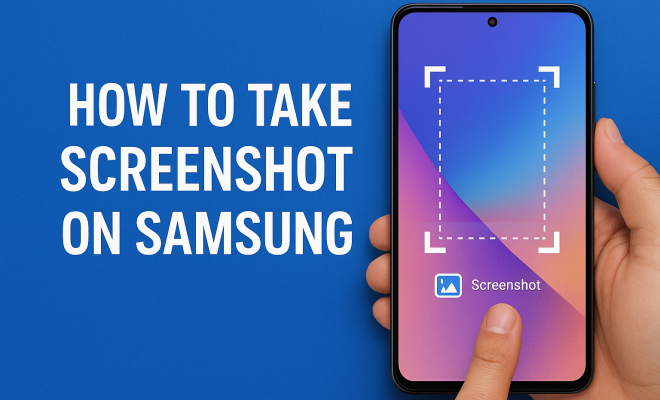
How to take screenshot on Samsung
“`html
With the advancement of technology, smartphones have become a central part of our daily lives. Among the many functions these devices offer, taking a screenshot on Samsung phones is one of the most practical features. Whether it’s capturing a funny meme, preserving important information, or sharing a conversation, knowing how to effectively take a screenshot can be incredibly useful. In this article, we’ll explore seven different methods to capture screenshots on Samsung devices, ensuring that you never miss a moment again.
1. Using the Hardware Buttons
The most common method for capturing a screenshot on Samsung devices involves a combination of the hardware buttons. This method is straightforward and doesn’t require any extra settings or apps. To take a screenshot, simply press the Power button and the Volume Down button at the same time. You’ll hear a shutter sound, and the screen will flash, indicating that the screenshot has been captured.
This technique works on most Samsung models, including the Galaxy S and Note series. However, it’s crucial to press the buttons simultaneously; if you hold them too long, you might access the power menu instead. If you’re using a device without a physical home button, this technique is particularly effective, offering a quick and convenient way to save whatever’s on your screen.
2. Using the Palm Swipe Gesture
Samsung has integrated a unique feature that allows users to take a screenshot using a simple palm swipe. To enable this option, go to Settings > Advanced Features > Motions and Gestures and toggle on the Palm swipe to capture option. Once this feature is activated, you can take a screenshot by swiping the edge of your hand across the screen from one side to the other.
This method is particularly handy when you’re trying to capture something with one hand or when the hardware buttons are difficult to reach. Just make sure that your hand is flat and that you’re swiping from the edge of the screen for the best results. It’s also worth noting that this technique might require a bit of practice to get it just right, but once you master it, it can be a game-changer.
3. Using the S Pen
For Samsung Galaxy Note users, the S Pen offers an additional way to take a screenshot. If you have an S Pen, simply remove it from its slot, and a menu will pop up. Tap on the Screenshot option, and the device will capture the current screen. This feature provides more flexibility, allowing you to annotate or edit the screenshot immediately after capturing it.
The S Pen’s functionality goes beyond just taking screenshots. Once you’ve captured the image, you can use the S Pen to draw on it or highlight areas of interest. This feature is particularly useful for professionals who need to point out details in documents or images. It’s a perfect blend of creativity and practicality, enhancing the screenshot experience significantly.
4. Using the Smart Select Feature
Samsung devices come equipped with a tool called Smart Select, which is part of the Edge Panel. This feature allows users to capture specific areas of the screen rather than the entire display. To access it, swipe from the edge of the screen to bring up the Edge Panel, then select the Smart Select option. From there, you can choose various shapes like rectangles or ovals to capture your desired section.
This function is especially beneficial when you only want a portion of the screen. For example, if you’re viewing a long webpage, you might only want to capture a specific article section. Moreover, Smart Select allows you to extract text from the screenshot directly, making it a powerful tool for students and professionals alike.
5. Using Bixby Voice
If you prefer a hands-free approach, you can utilize Bixby Voice to take a screenshot on Samsung devices. Simply activate Bixby by saying “Hi Bixby” or pressing the Bixby button. Then, instruct Bixby by saying, “Take a screenshot.” This method is particularly useful for those who may have difficulty using the hardware buttons or gestures due to mobility issues. (See: Latest technology trends and tips.)
The convenience of voice commands can enhance your overall user experience, allowing you to multitask or take screenshots while engaging in other activities. Just make sure that Bixby is set up properly and that your voice commands are clear for optimal results.
6. Screen Recorder for Advanced Features
On certain Samsung devices, you can utilize the built-in screen recording function to capture video footage of your screen activity. This is particularly useful for creating tutorials or capturing gameplay. To access the screen recorder, swipe down from the top of the screen to open the Quick Settings panel, and look for the Screen Recorder icon. Once activated, it will record everything happening on your screen along with audio, if desired.
Capturing video along with screenshots provides a more dynamic way to share your content. You can record a gameplay session or create a tutorial on how to use an app. After recording, you can edit the video, trim it, and share it directly with your connections. This feature expands the traditional concept of a screenshot to include more versatile media formats.
7. Editing and Sharing Your Screenshots
Once you’ve captured a screenshot on Samsung, the next step is often editing and sharing. Samsung devices come with a built-in photo editor that allows you to crop, rotate, and annotate your screenshots right after capturing them. You’ll see a toolbar at the bottom of the screen immediately after taking a screenshot, giving you options such as Edit, Share, and Delete.
This editing ability is incredibly useful when you want to highlight specific areas or add notes before sharing with others. You can share your edited screenshots directly via messaging apps, social media, or email, streamlining the entire process. By harnessing these editing tools, you can make your screenshots more informative and visually appealing.
Understanding Screenshots: Why They Matter
Screenshots have become increasingly important in our digital communication. They serve as visual documentation, making it easier to capture and share information from various applications. Whether you’re in a professional setting or a casual conversation, the ability to take a screenshot on Samsung devices allows you to convey your thoughts more effectively.
For instance, in collaborative work environments, sharing screenshots can help clarify instructions or provide visual feedback on documents. In the realm of social media, screenshots can capture important moments or conversations that can be shared with friends or family. This functionality also enhances the user experience by allowing for more interactive and engaging communication.
Tips for Managing Your Screenshots
As you start capturing screenshots frequently, managing them becomes essential. Samsung devices typically save screenshots in a dedicated folder in the Gallery app, but keeping track of them can still be a challenge. Here are some tips for effective screenshot management:
- Organize Your Gallery: Create albums within your Gallery app to categorize screenshots by topics or projects. This organization can save you time when searching for specific images later.
- Delete Unwanted Screenshots: Regularly go through your screenshots and delete any that are no longer relevant. This practice helps in minimizing clutter and ensuring that you can find what you need quickly.
- Use Cloud Storage: Consider backing up your screenshots to cloud storage services like Google Drive or Dropbox. This ensures that you don’t lose any important images and can access them from any device.
Common Issues When Taking Screenshots on Samsung
While taking a screenshot on Samsung devices is generally straightforward, you might encounter some common issues. Here are a few problems users report and how to resolve them:
- Screen Does Not Capture: If your device fails to capture a screenshot, ensure that you are pressing the correct buttons simultaneously. Sometimes, a software glitch can prevent this; restarting your device can often help.
- Palm Swipe Not Working: If you’ve enabled the palm swipe feature but it’s not functioning, double-check the settings. Make sure that the gesture is turned on, and practice your swipe technique to ensure it’s performed correctly.
- Bixby Not Responding: If Bixby doesn’t capture a screenshot when requested, check if Bixby Voice is properly set up. Ensure that it is activated and your voice is clear. You might also want to update to the latest software version.
Frequently Asked Questions (FAQ)
1. Can I take a screenshot on my Samsung device without using buttons?
Yes, if you enable the palm swipe gesture or use the S Pen, you can take a screenshot without physically pressing any buttons.
2. Where can I find my screenshots after taking them?
Your screenshots are saved in the Gallery app under “Screenshots.” You can also find them in the “Pictures” folder in your file manager. (See: Understanding screenshots in technology.)
3. Can I capture a screenshot of a scrolling page?
Yes, on certain Samsung devices, you can use the “Scroll capture” feature after taking a screenshot to capture an entire webpage or a long conversation. Look for the option on the toolbar immediately after capturing a screenshot.
4. Is there a limit to how many screenshots I can take?
There isn’t a strict limit on the number of screenshots you can take, but your device’s storage capacity may affect how many you can save. Regularly managing your screenshots can help maintain enough free space.
5. Can I annotate my screenshots before sharing them?
Absolutely! Samsung devices allow you to edit your screenshots immediately after capturing them. You can annotate, crop, or add text before sharing them.
6. What should I do if my screenshot feature stops working?
If the screenshot feature isn’t working, try restarting your device. If the problem persists, check for software updates or reset your settings in the device’s settings menu.
7. Can I take a screenshot using third-party apps?
Yes, there are third-party apps available on the Google Play Store that can provide additional features for taking and managing screenshots. However, the built-in methods are usually sufficient for most users.
The Versatility of Screenshots on Samsung
In summary, knowing how to take a screenshot on Samsung devices opens up a world of opportunities for capturing and sharing important information. With seven distinct methods available, you can choose the one that best fits your needs and circumstances. From traditional button combinations to advanced features like Smart Select and Bixby Voice, Samsung ensures that you have multiple options to suit your preferences.
So whether you’re a student, a professional, or simply someone who loves sharing moments, mastering these methods will undoubtedly enhance your Samsung experience. Take the time to explore each option, and soon you’ll be a pro at capturing screenshots in no time!
Advanced Screenshot Techniques for Samsung Users
While the basic methods are essential for everyday use, there are advanced techniques that can elevate your screenshot game. Here are some noteworthy methods:
1. Use the “Scroll Capture” Feature
When you need to capture longer content, like articles or lengthy chats, the “Scroll Capture” feature is incredibly handy. After capturing your initial screenshot, look for the “Scroll Capture” option in the toolbar that appears. Tapping this will allow your device to automatically scroll and capture additional content, stitching it all together into one long screenshot. This is ideal for sharing articles or multi-part conversations without overwhelming your contacts with multiple images.
2. Utilizing Third-Party Apps
There are many apps available for download that can enhance your screenshot capabilities. For instance, apps like “Screenshot Easy” or “Snagit” offer advanced features, such as watermarking, multiple editing options, and the ability to share directly with various social media platforms. These can offer more customization and flexibility than built-in options.
3. Automate with Task Automation Apps
If you’re a power user, automating your screenshot tasks can save time. Using automation apps like “Tasker,” you can create profiles that take screenshots at certain times or under specific conditions. This could be particularly useful for documenting changes in apps or websites over time without your intervention.
Why Screenshots are Essential for Professionals
In many professional environments, the ability to take and share screenshots is invaluable. Here are several reasons why:
- Effective Communication: Screenshots can clarify complex instructions or highlight important information, making it easier for teams to stay aligned.
- Documentation: Whether it’s capturing a bug in software or saving a pivotal email, screenshots serve as a record of communication and processes.
- Training and Support: For training purposes, screenshots can be used in tutorials or guides, helping new employees understand systems and processes visually.
- Quick Problem Solving: When troubleshooting, being able to share an exact screenshot of the problem can expedite resolution as it provides the necessary context to others.
Innovative Ways to Share Screenshots
Once you’ve taken a screenshot, sharing it creatively can enhance communication and engagement. Here are some innovative ways:
1. Create a Collage or Presentation
Instead of sending multiple screenshots, consider creating a collage or a presentation slide. Apps like Canva or PowerPoint allow you to combine multiple screenshots into one visually appealing layout. This method can help convey a message more effectively and attractively.
2. Share via Cloud Services
Using cloud services like Google Drive or Dropbox not only helps you store your screenshots but also allows you to share them easily with others. Simply upload your screenshots and share the link with colleagues or friends. This approach is especially useful for larger files or collections of images.
3. Leverage Social Media Stories
Consider using your screenshots in social media stories. Platforms like Instagram and Facebook allow you to share short-lived content, which can be perfect for capturing fleeting moments or announcing quick updates. This engages your audience and keeps your content fresh.
Conclusion: Make the Most of Your Screenshot Functionality
Being adept at taking screenshots on your Samsung device enhances your overall experience, whether for personal use or professional communication. By mastering the various methods and understanding how to manage and share your screenshots effectively, you’ll find that this simple feature can have a significant impact on your day-to-day activities. Dive into these tips and techniques, and you’ll not only streamline your workflow but also enjoy a more organized digital life.
“`
Trending Now
Frequently Asked Questions
How do I take a screenshot on my Samsung phone?
To take a screenshot on your Samsung phone, press the Power button and the Volume Down button simultaneously. You'll hear a shutter sound and see a flash on the screen, indicating that the screenshot has been captured.
What is the palm swipe gesture for screenshots on Samsung?
The palm swipe gesture allows you to take a screenshot by swiping the edge of your hand across the screen. To enable this feature, go to Settings > Advanced Features > Motions and Gestures and toggle on 'Palm swipe to capture.'
Can I take a screenshot on Samsung without using buttons?
Yes, you can take a screenshot on Samsung devices without using buttons by enabling the palm swipe feature. Additionally, you can use the S Pen on compatible devices to capture screenshots by selecting the screen capture option.
What should I do if the screenshot feature is not working on my Samsung?
If the screenshot feature is not working, ensure that you are pressing the Power and Volume Down buttons simultaneously. Also, check if the palm swipe feature is enabled in Settings > Advanced Features. Restarting your device may also help.
Where do my screenshots go on a Samsung phone?
Screenshots taken on a Samsung phone are usually saved in the Gallery app. You can find them in the 'Screenshots' folder, which is located within the 'Albums' section of the Gallery.
Have you experienced this yourself? We’d love to hear your story in the comments.