How to pair Apple Watch with iPhone
“`html
Pairing an Apple Watch with an iPhone can feel daunting at first, especially if you’re new to the Apple ecosystem. However, this simple yet significant step opens the doors to a world of convenience, fitness tracking, and seamless communication. Whether you’ve just purchased your first Apple Watch or you’re upgrading to the latest model, understanding how to pair Apple Watch with iPhone is essential. In this article, we’ll break down the process step-by-step, delve into essential features, and explore some troubleshooting tips to ensure you have a smooth experience.
1. Understanding the Apple Watch
The Apple Watch, launched in April 2015, has evolved significantly over the years. With multiple models available, including the Series 8, SE, and Ultra, it caters to a wide range of users. The device functions as a fitness tracker, heart rate monitor, and notifications hub, allowing you to stay connected without constantly reaching for your phone. To fully utilize these features, you must first learn how to pair Apple Watch with iPhone correctly.
Each model offers unique functions, but the core principle remains the same: the Apple Watch works best when synced with an iPhone running the latest iOS. This connection allows for app compatibility, notifications, and the ability to respond to messages directly from your wrist.
2. Preparing Your Devices
Before you dive into the pairing process, ensure both your iPhone and Apple Watch are ready. Start by checking your iPhone’s iOS version. The Apple Watch requires an iPhone 6s or later running iOS 14 or higher. To check your iPhone’s software, go to Settings > General > About. If an update is available, it’s wise to install it before pairing.
Next, charge your Apple Watch. It’s recommended that your watch has at least 50% battery to prevent any interruptions during the pairing process. Additionally, keep your iPhone close to the watch, as Bluetooth connectivity is vital for a successful connection.
3. Step-by-Step Pairing Process
Once you’ve prepared your devices, it’s time to move on to the actual pairing process. Follow these steps:
- Turn on your Apple Watch by pressing and holding the side button until the Apple logo appears.
- Make sure Bluetooth is enabled on your iPhone by going to Settings > Bluetooth and toggling it on, if necessary.
- Open the Apple Watch app on your iPhone. If prompted, agree to the terms and conditions.
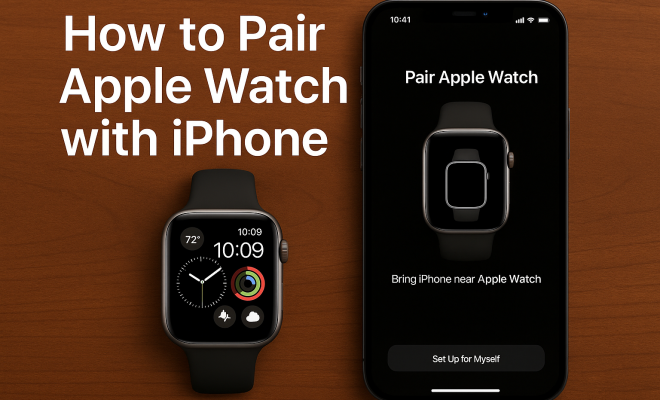
- When prompted, tap “Start Pairing” on your iPhone and a pairing animation will appear on your Apple Watch.
- Align the watch face within the viewfinder on your iPhone screen until it recognizes the watch.
- Follow the on-screen instructions to set up your preferences, including wrist preference, passcode, and health settings.
Once you complete these steps, your Apple Watch should be successfully paired with your iPhone, and you can start enjoying the benefits of this powerful duo!
4. Exploring Key Features
Now that you know how to pair Apple Watch with iPhone, it’s essential to understand the features that come with this pairing. The Apple Watch offers a plethora of capabilities, including:
- Health Tracking: Monitor your heart rate, track workouts, and even keep an eye on your sleep patterns.
- Notifications: Receive and respond to texts, emails, and even app alerts directly from your wrist.
- Siri Integration: Use Siri to set reminders, send messages, or get directions without needing to reach for your phone.
- Apple Pay: Make purchases directly from your watch, making transactions smoother than ever.
These features not only enhance your daily life but also provide a sense of connectivity and convenience that can be life-changing. The watch can serve as an extension of your iPhone, making it easier to stay engaged with your day-to-day tasks.
5. Customizing Your Apple Watch
Once paired, customization of your Apple Watch is the next logical step. You can choose from various watch faces, adjust complications (the small widgets on the watch face), and select which apps send notifications. To customize your watch, press firmly on the watch face to enter customization mode. Swipe left or right to choose a design you like, and tap on it to select it.
Additionally, you can manage which apps you want to receive notifications from via the Apple Watch app on your iPhone. Go to My Watch > Notifications, and toggle settings for each app to suit your preferences. This helps manage distractions and keeps your watch experience tailored to your lifestyle.
6. Troubleshooting Pairing Issues
Sometimes, despite following all the instructions, you may encounter issues while trying to pair Apple Watch with iPhone. Here are some common problems and how to resolve them: (See: Apple Watch Wikipedia page.)
- Bluetooth Issues: Ensure Bluetooth is enabled on your iPhone. If you’re still having trouble, try turning Bluetooth off and back on.
- Connection Errors: Restart both your iPhone and Apple Watch. To restart the watch, press and hold the side button until the Power Off slider appears.
- Software Update: If pairing fails, double-check if both devices are running the latest software. Go to Settings > General > Software Update on your iPhone.
If these steps don’t resolve the issue, consider unpairing and then re-pairing your Apple Watch. Open the Apple Watch app, tap on your watch at the top, and select “i” next to the watch name, then tap “Unpair Apple Watch.” This process will erase the watch, but it’s often a necessary step to restore functionality.
7. Maintaining Connectivity
Once successfully paired, maintaining a stable connection between your Apple Watch and iPhone is crucial for optimal functionality. Keep your devices within close proximity, as the Bluetooth range is typically about 33 feet, depending on your environment. Objects such as walls or furniture can interfere with the connection.
It’s also important to regularly check for software updates on both devices. Apple frequently releases updates that not only improve performance but also address security vulnerabilities. Go to the Apple Watch app on your iPhone and navigate to My Watch > General > Software Update to check for any updates available for your watch.
8. Exploring Third-Party Apps
One of the standout features of the Apple Watch is its ability to integrate with third-party applications. Once paired with your iPhone, you can download apps specifically designed for the Apple Watch from the App Store. Popular apps include fitness trackers, music streaming, and travel guides. These applications expand the functionality of your watch, providing more personalized experiences.
Some notable third-party apps include Strava for fitness enthusiasts, Todoist for productivity, and Spotify for music lovers. To install these apps, simply download them on your iPhone, and they will automatically sync with your Apple Watch, allowing you to access them directly from your wrist.
9. Staying Informed: The Future of Apple Watch
The Apple Watch continues to evolve, and Apple is consistently working on enhancing features that integrate seamlessly with iPhones. With the introduction of new health monitoring capabilities, such as blood oxygen monitoring and ECG readings, the future looks promising for users seeking advanced health insights directly from their wrist.
As technology advances, pairing Apple Watch with iPhone will only get more intuitive. Future updates may bring new features that could enhance user experience, making it even easier to use the watch as a central hub for your digital life. Staying updated with Apple’s announcements can ensure that you make the most of your Apple Watch capabilities.
In summary, learning how to pair Apple Watch with iPhone is just the beginning of an exciting journey into a world of connectivity and innovation. With a few simple steps, you can unlock a multitude of features that enhance your daily routine, making the pairing process well worth the effort.
10. Advanced Features You Might Not Know About
When you pair your Apple Watch with your iPhone, you gain access to several advanced features that can significantly enhance your user experience. Here are some of the lesser-known but powerful functionalities:
Fall Detection
The Apple Watch includes a built-in fall detection feature that can be a game-changer for users, especially the elderly or those with medical conditions that may increase their risk of falling. If the watch detects a hard fall, it will automatically tap you on the wrist and display an alert. If you don’t respond within a certain timeframe, it will contact emergency services and share your location. This feature can provide peace of mind to both the wearer and their family members.
Noise Monitoring
The Apple Watch also has a noise monitoring feature that tracks ambient sound levels and can alert you when the noise reaches a level that could potentially damage your hearing. This feature can be especially helpful in loud environments, ensuring that you take precautions to protect your hearing.
Fitness Challenges
For fitness enthusiasts, the Apple Watch offers various challenges and competitions. You can invite friends to compete with you on weekly exercise or stand goals, motivating each other to stay active. This social aspect of fitness can turn working out into a fun and competitive experience.
Custom Workouts
The Apple Watch allows you to create custom workout settings. Whether you prefer running, cycling, or yoga, you can adjust the metrics that matter most to you. This personalized approach can help you achieve specific fitness goals more effectively.
11. Health and Wellness Insights
The integration of health and wellness features into the Apple Watch is one of its most significant selling points. By pairing your Apple Watch with iPhone, you gain access to the Health app, which consolidates health data from various sources, including third-party apps. Here’s how to make the most out of these insights: (See: CDC on physical activity and health.)
Activity Rings
The Activity Rings provide a visual representation of your movement throughout the day. You have three rings to close: Move, Exercise, and Stand. This gamification of fitness can encourage users to stay active and reach their daily goals. Tracking your progress over time can also provide motivation and insight into your activity levels.
Heart Rate Monitoring
The Apple Watch continuously monitors your heart rate, allowing you to see how your heart rate changes throughout the day. High and low heart rate notifications can alert you to potential issues, prompting you to seek medical advice when necessary. This proactive approach to health can be invaluable for maintaining cardiovascular health.
Mindfulness and Breathing Exercises
Mindfulness is increasingly recognized as a crucial component of overall health. The Apple Watch offers guided breathing exercises to help reduce stress and improve focus. You can set reminders to take a moment to breathe and reset during your busy day. This small but impactful feature can significantly enhance mental well-being.
12. Apple Watch and iPhone Compatibility
Apple Watch models are designed with specific iPhone compatibility in mind. Here’s a breakdown of which iPhone models work with various Apple Watch models:
- Apple Watch Series 8: Requires iPhone 6s or later with iOS 14 or later.
- Apple Watch SE: Compatible with iPhone 6s or later running iOS 14 or later.
- Apple Watch Ultra: Must be paired with an iPhone 8 or later with iOS 16 or later for full functionality.
- Apple Watch Series 7: Also requires iPhone 6s or later with iOS 15 or higher.
This compatibility ensures that users can take full advantage of the features available on their Apple Watch, emphasizing the importance of having an up-to-date iPhone model.
13. FAQs About Pairing Apple Watch with iPhone
Got questions? Here are some frequently asked questions about pairing your Apple Watch with an iPhone:
Can I pair my Apple Watch without an iPhone?
No, you cannot pair an Apple Watch without an iPhone. The Apple Watch relies on the iPhone for many of its core functionalities, including app downloads and notifications.
What happens to my Apple Watch if I switch iPhones?
If you switch iPhones, you’ll need to unpair your Apple Watch from your old iPhone first. This process creates a backup of your watch settings, which you can then restore to your new iPhone when you pair it again.
Is my data safe when pairing my Apple Watch with iPhone?
Apple prioritizes user privacy and security. When you pair your Apple Watch with your iPhone, your data is encrypted. Additionally, features like passcodes and the ability to use Face ID or Touch ID further secure your personal information.
Can I use an Apple Watch without a cellular plan?
Yes, you can use an Apple Watch without a cellular plan. The GPS-only models need to be connected to your iPhone for most features, while cellular models allow for standalone usage when away from your iPhone.
How do I reset my Apple Watch if I can’t pair it with my iPhone?
If you can’t pair your Apple Watch, you can reset it. Press and hold the side button until the Power Off slider appears. Then, press and hold the Digital Crown until the watch resets. You can then attempt to pair it again with your iPhone. (See: New York Times on Apple Watch Series 7.)
14. What to Do if You Forget Your Passcode
If you forget your Apple Watch passcode, you won’t be able to access many of the watch’s features. In this case, you’ll need to reset the watch. Here’s how:
- Keep your Apple Watch on its charger.
- Press and hold the side button until the Power Off slider appears, then press and hold the Digital Crown until you see the “Erase all content and settings” option.
- Tap “Erase all” to reset the device. This will remove the passcode along with all data on your watch.
After erasing, you can pair your Apple Watch with your iPhone and set it up as new, or restore it from a backup.
15. Syncing Music and Podcasts
One of the great advantages of pairing your Apple Watch with an iPhone is the ability to sync music, podcasts, and audiobooks directly to your watch. This feature is perfect for users who want to listen to their favorite tunes or podcasts while exercising without carrying their iPhone. To do this:
- Open the Apple Watch app on your iPhone.
- Scroll down and tap on “Music.”
- Select “Add Music” to choose songs, albums, or playlists that you want to sync with your watch.
- Your selected music will automatically transfer to your Apple Watch when it’s on the charger and within range of your iPhone.
This feature is especially useful for runners or gym-goers who prefer to listen to music without the bulk of their phone.
16. Using Apple Watch for Navigation
With the Apple Watch paired to your iPhone, navigation becomes a breeze. You can get turn-by-turn directions right on your wrist, which is incredibly convenient when cycling or walking. Here’s how to use it:
- Enter your destination into Apple Maps on your iPhone.
- Once your route is set, your Apple Watch will provide haptic feedback to alert you of upcoming turns.
- You can glance at your watch for visual cues without needing to pull out your phone.
This feature can help you stay focused on your surroundings while still getting the directions you need, enhancing both safety and convenience.
17. Tips for Extended Battery Life
The Apple Watch is designed to last all day, but there are ways to extend its battery life further, especially if you’re active or use many features. Here are some tips:
- Use Power Saving Mode: Enable this mode during workouts to disable the heart rate sensor and reduce GPS usage.
- Limit Notifications: The more notifications you receive, the more battery your watch uses. Customize your notification settings to reduce this drain.
- Reduce Background App Refresh: Go to the Apple Watch app on your iPhone, select “General,” and turn off Background App Refresh for apps you don’t need.
- Lower Screen Brightness: Adjust the brightness settings on your watch to conserve battery.
- Turn Off Always-On Display: If you’re using an Apple Watch with Always-On Display, you can turn this feature off to save battery life.
Implementing these tips can help ensure your Apple Watch remains usable throughout the day, even with heavy usage.
18. Conclusion
Pairing your Apple Watch with your iPhone unlocks a treasure trove of features tailored to enhance your lifestyle. The integration of health tracking, notifications, and third-party apps transforms the watch into more than just a timepiece; it becomes a personal assistant and wellness coach. By understanding the various functionalities, keeping both devices updated, and troubleshooting any issues that arise, you can ensure a seamless experience. Whether for fitness, productivity, or simply convenience, your Apple Watch is a powerful companion that’s ready to support you every step of the way.
“`
Trending Now
Frequently Asked Questions
How do I pair my Apple Watch with my iPhone?
To pair your Apple Watch with your iPhone, first ensure your iPhone is updated to iOS 14 or higher and that your Apple Watch is charged to at least 50%. Open the Apple Watch app on your iPhone, select 'Start Pairing', and follow the on-screen instructions to complete the pairing process.
What do I need to do before pairing my Apple Watch?
Before pairing your Apple Watch, check that your iPhone is running iOS 14 or later and ensure your Apple Watch has at least 50% battery. Keep your iPhone close to the watch for a stable Bluetooth connection during the pairing process.
Can I pair an Apple Watch without an iPhone?
No, you cannot pair an Apple Watch without an iPhone. The Apple Watch is designed to work in conjunction with an iPhone, allowing you to receive notifications, track fitness, and access apps seamlessly through the iPhone's connectivity.
What models of iPhone can pair with Apple Watch?
To pair with an Apple Watch, you need an iPhone 6s or later. Additionally, your iPhone must be running iOS 14 or higher to ensure compatibility with the latest Apple Watch features and functionalities.
What should I do if my Apple Watch won't pair with my iPhone?
If your Apple Watch won't pair with your iPhone, ensure both devices are charged, close to each other, and updated to the latest software. Try restarting both devices and resetting the Apple Watch if the issue persists. You can also check for Bluetooth connectivity issues.
Agree or disagree? Drop a comment and tell us what you think.