How to use Samsung tablet as drawing tablet
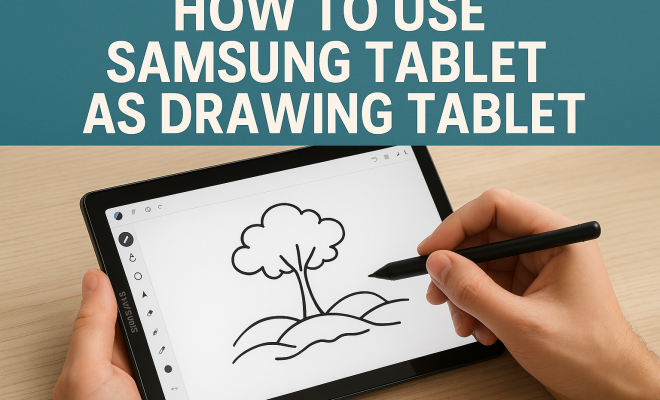
“`html
If you own a Samsung tablet, you might not realize its potential as a drawing tablet. With the right apps, tools, and techniques, you can turn your device into a versatile canvas for digital art. Whether you’re a professional artist or just starting out, using a Samsung tablet as a drawing tablet can enhance your creative process. In this comprehensive guide, we’ll explore how to make the most of your Samsung tablet for drawing, including setup, app recommendations, and useful tips for achieving stunning results.
1. The Advantages of Using a Samsung Tablet as a Drawing Tablet
Samsung tablets, particularly the Galaxy Tab series, come equipped with features that make them ideal for digital drawing. One of the major advantages is their high-resolution displays, which provide vibrant colors and sharp details, essential for any artist. The AMOLED technology used in many Samsung tablets delivers deep blacks and bright colors, making your artwork pop.
Additionally, many models come with an S Pen, which is a pressure-sensitive stylus designed specifically for drawing and note-taking. The S Pen offers a natural writing experience, allowing you to create intricate designs with precision. Its responsiveness and low latency make it feel similar to drawing on paper, providing a seamless transition for traditional artists into the digital realm.
2. Setting Up Your Samsung Tablet for Drawing
Before you start drawing, you’ll need to prepare your Samsung tablet. First, ensure your tablet has the latest software updates, as these often include performance improvements and bug fixes that can enhance your drawing experience. To check for updates, go to Settings > Software Update and tap on “Download and Install”.
Next, configure the S Pen settings to suit your preferences. Navigate to Settings > Advanced features > S Pen. Here, you can customize the pen’s functionality, such as adjusting the pressure sensitivity and enabling Air Actions, which allows you to perform tasks with gestures. Personalizing these settings will optimize your drawing experience and make your workflow smoother.
3. Choosing the Right Drawing Apps
The choice of drawing app can significantly impact your creative process. Samsung tablets support a variety of drawing applications, from simple sketching tools to advanced graphic design software. Some popular choices include:
- Adobe Fresco: A user-friendly app designed for sketching, painting, and drawing. It features a range of brushes, including live brushes that mimic traditional painting techniques.
- Autodesk SketchBook: Known for its intuitive interface, this app offers numerous features for artists, including layer support, a vast selection of brushes, and an easy-to-use color palette.
- Corel Painter: A more advanced option, Corel Painter is perfect for professional artists looking for extensive brush customization and powerful editing tools.
- Medibang Paint: A versatile app ideal for comic artists and illustrators, offering a variety of brushes, fonts, and backgrounds.
- Clip Studio Paint: Great for comics and illustrations, this app includes advanced features for creating detailed artwork and has excellent brush capabilities.
Consider trying out a few different apps to find the one that best fits your style and workflow. Many of these applications offer free trials or basic versions, allowing you to experiment without any financial commitment.
4. Getting Comfortable with the S Pen
While using your Samsung tablet as a drawing tablet, the S Pen becomes your primary tool. Familiarizing yourself with its features and capabilities is essential. The S Pen is designed to be ergonomic, making it convenient for extended use. Practice holding it at different angles and applying various pressure levels to understand its sensitivity better.
Explore the different features available with the S Pen. For instance, try using the different stroke options in your drawing app to see how various pressures affect the lines you create. Experimenting with line weight and shading techniques will help you take full advantage of the S Pen’s sensitivity. Additionally, be sure to explore the S Pen shortcuts, such as double-tapping to erase, which can streamline your workflow. (See: Digital art overview on Wikipedia.)
5. Understanding Layers in Digital Art
One of the powerful features of digital drawing is the ability to use layers. Layers allow you to separate different elements of your artwork, making it easier to manage complex compositions. Understanding how to use layers effectively can elevate your work significantly.
Most drawing apps on Samsung tablets support layers, where you can create new layers for sketches, colors, and details. For instance, start with a rough sketch on one layer, then add colors on a separate layer above it. This method allows you to adjust or delete one aspect of your work without affecting the others. Additionally, utilizing layer blending modes can help create interesting visual effects in your artwork.
6. Tips for Enhancing Your Digital Art Skills
Transitioning from traditional to digital art comes with its challenges, but there are several techniques you can use to improve your skills quickly. First, practice regularly. The more you draw, the more comfortable you’ll become with the tools and the digital environment.
Another beneficial approach is to study the work of other artists. Engage with online communities, like those on Instagram or DeviantArt, to share your artwork and receive constructive feedback. Tutorials can also be invaluable; many artists share their processes through video demonstrations, which can help you learn new techniques and styles.
Finally, don’t be afraid to experiment. Digital art offers the freedom to try out different styles, color palettes, and techniques without the fear of ruining a physical canvas. Embrace this opportunity to explore and find your unique artistic voice.
7. Creating a Comfortable Drawing Environment
Your physical environment can significantly affect your drawing experience. Set up a comfortable workspace that encourages creativity. Ensure you have adequate lighting to reduce eye strain, especially when working on intricate details. A clutter-free desk can also help you focus better.
Consider investing in a stand for your Samsung tablet. This can elevate the screen to eye level, reducing neck strain during long drawing sessions. A stylus holder can keep your S Pen handy, ensuring you’re always ready to create. Lastly, consider using headphones to minimize distractions and enhance your concentration while you work.
8. Exporting and Sharing Your Artwork
Once you’ve created a masterpiece on your Samsung tablet, it’s time to share it with the world. Most drawing apps offer various options for exporting your artwork, including popular formats like JPEG, PNG, and PSD. Choose the format that best suits your needs, whether that’s for online sharing or printing.
Social media platforms like Instagram, Pinterest, and Behance are excellent places to showcase your work and connect with other artists. Participate in online challenges or hashtags to gain visibility and engage with a wider audience. If you’re looking to sell your art, consider platforms like Etsy or Redbubble, where you can create merchandise featuring your designs.
9. Common Challenges and Solutions When Drawing on a Samsung Tablet
Even with the advantages that Samsung tablets offer for digital drawing, artists may encounter some challenges. Here are a few common issues and how to tackle them:
- Inaccurate Pressure Sensitivity: If you notice that the pressure sensitivity isn’t responding as expected, check the settings in your drawing app. Make sure that the S Pen is calibrated correctly and that pressure sensitivity is enabled. Additionally, ensure that the tip of the S Pen is clean to prevent any interference.
- Palm Rejection Issues: Sometimes, when drawing, you might accidentally touch the screen with your palm. Most drawing apps have palm rejection features to prevent this. Ensure this feature is activated in your app’s settings. If it’s still a problem, consider using a glove designed for drawing to avoid accidental touches.
- Battery Life Considerations: Long drawing sessions can consume a lot of battery. To manage battery life, lower the screen brightness and close any unnecessary apps running in the background. It’s also a good idea to carry a portable charger if you plan to work for extended periods away from power.
- Learning Curve of Apps: Each drawing app comes with its own unique interface and tools. If you find yourself struggling to navigate a new app, take advantage of online resources. YouTube is packed with tutorials and tips that can help ease the learning curve.
10. Advanced Techniques for Digital Drawing
Once you’ve got the basics down, it’s time to explore some advanced techniques that can take your artwork to the next level. Here are a few techniques to consider: (See: New York Times review of drawing tablets.)
- Digital Blending: Use blending tools available in your app to create smooth transitions between colors. This technique can add depth and realism to your artwork, especially in portrait or landscape painting.
- Custom Brushes: Most drawing apps allow you to create or download custom brushes. Experimenting with different brushes can give your artwork a unique look and feel. For instance, you might find texture brushes that add a realistic touch to your illustrations.
- Masking Techniques: Masking allows you to protect certain areas of your artwork while you work on others. This is particularly useful for complex pieces where you want to keep specific details intact while adjusting surrounding areas.
- Color Theory Applications: Understanding color theory can significantly enhance your art. Use complementary and analogous colors to create harmony in your pieces. Techniques like color glazing can also help in achieving desired tones and effects.
11. Inspiring Artists Using Samsung Tablets
Many artists around the world are harnessing the capabilities of Samsung tablets to create stunning artwork. For example, digital artist Dan Luvisi has gained recognition for his detailed character illustrations, many of which are produced using his Galaxy Tab. His work often showcases a blend of traditional art techniques with modern digital tools, demonstrating the versatility of using a Samsung tablet for drawing.
Another artist, Kasey Golden, uses her Samsung tablet to create whimsical illustrations that resonate with a wide audience. Her process involves sketching her ideas on the tablet, refining them digitally, and then sharing her journey through engaging videos. This has not only inspired her followers but also illustrated the possibilities available with digital drawing.
12. Frequently Asked Questions (FAQ)
Can I use a Samsung tablet for professional digital art?
Absolutely! Many professional artists use Samsung tablets for their work. The combination of high-resolution displays, the responsive S Pen, and a variety of powerful apps makes them suitable for professional-grade artwork.
What are some recommended Samsung tablet models for drawing?
The Galaxy Tab S series, especially the Galaxy Tab S8 and S9, are highly recommended for drawing due to their advanced display technology and performance specifications. These models feature AMOLED screens and come bundled with the S Pen.
Do I need to purchase special software for drawing?
There are many excellent free drawing apps available, like Autodesk SketchBook and Medibang Paint. However, if you’re looking for more advanced features, investing in apps like Adobe Fresco or Corel Painter might be worthwhile.
Is the S Pen included with all Samsung tablets?
Not all Samsung tablets come with the S Pen. Models from the Galaxy Tab S series typically include the S Pen, whereas other models may require you to purchase it separately. Always check the product specifications before buying.
Can I draw on a Samsung phone in the same way?
While it’s possible to draw on a Samsung phone using various drawing apps and styluses, the experience may not be as comfortable or precise as on a tablet due to the smaller screen size. However, if you’re in a pinch, your phone can still serve as a handy drawing tool.
13. Exploring Different Art Styles on a Samsung Tablet
A Samsung tablet offers artists the ability to explore a multitude of art styles, from traditional painting to modern digital illustrations. You can experiment with realism, abstract, or even mixed media art by combining various techniques and tools available in your drawing apps. The versatility of your tablet allows you to try out different brushes, color palettes, and layer effects that can significantly affect the outcome of your artwork.
For instance, if you’re interested in realism, you might focus on detailed shading techniques and color blending to achieve lifelike textures. Apps like Corel Painter provide brushes that simulate oil and watercolor effects, allowing you to practice painting techniques that mimic traditional media. On the other hand, if abstract art is more your style, you can play with shapes, vibrant colors, and layering effects to create dynamic compositions. (See: Telehealth and technology from HHS.)
14. Statistics on Digital Art and Tablet Usage
According to recent surveys, the demand for digital art is growing rapidly, especially among younger demographics. A study by Art Basel found that 65% of millennials and Gen Z prefer digital art over traditional forms. Furthermore, it was reported that sales in the digital art market reached over $2.6 billion in 2022, demonstrating the increasing acceptance and popularity of digital mediums.
In terms of tablet usage, a survey conducted by Statista indicates that over 50% of digital artists use tablets for their work, with Samsung tablets being among the top choices due to their affordability and high-quality features. The integration of styluses like the S Pen has also played a significant role in making tablets more appealing for artists.
15. Building a Portfolio with Your Samsung Tablet
Creating a portfolio is crucial for any artist looking to showcase their work and attract potential clients or galleries. With your Samsung tablet, building a digital portfolio becomes easier and more efficient. Start by compiling your best pieces into a digital format, ensuring they are high-resolution images that accurately represent your artwork.
Consider using portfolio apps or websites that allow you to present your work professionally. Platforms like Behance or Adobe Portfolio offer customizable templates that make it easy to create an online presence. Additionally, you can utilize social media to share your artwork regularly, engage with followers, and receive feedback, further enhancing your portfolio.
16. Conclusion: Embrace Your Creativity
Using your Samsung tablet as a drawing tablet opens up a world of artistic possibilities. With high-quality displays, powerful apps, and the intuitive S Pen, you can unleash your creativity in new and exciting ways. By setting up your device correctly, choosing the right tools, and practicing your skills, you’ll find that digital art can be just as fulfilling as traditional methods.
So, grab your Samsung tablet, explore the apps, and start creating today. Your artistic journey awaits!
“`
Trending Now
Frequently Asked Questions
Can I use my Samsung tablet as a drawing tablet?
Yes, you can use your Samsung tablet as a drawing tablet. With the right apps and tools, such as the S Pen, you can create digital art easily. Samsung tablets have high-resolution displays and pressure-sensitive stylus support, making them ideal for artists.
What apps can I use to draw on my Samsung tablet?
There are several great apps for drawing on a Samsung tablet, including Autodesk SketchBook, Adobe Fresco, and Infinite Painter. These apps offer a variety of tools and features that cater to both beginners and professional artists.
How do I set up my Samsung tablet for drawing?
To set up your Samsung tablet for drawing, first update your software to the latest version. Then, customize your S Pen settings by going to Settings > Advanced features > S Pen, where you can adjust pressure sensitivity and other features to enhance your drawing experience.
What are the benefits of using a Samsung tablet for digital art?
Samsung tablets offer high-resolution displays and vibrant colors thanks to AMOLED technology, making them perfect for digital art. The S Pen provides a natural drawing experience with pressure sensitivity, allowing for intricate designs and a seamless transition from traditional to digital art.
Is the S Pen good for drawing on a Samsung tablet?
Yes, the S Pen is excellent for drawing on a Samsung tablet. It is pressure-sensitive, responsive, and designed to mimic the feel of traditional drawing tools, making it ideal for artists looking to create detailed and precise artwork.
Have you experienced this yourself? We’d love to hear your story in the comments.