Connect Your Tablet to TV: 7 Easy Methods for 2024
“`html
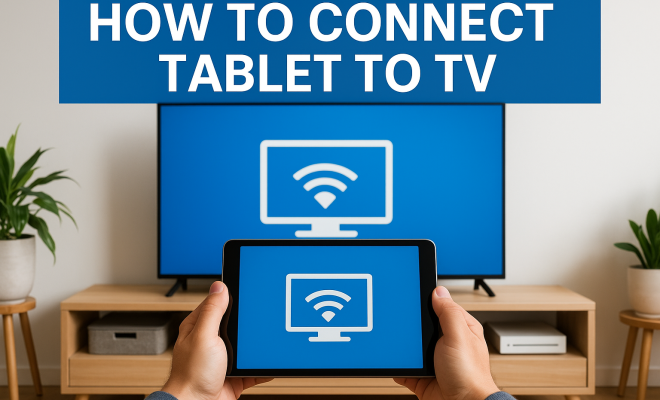
In a world increasingly dominated by mobile devices, the demand to connect a tablet to a TV has never been higher. Whether you’re looking to binge-watch your favorite series, give a presentation, or share photos with family and friends, connecting your tablet to a larger screen can enhance your experience significantly. In this article, we’ll explore seven effective methods to make this connection, alongside tips and tricks to ensure everything runs smoothly.
1. Using an HDMI Adapter
One of the simplest and most direct ways to connect your tablet to your TV is through an HDMI adapter. Most modern tablets come equipped with a dedicated HDMI output, which makes this connection straightforward. Depending on your tablet brand, you may need to purchase a specific adapter. For example, Apple users need a Lightning Digital AV Adapter, while Android tablet owners might require a USB-C to HDMI adapter.
To use an HDMI adapter, simply plug it into your tablet, connect it to the HDMI cable, and plug the other end of the cable into your TV. Switch your TV to the corresponding HDMI input, and you should see your tablet’s screen mirrored on the TV. This method is particularly useful for streaming videos or playing games, as it offers high-resolution output and minimal latency.
2. Wireless Screen Mirroring
If you prefer a cable-free experience, wireless screen mirroring is an excellent option to consider. Many tablets and TVs support technologies like Miracast, Apple AirPlay, or Chromecast, which allow for seamless connections. For instance, if you own an Apple device, AirPlay enables you to stream content directly to an Apple TV or compatible smart TV.
To connect, ensure that both your tablet and TV are on the same Wi-Fi network. On your tablet, look for the screen mirroring option in the settings. Select your TV from the list, and your tablet’s display should appear on the TV. This method is particularly popular among users who want to share media without the hassle of cords.
3. Using Chromecast
Chromecast is a popular streaming device that offers a unique way to connect a tablet to a TV. With Chromecast, you can cast content from your tablet to your TV without relying on traditional mirroring, which is ideal for streaming services like Netflix or YouTube. To set it up, plug the Chromecast into your TV’s HDMI port and connect it to your Wi-Fi network.
Once configured, simply open a compatible app on your tablet, look for the Chromecast icon, and select your TV. The content will appear on the bigger screen, allowing you to enjoy your favorite programs in a more immersive setting. Chromecast’s versatility makes it a great choice for those looking to enhance their viewing experience without investing in new hardware.
4. Smart TV Apps
Many modern smart TVs have built-in apps that allow direct streaming from tablets without needing to connect physically. Platforms like Netflix, Hulu, and Disney+ have their applications on most smart TVs, allowing you to sign in and access your account directly on your television.
To utilize this option, simply download the desired app on both your tablet and smart TV. Log in with your credentials, and you can browse content on your tablet while streaming it directly to your TV. This method is user-friendly and leverages the capabilities of your smart TV, eliminating the need for cables entirely. (See: Understanding HDMI technology.)
5. Using DLNA
Digital Living Network Alliance (DLNA) is a standard that allows devices to share content over a home network. If your tablet and TV support DLNA, you can stream photos, videos, and music from your tablet to your TV effortlessly. To set up DLNA, ensure both devices are connected to the same Wi-Fi network.
Most Android tablets come equipped with a DLNA-compatible app, or you can download one like BubbleUPnP. Once installed, you can browse your media library and select what to send to your TV. This method is particularly advantageous for users with extensive media collections, as it allows easy access without requiring a physical connection.
6. Using a Streaming Device
If you have a streaming device like Roku, Amazon Fire Stick, or Apple TV, you can easily connect your tablet to your TV through these platforms. These devices often come with their own set of apps and support a range of streaming services. Setting up one of these devices typically involves connecting it to your TV’s HDMI port and configuring it to your Wi-Fi.
Once set up, use your tablet to download the relevant app for your streaming device. For example, with Roku, you can download the Roku app and use it to cast content from your tablet directly to your TV. This method is perfect for those who want to combine their tablet with the flexible and diverse offerings of streaming services.
7. Troubleshooting Common Connection Issues
Despite the various methods available for connecting a tablet to a TV, you may run into some common issues. One of the most prevalent problems is connectivity—ensuring both devices are on the same Wi-Fi network is crucial for wireless methods. If you’re using HDMI, make sure the correct input source is selected on your TV.
Another issue might be resolution problems, where the display appears distorted or isn’t in full screen. In these cases, adjusting the display settings on your tablet or TV can often resolve the issue. Finally, for streaming devices, ensure that both the tablet and the device firmware are up to date for optimal performance. Regular updates can fix bugs and improve compatibility, helping you enjoy a seamless viewing experience.
8. Exploring Additional Connection Methods
While the previously mentioned methods are among the most common, there are additional options that may cater to specific needs or preferences. Let’s delve into some of these methods that might be less mainstream but equally effective.
8.1. Using VGA Connection
If your tablet has a VGA output and your TV supports VGA input, you can establish a connection using a VGA adapter. This method is particularly useful for older TVs that may not have HDMI inputs. You’ll need a separate audio cable, as VGA only transmits video. After connecting, switch your TV to the VGA input and you should see your tablet’s display on the screen.
8.2. Using Apple’s Lightning to VGA Adapter
For Apple users, the Lightning to VGA Adapter allows you to connect your iPad or iPhone to a VGA-compatible TV or projector. This can be particularly helpful in business settings where projectors are commonly used. The setup is similar: connect the adapter to your device, run a VGA cable to the TV, and switch to the appropriate input.
8.3. Using a Composite AV Cable
If you have a very old TV that only supports composite inputs (the red, white, and yellow cables), you can still connect your tablet using a composite AV cable. Many tablets will require a special adapter to convert the signal. You will need to ensure that your video resolution is adjusted to match the TV’s capabilities, as composite connections are limited in quality.
9. Deeper Analysis of Screen Quality
The quality of the screen experience when connecting your tablet to a TV can vary significantly depending on the method used. For instance, wired connections like HDMI generally provide the best video quality with minimal lag, which is crucial for gaming or high-definition video playback. On the other hand, wireless methods, while convenient, can sometimes result in lower quality due to compression and interference. (See: Tips for safe technology use.)
For example, while using wireless screen mirroring, you might notice a slight delay which can be frustrating during gaming or interactive applications. On the flip side, wired connections don’t usually have that issue, making them preferable for real-time interactions.
When considering streaming devices like Chromecast, the quality can also depend on your Wi-Fi network speed and reliability. A strong connection is essential for smooth playback, especially for high-resolution content. If you experience buffering or lag, it might be worth considering upgrading your internet plan or positioning your router closer to the TV.
10. Statistics on Streaming Habits
Understanding the landscape of media consumption can give you insight into why connecting your tablet to a TV is more important than ever. According to a recent survey by the Pew Research Center, approximately 75% of American adults report using video streaming services. Among these users, 62% indicated that they prefer to watch content on a larger screen rather than on mobile devices.
This trend highlights the growing importance of connectivity options that allow users to enjoy their favorite content on bigger displays. The rise of smart TVs has also opened up new possibilities, with estimates suggesting that over 80% of all televisions sold in 2023 are smart TVs capable of connecting to various devices.
11. Expert Perspectives on the Future of Streaming
Industry experts predict that the future of content consumption will increasingly involve seamless integration between mobile devices and televisions. According to tech analyst Mark Mulligan from MIDiA Research, “We’re moving towards an ecosystem where your phone or tablet will act as a control hub for all your media, making it easier to switch between devices and formats.”
This perspective reinforces the need for versatile connection methods, enabling users to adapt to their viewing preferences effortlessly. With the rise of 5G technology, streaming high-quality content from mobile devices may become even more accessible, further driving the trend of connecting tablets to TVs.
12. FAQ: Connecting Your Tablet to a TV
Q: Can I connect any tablet to my TV?
A: Most modern tablets can connect to TVs either via wired or wireless methods. However, compatibility might vary based on the tablet’s ports and the TV’s input options.
Q: What should I do if my TV doesn’t have HDMI ports?
A: You can use VGA or composite cables as alternatives. However, note that these options may result in lower video quality compared to HDMI.
Q: Is there a difference in quality between wired and wireless connections?
A: Yes, wired connections like HDMI typically offer better video and audio quality with less latency compared to wireless methods, which can suffer from compression and potential lag. (See: Impact of screen time on users.)
Q: Can I use my tablet as a remote while connected to the TV?
A: Absolutely! Many apps allow you to control playback directly from your tablet while it mirrors or casts to the TV, enhancing convenience.
Q: How do I troubleshoot if my tablet screen isn’t displaying on the TV?
A: First, check the connections and ensure both devices are on the same Wi-Fi network. If using HDMI, ensure the correct input is selected. Restarting both devices can also resolve many issues.
13. Comparative Analysis of Connection Methods
Understanding the pros and cons of each connection method can help you make a more informed decision about which one suits your needs best. Here’s a closer look at several popular options:
HDMI Adapter
- Pros: Direct connection, high-quality video/audio, minimal latency.
- Cons: Requires a physical cable, limits mobility.
Wireless Screen Mirroring
- Pros: No cables needed, easy sharing of content.
- Cons: Possible quality degradation, latency issues.
Chromecast
- Pros: Versatile casting options, compatible with various apps.
- Cons: Relies on Wi-Fi strength; potential buffering.
Smart TV Apps
- Pros: User-friendly, no need for tablet connection.
- Cons: Limited to specific apps available on the TV.
DLNA
- Pros: Great for sharing media libraries, easy access.
- Cons: May require additional apps, setup can be tricky.
14. Future Trends in Connecting Tablets and TVs
As technology advances, the ways that we connect our tablets to TVs are likely to evolve significantly. Emerging technologies such as 5G are set to enhance wireless streaming capabilities, making it easier to stream high-definition content without buffering. Additionally, the integration of smart home systems will allow tablets to interact with multiple devices, providing a more comprehensive home entertainment experience.
Another trend is the rise of augmented and virtual reality applications that could transform how we consume media. Imagine using your tablet to create an immersive viewing experience on your TV by integrating AR elements into a movie or game. This could create entirely new ways for families to engage with content together.
15. Final Thoughts
Connecting your tablet to your TV can significantly enhance your media consumption experience, whether you’re streaming the latest shows, sharing holiday photos, or giving a presentation. By exploring the methods outlined above, you can choose the best option that suits your needs and tech setup. Remember to troubleshoot common issues as they arise, and soon you’ll be enjoying your favorite content on a much larger screen. As technology continues to advance, the possibilities for connection and interaction are only going to grow, making it an exciting time for media consumers.
“`
Trending Now
Frequently Asked Questions
How can I connect my tablet to my TV using HDMI?
To connect your tablet to your TV using HDMI, plug an HDMI adapter into your tablet's port, connect it to an HDMI cable, and the other end to your TV. Switch your TV to the corresponding HDMI input, and your tablet's screen should be mirrored on the TV.
What is the best way to wirelessly connect a tablet to a TV?
The best way to wirelessly connect a tablet to a TV is through screen mirroring technologies like Miracast, Apple AirPlay, or Chromecast. Ensure both devices are on the same Wi-Fi network, access the screen mirroring option on your tablet, and select your TV to start streaming.
Do I need special adapters to connect my tablet to a TV?
Yes, you may need specific adapters depending on your tablet. For Apple devices, a Lightning Digital AV Adapter is required, while Android tablets often need a USB-C to HDMI adapter to connect to a TV.
Can I use my tablet to stream videos on my TV?
Absolutely! You can use an HDMI connection or wireless screen mirroring to stream videos from your tablet to your TV. Both methods provide excellent video quality and are suitable for watching movies or shows.
What are the advantages of connecting a tablet to a TV?
Connecting a tablet to a TV allows for a larger viewing experience, making it ideal for binge-watching series, giving presentations, or sharing photos. It enhances your media experience significantly and can be done easily with either wired or wireless methods.
Agree or disagree? Drop a comment and tell us what you think.