How to transfer contacts to new phone
“`html
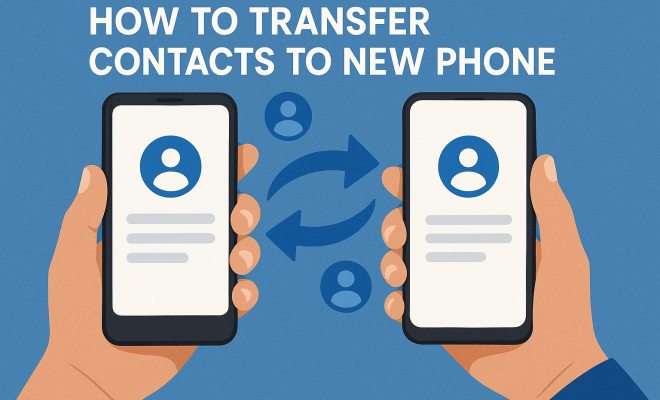
Upgrading to a new phone is exciting, but it can come with its own set of challenges, particularly when it’s time to transfer contacts to new phone. Whether you’re switching from an iPhone to an Android, from one Android device to another, or moving from an older model to the latest smartphone, the process of moving your contact list can sometimes feel overwhelming. Fortunately, there are several efficient methods to ensure you keep all your vital connections intact. In this guide, we’ll explore the most effective techniques for transferring your contacts, whether you’re tech-savvy or just starting to dip your toes into the digital world.
1. Understanding Contact Storage
Before we dive into the actual methods for transferring contacts, it’s essential to understand how contacts are stored on your devices. Your contacts can be saved in various places:
- SIM card: Older phones typically store contacts on the SIM card, which can be transferred to a new phone easily.
- Device storage: Many modern smartphones save contacts directly on the device itself. This method is less portable but offers more features.
- Cloud services: Services like Google Contacts and iCloud provide a seamless way to back up and sync contacts across devices.
Understanding where your contacts are stored will help determine which method will work best for you when it’s time to transfer contacts to your new phone.
2. Using Google Contacts for Android Users
If you’re moving from one Android device to another, using Google Contacts is one of the easiest ways to transfer your contacts. Most Android phones come pre-installed with a Google account, which allows you to sync your contacts automatically.
Here’s how to do it:
- On your old phone, go to Settings > Accounts > Google.
- Select your account and ensure that Contacts sync is enabled.
- On your new phone, sign in with the same Google account, and your contacts will automatically sync.
This method is efficient and ensures that your contacts are always backed up in the cloud, making future transfers even easier.
3. Transferring Contacts via iCloud for iPhone Users
If you’re moving from an old iPhone to a new one, using iCloud is the simplest method for transferring contacts. This feature ensures that your contacts are not only synced but also accessible from any device logged into your iCloud account.
To transfer contacts via iCloud:
- On your old iPhone, navigate to Settings > [Your Name] > iCloud.
- Make sure Contacts is enabled.
- On your new iPhone, log into the same iCloud account during the setup process, and your contacts will sync automatically.
This method ensures your contacts remain intact while simplifying the transition to a new device.
4. Exporting and Importing Contacts via CSV or vCard
For those who prefer a more manual approach, exporting and importing contacts via CSV or vCard can be a good option. This method is particularly useful if you are transferring contacts between different platforms, such as from an Android phone to an iPhone.
Here’s how to do it:
- On your old device, export your contacts to a CSV or vCard file. Most contact apps allow this through the settings menu.
- Transfer the file to your new device using email or a cloud service.
- On your new phone, import the contacts from the file through the contact management app.
This method provides flexibility and control over which contacts you want to transfer, making it ideal for users with extensive contact lists.
5. Using Third-Party Apps for Contact Transfer
If you’re looking for a more automated solution, several third-party apps can help you transfer contacts to new phone. These apps often provide a user-friendly interface and additional features beyond simple contact transfer. (See: Understanding contact storage methods.)
Here are a few popular options:
- Move to iOS: For Android users switching to iPhone, this app facilitates a seamless transfer of contacts, as well as messages, photos, and more.
- Samsung Smart Switch: For users moving to a Samsung device, this app allows you to migrate data, including contacts, from various devices.
- My Contacts Backup: This app lets you back up your contacts to your email and then easily import them into your new device.
While third-party apps can be remarkably effective, it’s crucial to research and choose well-reviewed options to ensure your data’s safety.
6. Using Bluetooth to Transfer Contacts
For users who prefer a wireless method, Bluetooth provides a straightforward way to transfer contacts to new phone. This method works well when both devices are nearby, allowing you to send contact information directly.
Here’s how to do it:
- Make sure Bluetooth is enabled on both devices.
- On your old phone, select the contacts you want to transfer.
- Choose the option to send via Bluetooth and select your new phone from the list of available devices.
- Accept the transfer on your new phone, and the contacts will be saved.
This method is handy for transferring specific contacts without the need for internet access or extra software.
7. Common Pitfalls to Avoid During Contact Transfers
While transferring contacts seems straightforward, several common pitfalls can arise, potentially leading to data loss or frustration:
- Not backing up: Always ensure you have a backup of your contacts before attempting any transfer method.
- Using the wrong format: If exporting contacts, make sure to use a format compatible with your new device.
- Forgetting to sync: Forgetting to enable sync settings can lead to missing contacts after the transfer.
Being aware of these pitfalls can save you time and hassle, ensuring a smoother transition to your new phone.
8. Final Thoughts on Contact Transfers
Transferring contacts to a new phone doesn’t have to be complicated. With the various methods available, you can choose one that best fits your needs and preferences. Whether you opt for the convenience of cloud services, utilize Bluetooth for a quick transfer, or rely on third-party apps, keeping your contact list intact is entirely achievable.
Take your time to understand each method, particularly when switching between different platforms. Doing so will not only ease your transition but also give you peace of mind knowing that all your important connections are safely transferred to your new device.
9. Staying Organized After the Transfer
Once you’ve successfully transferred contacts to your new phone, it’s a great opportunity to organize your contacts for easier access in the future. Consider taking these steps:
- Delete duplicates: Use apps like Contacts+ or Cleaner to identify and merge duplicate contacts.
- Group contacts: Create groups for family, friends, work, etc., to streamline communication.
- Regular backups: Make it a habit to back up your contacts periodically to prevent data loss in the future.
By staying organized, you’ll ensure that your contact list remains manageable and that you’re always just a tap away from reaching out to your important connections.
10. Frequently Asked Questions (FAQ)
1. Can I transfer contacts from an iPhone to an Android phone directly?
Yes, you can transfer contacts from an iPhone to an Android phone using several methods. One effective way is to use the Google Contacts app. You can export your contacts from iCloud as a vCard and then import them into your Google account, which will sync to your Android device.
2. Will I lose my contacts if I don’t transfer them before changing phones?
Yes, if you don’t transfer your contacts before changing phones, you risk losing them, especially if they are stored only on your old device. Always back up your contacts using cloud services or export them to a file before switching devices.
3. How long does it take to transfer contacts using Bluetooth?
The time it takes to transfer contacts using Bluetooth depends on the number of contacts you’re sending. Typically, it should take just a few minutes for a reasonable number of contacts, but it could take longer for larger groups.
4. Are there any costs associated with transferring contacts?
Generally, the methods outlined above for transferring contacts, such as using cloud services or Bluetooth, are free. However, some third-party apps may charge for additional features or services. Always check the app’s description before downloading. (See: Importance of keeping contacts updated.)
5. What should I do if my contacts didn’t transfer?
If your contacts didn’t transfer, first check your sync settings on both devices. Make sure your accounts are logged in properly and that contact sync is enabled. If you used a third-party app, ensure it completed the transfer. You can also retry the transfer using another method, like exporting and importing a vCard or CSV file.
6. How can I ensure my contacts stay synced across devices in the future?
To keep your contacts synced across devices, regularly back them up to a cloud service like Google Contacts or iCloud. Make sure that sync settings are enabled on all devices where you wish to access your contacts, and periodically check for any updates or changes in settings that may affect syncing.
7. Can I transfer selected contacts rather than my entire contact list?
Yes, many methods allow you to choose specific contacts to transfer. For example, when using Bluetooth, you can select individual contacts rather than sending your entire list. Similarly, when exporting contacts to a file, you can choose which ones to include.
8. Are there any specific apps for transferring contacts between different operating systems?
Yes, some apps are designed specifically for transferring contacts between different operating systems. For example, the Move to iOS app helps Android users transfer data to iPhones, while Samsung Smart Switch can facilitate data transfer from various brands to Samsung devices.
9. What if my contacts are duplicated after the transfer?
If you find duplicates after transferring your contacts, you can use contact management apps designed to help clean up your contact list, such as Contacts+ or Duplicate Contacts Remover. These apps can automatically identify and merge duplicates, keeping your contact list organized.
10. Is it safe to use third-party apps for transferring contacts?
Most well-reviewed third-party apps are safe to use, but it’s always best to do your research. Look for apps with good ratings and user reviews on the app store. Also, check their privacy policies to ensure that your data will be handled securely.
11. Exploring Additional Methods for Contact Transfer
While the methods discussed are some of the most common, there are additional ways to transfer contacts to new phone. Depending on your unique needs or preferences, these alternatives might be worth considering:
1. Using NFC Technology
Near Field Communication (NFC) technology allows for quick and easy contact transfers between compatible devices. Many modern smartphones come equipped with NFC capabilities. To use this method:
- Ensure NFC is enabled on both devices.
- On your old phone, select the contacts you wish to share.
- Tap the two devices back-to-back. Follow any on-screen instructions to complete the transfer.
NFC transfers are typically swift and convenient, making them an excellent option when both devices are in hand.
2. Transferring Contacts via Email
Another straightforward method is to email your contacts to yourself. Here’s how you can do it:
- On your old phone, open your contacts app and select the contacts you want to send.
- Choose the option to share or send them via email.
- Email them to your own address.
- On your new phone, open the email and download the attached contacts file.
- Import the downloaded file into your contacts app.
This method allows you to keep a record of your contacts in your email inbox as well.
3. QR Codes for Contact Transfer
Some apps let you generate a QR code containing your contact details. Here’s the process:
- Use a QR code generator app to create a QR code for your contact information.
- On your new phone, use a QR code scanner app to scan the code.
- Once scanned, you’ll have the option to save the contact directly to your new phone.
This can be a fun and creative way to share your contacts, especially in social situations.
12. Statistics on Contact Transfer Methods
Understanding how people transfer contacts can provide insights into the most popular techniques. Here are some statistics:
- According to a survey conducted in 2022, over 65% of smartphone users prefer cloud-based services like Google Contacts and iCloud for transferring contacts.
- Approximately 25% of users still opt for manual methods, such as exporting and importing vCards or CSV files.
- About 10% of users reported utilizing Bluetooth or NFC for quick transfers, highlighting the increasing reliance on wireless technology.
These statistics suggest that cloud services are becoming the go-to choice for contact migrations, thanks to their convenience and reliability.
13. Expert Opinions on Contact Management
To gain further insights into contact management and transfers, we spoke to tech experts in mobile technology:
Dr. Sarah Lin, Mobile Tech Analyst: “The rise of cloud services has revolutionized how we manage contacts. Users need to understand these systems not just for transfers but also for ongoing organization and backup.”
James O’Connor, Data Privacy Expert: “While third-party apps can be incredibly useful, users should always be cautious. It’s vital to assess an app’s permissions and privacy policies to protect sensitive information.”
14. Advanced Tips for Keeping Contacts Safe
To ensure your contacts remain secure and organized, consider these advanced tips:
- Enable Two-Factor Authentication: For services like Google and iCloud, enabling two-factor authentication adds an extra layer of security to your contacts.
- Regularly Review Permissions: Periodically check which apps have access to your contacts. Revoke permissions for any apps that no longer require access.
- Utilize Contact Backup Services: Some services specialize in backing up contacts. Consider using them for additional peace of mind beyond regular cloud storage.
By staying proactive about your contact management, you can avoid potential issues down the road.
15. What to Do After the Transfer?
After transferring your contacts, here are a few essential steps to take:
- Verify Contacts: Go through your contact list and check for any missing or incorrect information that may have occurred during the transfer.
- Update Contact Information: Ensure that any recent changes to your contacts (like new phone numbers or email addresses) are updated promptly.
- Engage with Your Contacts: Use this opportunity to reconnect with contacts you may not have spoken to in a while. A simple ‘hello’ can go a long way in keeping your networks strong.
Taking these steps can help solidify your newly organized contact list and make future communication smooth.
“`
Trending Now
Frequently Asked Questions
How do I transfer contacts from one phone to another?
To transfer contacts from one phone to another, you can use methods like syncing with Google Contacts for Android users, iCloud for iPhone users, or exporting contacts from your old phone to your SIM card. Each method will depend on how your contacts are stored and the type of devices you are using.
Can I transfer contacts without a SIM card?
Yes, you can transfer contacts without a SIM card by using cloud services like Google Contacts or iCloud. Simply ensure your contacts are backed up to your cloud account on the old phone, then sign in to the same account on the new phone to sync your contacts automatically.
What is the easiest way to move contacts to a new phone?
The easiest way to move contacts to a new phone is by using Google Contacts for Android users or iCloud for iPhone users. Both methods allow for automatic syncing of contacts when you sign in with your existing account on the new device.
How do I sync my contacts to my new phone?
To sync your contacts to your new phone, ensure that your contacts are backed up to a cloud service like Google or iCloud on your old phone. Then, simply sign in to the same account on your new phone, and the contacts will sync automatically.
What should I do if my contacts are stored on my old phone?
If your contacts are stored on your old phone, you can transfer them by exporting to your SIM card or using Bluetooth to share them with your new device. Alternatively, consider backing them up to a cloud service for easier transfer.
Have you experienced this yourself? We’d love to hear your story in the comments.