How to connect Bluetooth headphones
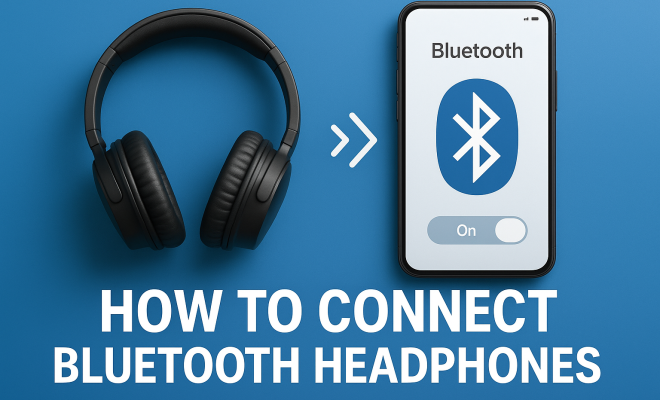
“`html
Connecting Bluetooth headphones can seem like a daunting task, especially if you’re not particularly tech-savvy. Yet, it’s a skill that anyone can master with a bit of guidance. In this comprehensive guide, we’ll walk you through the steps necessary to connect Bluetooth headphones, explore the technology behind it, troubleshoot common issues, and offer some practical tips to enhance your wireless experience. Let’s dive in!
1. Understanding Bluetooth Technology
Before you learn how to connect Bluetooth headphones, it’s essential to grasp what Bluetooth technology is and how it functions. Bluetooth is a short-range wireless communication technology that allows devices to exchange data over distances typically within 10 meters (about 33 feet). It operates in the 2.4 GHz ISM band, which is the same frequency used by many household devices.
This technology has evolved significantly since its inception in the late 1990s, with the latest version, Bluetooth 5.2, offering improved data transfer speeds, greater range, and better energy efficiency. Understanding this evolution helps you appreciate the capabilities of your Bluetooth headphones and their compatibility with various devices.
2. Preparing Your Device
Before you connect Bluetooth headphones, ensure that the device you’re pairing with (smartphone, tablet, laptop, etc.) has Bluetooth capability. Most modern devices do, but it’s always good to check. Go into the settings menu on your device and look for the Bluetooth option. If it’s not enabled, switch it on.
For smartphones, navigate to the settings app, then tap on “Bluetooth” to access the Bluetooth settings. On laptops, you can typically find Bluetooth settings in the taskbar or within the system settings. Once you’ve confirmed Bluetooth is active, you’re ready to pair your headphones.
3. Preparing Your Bluetooth Headphones
Just as your device needs to be ready, so do your Bluetooth headphones. Most headphones have a dedicated power button that also serves as a pairing button. To connect Bluetooth headphones, you often need to put them into pairing mode. This is usually done by holding the power button for several seconds until you see a blinking light or hear an audible cue.
Different models may have different methods for entering pairing mode, so it’s essential to refer to the user manual that comes with your headphones. Generally, you want to look for indications like the LED lights blinking blue and red, signaling that the headphones are discoverable to other Bluetooth devices.
4. Connecting Bluetooth Headphones on Different Devices
Now that both your headphones and device are ready, it’s time to connect Bluetooth headphones. Here’s how to do it across various platforms:
- iOS Devices: Open the Settings app, tap on Bluetooth, and ensure it’s enabled. Your headphones should appear under “Other Devices.” Tap on their name to connect.
- Android Devices: Go to Settings, select Connections, then Bluetooth. Activate Bluetooth and wait for your headphones to show up in the list. Tap to connect.
- Windows 10 PC: Click on the Start menu, select Settings, then Devices. Click on Bluetooth & other devices, turn Bluetooth on, and select “Add Bluetooth or other device.” Choose Bluetooth and select your headphones from the list.
- Mac: Click on the Apple menu, select System Preferences, and then Bluetooth. Ensure Bluetooth is on, and your headphones should appear in the list. Click on “Connect.”
Once connected, you should hear a confirmation sound from your headphones. Enjoy your audio!
5. Troubleshooting Connection Issues
Despite the straightforward process, you may encounter some issues while trying to connect Bluetooth headphones. Common problems include not finding the headphones in the list, connection dropouts, or audio lag. Here are a few troubleshooting tips:
- Ensure Compatibility: Not all Bluetooth headphones work with every device. Check the specifications to confirm compatibility.
- Check Battery Levels: Low battery can hinder connections. Ensure your headphones are fully charged.
- Reset Headphones: Sometimes, resetting the headphones to factory settings can resolve issues. Refer to your user manual for specific instructions.
- Remove Obstructions: Bluetooth signals can be disrupted by physical barriers. Ensure there’s a clear line of sight between the headphones and the device.
- Clear Bluetooth Cache (Android devices): If you face persistent issues, clearing the Bluetooth cache can sometimes help. Go to Settings > Apps > Bluetooth > Storage and select “Clear Cache.”
By following these steps, you can usually identify why your Bluetooth headphones aren’t connecting and find a solution. (See: Understanding Bluetooth technology.)
6. Maximizing Audio Quality
Once you’ve successfully connected your Bluetooth headphones, you’ll want to ensure you’re getting the best audio quality possible. Many factors can influence sound quality, including the audio codec your headphones use. A codec is a method for compressing and decompressing digital audio. Common codecs include SBC, AAC, aptX, and LDAC.
To maximize audio quality, check if your device and headphones support advanced codecs such as aptX or LDAC. These formats provide higher bit rates and less compression compared to SBC, resulting in better sound clarity and detail. You can often adjust audio settings in your device’s sound settings, allowing you to choose the best codec for your headphones.
7. Maintaining Your Bluetooth Headphones
To ensure your Bluetooth headphones last as long as possible, proper maintenance is key. Start by keeping them clean; dirt and sweat can build up, especially on the ear pads. Use a soft cloth or a dry brush to remove debris, and avoid using harsh chemicals that could damage the materials.
Battery life is another crucial aspect of maintenance. To prolong the lifespan of your headphones, try to avoid letting the battery completely discharge frequently. Aim to charge them when they reach around 20% battery life. Additionally, store them in a cool, dry place when not in use to prevent battery degradation.
8. Exploring Additional Features
Many modern Bluetooth headphones come packed with features that enhance the user experience. Some popular features include noise-cancellation, built-in microphones for calls, touch controls, and voice assistant integration. To connect Bluetooth headphones with these features, ensure your device supports them.
For example, if your headphones come with active noise cancellation (ANC), there may be an option to toggle this feature on or off via your device’s Bluetooth settings. Similarly, voice assistants like Siri, Google Assistant, or Alexa may require additional setup to integrate properly with your headphones.
9. Understanding Bluetooth Headphone Profiles
Bluetooth headphones support different profiles that determine their capabilities. The most common profiles are the A2DP (Advanced Audio Distribution Profile), which allows high-quality audio streaming, and HFP (Hands-Free Profile), which supports phone calls.
Understanding these profiles can help you choose the right headphones based on your needs. For instance, if you primarily use headphones for music or movies, look for models that support A2DP. If you’re more concerned with taking calls, ensure they have HFP support as well.
10. Future of Bluetooth Technology
As technology continues to advance, so does Bluetooth. The future looks promising, with developments aimed at improving audio quality, connection stability, and energy efficiency. The introduction of Bluetooth 5.2 includes features like LE Audio, which enhances audio streaming capabilities and supports multi-stream audio.
These advancements suggest that connecting Bluetooth headphones will become even more seamless and user-friendly. As manufacturers continue to innovate, expect to see improvements in battery life, sound quality, and overall performance of Bluetooth audio devices, making them more versatile and enjoyable for everyday use.
11. Common Issues and Solutions
Even with the best intentions, sometimes things just don’t go as planned. Here are some common issues users experience when connecting Bluetooth headphones and some possible solutions:
- Headphones Not Listed: If your headphones don’t show up when you search for devices, try restarting both your headphones and the device you’re connecting to. Additionally, ensure that your headphones are indeed in pairing mode.
- Audio Lag: If you notice a delay between the audio and what you see on the screen, this could be due to latency. Look for headphones that support low-latency codecs like aptX Low Latency to help mitigate this issue.
- Intermittent Connection: If your connection drops frequently, try moving closer to the device you’re connected to and away from any potential sources of interference such as microwaves or Wi-Fi routers.
- Can’t Play Audio After Connection: If your headphones connect but no audio plays, check your device’s audio output settings. Sometimes the device might still be set to use its built-in speakers.
12. Bluetooth Headphones Buying Guide
When it comes to buying Bluetooth headphones, it’s easy to feel overwhelmed by the myriad options available. Here’s what you should consider to make an informed decision:
- Sound Quality: Look for headphones that provide a balanced sound profile. If you enjoy bass-heavy music, consider models that emphasize bass without distorting mids and highs.
- Battery Life: Check the battery specifications. Many Bluetooth headphones offer 10-30 hours of playback time, so choose one that fits your usage patterns.
- Comfort and Fit: The design and materials used can greatly affect comfort. Make sure to try on headphones if possible or read user reviews about comfort levels for long listening sessions.
- Durability: Consider headphones that are made from robust materials. If you plan to use your headphones while exercising, look for sweat and water-resistant features.
- Additional Features: Assess the importance of features like noise cancellation, touch controls, and voice assistant compatibility based on how you plan to use your headphones.
13. Bluetooth Headphones vs. Wired Headphones
When deciding between Bluetooth headphones and their wired counterparts, there are several factors to consider: (See: CDC on wireless technology safety.)
- Convenience: Bluetooth headphones eliminate the hassle of tangled wires and allow for greater freedom of movement. This is especially beneficial during workouts or commutes.
- Sound Quality: Wired headphones traditionally offer better sound quality, as they aren’t subject to compression like Bluetooth audio. However, high-end Bluetooth headphones can produce comparable audio quality.
- Price: Wired headphones are generally less expensive than Bluetooth models. If you’re on a budget, you may find a wider range of affordable high-quality wired options.
- Battery Life: Wired headphones don’t require charging, making them a better choice for long-term use without the worry of battery depletion.
14. Frequently Asked Questions about Connecting Bluetooth Headphones
1. Why won’t my Bluetooth headphones connect to my device?
There could be multiple reasons: your headphones might not be in pairing mode, they may have been previously connected to another device, or your device’s Bluetooth could be turned off. Ensure both devices are within range and try restarting them.
2. How do I reset my Bluetooth headphones?
Resetting Bluetooth headphones varies by manufacturer. Generally, you can find the reset instructions in the user manual. The reset often involves holding down specific buttons for a certain period until you see a flashing light indicating a reset.
3. Can I connect my Bluetooth headphones to multiple devices at the same time?
Most Bluetooth headphones can only connect to one device at a time. However, some newer models offer multipoint connectivity, allowing you to connect to two devices simultaneously. Always check the specifications if this feature is important to you.
4. How far can I be from my device while using Bluetooth headphones?
Bluetooth typically has a range of about 10 meters (33 feet). However, physical obstructions like walls can reduce this range. For optimal performance, try to stay within sight of your connected device.
5. What should I do if my Bluetooth headphones keep disconnecting?
If your headphones keep disconnecting, check for interference from other electronic devices. Ensure your headphones are fully charged, and try resetting them or forgetting the device on your phone and then reconnecting.
6. Are there any health concerns with using Bluetooth headphones?
Current research indicates that Bluetooth technology is safe, emitting low levels of radiation. If you have specific concerns regarding electromagnetic radiation, consider consulting with a healthcare provider.
7. How can I improve the battery life of my Bluetooth headphones?
To extend battery life, turn off the headphones when not in use, avoid exposing them to extreme temperatures, and regularly charge them instead of letting them fully discharge.
15. Comparing Popular Bluetooth Headphones
If you’re in the market for Bluetooth headphones, you might find it helpful to compare a few popular models based on features, sound quality, and price. Here’s a brief overview of some top contenders:
1. Sony WH-1000XM4
These over-ear headphones are known for their exceptional noise-cancellation capabilities. With a battery life of about 30 hours, they also support high-resolution audio codecs like LDAC. Users rave about their comfort and sound quality, making them a favorite among audiophiles.
2. Apple AirPods Pro
The AirPods Pro offer seamless integration with Apple devices and feature active noise cancellation. They come with a transparency mode that allows users to hear their surroundings while listening to music. Battery life is around 24 hours with the charging case, making them convenient for on-the-go use.
3. Bose QuietComfort 35 II
Another favorite for noise-cancellation, the Bose QuietComfort 35 II is lightweight and comfortable for extended listening sessions. With a robust battery life of up to 20 hours and excellent sound quality, these headphones are perfect for frequent travelers. (See: New York Times on Bluetooth headphones.)
4. Jabra Elite 75t
These true wireless earbuds are compact yet pack a punch with their sound quality and battery life (up to 28 hours with the charging case). They’re designed for an active lifestyle, featuring an IP55 rating for water and dust resistance, which makes them great for workouts.
5. Sennheiser Momentum 3 Wireless
Known for their premium sound quality, the Sennheiser Momentum 3 Wireless headphones also provide noise cancellation and excellent connectivity options. With a stylish design, they are comfortable for long listening periods and come with a battery life of around 17 hours.
When comparing these models, consider what features matter most to you—whether it’s sound quality, battery life, or additional functionalities like touch controls or voice assistant integration.
16. Tips for Using Bluetooth Headphones
Here are some practical tips to enhance your experience while using Bluetooth headphones:
- Keep Software Updated: Regularly check for firmware updates for your headphones. Manufacturers often release updates that enhance performance and fix bugs.
- Optimize Sound Settings: Explore equalizer settings on your devices to customize sound output to your liking. Many music apps have built-in equalizers that allow you to adjust bass, treble, and mid-range frequencies.
- Use a Dedicated App: Some headphone brands offer dedicated apps that help you customize settings, such as noise cancellation levels or sound profiles. Make sure to take advantage of these tools for a tailored listening experience.
- Be Mindful of Battery Usage: If you’re using your headphones for long periods, consider turning off features like noise cancellation or voice assistants when they’re not in use to conserve battery life.
- Store Properly: Always store your headphones in a protective case to prevent damage, and avoid exposing them to extreme temperatures or moisture.
17. The Environmental Impact of Bluetooth Headphones
As wireless technology becomes more ubiquitous, it’s vital to consider the environmental impact of Bluetooth headphones. Electronic waste is a growing concern as consumers frequently upgrade to the latest models.
Choosing sustainable brands that focus on environmentally friendly materials and recycling programs can make a difference. Some manufacturers offer trade-in programs where you can send back old devices for recycling or refurbishment. This practice not only helps reduce waste but also minimizes the demand for new resources.
Additionally, consider the longevity of your Bluetooth headphones. Investing in high-quality, durable models can decrease the frequency of replacements, ultimately benefiting both your wallet and the planet.
18. Conclusion
Connecting Bluetooth headphones can open up a world of convenience and sound quality for your audio experience. By understanding the technology behind Bluetooth, preparing your devices correctly, and following the right steps, you can enjoy your music, podcasts, or calls without the hassle of cables. Remember to consider factors like audio quality, comfort, and features when selecting your headphones. Whether you’re a casual listener or a dedicated audiophile, there’s a perfect pair out there for you. Happy listening!
“`
Trending Now
Frequently Asked Questions
How do I connect my Bluetooth headphones to my phone?
To connect Bluetooth headphones to your phone, first, ensure Bluetooth is enabled in your phone's settings. Then, put your headphones in pairing mode, usually by holding down the power button. Go to your phone's Bluetooth settings, find your headphones in the list, and tap to connect.
Why won't my Bluetooth headphones connect?
If your Bluetooth headphones won't connect, ensure they are in pairing mode and that Bluetooth is enabled on your device. Additionally, check for interference from other devices, and make sure the headphones are charged. Restarting both devices can also help resolve connectivity issues.
What devices can I connect Bluetooth headphones to?
Bluetooth headphones can be connected to a variety of devices, including smartphones, tablets, laptops, and desktops that have Bluetooth capability. Most modern devices support Bluetooth, allowing for a seamless wireless audio experience.
How do I put my Bluetooth headphones in pairing mode?
To put your Bluetooth headphones in pairing mode, typically you need to press and hold the power button for several seconds until you see a light indicator flashing. Refer to your headphones' user manual for specific instructions, as the method can vary by brand and model.
What should I do if my Bluetooth headphones are not recognized?
If your Bluetooth headphones are not recognized, first ensure they are in pairing mode and that Bluetooth is enabled on your device. Try turning off and on Bluetooth on your device, restarting both devices, and checking for any software updates that may be needed.
Agree or disagree? Drop a comment and tell us what you think.