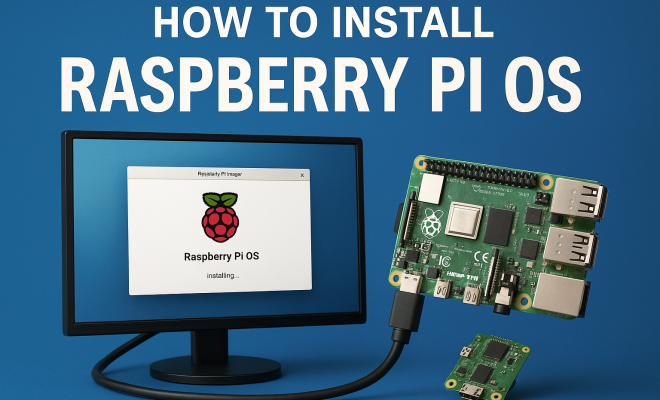
How to install Raspberry Pi OS
“`html
Setting up your Raspberry Pi is an exciting project that can open up countless opportunities in programming, electronics, and even home automation. One of the first and crucial steps is to install Raspberry Pi OS, the official operating system designed for the Raspberry Pi hardware. This guide aims to provide you with a clear, comprehensive method to get you started, along with tips and insights to enhance your experience.
1. Understanding Raspberry Pi OS
Before diving in, let’s understand what Raspberry Pi OS is. Originally known as Raspbian, Raspberry Pi OS is a Debian-based operating system optimized for the Raspberry Pi hardware. It features a desktop environment that is user-friendly and includes a variety of pre-installed software for programming, education, and general productivity. The OS is lightweight, making it perfect for the limited resources of the Raspberry Pi, and it supports a wide range of programming languages including Python, Scratch, and others.
The current version of Raspberry Pi OS includes improvements in performance, security, and usability. Whether you’re using it for a small project, a home server, or an educational tool, understanding the OS is essential for maximizing the potential of your Raspberry Pi.
2. What You’ll Need
To install Raspberry Pi OS, you’ll need a few essential components. First, a Raspberry Pi board—any model from the Raspberry Pi 2 onwards will work well. You’ll also need a microSD card (recommended minimum 8GB) to hold the operating system and your files. A reliable power supply is crucial as well, along with a computer or laptop to download the OS files. A monitor, keyboard, and mouse will also help you navigate and set up the system initially.
Here’s a quick checklist of what you’ll need:
- Raspberry Pi board
- MicroSD card (8GB or larger)
- MicroSD card reader
- Power supply
- Computer for downloading OS
- Monitor, keyboard, and mouse
3. Downloading Raspberry Pi Imager
The easiest way to install Raspberry Pi OS is by using the official Raspberry Pi Imager, which simplifies the process significantly. To get started, download the Raspberry Pi Imager from the official Raspberry Pi website. It’s available for Windows, macOS, and Ubuntu. The Imager not only allows you to download the OS but also helps you prepare the microSD card for installation.
After downloading and installing the Imager, open the application. You’ll be greeted with a simple interface that allows you to choose the OS you want to install. For Raspberry Pi OS, select the recommended version, which comes with a desktop environment and several pre-installed applications. There are also other versions available if you’re looking for a minimal setup or specific needs.
4. Preparing Your MicroSD Card
Once you’ve downloaded the Raspberry Pi Imager, the next step is to prepare your microSD card. Insert the microSD card into your computer’s card reader. Open the Imager application, select the operating system you want to install (Raspberry Pi OS), then choose your microSD card as the storage target. Be careful to select the correct drive, as this process will erase any existing data on the card.
After selecting your OS and the correct storage, click the “Write” button. The Imager will download the OS and write it to the microSD card. This process can take several minutes, depending on your internet speed and the size of the OS. Once complete, safely eject the microSD card from your computer. Your microSD card is now ready for use with your Raspberry Pi.
5. Setting Up the Raspberry Pi
With your microSD card prepared, it’s time to set up the Raspberry Pi. Insert the microSD card into the card slot on the Raspberry Pi board. Connect your monitor, keyboard, and mouse, and then plug in the power supply. The Raspberry Pi will boot up automatically. You’ll see a welcome screen that prompts you to set up your system. This initial setup is straightforward and will guide you through creating user accounts, setting up Wi-Fi, and updating your system.
During this setup, you’ll also configure localization settings, including your time zone, language, and keyboard layout. Taking the time to set this up correctly will save you from potential headaches later on. Following the prompts, you’ll be able to finish the installation and log into your new Raspberry Pi OS. (See: New York Times on Raspberry Pi.)
6. Updating Your System
Once you’ve successfully booted into Raspberry Pi OS, the first thing you should do is update your system. This ensures that you have the latest security patches and software updates. Open a terminal window and type the following commands:
sudo apt updatesudo apt upgrade
The first command updates the package list, while the second installs any available updates. This step is crucial for keeping your system running smoothly and securely. After running these commands, it’s advisable to reboot your Raspberry Pi to ensure all updates are applied.
7. Exploring the Desktop Environment
With Raspberry Pi OS installed and updated, you can begin to explore its desktop environment. The GUI (Graphical User Interface) is designed to be user-friendly, making it accessible even for those who are new to Linux operating systems. You’ll find a menu at the top left, which organizes applications into categories such as Accessories, Education, Programming, and Games.
Take some time to familiarize yourself with the different applications available. You’ll find everything from web browsers and image viewers to programming tools like Thonny, which is excellent for Python development. If you’re interested in learning coding or electronics, the Raspberry Pi OS includes educational resources that can help you get started.
8. Connecting to the Internet
For most users, connecting to the internet is a vital step. If you’re using a wired connection, simply plug the Ethernet cable into your Raspberry Pi, and it should connect automatically. For wireless connections, click on the Wi-Fi icon in the taskbar and select your network. Enter the Wi-Fi password when prompted, and you should be good to go.
Internet connectivity opens up even more possibilities for your Raspberry Pi. You can access online resources, download applications, and even set up remote access to your Raspberry Pi using tools like VNC or SSH. This connectivity is essential whether you’re using your Raspberry Pi for a personal project or as a server.
9. Installing Additional Software
Raspberry Pi OS comes with a variety of pre-installed applications, but there are countless additional programs that you can install to enhance its functionality. You can use the terminal or the graphical application manager to install new software. For instance, if you’re interested in programming, installing additional languages or tools is straightforward. You can also find media players, gaming emulators, and office software in the repository.
To install software via the terminal, simply use the command sudo apt install [package-name]. For a graphical interface, you can search for “Add/Remove Software” in the menu, which allows you to browse and install applications easily. This flexibility makes Raspberry Pi OS a powerful platform for various uses, from gaming to programming and beyond.
10. Exploring Projects and Use Cases
Now that you’ve installed Raspberry Pi OS and set up your device, it’s time to explore what you can do with it. The Raspberry Pi community is vibrant and full of innovative projects ranging from simple DIY electronics to complex home automation systems. Consider setting up a media center using Kodi, creating a retro gaming station, or even building a web server.
Additionally, many online tutorials and project ideas are available to help you get started. Websites like the official Raspberry Pi website, Instructables, and GitHub have thousands of projects to spark your creativity. With Raspberry Pi OS, the sky is the limit. Whether you’re a student, hobbyist, or professional, there’s something for everyone.
11. Advanced Configuration Options
Once you’ve got your Raspberry Pi OS up and running, you may want to dive deeper into configurations to enhance performance or tailor the system to specific needs. For example, you can configure the Raspberry Pi to run headless, meaning you can operate it without a monitor using SSH. This is particularly useful if you plan to use your Pi as a server or for remote projects.
To enable SSH, you can either use the Raspberry Pi Configuration tool or create an empty file named ssh in the boot directory of the microSD card before inserting it into the Raspberry Pi. Once SSH is enabled, you can access your Raspberry Pi from any device on the same network using a terminal app or an SSH client like PuTTY. (See: Raspberry Pi in scientific research.)
12. Optimizing Raspberry Pi OS for Performance
Depending on your use case, you might find that optimizing your Raspberry Pi OS can significantly enhance performance. First, consider overclocking your Raspberry Pi (if your model supports it) to give it a boost in processing power. You can adjust the settings through the Raspberry Pi Configuration tool under the Performance tab, but make sure to monitor the temperature to prevent overheating.
Another optimization technique is to minimize the number of startup applications. You can do this by navigating to the autostart settings under the Preferences menu and disabling unnecessary programs that launch on startup. This not only speeds up boot times but also frees up system resources.
13. Exploring Raspberry Pi OS Variants
Raspberry Pi OS isn’t the only operating system available for the Raspberry Pi. Depending on your project requirements, you might want to explore other OS variants. For instance, Ubuntu MATE is great if you’re looking for a lightweight desktop experience with more advanced features, while LibreELEC is ideal for building a dedicated media center.
For projects involving machine learning or AI, consider using Raspberry Pi OS Lite as a minimal option that excludes the desktop environment, allowing for a quicker setup for server-type applications. Each of these variants has its unique features and benefits, so it’s worth researching which one aligns best with your goals.
14. Common Issues and Troubleshooting
As you navigate the Raspberry Pi ecosystem and install Raspberry Pi OS, you might encounter some common issues. One frequent problem is a failure to boot, which can often be traced back to a corrupt microSD card or improper image writing. If this happens, reformat the card and try reinstalling the OS with the Imager.
Another common issue involves connectivity problems, especially with Wi-Fi. Double-check that you’ve entered the correct credentials and that your wireless network is functioning properly. You can also try moving your Raspberry Pi closer to the router to see if that resolves the issue.
Having a reliable online community can be a huge advantage. Websites like the Raspberry Pi forums and Stack Exchange can provide valuable insights and support from fellow users who have faced similar challenges.
15. Frequently Asked Questions (FAQs)
Q1: Can I install Raspberry Pi OS on a USB stick instead of a microSD card?
Yes, you can boot your Raspberry Pi from a USB stick, which can sometimes offer better performance than using a microSD card. To do this, you will need to ensure that your Raspberry Pi firmware is updated to support USB booting.
Q2: How can I back up my Raspberry Pi OS setup?
Backing up your Raspberry Pi OS is straightforward. You can create an image of your microSD card using tools like Win32DiskImager or dd command in Linux. This image can be restored later if anything goes wrong.
Q3: Is Raspberry Pi OS free to use?
Absolutely! Raspberry Pi OS is open-source software and is free to download and use. You can even modify it as per your requirements since it is based on Debian Linux.
Q4: What are some beginner-friendly projects I can try with Raspberry Pi OS?
For beginners, consider starting with projects like setting up a simple web server using Apache, creating a personal cloud storage solution with Nextcloud, or building a retro gaming console with RetroPie. These projects not only help you understand the operating system better but also provide a fun way to learn new skills.
Q5: How do I change the default password for the Raspberry Pi OS?
Changing the default password is a good security practice. You can do this by opening a terminal and typing passwd then follow the prompts to set a new password.
Q6: Can I install Raspberry Pi OS on older models of Raspberry Pi?
Yes, Raspberry Pi OS is compatible with older models like the Raspberry Pi 2, 3, and even the first Raspberry Pi. However, performance might not be as swift, especially on older hardware due to increased resource requirements of newer versions.
Q7: How often should I update Raspberry Pi OS?
It’s a good idea to check for updates regularly, especially if you’re using your Raspberry Pi for important tasks. Frequent updates help ensure your system is secure and functioning at its best. Monthly checks for updates are typically sufficient for casual users.
Q8: What should I do if my Raspberry Pi won’t turn on?
If your Raspberry Pi won’t turn on, first check the power supply to ensure it’s functioning and properly connected. Verify that the microSD card is seated correctly and the OS is installed correctly. If those are fine, try a different power adapter or a different microSD card to rule out hardware issues.
Q9: What are some useful tips for beginners using Raspberry Pi OS?
Start with small projects to build your confidence, keep your Raspberry Pi updated, join online communities for support, and don’t hesitate to experiment. The more you use it, the more familiar you’ll become with the operating system and its capabilities.
By considering these additional insights and expanding your knowledge of Raspberry Pi OS, you’re well on your way to unlocking the full potential of this versatile platform. Happy tinkering!
“`
Trending Now
Frequently Asked Questions
What is Raspberry Pi OS?
Raspberry Pi OS, formerly known as Raspbian, is a Debian-based operating system optimized for Raspberry Pi hardware. It features a user-friendly desktop environment and includes pre-installed software for programming, education, and productivity, making it suitable for various projects.
What do I need to install Raspberry Pi OS?
To install Raspberry Pi OS, you need a Raspberry Pi board (model 2 or newer), a microSD card (minimum 8GB), a microSD card reader, a reliable power supply, a computer for downloading the OS, and peripherals like a monitor, keyboard, and mouse.
How do I download Raspberry Pi OS?
You can download Raspberry Pi OS using the Raspberry Pi Imager tool, which simplifies the process of writing the OS to your microSD card. This tool is available for various operating systems and guides you through selecting the OS version and the target microSD card.
Can I use Raspberry Pi OS for programming?
Yes, Raspberry Pi OS supports a variety of programming languages including Python and Scratch. It comes pre-installed with many educational tools and software, making it an excellent choice for learning programming and developing projects.
Is Raspberry Pi OS lightweight?
Yes, Raspberry Pi OS is designed to be lightweight, which makes it ideal for the limited resources of Raspberry Pi devices. This efficiency allows for smooth performance even on lower-spec hardware, enhancing user experience for various applications.
What did we miss? Let us know in the comments and join the conversation.