The Tech Edvocate

Top Menu

  • Advertisement
  • Apps
  • Home Page
  • Home Page Five (No Sidebar)
  • Home Page Four
  • Home Page Three
  • Home Page Two
  • Home Tech2
  • Icons [No Sidebar]
  • Left Sidbear Page
  • Lynch Educational Consulting
  • My Account
  • My Speaking Page
  • Newsletter Sign Up Confirmation
  • Newsletter Unsubscription
  • Our Brands
  • Page Example
  • Privacy Policy
  • Protected Content
  • Register
  • Request a Product Review
  • Shop
  • Shortcodes Examples
  • Signup
  • Start Here
    • Governance
    • Careers
    • Contact Us
  • Terms and Conditions
  • The Edvocate
  • The Tech Edvocate Product Guide
  • Topics
  • Write For Us
  • Advertise

Main Menu

  • Start Here
    • Our Brands
    • Governance
      • Lynch Educational Consulting, LLC.
      • Dr. Lynch’s Personal Website
      • Careers
    • Write For Us
    • The Tech Edvocate Product Guide
    • Contact Us
    • Books
    • Edupedia
    • Post a Job
    • The Edvocate Podcast
    • Terms and Conditions
    • Privacy Policy
  • Topics
    • Assistive Technology
    • Child Development Tech
    • Early Childhood & K-12 EdTech
    • EdTech Futures
    • EdTech News
    • EdTech Policy & Reform
    • EdTech Startups & Businesses
    • Higher Education EdTech
    • Online Learning & eLearning
    • Parent & Family Tech
    • Personalized Learning
    • Product Reviews
  • Advertise
  • Tech Edvocate Awards
  • The Edvocate
  • Pedagogue
  • School Ratings

logo

The Tech Edvocate

  • Start Here
    • Our Brands
    • Governance
      • Lynch Educational Consulting, LLC.
      • Dr. Lynch’s Personal Website
        • My Speaking Page
      • Careers
    • Write For Us
    • The Tech Edvocate Product Guide
    • Contact Us
    • Books
    • Edupedia
    • Post a Job
    • The Edvocate Podcast
    • Terms and Conditions
    • Privacy Policy
  • Topics
    • Assistive Technology
    • Child Development Tech
    • Early Childhood & K-12 EdTech
    • EdTech Futures
    • EdTech News
    • EdTech Policy & Reform
    • EdTech Startups & Businesses
    • Higher Education EdTech
    • Online Learning & eLearning
    • Parent & Family Tech
    • Personalized Learning
    • Product Reviews
  • Advertise
  • Tech Edvocate Awards
  • The Edvocate
  • Pedagogue
  • School Ratings
  • A Visitors Guide to Portland (OR), United States

  • 7 Men’s Bruno Marc Shoes That Are the Perfect Christmas Gift

  • A Visitors Guide to Oklahoma City (OK), United States

  • A Visitor’s Guide to Tucson, Arizona, United States

  • A Visitor’s Guide to Hamilton, Canada

  • Beware of Fiverr: You Might Get Scammed

  • The Future of Artificial Intelligence: Navigating the Next Frontier

  • Best Home Backup Generators for 2026

  • Online Learning Platforms: Transforming Education in the Digital Age

  • Fastest Growing Sectors of the EdTech Market: Exploring Emerging Trends

Tech Advice
Home›Tech Advice›How to Factory Reset a MacBook, Windows Laptop or Chromebook

How to Factory Reset a MacBook, Windows Laptop or Chromebook
By Matthew Lynch
July 13, 2023
0
Spread the love

Whether you are planning to sell your laptop or just want to start fresh with a clean slate, a factory reset can be useful for resolving issues and clearing all unnecessary clutter. This guide will provide step-by-step instructions on how to factory reset a MacBook, Windows laptop, or Chromebook.

1. Factory Resetting a MacBook:

a) Back up your data: Before initiating a factory reset process, make sure to back up all of your important files and documents either on an external storage device or a cloud service like iCloud.

b) Sign out of programs and macOS services: Sign out of your Apple ID account, iTunes, iCloud, iMessage, and Find My Mac. This ensures your data is protected during the factory reset process.

c) Restart in recovery mode: Shut down your MacBook completely by clicking the Apple menu icon and selecting “Shut Down.” Turn it back on while holding down the Command + R keys until you see the macOS Utilities window.

d) Erase your hard drive: In the macOS Utilities screen, select “Disk Utility” and click “Continue.” Select your Mac’s primary hard drive (usually named “Macintosh HD”) and click “Erase.” Choose “Mac OS Extended (Journaled) as the format and click “Erase” again to confirm.

e) Reinstall macOS: Return to the macOS Utilities window by closing Disk Utility. Click on “Reinstall macOS” and follow the on-screen prompts to complete the reinstallation process.

2. Factory Resetting a Windows Laptop:

a) Back up your data: Ensure that you have backed up all important files on an external hard drive or cloud storage service like OneDrive or Google Drive before proceeding.

b) Open Settings: Click on the Start menu and click the gear-shaped “Settings” icon.

c) Begin reset process: Navigate to “Update & Security” > “Recovery” > “Get Started” under the “Reset this PC” option.

d) Choose reset options: You will be given two options – “Keep my files” or “Remove everything.” Select “Remove everything” to perform a complete factory reset.

e) Confirm and reset: Follow the on-screen prompts, and Windows will restart your laptop, wiping all data and reinstalling a fresh copy of Windows.

3. Factory Resetting a Chromebook:

a) Back up your data: Save your important files to an external storage device or use cloud services like Google Drive to ensure that you don’t lose any crucial data during the reset process.

b) Enter Settings: Click on your account picture in the lower right-hand corner of your screen and click on the gear icon to open the Settings menu.

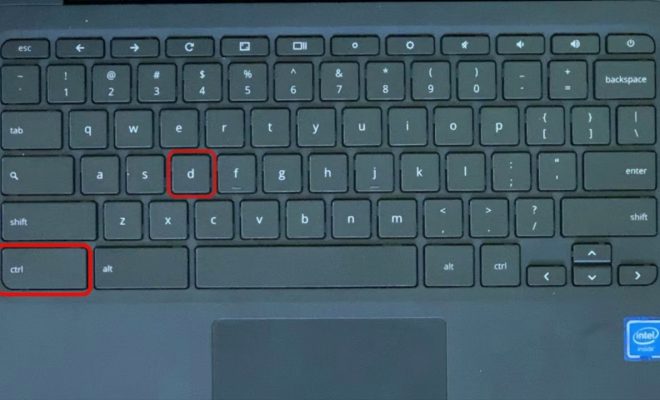
c) Begin reset process: Navigate to “Advanced” > “Reset Settings” > “Powerwash” > “Restart.”

d) Confirm reset: After restarting, you will be greeted with a dialogue box asking for confirmation. Click on “Powerwash” and then select “Continue.”

e) Log in: Once the process is complete, sign in with your Google Account to set up your freshly-reset Chromebook.

Remember to mindfully follow each step in relation to your specific device – MacBook, Windows laptop, or Chromebook. By doing so, you’ll have a restored, fresh system that’s ready for its next adventure or user!

Previous Article

How to enable or disable hibernate in ...

Next Article

How to find your Mac’s Home folder ...

Matthew Lynch

Related articles More from author

  • Tech Advice

    Tesla’s Track Mode: What does it do, exactly?

    July 14, 2023
    By Matthew Lynch
  • Tech Advice

    Stray (for PC) Review

    July 20, 2023
    By Matthew Lynch
  • Tech Advice

    What Does iPhone’s StandBy Mode Do and How to Use It

    February 20, 2024
    By Matthew Lynch
  • Tech Advice

    Jaguar Is Going Electric in 2025: Here’s What We Know

    September 8, 2023
    By Matthew Lynch
  • Tech Advice

    How to clean your scanner glass

    July 4, 2023
    By Matthew Lynch
  • Tech Advice

    Nest Doorbell vs. Ring 4: Which video doorbell is best for you?

    July 10, 2023
    By Matthew Lynch

Search

Login & Registration

  • Register
  • Log in
  • Entries feed
  • Comments feed
  • WordPress.org

Newsletter

Signup for The Tech Edvocate Newsletter and have the latest in EdTech news and opinion delivered to your email address!

About Us

Since technology is not going anywhere and does more good than harm, adapting is the best course of action. That is where The Tech Edvocate comes in. We plan to cover the PreK-12 and Higher Education EdTech sectors and provide our readers with the latest news and opinion on the subject. From time to time, I will invite other voices to weigh in on important issues in EdTech. We hope to provide a well-rounded, multi-faceted look at the past, present, the future of EdTech in the US and internationally.

We started this journey back in June 2016, and we plan to continue it for many more years to come. I hope that you will join us in this discussion of the past, present and future of EdTech and lend your own insight to the issues that are discussed.

Newsletter

Signup for The Tech Edvocate Newsletter and have the latest in EdTech news and opinion delivered to your email address!

Contact Us

The Tech Edvocate
910 Goddin Street
Richmond, VA 23231
(601) 630-5238
[email protected]

Copyright © 2025 Matthew Lynch. All rights reserved.