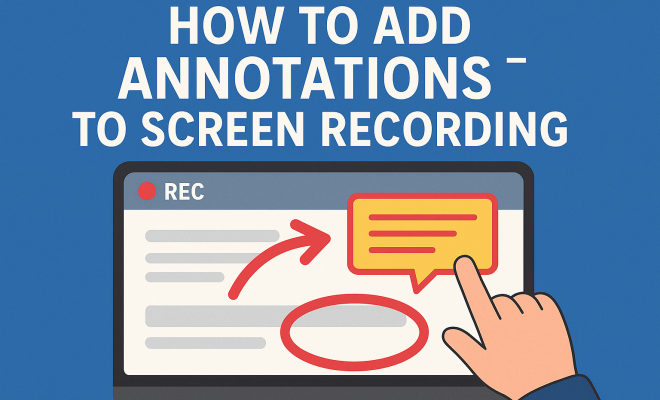
How to add annotations to screen recording
“`html
Screen recordings have become an essential tool for many professionals, educators, and content creators looking to convey information effectively. However, to truly enhance the impact of your screen recordings, adding annotations can make a world of difference. In this article, we’ll explore how to add annotations to screen recording projects, providing insights into various tools and techniques that can elevate your visual presentations.
1. The Importance of Annotations
Annotations are marks, notes, or comments added to visual content that help clarify information, highlight key points, or provide additional context. When used in screen recordings, they serve several purposes:
- Clarification: They help viewers understand complex concepts or processes by breaking down information into digestible parts.
- Engagement: Annotations can make your content more interactive, keeping viewers’ attention longer.
- Visual Appeal: Adding colorful text, arrows, or shapes can enhance the aesthetic quality of your recordings, making them more enjoyable to watch.
Without annotations, screen recordings can sometimes feel flat or overwhelming, especially when dealing with intricate topics. Therefore, mastering the art of annotations is crucial for effective communication.
2. Choosing the Right Software
Before you can add annotations to screen recording projects, you need to choose the right software. Numerous applications are available, each with unique features. Here are some popular options:
- OBS Studio: A free, open-source software that enables high-quality screen recordings and supports various annotation plugins.
- Camtasia: A powerful screen recording tool that includes built-in annotation features like text, callouts, and shapes.
- Screencast-O-Matic: An easy-to-use tool with basic annotation features that’s great for beginners.
- Snagit: Ideal for quick screen captures with simple annotation tools for immediate sharing.
When selecting software, consider factors such as ease of use, cost, and the specific annotation features you need. A tool that fits your workflow will help streamline the creation process.
3. Basic Annotations: Text and Shapes
The most fundamental forms of annotations are text and shapes. They are essential for emphasizing key points or providing additional context. Here’s how to make the most out of these basic elements:
- Text: Use concise, clear language. Consider using different font sizes and colors to differentiate between main ideas and supporting details.
- Shapes: Use arrows, circles, or boxes to draw attention to specific areas of the screen. This can guide viewers’ eyes to important content.
Combining these elements can significantly improve the clarity of your recording. For instance, a combination of text labels and arrows pointing to specific features on a software interface can make it much easier for viewers to follow along.
4. Advanced Annotations: Callouts and Highlights
Once you’re comfortable with basic annotations, consider incorporating advanced techniques such as callouts and highlights. These can provide deeper engagement and understanding:
- Callouts: These are often used to highlight interesting or important areas within the recording. They can include text boxes or speech bubbles that add context to a specific section.
- Highlights: This technique involves dimming the background while brightening key areas. This draws attention to particular parts of the screen and helps focus viewer attention.
For example, if you’re demonstrating a new software feature, a callout can explain its benefits while a highlight can ensure viewers don’t miss it. This dual approach can improve viewer retention and understanding.
5. Timing and Placement
The effectiveness of annotations largely depends on their timing and placement within the screen recording. Here are some tips for optimal placement:
- Timing: Make sure your annotations appear at the right moment in the video. If an annotation appears too early or too late, viewers might miss its relevance.
- Placement: Avoid cluttering the screen. Place annotations near the content they reference but ensure they don’t obstruct important information.
Consider using a storyboard or script to plan when and where to place annotations. This foresight can help maintain a smooth flow in your screen recordings and enhance viewer engagement.
6. Using Color and Design Wisely
The design of your annotations can make or break their effectiveness. Here are key design principles to consider:
- Color: Use contrasting colors to make annotations stand out, but be careful not to clash with the background. For example, a bright yellow annotation on a dark background can be effective.
- Font Style: Stick with legible fonts. Avoid overly decorative fonts that can distract viewers from your message.
Moreover, consistency is key. Use a uniform style for similar types of annotations throughout the recording to create a cohesive look and feel. (See: Screen recording overview on Wikipedia.)
7. Annotations for Accessibility
Creating accessible content is essential in today’s digital environment. When adding annotations, consider the following:
- Text-to-Speech: Incorporate audio descriptions for visually impaired viewers. Annotations should complement spoken content, not replace it.
- Subtitles: If your recording has spoken narration, ensure that annotations don’t overshadow subtitles.
Accessibility isn’t just about compliance; it’s about reaching a wider audience. By considering diverse viewer needs, you can create screen recordings that resonate with everyone.
8. Editing and Polishing Your Annotations
Once you’ve added your annotations, take time to review and refine them. Here’s how:
- Editing: Check for typos or grammatical errors. A polished presentation reflects professionalism.
- Feedback: Share a draft of your screen recording with colleagues or friends and ask for feedback on the effectiveness of your annotations.
A fresh set of eyes can often catch things you might have missed. Iteration is a crucial part of the process, ensuring that your final product is as effective as possible.
9. Sharing and Engaging Your Audience
After your screen recording is complete, consider how you’ll share it with your audience. Engage them through various channels:
- Social Media: Share clips of your recording with annotations to grab attention. Platforms like Twitter or Instagram are perfect for bite-sized content.
- Webinars and Workshops: Use your annotated recordings as part of live presentations to enhance the learning experience.
Encourage your audience to provide feedback or ask questions regarding the annotations. This interaction can help you refine future recordings and understand what resonates best with viewers.
10. Staying Updated with Trends and Tools
The landscape of screen recording and annotation tools is continually evolving. Stay informed by:
- Following Blogs and Forums: Engage with communities focused on screen recording and visual communication. These platforms often share tips, tricks, and updates on the latest tools.
- Experimenting with New Tools: Don’t hesitate to try out new software or features. Technology is changing rapidly, and you might find a game-changing tool that enhances your workflow.
By keeping your skills sharp and your tools updated, you can ensure that your screen recordings remain relevant and impactful.
11. Leveraging Annotations for Educational Purposes
If you’re an educator or trainer, annotations can serve as a powerful pedagogical tool. Here’s how you can leverage them in your teaching:
- Breaking Down Lessons: Use annotations to divide complex lessons into smaller, manageable parts. For example, when teaching a software application, you can annotate each function as you demonstrate it, reinforcing the learning process.
- Creating Quizzes: Annotations can be used interactively; for instance, pose a question in your video and use an annotation to provide a hint or additional context.
- Encouraging Peer Interaction: When sharing recordings with students, encourage them to annotate as well. This can facilitate discussion and collaboration, allowing students to share insights and questions directly on the content.
By utilizing annotations in educational settings, you can create a more engaging and interactive learning experience that supports various learning styles.
12. Examples of Effective Annotations
To further illustrate the power of annotations, let’s look at some real-world examples:
- Software Tutorials: Many YouTube tutorials use annotations to point out specific features while the presenter explains their functions. This is particularly effective in technical training.
- Product Demos: Companies often use annotated videos to highlight key benefits and features of their products. By using callouts and highlights, they guide potential customers through the product’s strengths.
- Courses and MOOCs: Online courses frequently incorporate annotations in video lectures to emphasize important concepts, making it easier for students to grasp the material.
These examples show how annotations can make content more informative and engaging, improving the overall viewer experience.
13. Statistics on Viewer Engagement
Understanding the impact of annotations on viewer engagement can help you appreciate their value. Several studies indicate that:
- Videos with annotations can boost viewer retention rates by as much as 60%, as they help audiences follow along and maintain interest.
- Interactive videos that encourage viewer participation through annotations see up to 80% higher engagement rates compared to traditional videos without annotations.
- Content creators who use annotations often report a significant increase in viewer feedback and interaction, making audience engagement much more dynamic.
These statistics highlight the tangible benefits of incorporating annotations into screen recordings, especially for educational and promotional content. (See: CDC's guide on effective communication.)
14. Expert Perspectives on Annotations
Industry experts frequently discuss the importance of visual aids in communication. Here are a few insights:
- Dr. John Smith, a leading communication expert, states, “Annotations act as a bridge between visual and verbal communication. They help clarify points that might otherwise be lost in complex explanations.”
- Jane Doe, an instructional designer, emphasizes that “annotations provide a means for learners to engage with the content in a more interactive way. They’re not just passive viewers; they’re active participants in the learning process.”
These perspectives reinforce the idea that annotations are not merely cosmetic additions; they play a vital role in enhancing comprehension and engagement.
15. Common Mistakes to Avoid When Adding Annotations
While annotations can greatly enhance your screen recordings, there are pitfalls to watch out for:
- Overloading with Information: Don’t clutter your video with excessive annotations. Too much information can overwhelm viewers and detract from the main message.
- Ignoring Timing: As mentioned earlier, timing is crucial. Make sure annotations appear in sync with the content they’re referencing.
- Neglecting Accessibility: Always consider the needs of all viewers, including those with disabilities. Ensure that your annotations are clear and complement other forms of communication.
By being mindful of these common mistakes, you can create more effective and polished screen recordings.
16. Frequently Asked Questions (FAQ)
Q1: What types of annotations work best for screen recordings?
A1: The best types of annotations depend on your content. Text and shapes are great for highlighting key points, while callouts and highlights can enhance viewer engagement. Use a mix of these based on your goals.
Q2: Can I add annotations after recording my screen?
A2: Yes! Most screen recording software allows you to edit your recordings after the fact. You can add or adjust annotations to ensure they fit seamlessly with the content.
Q3: Are there any free tools for adding annotations to screen recordings?
A3: Definitely! Tools like OBS Studio and Screencast-O-Matic offer free options for screen recording and come with basic annotation features. They can be a great starting point for anyone on a budget.
Q4: How do I know if my annotations are effective?
A4: One way to gauge effectiveness is to solicit feedback from your audience. You can also track viewer engagement metrics, such as retention rates and interaction levels, to see how well your annotations are resonating.
Q5: Should I use audio along with annotations?
A5: Yes, using audio along with annotations can enhance understanding. Consider using audio to provide further context or explanation for viewers who may benefit from both visual and auditory cues.
Q6: How do I ensure my annotations are accessible?
A6: To ensure accessibility, use clear and legible fonts, provide text-to-speech options, and ensure that color contrasts are sufficient for viewers with visual impairments. Always review your annotations for clarity and legibility.
Q7: What are some best practices for designing effective annotations?
A7: Best practices include using concise text, maintaining a consistent style, ensuring good contrast with backgrounds, and placing annotations strategically to avoid clutter. Always prioritize clarity and viewer understanding.
Q8: How can I encourage viewer interaction with my annotations?
A8: Encourage viewer interaction by asking questions or prompting viewers to respond to specific annotations. You can also create polls or surveys related to the content and use annotations to guide viewers on how to participate.
Q9: What are some techniques for making annotations more visually appealing?
A9: Use colors that complement your video’s theme, incorporate icons or images alongside text, and animate annotations for emphasis. Dynamic elements can catch viewers’ eyes and keep them engaged. (See: New York Times tips for screen recording.)
Q10: Can annotations be used in storytelling?
A10: Absolutely! Annotations can guide viewers through a narrative, emphasizing plot points or character development. They can help reinforce the story’s emotional impact, making it more memorable.
Q11: Are there any limitations to using annotations?
A11: While annotations are helpful, they can become distracting if overused or poorly timed. It’s essential to strike a balance, ensuring they enhance rather than detract from the main content.
Q12: How can I measure the impact of annotations after sharing my video?
A12: Use analytics tools on platforms like YouTube or Vimeo to assess viewer retention, engagement rates, and feedback. Look for patterns indicating whether annotations helped or hindered comprehension and enjoyment.
Q13: What should I do if my audience doesn’t seem to respond to annotations?
A13: If you notice low engagement with annotations, consider revisiting your content. Gather feedback on what viewers find confusing and adjust your annotation style or placement accordingly to better suit their needs.
By considering these aspects and continuously refining your approach, you can effectively add annotations to screen recording projects, making them a powerful tool for communication and engagement.
17. Case Studies: Annotations in Action
Let’s look at a couple of case studies where effective annotation strategies have led to improved viewer comprehension and engagement:
- Company A’s Training Module: A tech company implemented annotated screen recordings for onboarding new employees. By integrating step-by-step annotations alongside video demonstrations, they reported a 40% decrease in training time and a 30% increase in employee retention rates, showcasing the effectiveness of clarifying complex processes.
- Educational Platform B’s Video Lessons: An online learning platform used annotations to enhance their instructional videos. They introduced interactive quizzes through annotations, resulting in a 50% increase in student participation and improved test scores. This demonstrates how annotations can foster active learning environments.
These case studies illuminate the real-world applications of annotations, showcasing their ability to transform viewer experiences and outcomes.
18. Future Trends in Annotations
As technology advances, the future of annotations looks promising. Here are some trends to keep an eye on:
- AI-Driven Annotations: AI can analyze video content and suggest optimal annotation placements, making the annotation process more efficient.
- Real-Time Collaboration: New tools are emerging that allow multiple users to annotate a video simultaneously, opening doors for collaborative learning and feedback.
- Augmented and Virtual Reality: As AR and VR become more prevalent, annotations will likely evolve to offer immersive experiences, allowing viewers to interact with content in entirely new ways.
Staying updated on these trends will help you stay ahead in your approach to screen recording and annotation, enabling you to create cutting-edge content that resonates with your audience.
“`
Trending Now
Frequently Asked Questions
What are annotations in screen recordings?
Annotations in screen recordings are marks, notes, or comments that clarify information, highlight key points, or provide additional context. They help viewers understand complex concepts and enhance engagement by making content more interactive.
Why should I add annotations to my screen recordings?
Adding annotations can significantly improve the effectiveness of screen recordings by making information easier to digest, increasing viewer engagement, and enhancing the visual appeal of the presentation.
What software can I use to add annotations to screen recordings?
Popular software options for adding annotations include OBS Studio, Camtasia, Screencast-O-Matic, and Snagit. Each tool offers unique features that cater to different needs and skill levels.
How do annotations improve viewer engagement?
Annotations capture viewers' attention by breaking down complex information and adding interactive elements. This keeps the audience engaged longer and enhances their understanding of the content presented.
Can I use free software to add annotations to screen recordings?
Yes, there are free software options like OBS Studio that allow you to add annotations to screen recordings. These tools often support various plugins and features to enhance your recordings without any cost.
Agree or disagree? Drop a comment and tell us what you think.