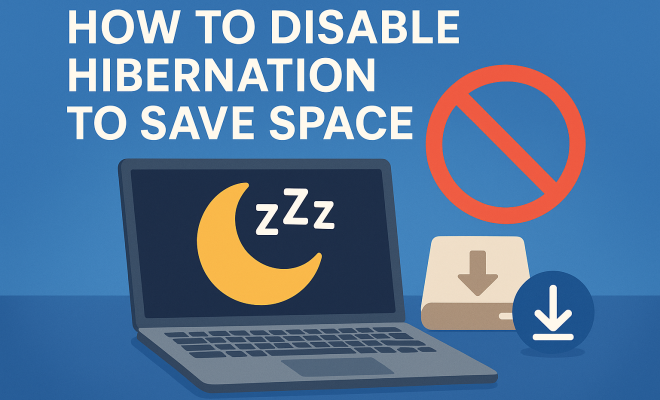
How to disable hibernation to save space
“`html
1. Understanding Hibernation in Windows 10
Hibernation is a power-saving state in Windows 10 that allows users to save their session data and power down their computers without losing any open files or applications. Unlike Sleep mode—which keeps your PC in a low-power state while still consuming a small amount of energy—hibernation saves the current state of your computer directly to the hard drive and completely powers off. This can be incredibly useful for laptops, especially to conserve battery life.
However, this feature comes with a trade-off: it can consume significant disk space. When you enable hibernation, your computer creates a hidden file called hiberfil.sys on your system drive. The size of this file typically ranges from 75% to 100% of your RAM. For users with limited disk space, particularly on SSDs, this can be a considerable drawback. If you’re looking to free up space on your Windows 10 machine, understanding how to disable hibernation is crucial.
2. Why Consider Disabling Hibernation?
There are several valid reasons for wanting to disable hibernation on your Windows 10 system. The most obvious reason, as mentioned earlier, is to reclaim disk space. Over time, as programs and files accumulate, your storage can quickly dwindle, especially if you rely on a small SSD. Disabling hibernation can immediately recover several gigabytes of storage space, which may be critical for system performance and usability.
Moreover, some users may find that they rarely use the hibernation feature, preferring alternatives like Sleep mode or even a complete shutdown. If your workflow doesn’t rely on hibernating your PC, disabling this feature can simplify your system’s power management settings and reduce potential boot issues. It’s particularly relevant for users who primarily work on desktops and do not require hibernation for mobile computing.
3. How Hibernation Impacts System Performance
While the disk space issue is significant, hibernation can also impact system performance in unexpected ways. Users often report longer boot times when hibernation is enabled because the system takes a moment to load the hibernation file and restore the previous session. This can lead to a sluggish startup, particularly on older machines or those with limited processing power.
Furthermore, hibernation may not work seamlessly with all applications. Some software can behave unpredictably when the system is resumed from hibernation, leading to crashes or data loss. For users who rely heavily on specific applications, disabling hibernation might provide a more stable computing experience. This leads us to consider how disabling hibernation can yield both immediate benefits in space and long-term benefits in reliability.
4. Step-by-Step Guide to Disable Hibernation in Windows 10
Ready to reclaim that precious disk space? Follow this simple guide to disable hibernation in Windows 10. You won’t need any additional software—just a few minutes and a couple of command-line instructions.
1. Open Command Prompt: Click the Start menu, type “cmd”, and right-click on “Command Prompt” to select “Run as administrator”.
2. Type the Command: Once the command prompt is open, type powercfg -h off and press Enter. This command turns off hibernation and deletes the hibernation file.
3. Check the Results: To verify that hibernation is disabled, type powercfg /a and press Enter. You should see a message indicating that hibernation is not available.
That’s it! You have successfully disabled hibernation and freed up some storage space. Depending on your system’s configuration, this could reclaim several gigabytes.
5. Alternatives to Hibernation
If you find that you rely on hibernation for quick access to your files and applications but are concerned about disk space, there are alternatives that can provide similar functionality without the drawbacks.
Sleep Mode: This is the most straightforward alternative. It keeps your session in memory, allowing for a quick resume when you wake your computer. Unlike hibernation, it doesn’t save the state to disk, so it uses a small amount of power while the system is in this state. However, it can be effective for short breaks where you don’t want to lose your work. (See: Understanding hibernation in computing.)
Fast Startup: Another option available in Windows 10 is Fast Startup, which combines elements of shutdown and hibernation. Although it doesn’t completely eliminate the need for a hibernation file, it can speed up boot times significantly. You can enable this feature through the Control Panel, under Power Options.
6. Common Misconceptions About Hibernation
When considering whether to disable hibernation, it’s important to address some common misconceptions that might influence your decision. One prevalent myth is that disabling hibernation will lead to increased wear and tear on your hard drive. While it’s true that powering down can cause some wear, modern SSDs and HDDs are designed to handle numerous read/write cycles, and the difference is negligible.
Another misconception is that disabling hibernation will prevent your computer from being able to recover from power failures. In reality, your system can still enter a Sleep state, which keeps your session in RAM, allowing for quick recovery. For many users, it’s a suitable compromise between saving power and accessibility.
7. Maintaining Your System After Disabling Hibernation
Once you’ve disabled hibernation, it’s a good idea to maintain your system to ensure optimal performance. Regular disk cleanup is essential. You can use the built-in Disk Cleanup tool to remove unnecessary files, including temporary files and system caches that accumulate over time.
Additionally, consider reviewing your startup programs. Reducing the number of applications that start automatically when you boot your computer can lead to faster startup times and improved overall performance. Tools like Task Manager can help you manage these startup items effectively.
Lastly, keep your operating system and drivers updated. Regular updates can enhance performance and security, helping you get the most out of your Windows 10 experience.
8. FAQs About Disabling Hibernation
Still have questions about disabling hibernation? Here are some common inquiries:
Is disabling hibernation reversible? Yes, if you change your mind, you can re-enable it by running the command powercfg -h on in the Command Prompt.
Will I lose any unsaved data? No, disabling hibernation will not affect any of your saved files or applications. However, any unsaved work in open applications will be lost if you shut down your computer.
Does disabling hibernation affect system updates? No, system updates will continue to install regardless of whether hibernation is enabled or disabled.
9. Final Thoughts
Disabling hibernation in Windows 10 can be a smart move for users looking to free up disk space and streamline their computing experience. With just a few simple steps, you can reclaim valuable storage while maintaining system performance. Whether you rarely use the hibernation feature or find it causes more issues than it solves, this adjustment can benefit many users.
Make sure to consider your habits and preferences when deciding whether to disable hibernation. For those who value space more than the convenience of quickly resuming their session, the benefits are clear. As with any system configuration changes, weigh the pros and cons carefully to make the best choice for your specific needs.
10. Potential Risks of Disabling Hibernation
While there are many benefits to disabling hibernation, it’s essential to be aware of potential risks that may accompany this change. For instance, without hibernation enabled, your system may not be able to quickly resume from a power outage or an unexpected shutdown, which could result in data loss for unsaved work.
For users who often leave their computers unattended for extended periods, disabling hibernation means they must either keep their system in Sleep mode or shut it down entirely. Sleep mode consumes some power, although minimal, and may not be ideal for users looking to save every possible watt. (See: Computer safety and ergonomics.)
Additionally, some laptops are designed with hibernation as a primary energy-saving feature. Users of such devices may notice increased battery consumption if hibernation is turned off, as the device will need to rely on Sleep mode or full shutdowns more frequently.
11. Technical Insights: How Hibernation Works
Understanding the technical workings of hibernation gives you a clearer picture of why it occupies significant storage space. When you enable hibernation, the system creates the hiberfil.sys file on your storage drive. This file is essentially a snapshot of your RAM, including all running applications, open files, and system states. When you wake your computer from hibernation, Windows copies the contents of this file back into RAM, restoring your session exactly as it was.
The size of the hiberfil.sys file can vary based on how much RAM you have. For example, if your machine has 8GB of RAM, the file could be around 6GB to 8GB in size. This is a significant amount of storage, especially for users with smaller SSDs. By disabling hibernation, you effectively remove this file, which can free up valuable disk space.
12. How Hibernation Affects Battery Life
Battery life is a major consideration for many Windows 10 users, especially those with laptops. Hibernation is advantageous in this regard; it conserves battery life when the system is not in use. Unlike Sleep mode, where the RAM remains powered to maintain your session, hibernation completely powers down the system, preventing battery drain.
Statistics show that users can save up to 90% of battery life by hibernating rather than leaving their computers in Sleep mode. For users reliant on battery power for long periods, this feature can make a substantial difference. However, for users who disable hibernation, it’s vital to adopt other power-saving practices, such as adjusting screen brightness and disabling background applications.
13. User Experiences: Testimonials on Disabling Hibernation
Many users have shared their experiences regarding disabling hibernation. For instance, John, a graphic designer, reported that after disabling hibernation, he noticed a significant improvement in his computer’s boot time. He stated, “My PC used to take forever to start up from hibernation. Now, it’s almost instant!”
On the other hand, Sarah, a student, found the change less beneficial. After disabling hibernation, she missed the quick resume feature during her busy school days. “I often leave my laptop on for short breaks between classes. I didn’t realize how much I relied on hibernation until it was gone,” she said. This highlights that user needs vary greatly, and personal preference plays a big role in deciding whether to disable hibernation.
14. Best Practices for Windows 10 Power Management
Whether you decide to disable hibernation or not, there are several best practices you can follow to manage power effectively on Windows 10:
- Regularly Update Power Settings: Adjust your power settings based on your usage patterns and preferences. Explore the Power Options in the Control Panel to find a balance that works for you.
- Utilize Sleep Mode Wisely: If you frequently step away from your computer for short periods, consider using Sleep mode instead of shutting down or disabling hibernation.
- Close Unused Applications: Keeping too many applications open consumes not only system resources but also battery. Regularly closing unused applications can help improve performance.
- Optimize Hard Drive Space: Perform periodic checks for disk space usage and consider clearing out old files or programs you no longer need.
15. The Environmental Impact of Power Management Choices
In addition to personal and performance considerations, it’s worth discussing the broader environmental implications of power management choices like hibernation. Every time you power up your computer, it consumes energy. By choosing to disable hibernation and relying more on Sleep or shutdown modes, you can contribute to energy conservation. This is particularly important as we become more aware of our carbon footprints.
Statistics from the U.S. Department of Energy indicate that computers account for about 10% of residential energy use. Simple actions, like utilizing hibernation or shutting down devices when not in use, can lead to significant reductions in energy consumption. For environmentally conscious users, making informed decisions about hibernation can contribute to a more sustainable lifestyle.
16. Advanced Power Management Options in Windows 10
Windows 10 offers a range of advanced power management options that can further help users optimize their systems. For instance, the Power Options in the Control Panel allows you to customize power plans. You can create a power plan that suits specific needs, focusing on performance, energy savings, or balanced settings.
Additionally, Windows 10 includes features like Battery Saver mode, which, when enabled, automatically dims your screen and limits background activity to prolong battery life. This is particularly useful for laptop users who may not want to disable hibernation completely but still wish to conserve battery when needed.
17. Guiding Your Decision: When to Keep or Disable Hibernation
Ultimately, the decision to disable hibernation should be guided by your specific use case. If you frequently travel with your laptop and rely on the ability to quickly return to your work, hibernation may prove invaluable. Conversely, if you’re primarily using a desktop and have ample power supply, disabling it could lead to a more efficient machine.
It’s also worth considering your technical comfort level. If you’re familiar with managing power settings and comfortable with potential troubleshooting, disabling hibernation might be worthwhile. However, if you prefer a plug-and-play experience, you might opt to keep it enabled.
18. FAQs About Disabling Hibernation
Is disabling hibernation reversible? Yes, if you change your mind, you can re-enable it by running the command powercfg -h on in the Command Prompt.
Will I lose any unsaved data? No, disabling hibernation will not affect any of your saved files or applications. However, any unsaved work in open applications will be lost if you shut down your computer.
Does disabling hibernation affect system updates? No, system updates will continue to install regardless of whether hibernation is enabled or disabled.
What happens if I disable hibernation while using it? If you disable hibernation while your system is in that state, it won’t affect your immediate session, but you’ll lose the ability to resume from hibernation after a shutdown.
Is there a way to minimize the hiberfil.sys file size instead of disabling it entirely? Yes, you can reduce the hiberfil.sys file size by using the command powercfg /h /size
Can I disable hibernation using Windows Settings instead of Command Prompt? No, the most direct way to disable hibernation is through the Command Prompt. However, you can adjust sleep settings through the Windows Settings interface.
19. Final Thoughts
Disabling hibernation in Windows 10 can be a straightforward way to enhance your system’s responsiveness and recover valuable disk space. It’s essential to weigh both the benefits and drawbacks of this feature based on your individual computing habits. Whether you prioritize speed, storage, or battery life, the decision ultimately depends on how you use your computer.
By understanding the implications of disabling hibernation and exploring alternative methods of power management, you can tailor your Windows 10 experience to better fit your needs. With proper maintenance and awareness of system performance, you’ll be well on your way to a more efficient and enjoyable computing experience.
“`
Trending Now
Frequently Asked Questions
What is hibernation in Windows 10?
Hibernation in Windows 10 is a power-saving state that saves your current session data to the hard drive and completely powers off your computer. This allows you to resume your work later without losing any open files or applications, making it especially useful for laptops to conserve battery life.
How does hibernation affect disk space?
Hibernation can significantly impact disk space because it creates a hidden file called hiberfil.sys, which typically takes up 75% to 100% of your RAM. This can consume several gigabytes of space, especially on systems with limited storage, such as SSDs.
Why should I disable hibernation?
Disabling hibernation can free up valuable disk space on your system, which is crucial for performance, especially on devices with limited storage. If you rarely use hibernation, disabling it simplifies power management settings and can help prevent boot issues.
What are the alternatives to hibernation?
Alternatives to hibernation include using Sleep mode, which keeps your PC in a low-power state without saving the session to disk, or performing a complete shutdown. These options may be preferable for users who do not frequently use hibernation.
How can I disable hibernation in Windows 10?
To disable hibernation in Windows 10, open the Command Prompt as an administrator and type 'powercfg /hibernate off'. This command will turn off hibernation and delete the hiberfil.sys file, freeing up disk space.
What’s your take on this? Share your thoughts in the comments below — we read every one.