Mastering Prezi Animation: Create Dynamic Presentations
“`html
1. Understanding Prezi: The Dynamic Presentation Tool
If you’ve ever sat through a dull PowerPoint presentation, you might have wished for something more engaging. Enter Prezi, a cloud-based presentation software that allows users to create visually dynamic presentations. Unlike traditional slide-based formats, Prezi uses a canvas-style interface, allowing you to zoom in and out to navigate through your content. This unique approach to presenting not only captivates audiences but also helps in storytelling.
Introduced in 2009, Prezi has evolved from a simple platform into a robust tool equipped with various features, including animation capabilities. Learning how to animate in Prezi can enhance your presentations significantly, making them not only more lively but also easier to follow. From simple text animations to complex transitions between objects, understanding the basics will help you create compelling visual narratives.
2. The Basics of Animation in Prezi
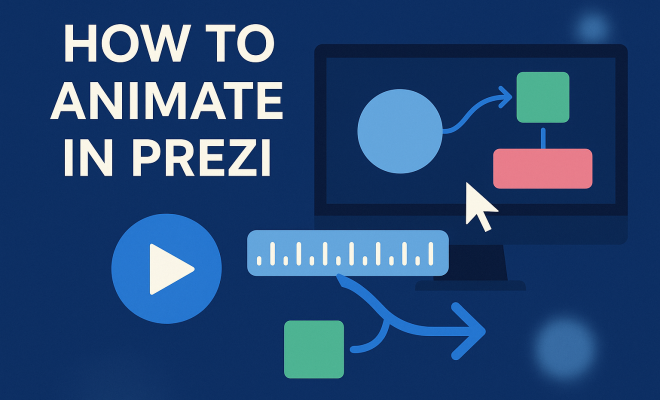
Before diving into the nitty-gritty details, it’s essential to grasp the basic concepts of animation in Prezi. At its core, animation in Prezi involves adding movement to text and visual elements, creating a sense of transition as you navigate through your presentation. This could mean zooming into a section, fading in elements, or rotating visuals to emphasize key points.
Prezi offers various animation types, including entrance, emphasis, and exit animations. Entrance animations introduce elements to your canvas, emphasis animations highlight important information, and exit animations remove items from the view. Each of these plays a vital role in guiding your audience’s attention and maintaining their interest.
3. Setting Your Canvas: Starting a New Prezi
To begin animating in Prezi, you first need to set up your canvas. Upon logging into your Prezi account, you can choose to start from scratch or select a template. Templates can provide a great starting point with built-in animations, but creating your custom layout allows for maximum creativity.
After selecting a template or starting fresh, familiarize yourself with the canvas. The canvas is where all your elements will reside, and understanding how to manipulate it is crucial. You can drag elements, resize them, and even layer them on the canvas. This foundational step will significantly affect how smoothly you can animate in Prezi later on.
4. Adding Elements: Text, Images, and Shapes
Once you’ve set up your canvas, it’s time to add the visual elements that will populate your presentation. Prezi allows users to insert a variety of content types, including text, images, and shapes. Each of these elements can be individually animated, providing a unique opportunity to enhance your storytelling.
Text elements can be animated to appear on cue, helping to keep your audience engaged. Images can be used to illustrate ideas or evoke emotions, and shapes can serve as visual anchors. When planning your animations, think about the narrative flow—how each element introduces a new idea or complements the existing ones. A well-placed image or a cleverly animated text can significantly impact your audience’s understanding and retention.
5. Creative Animation Techniques
Now that you have your elements in place, let’s explore some creative animation techniques. One effective method is to use the “zoom” feature strategically. Rather than simply fading in text, consider zooming into specific points on the canvas. This adds a dynamic quality to your presentation and maintains audience engagement.
Another technique is to build your content section by section. Instead of presenting all your points at once, introduce them gradually, allowing your audience to digest each idea before moving on. Use the emphasis animations to draw attention to essential facts or figures as you discuss them. The power of animation lies in its ability to enhance your story, so use it thoughtfully!
6. Timing and Sequencing: Getting It Just Right
Animation is not just about movement; it’s also about timing and sequencing. Prezi allows you to control when and how animations occur, which is crucial for creating a smooth flow. You can set delays between animations, adjust the duration, and even decide whether certain elements should appear simultaneously or sequentially.
The right timing can significantly impact your presentation. For instance, if you’re discussing a complex idea, you may want to introduce supporting visuals one at a time to avoid overwhelming your audience. Experiment with different timings and sequences to see what feels most natural and engaging for your specific presentation style. (See: Overview of presentation software.)
7. Testing and Refining Your Presentation
After you’ve added animations and set the timing, it’s crucial to test your presentation. This step allows you to see how all the elements come together and whether your animations convey your message effectively. During testing, pay attention to the transitions—do they feel smooth? Are there any distractions? Is the pacing right?
Ask for feedback from peers or colleagues, as they can provide insights that you might overlook. Refining your presentation based on this feedback will help ensure that your animations enhance your overall message rather than detract from it. Remember, the goal is to captivate your audience and create an impactful experience.
8. Current Trends in Presentation Design
As we look at the evolving landscape of presentation design, animations are becoming an increasingly important aspect. Today’s audiences expect more dynamic and engaging content, and tools like Prezi are leading the charge. With an emphasis on storytelling, presenters are leveraging animations not just for visual effect but to clarify complex information and maintain audience interest.
Moreover, as remote work and virtual presentations have become the norm, the demand for effective digital storytelling has skyrocketed. Learning to animate in Prezi is no longer just a bonus skill; it’s essential for anyone looking to make an impact in a digital environment. Staying ahead of trends can ensure that your presentations remain relevant and engaging.
9. Resources and Further Learning
To truly master the art of animating in Prezi, it’s beneficial to explore additional resources. The Prezi website offers tutorials and forums where users share tips and tricks. YouTube is also a treasure trove of video tutorials that can provide visual learners with step-by-step guidance.
Additionally, consider joining online communities focused on presentation design, where you can exchange ideas and gain feedback on your work. Remember, the more you practice and explore innovative techniques, the more proficient you’ll become at creating stunning presentations that leave a lasting impression.
10. Advanced Animation Techniques in Prezi
Once you’re comfortable with the basics of animation in Prezi, it’s time to explore advanced techniques that can set your presentations apart. One powerful feature is the ability to create paths that guide the viewer’s attention through your content. By customizing the path between different elements or sections, you can create a narrative flow that feels organic and intuitive.
Consider using layering to create depth in your animations. By placing items at different layers and animating them to come forward or recede, you can give your presentation a three-dimensional feel that enhances engagement. This technique can be especially effective when discussing complex concepts that benefit from visual representation.
11. Examples of Effective Animation in Prezi
To better understand how to animate in Prezi effectively, let’s look at some examples that demonstrate powerful use of animation. For instance, a marketing presentation might use animations to show the growth of a company over time. Each year could be represented by a bar graph where the bars animate upward as the presenter discusses progress, visually illustrating the growth in a compelling way.
Another example could be an educational presentation. Animating a timeline where historical figures appear sequentially can help students visualize the progression of events. Instead of presenting a static timeline, the presenter can zoom into different periods, showcasing relevant images or facts as each figure is introduced.
12. Statistics on Viewer Engagement
Statistics show that engagement levels are significantly higher with animated presentations. According to a study by 3M, visual aids can improve audience retention by up to 65%, compared to less than 10% for spoken words alone. This emphasizes the importance of integrating animation in presentations, particularly in educational settings where information retention is key.
Furthermore, research from the University of Wisconsin-Madison indicated that audiences are 43% more likely to remember key points when visuals are animated rather than static. This highlights how using tools like Prezi can not only create visually appealing presentations but also enhance learning and retention.
13. Expert Perspectives on Animation in Presentations
Industry experts often emphasize the importance of storytelling in presentations. Nancy Duarte, a renowned presentation designer, advocates for harnessing the power of visuals to tell a story. She states, “Animation helps to create connection and engagement. It’s not just about showing information, but about guiding the audience’s journey.” (See: Using animation in presentations.)
Similarly, Garr Reynolds, author of “Presentation Zen,” encourages presenters to use simplicity and clarity in their designs. He mentions that while animations can enhance a presentation, they must be used judiciously to avoid distractions. The key is to ensure that animations serve the message, not overshadow it.
14. Common Mistakes to Avoid in Animation
While learning to animate in Prezi can be exciting, it’s crucial to avoid common pitfalls. One mistake many presenters make is overusing animations, which can lead to a chaotic presentation that is difficult for the audience to follow. It’s essential to strike a balance between animation and content, ensuring that each animation has a clear purpose.
Another frequent error is neglecting the pacing of animations. If elements appear too quickly, the audience may struggle to grasp the information being presented. On the flip side, animations that are too slow can lead to disengagement. Testing different speeds and sequences can help find the sweet spot for your specific audience.
15. FAQ: Questions About Animating in Prezi
What types of animations can I use in Prezi?
In Prezi, you can use entrance, emphasis, and exit animations. Entrance animations bring elements onto the canvas, emphasis animations draw attention to specific points, and exit animations remove elements from view.
Can I animate images and videos in Prezi?
Yes, you can animate images and videos in Prezi just like text. You can control the timing and sequence of their appearance, allowing for a dynamic presentation experience.
Is there a limit to the number of animations I can use?
While there’s no official limit to the number of animations you can include, it’s advisable to use them judiciously. Too many animations can overwhelm your audience and detract from your message.
How can I preview my animations before the presentation?
You can preview your animations by clicking the “Present” button. This allows you to see how your animations look in real-time and make adjustments as necessary.
Are there any tips for making my animations more effective?
Yes! Keep animations simple and purposeful. Use them to guide your audience through your narrative rather than to embellish. Always aim for clarity, and ensure that each animation enhances rather than distracts from your main message.
16. Final Thoughts on Mastering Animation in Prezi
Mastering the art of animation in Prezi is an invaluable skill that can elevate your presentation game. By understanding the tools at your disposal and experimenting with different techniques, you can create presentations that not only inform but also engage and inspire your audience. Remember, the goal of animation is not just to dazzle but to enhance storytelling and facilitate understanding. With practice, you’ll be able to harness the full potential of Prezi and make your presentations truly memorable.
17. Exploring Prezi’s Unique Features
Prezi is more than just a platform for animations; it offers unique features that can transform the way you present. One standout feature is its non-linear presentation style. Instead of following a strict sequence, you can navigate freely, allowing for a more conversational approach. This flexibility can be highly beneficial when addressing questions from the audience or diving deeper into topics based on the audience’s interests.
Additionally, Prezi’s integration with various media types—such as videos, PDFs, and images—enhances the overall presentation experience. You can embed videos directly into your presentation, creating a richer narrative. Being able to switch between different formats without losing the flow helps keep your audience engaged and attentive.
18. Real-World Applications of Prezi
Prezi is widely used across various sectors, from education to business. In educational settings, teachers use Prezi to create interactive lessons that captivate students’ attention. For instance, a science teacher might animate the life cycle of a butterfly, showing each stage with engaging visuals that help students better grasp complex biological concepts. (See: Research on visual storytelling.)
In the corporate world, companies utilize Prezi for pitches and training sessions. For example, a marketing team might use animations to demonstrate a new product, illustrating its features and benefits through visually appealing graphics. This not only makes the presentation more interesting but also reinforces key points, making them easier for the audience to remember.
19. Feedback and Iteration: A Continuous Process
One significant advantage of using Prezi is the ability to gather feedback and iterate on your presentations. After a presentation, consider sending out a quick survey to your audience to gauge their thoughts on the effectiveness of your animations and overall delivery. Tools like Google Forms or SurveyMonkey can help streamline this process.
By analyzing feedback, you can identify areas for improvement. Perhaps your animations were too fast, or certain points lacked clarity. Iterating based on audience feedback ensures that your future presentations are even more compelling and tailored to your audience’s needs.
20. Comparing Prezi with Other Presentation Tools
While Prezi offers innovative features, it’s useful to compare it with traditional tools like PowerPoint or Google Slides. PowerPoint, for instance, is known for its straightforward slide-based format, which is familiar to many users. However, this format can become monotonous, making it challenging to maintain audience engagement.
On the other hand, Google Slides provides collaboration features that make it easy for teams to work together in real time. Still, it lacks the dynamic presentation style that Prezi offers. When considering which tool to use, think about your objectives. If storytelling and engagement are priorities, Prezi’s animation capabilities may give you the edge you need.
21. Additional Tips for Enhancing Your Presentation Skills
In addition to mastering animation in Prezi, there are other presentation skills worth honing. Practicing your delivery can significantly influence how your animations are perceived. Try rehearsing in front of a mirror or recording yourself to identify areas for improvement.
Focusing on your body language is also essential. Engaging with your audience through eye contact and gestures can amplify the impact of your animated visuals. When you exude confidence and enthusiasm, your audience is more likely to connect with your message.
22. Conclusion: Take Your Presentations to the Next Level
As technology continues to advance, the way we present information should evolve too. Learning to animate in Prezi and integrating unique features will set you apart from the crowd. Remember to practice, seek feedback, and continuously refine your skills. With dedication and creativity, your presentations can become memorable experiences that resonate with your audience long after the last slide has been shown.
“`
Trending Now
Frequently Asked Questions
What is Prezi and how does it work?
Prezi is a cloud-based presentation software that uses a canvas-style interface, allowing users to create visually dynamic presentations. Unlike traditional slide formats, Prezi lets you zoom in and out to navigate through content, making it an engaging tool for storytelling and presentation.
How do you add animations in Prezi?
To add animations in Prezi, you can use the animation tools available within the platform. This includes entrance, emphasis, and exit animations, allowing you to introduce, highlight, or remove elements on your canvas, thereby enhancing audience engagement and understanding.
What types of animations can you use in Prezi?
Prezi offers three main types of animations: entrance animations to introduce elements, emphasis animations to highlight key information, and exit animations to remove items from view. Each type helps in guiding the audience's attention and maintaining interest throughout the presentation.
How do you start a new Prezi presentation?
To start a new Prezi presentation, log into your Prezi account and either choose to start from scratch or select a template. Templates can provide a structured starting point, making it easier to organize your content and incorporate animations.
Why should I use animations in my Prezi presentations?
Using animations in Prezi presentations helps to make them more lively and engaging. Animations can enhance storytelling by creating transitions and emphasizing key points, which keeps the audience focused and improves overall comprehension of the material.
Have you experienced this yourself? We’d love to hear your story in the comments.