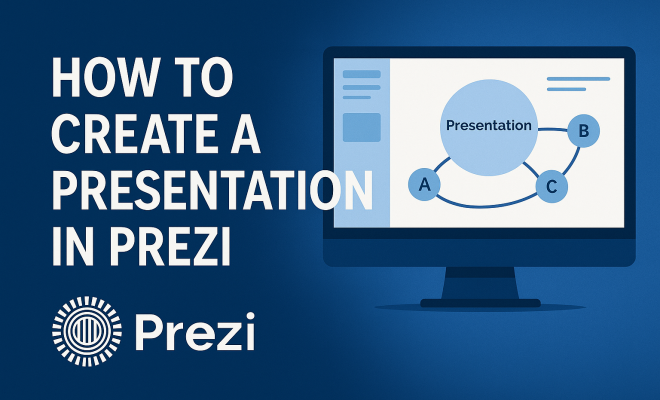
How to create presentation in Prezi
“`html
Creating an engaging presentation can sometimes feel like a daunting task, especially if you’re used to traditional slide decks. Fortunately, Prezi offers an innovative platform that allows you to create presentations that are not just informative but also visually compelling. If you’re keen on learning how to create a presentation in Prezi, you’re in the right place. This guide will take you through the essential steps and features of Prezi, ensuring that your next presentation stands out.
1. Understanding Prezi: A New Way to Present
Before diving into how to create your presentation, it’s crucial to understand what Prezi is and why it differs from traditional presentation software like PowerPoint. Prezi utilizes a canvas-based approach that allows users to zoom in and out of different content areas, making presentations more dynamic and engaging. This non-linear format encourages a storytelling method, helping you present ideas in a more interconnected and visually appealing manner.
Founded in 2009, Prezi has transformed how people visualize and share ideas. It offers a variety of templates, themes, and tools that make it easier to create presentations that resonate with your audience. The platform is particularly popular in educational settings, corporate training, and sales pitches, where capturing attention is critical.
2. Getting Started: Creating Your Prezi Account
To create a presentation in Prezi, the first step is to sign up for an account. You can choose between a free version and several paid plans that offer additional features. The free version provides access to basic functionalities, which might be sufficient for casual users or students.
When you create your account, you’ll be prompted to select a template. Prezi’s library includes various themes suitable for different presentation types, whether it’s business, educational, or personal. Take your time to explore these options, as the template you choose can significantly impact the overall look and feel of your presentation.
3. Selecting the Right Template for Your Presentation
Choosing the right template is crucial when you create a presentation in Prezi. Each template is designed with a specific style and purpose in mind, so consider the message you want to convey. For instance, if you’re presenting a financial report, you might want a clean, professional template that emphasizes data visualization.
Once you’ve selected your template, you can customize it according to your needs. Prezi allows for a high degree of flexibility, enabling you to change colors, fonts, and layouts. This customization ensures that your presentation not only looks good but also aligns with your brand or personal style.
4. Structuring Your Content: The Importance of Storytelling
When you create a presentation in Prezi, remember that content is king. Structuring your presentation with a clear beginning, middle, and end can enhance its effectiveness. Start by outlining your key points. What do you want your audience to take away from this presentation? From there, you can develop your narrative by introducing your main idea, supporting it with evidence or examples, and concluding with a strong closing statement.
Utilizing Prezi’s zoom feature can help emphasize key points throughout your narrative. By zooming into individual elements, you can guide your audience’s focus, making your argument more persuasive. Consider using visuals—such as images, videos, and graphs—to complement your points and keep your audience engaged.
5. Utilizing Visuals and Multimedia
One of the standout features of Prezi is its ability to incorporate various multimedia elements, including images, videos, and even audio. When you create a presentation in Prezi, using visuals can significantly enhance the storytelling aspect. Humans are visual creatures, and data shows that presentations with visuals tend to be more memorable and impactful. (See: Overview of presentation software.)
Prezi makes it easy to upload your own images or choose from their extensive library. Consider using high-quality images that resonate with your message. Videos—whether they are clips from YouTube or your own recordings—can also serve to illustrate your points effectively. Just ensure that any multimedia content is relevant and adds value to your presentation.
6. Collaborating with Team Members
Prezi shines when it comes to collaboration. If you’re working in a team, you can easily share your presentation with colleagues, allowing them to add comments or make edits in real-time. The collaboration features are particularly useful for brainstorming sessions, where multiple perspectives can contribute to refining the content.
To collaborate effectively, you can invite team members to your Prezi through email. Once they accept the invitation, they can access your presentation and start working on it together. This is a significant advantage over traditional presentation platforms, where collaborating often involves sharing files back and forth.
7. Presenting with Confidence
Now that you’ve created your presentation in Prezi, it’s time to deliver it. Prezi allows you to present directly from the platform, which means you don’t have to worry about downloading or transferring files. Make sure to practice your presentation several times, as familiarity with your content will help you speak confidently.
During your presentation, use the zoom feature to your advantage. By smoothly transitioning between different sections, you can keep your audience engaged and highlight your key points effectively. Also, be open to interacting with your audience; ask questions or invite feedback to foster a more dynamic dialogue. Remember, your goal is to not only inform but also to inspire and engage your audience.
8. Analyzing Feedback and Continuous Improvement
After presenting, it’s essential to gather feedback. Prezi offers analytics that can help you understand how your presentation was received. You can track engagement levels, such as which sections your audience spent the most time on. This data is invaluable for continuous improvement.
Consider conducting surveys or asking for direct feedback from your audience. Use this information to refine your future presentations. Remember, every presentation is a learning opportunity, and with Prezi’s innovative tools, you can always strive to enhance your skills.
9. The Future of Presentations: Embracing New Technologies
The landscape of presentations is evolving, and tools like Prezi are at the forefront of this change. With increasing emphasis on visual storytelling and interactivity, staying ahead of the curve is essential. Technologies such as augmented reality (AR) and virtual reality (VR) may soon play a significant role in how presentations are created and delivered, offering even more immersive experiences.
As you continue to create presentations in Prezi, keep an eye on emerging trends. Integrating new technologies can enhance how you communicate your message and engage your audience. The more adaptable you are to these changes, the more effective your presentations will become.
10. Advanced Features of Prezi
Once you’ve mastered the basics of creating presentations in Prezi, it’s time to explore some of the advanced features that can take your presentations to the next level. One such feature is the ability to add interactive elements. You can create clickable areas in your presentation, allowing your audience to engage with the content more actively. For example, if you’re presenting to a group of potential clients, you might include links to relevant case studies or testimonials that they can explore further.
Another powerful feature is the ability to use analytics in greater depth. Prezi provides insights into how your audience interacts with your presentation. For instance, you can determine how long viewers stayed on particular slides or topics, giving you valuable information to tailor future presentations. This data can help you understand what resonates with your audience, allowing you to refine your content and delivery style accordingly.
11. Examples of Effective Presentations Using Prezi
Looking at examples of successful presentations can provide inspiration and valuable insights into how to create a presentation in Prezi. For instance, a tech company might use Prezi to showcase its product development journey. By starting with a broad overview and then zooming into specific milestones, they can illustrate their growth story compellingly. Alternatively, an educator might use Prezi to explain a complex scientific concept, employing visuals and animations to make the topic more accessible and engaging. (See: Harvard University resources on presentations.)
Additionally, many companies have found success in using Prezi for marketing pitches. A well-structured Prezi presentation can help potential investors visualize the business’s trajectory and projected growth, making it easier to secure funding. Highlighting case studies and testimonials within the presentation can further bolster credibility and demonstrate success.
12. Common Mistakes to Avoid When Using Prezi
Even the most skilled presenters can fall into traps when creating presentations in Prezi. One of the most common mistakes is overusing the zoom feature. While it’s a unique aspect of Prezi, excessive zooming can disorient your audience. It’s essential to find a balance between engaging visuals and maintaining clarity.
Another frequent error is neglecting to rehearse the presentation. Prezi’s dynamic nature may lead presenters to overlook the importance of practicing their delivery. Familiarizing yourself with the flow of the presentation helps ensure a smooth delivery and allows you to focus on engaging your audience rather than recalling content.
Lastly, be cautious of information overload. Providing too much text or too many visuals can overwhelm your audience. Aim to convey your message clearly and concisely, using visuals to support your words rather than distract from them.
13. Frequently Asked Questions (FAQ)
Q: Can I create a presentation in Prezi for free?
A: Yes, Prezi offers a free version with limited features. It’s ideal for students or casual users, but you may want to consider a paid plan for more advanced functionalities.
Q: Is Prezi suitable for business presentations?
A: Absolutely! Prezi’s dynamic format is perfect for business environments, allowing for engaging presentations that can capture your audience’s attention. Many companies use it for pitches, training, and team updates.
Q: How can I share my Prezi presentation?
A: You can share your presentation by sending a link or inviting collaborators via email. Prezi also allows you to present live or share a recorded version of your presentation.
Q: Are there any limitations to using Prezi?
A: While Prezi offers a unique approach to presentations, some users may find the learning curve steeper than traditional slide-based software. Additionally, some advanced features are restricted to paid plans.
Q: Can I download my Prezi presentation for offline use?
A: Yes, if you have a paid plan, you can download your Prezi for offline use. However, the free version does not support this feature.
Q: Is there a mobile app for Prezi?
A: Yes, Prezi has a mobile app available for both iOS and Android, allowing you to access and present your slides on the go. (See: CDC guidelines for effective presentations.)
14. Tips for Creating a Compelling Prezi Presentation
To truly captivate your audience, consider these additional tips as you create your presentation in Prezi:
- Know Your Audience: Tailor your content based on who you’re presenting to. Understanding your audience’s interests and concerns can help you create a more relevant presentation.
- Use a Clear Narrative: Every presentation should tell a story. Ensure that your points flow logically from one to the next and that each section builds on the previous one.
- Limit Text: Instead of dense paragraphs, use bullet points or brief statements. This makes it easier for your audience to follow along.
- Incorporate Questions: Engage your audience by integrating questions throughout your presentation. This not only keeps them involved but can also stimulate discussion.
- Practice Transitions: Get comfortable with how you’ll move between sections of your Prezi. Smooth transitions can enhance the overall flow of your presentation.
15. Real-World Case Studies: Prezi in Action
Examining real-world applications of Prezi can provide insight into how others have successfully leveraged this tool. For example, a non-profit organization utilized Prezi to present their impact report. By visually mapping out their achievements over the year, they effectively conveyed their message to potential donors, leading to a significant increase in funding.
Similarly, a university professor adopted Prezi for their course on digital marketing. By breaking down each concept with zoomable diagrams and interactive elements, students found the content much more engaging compared to traditional lecture slides. The feedback was overwhelmingly positive, with many students appreciating the visually rich approach to complex subjects.
16. Exploring Alternatives to Prezi
While Prezi offers unique advantages, it’s beneficial to explore other presentation tools as well. There are several alternatives, each with its own strengths:
- Microsoft PowerPoint: A classic choice with a wide range of templates and features. Ideal for users familiar with traditional slide formats.
- Google Slides: Great for collaboration, as it allows multiple users to edit in real-time. It’s web-based and free to use with a Google account.
- Canva: Known for its design features, Canva can be used to create visually stunning presentations with ease. Its drag-and-drop interface is user-friendly.
- Slidebean: This tool allows users to input their content, and it automatically designs the slides for them. It’s perfect for those who struggle with design elements.
17. Prezi vs. Traditional Tools: A Comparison
When deciding whether to create a presentation in Prezi or stick with traditional tools, it can be helpful to weigh the pros and cons:
| Feature | Prezi | Traditional Tools (e.g., PowerPoint) |
|---|---|---|
| Interactive Elements | High interactivity through zooming and clickable areas | Limited interactivity, primarily linear |
| Visual Appeal | Dynamic and visually engaging | Standardized slide format |
| Collaboration | Real-time collaboration features | File sharing and version control needed |
| Learning Curve | Can be challenging initially | More familiar to most users |
Ultimately, the choice depends on your presentation style, audience, and goals. Whether you opt for Prezi or another platform, what matters most is how well you communicate your message.
In summary, mastering how to create a presentation in Prezi can significantly elevate your storytelling abilities. By using dynamic visuals, collaborating with your team, and embracing feedback, you can create memorable presentations that leave a lasting impression on your audience. So, why wait? Start exploring Prezi today and transform the way you present ideas!
“`
Trending Now
Frequently Asked Questions
What is Prezi and how does it work?
Prezi is a presentation software that uses a canvas-based approach, allowing users to zoom in and out of different content areas. This non-linear format helps to create dynamic and engaging presentations, encouraging a storytelling method that connects ideas visually.
How do I create a Prezi account?
To create a Prezi account, visit the Prezi website and select the sign-up option. You can choose between a free version or various paid plans that offer additional features. The free version provides basic functionalities suitable for casual users.
What templates are available in Prezi?
Prezi offers a wide variety of templates and themes designed for different presentation types, including business, educational, and personal presentations. These templates can significantly enhance the visual appeal and effectiveness of your presentation.
Is Prezi suitable for educational presentations?
Yes, Prezi is particularly popular in educational settings due to its ability to create visually compelling and engaging presentations. Its dynamic format helps capture students' attention and enhances the storytelling aspect of lessons.
Can I use Prezi for business presentations?
Absolutely! Prezi is widely used for business presentations, including corporate training and sales pitches. Its unique canvas-based approach and engaging visual elements make it an effective tool for communicating ideas and capturing audience interest.
What did we miss? Let us know in the comments and join the conversation.