Master Live Streaming: Your Complete OBS Guide
“`html
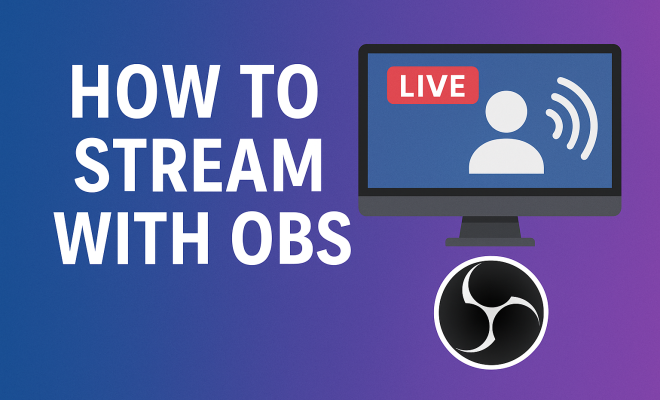
If you’ve ever watched a live stream on platforms like Twitch or YouTube, you might have wondered how streamers manage to share their gameplay or creative content in real-time. One of the most popular tools for achieving this is Open Broadcaster Software, commonly known as OBS. This open-source software provides users with the flexibility and features necessary to produce high-quality streams, whether for gaming, tutorials, or any other content. In this comprehensive guide, we’ll explore how to stream with OBS, covering everything from installation to advanced settings that can elevate your streams.
1. What is OBS?
Open Broadcaster Software (OBS) is a free and open-source software suite for recording and live streaming. Originally developed by Hugh “Jim” Bailey, OBS has evolved significantly since its inception in 2012. Its robust feature set, combined with its flexible interface, has made it the preferred choice for millions of content creators worldwide.
OBS provides users with a plethora of customizable options, including the ability to capture multiple sources – such as gameplay, webcam footage, and screen displays – and mix them together in real-time, creating a professional-looking broadcast. With its cross-platform compatibility, OBS works seamlessly on Windows, macOS, and Linux, making it accessible to a wide audience.
2. Why Choose OBS for Streaming?
There are many streaming software options available, but OBS stands out for several reasons. First and foremost, its open-source nature means that it’s continuously being improved by a community of developers, ensuring updates and new features regularly. Secondly, it’s completely free, which is perfect for those who are just starting and may not want to invest in expensive software right away.
Moreover, OBS is highly configurable, allowing users to tailor their streaming experience to their specific needs. Whether you’re a gamer looking to showcase your skills, a musician performing live, or a teacher delivering a lecture, OBS offers the tools you need to create engaging content. Its ability to support various plugins further enhances its functionality, allowing users to expand its capabilities.
3. System Requirements for OBS
Before diving into the installation process, it’s crucial to ensure your computer meets the necessary system requirements to run OBS smoothly. Here are the recommended specifications:
- Operating System: Windows 10 or later, macOS 10.13 or later, or a recent version of Linux.
- Processor: Intel i5 or AMD Ryzen 5 or better.
- RAM: At least 8 GB, although 16 GB is recommended for optimal performance.
- Graphics Card: DirectX 10.1 compatible GPU (NVIDIA GeForce or AMD Radeon recommended).
- Internet Connection: Stable broadband connection (upload speeds of at least 3 Mbps are ideal).
Once you’ve verified your system meets these requirements, you’re ready to download and install OBS.
4. How to Install OBS
Installing OBS is a straightforward process. Here’s a step-by-step guide to get you started:
- Visit the OBS Project website and click on the download button for your operating system.
- Run the downloaded installer and follow the on-screen instructions. For Windows users, it may prompt you to install additional components, such as Visual C++ Redistributable.
- Once the installation is completed, launch OBS. You’ll be greeted by an auto-configuration wizard that helps optimize settings based on your hardware capabilities.
It’s essential to take the time to configure OBS properly to ensure optimal performance for your streaming needs. (See: Open Broadcaster Software on Wikipedia.)
5. Setting Up OBS for Streaming
After installation, the next step is to set up OBS for your specific streaming needs. You’ll begin by creating a new scene. A scene can encompass various sources such as your game, webcam, and overlays:
- In OBS, right-click in the “Scenes” box and select “Add.” Give your scene a descriptive name.
- Now, add your sources by clicking the “+” button in the “Sources” box. You can choose from options like “Display Capture” for your entire screen or “Window Capture” for a specific application.
- If you’re including a webcam, add a “Video Capture Device” source and select your camera from the dropdown menu.
Once your sources are set up in your scene, you can arrange and resize them in the preview window. This flexibility allows you to create a layout that best suits your streaming style.
6. Configuring Stream Settings
To ensure a smooth streaming experience, it’s vital to configure the stream settings correctly. Here’s how to do it:
- Go to “Settings” in the bottom right corner of the OBS interface.
- Select the “Stream” tab. Choose your streaming service from the dropdown menu (Twitch, YouTube, etc.). You may also need to enter your stream key, which can be found in your account settings on the chosen platform.
- Navigate to the “Output” tab. Here, you can set your streaming bitrate. A bitrate between 2500 to 6000 kbps is generally recommended for 720p and 1080p streaming, respectively.
Additionally, consider adjusting the “Encoder” settings. If you have a powerful GPU, using hardware encoding (NVENC for NVIDIA or AMF for AMD) can take the load off your CPU, allowing for smoother performance.
7. Enhancing Your Stream with OBS Plugins
One of the unique aspects of OBS is its ability to integrate plugins, which can significantly enhance your streaming capabilities. Some popular plugins include:
- OBS WebSocket: This allows you to control OBS remotely via a web browser or mobile device.
- StreamElements or Streamlabs: These plugins provide customizable alerts, overlays, and chat features that keep your audience engaged.
- OBS Studio Transitions: These allow you to add smooth transitions between scenes, giving your stream a professional touch.
To install a plugin, simply download the plugin file, extract it, and copy it into the OBS plugin directory. Restart OBS, and your new plugin should be ready to use.
8. Troubleshooting Common Issues
Even with the best setup, you might encounter issues while streaming with OBS. Here are some common problems and their solutions:
- Lagging or Dropped Frames: This usually indicates a connection issue or that your computer is struggling to encode the video. Lower your bitrate or resolution settings.
- Audio Desynchronization: If your audio lags behind your video, check the audio delay settings in OBS or ensure your audio sources are properly configured.
- OBS Crashes or Hangs: Ensure your drivers are up to date, and consider lowering the load on your CPU by adjusting the output settings.
Don’t hesitate to seek help from OBS community forums if you encounter more complex issues. Chances are, someone else has experienced the same problem.
9. Best Practices for Engaging Your Audience
Streaming is not just about broadcasting; it’s also about building a community. Here are some best practices to enhance viewer engagement:
- Interact with Your Chat: Make it a point to read and respond to viewer comments in real-time. This helps create a sense of connection and encourages viewers to return.
- Maintain a Consistent Streaming Schedule: Consistency is key in building an audience. Set a regular schedule and stick to it so your viewers know when to tune in.
- Use Alerts and Notifications: Set up alerts for new followers, subscribers, or donations. These notifications can create an interactive experience and make viewers feel appreciated.
By implementing these practices, you can foster a loyal viewer base that will support your streaming journey.
10. Advanced Features of OBS
Once you’re comfortable with the basics, you might want to explore some advanced features of OBS that can take your streams to the next level. Here are a few worth considering: (See: Twitch streaming trends in The New York Times.)
- Scene Collections: OBS allows you to create multiple scene collections, which can be particularly useful for different content types or themes. You can switch between collections depending on the type of stream you’re doing, whether it’s gaming, a talk show, or a tutorial.
- Hotkeys: Set up hotkeys for various actions like starting or stopping the stream, switching scenes, or muting audio. This can enhance your streaming workflow and help you maintain a smooth broadcast.
- Streamlabs Integration: If you use Streamlabs for alerts and overlays, you can directly integrate that into OBS. This allows for real-time alerts and a more dynamic viewer experience.
Experimenting with these advanced features can help you refine your stream and keep your audience engaged.
11. Statistics and Trends in Live Streaming
Understanding the current landscape of live streaming can provide insights into how you approach your content. As of 2023, the live streaming market has shown impressive growth, with statistics revealing:
- According to a report by StreamElements, 2022 saw a record of over 8 million active streamers across major platforms like Twitch and YouTube.
- Viewership on Twitch increased by nearly 30% from 2021 to 2022, with an average of over 2 million concurrent viewers daily.
- Platforms like YouTube have reported a significant rise in live shopping events, with sales increasing by 30% year-over-year, highlighting the effectiveness of live streaming in commerce.
These stats indicate a booming demand for quality live content, making it an exciting time to start streaming. Understanding trends can also guide the type of content that resonates with viewers.
12. Expert Perspectives on Streaming with OBS
Industry experts emphasize the importance of authenticity and engagement in live streaming. Popular streamer Pokimane mentions, “The key to successful streaming is being yourself. People tune in not just for the content, but for the personality behind it.” This highlights how building a personal brand is crucial in attracting and retaining viewers.
Additionally, Shroud, a well-known gamer and streamer, suggests that investing time in learning the software intricacies pays off. “The more you understand your tools, like OBS, the better you can deliver on your creative vision,” he explains. He encourages new streamers to leverage resources and communities to learn and grow.
Taking advice from successful streamers can provide valuable insights into overcoming challenges and making your streams stand out.
13. Frequently Asked Questions (FAQ)
1. Can I use OBS for streaming on multiple platforms simultaneously?
Yes! You can stream to multiple platforms at once using services like Restream or Streamlabs. These services allow you to broadcast your stream to various platforms like Twitch, YouTube, and Facebook simultaneously, reaching a wider audience.
2. Is OBS easy to use for beginners?
OBS has a learning curve, but many resources are available to help beginners. The interface can be intimidating at first, but after following some tutorials and experimenting with the features, most users find it manageable. The community is also a great support system for newcomers.
3. Do I need a powerful computer to stream with OBS?
While a powerful computer can enhance your streaming experience, it’s not strictly necessary. OBS can run on lower-end systems, but your streaming quality may be affected. Adjusting settings like resolution and bitrate can help optimize performance on less powerful machines. (See: Research on live streaming technologies.)
4. Are there any costs associated with using OBS?
OBS itself is free, but you might incur costs if you choose to purchase additional plugins or services for things like overlays or alerts. However, many free resources and plugins are available to enhance your streaming experience without spending money.
5. How do I ensure my stream quality is high?
To maintain high stream quality, ensure that your internet connection is stable, use an appropriate bitrate for your stream resolution, and optimize your computer’s performance by closing unnecessary applications during streaming. Regularly test your stream settings before going live to make adjustments as needed.
14. How to Create an Engaging Layout
Your stream’s visual layout plays a significant role in audience retention. Here are some strategies for creating an appealing layout:
- Overlay Designs: Use overlays that complement your brand. Websites like Fiverr offer custom overlay designs, or you can create your own using graphic design software.
- Alerts and Notifications: Use visual alerts for follower notifications, donations, and subscriptions. These can be customized to fit your theme and are essential for maintaining viewer engagement.
- Streamlabs or OBS Studio Filters: OBS allows you to apply filters to your sources, such as color correction or chroma key (for green screens). This can help improve the overall aesthetic of your stream.
15. Networking and Collaboration with Other Streamers
Building relationships with other streamers can help you grow your audience and enhance your content. Here are a few ways to connect and collaborate:
- Host or Raid Other Streamers: Use Twitch’s hosting or raiding features to introduce your viewers to other channels. This can foster goodwill and encourage reciprocation.
- Join Community Events: Participate in gaming tournaments, charity streams, or collaborative streams. These events can help you reach new audiences and connect with like-minded creators.
- Networking Platforms: Utilize platforms like Discord and Reddit to find communities relevant to your content. Engaging in discussions and sharing your stream can increase visibility.
16. The Future of Streaming and OBS
The streaming landscape is evolving rapidly, with new technologies and trends emerging regularly. Here are some predictions for the future of streaming and how OBS fits into it:
- Increased Use of AI: AI tools are likely to become more integrated into streaming software. Features like automatic scene switching and real-time audio adjustments could become standard, streamlining the workflow for creators.
- Virtual Reality (VR) and Augmented Reality (AR): As VR and AR technologies improve, we might see an increase in immersive streaming experiences. OBS may adapt to support these formats, opening up new creative avenues for streamers.
- Enhanced Community Interactions: Future platforms may offer even more interactive features, allowing viewers to influence the content being streamed in real-time, further blurring the lines between creators and their audience.
17. Conclusion: Start Streaming with OBS Today
Now that you have a strong understanding of how to stream with OBS, it’s time to jump into the world of live streaming. Whether you’re looking to entertain, educate, or connect with others, OBS provides you with the tools necessary to produce high-quality streams. Remember, the key is to experiment, learn from your experiences, and most importantly, have fun. Happy streaming!
“`
Trending Now
Frequently Asked Questions
What is OBS and how does it work?
Open Broadcaster Software (OBS) is a free, open-source tool for recording and live streaming. It allows users to capture multiple sources, such as gameplay and webcam footage, and mix them in real-time to create professional broadcasts. OBS is compatible with Windows, macOS, and Linux, making it accessible for a wide range of content creators.
Why should I use OBS for streaming?
OBS is preferred by many streamers due to its open-source nature, which ensures constant updates and improvements from a community of developers. It is completely free, making it ideal for beginners, and offers extensive customization options, allowing users to tailor their streaming setup to their specific needs.
Is OBS difficult to set up for beginners?
While OBS may seem complex at first, it is designed to be user-friendly. Beginners can easily follow tutorials and guides to install and configure the software. The interface allows for straightforward setup of scenes and sources, making it manageable for new users to start streaming quickly.
Can I use OBS for live streaming on multiple platforms?
Yes, OBS supports streaming to multiple platforms, including Twitch, YouTube, and Facebook Live. Users can configure their stream settings to broadcast simultaneously to different services, making it a versatile choice for content creators who want to reach a broader audience.
What features does OBS offer for enhancing streams?
OBS provides a variety of features to enhance streams, such as scene transitions, audio mixing, and video filters. Users can capture multiple sources and layers, add overlays, and utilize plugins to further customize their streaming experience, resulting in a polished and professional broadcast.
What’s your take on this? Share your thoughts in the comments below — we read every one.