How to record gameplay with OBS
“`html
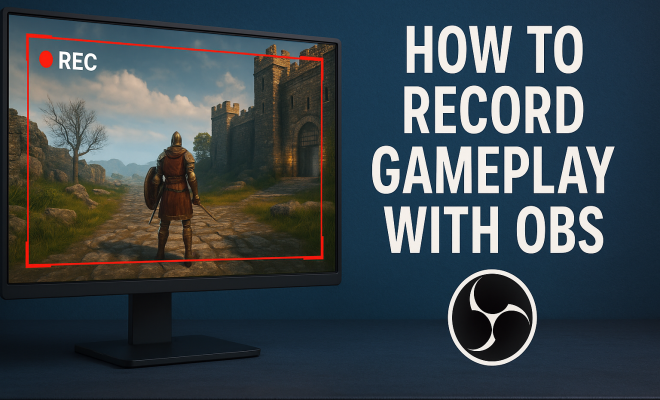
Recording gameplay has become an essential part of the gaming experience for many enthusiasts. Whether you’re a professional streamer, a hobbyist, or someone who simply wants to share epic moments with friends, knowing how to record gameplay with OBS (Open Broadcaster Software) can elevate your content to new heights. This comprehensive guide will walk you through everything you need to know about OBS, from setup to recording tips, providing practical insights and in-depth information to help you get started.
1. What is OBS?
Open Broadcaster Software, commonly known as OBS, is a free and open-source software suite designed for video recording and live streaming. Initially released in 2012, it has grown in popularity due to its powerful features and flexibility. OBS is available on multiple platforms, including Windows, macOS, and Linux, making it accessible to a broad range of users.
The software supports various sources and devices, allowing you to capture your gameplay, webcam, and audio simultaneously. This versatility makes it an excellent choice for gamers looking to share their experiences, create tutorials, or broadcast live streams on platforms like Twitch and YouTube. With the ability to customize scenes and overlays, OBS is not just about recording gameplay; it’s about crafting a complete viewing experience.
2. Why Choose OBS for Gameplay Recording?
There are numerous software options available for recording gameplay, but OBS stands out for several reasons. First and foremost, it’s free, which is a significant advantage for gamers on a budget. Unlike many other recording software options that come with hefty price tags, OBS offers a comprehensive set of features without any cost.
Additionally, OBS is highly customizable. You can adjust settings for resolution, frame rate, audio mixing, and more to fit your specific needs. This level of customization means that you can optimize your recordings for the best possible quality, depending on your hardware capabilities. Finally, the active community surrounding OBS provides extensive resources, including tutorials, plugins, and support forums, making it easier to troubleshoot issues and enhance your usage of the software.
3. Setting Up OBS for the First Time
Getting started with OBS might seem daunting, but the setup process is straightforward. First, download the software from the official OBS Project website and install it on your system. Once installed, launch OBS, and the Auto-Configuration Wizard will prompt you to set up your settings based on your hardware and intended use.
During the setup, you’ll be asked whether you plan to stream or record. Since our focus is on recording gameplay with OBS, select the option for recording. The wizard will analyze your system and recommend optimal settings for resolution and frame rate. However, you can always adjust these settings later according to your preferences. The initial setup will provide a solid foundation for your recordings, but fine-tuning may be necessary to achieve your desired results.
4. Configuring Your Scenes and Sources
One of the standout features of OBS is its ability to create different scenes for various types of recordings. A scene can include multiple sources, such as your gameplay, webcam feed, images, and even text overlays. To get started, click the “+” button under the “Scenes” box to add a new scene. Name it appropriately, such as “Gameplay Recording.”
Next, you need to add sources to your scene. Click the “+” button under the “Sources” box and select “Game Capture.” This allows OBS to capture your gameplay directly from the game window. Alternatively, you can choose “Display Capture” if you want to record your entire screen. Don’t forget to add other sources, like your webcam or audio input, to create a more engaging experience for viewers. The flexibility in arranging scenes is vital for creating professional-quality content.
5. Optimizing Recording Settings
To effectively record gameplay with OBS, you’ll want to tweak various settings to ensure high-quality output without overloading your system. Navigate to the “Settings” menu, where you can adjust general settings, output, audio, video, and advanced options. Under the “Output” tab, choose your recording format. The most commonly used format is MP4, but MKV is also recommended as it prevents data loss in case of crashes. (See: Open Broadcaster Software on Wikipedia.)
Next, adjust the bitrate, which affects the quality of your recording. A higher bitrate results in better quality but requires more storage space. For most gameplay recordings, a bitrate between 5000-10000 Kbps is a solid choice. Additionally, select the appropriate resolution and frame rate under the “Video” tab. A resolution of 1920×1080 (1080p) at 30fps or 60fps is optimal for most casual gamers, providing a balance between quality and file size.
6. Audio Settings for Enhanced Gameplay Recording
Audio quality is just as important as video quality when you record gameplay with OBS. To achieve clear and balanced audio, navigate to the “Audio” settings in OBS. Here, you can choose the audio input device, which is typically your microphone, and the audio output device, which might be your headset or speakers.
Consider adding an audio mixer to your scene. This feature allows you to adjust the volume levels of different audio sources independently, such as in-game sounds, background music, and your voice. Balancing these elements is crucial to maintain an immersive experience for your viewers. You might also want to enable audio monitoring to hear your microphone while recording, ensuring that your voice is audible and clear.
7. Recording Tips for High-Quality Gameplay
To maximize the quality of your gameplay recordings, here are some practical tips. First, ensure that your system can handle the recording settings you’ve chosen. If you experience lag or stuttering during recording, consider lowering the resolution or frame rate.
Second, clean up your desktop and close unnecessary applications before starting a recording. This helps free up system resources and minimizes distractions. Finally, practice good organization by naming your recordings clearly and saving them in designated folders. This approach makes it easier to locate and edit your footage later.
8. Editing Your Gameplay Footage
Once you’ve finished recording gameplay with OBS, you may want to edit the footage before sharing it with others. There are various video editing software options available, both paid and free. Software like Adobe Premiere Pro and Final Cut Pro offers professional-grade editing tools, while programs like Shotcut and DaVinci Resolve provide a solid free alternative.
When editing, focus on aspects like cutting out unnecessary parts, adding effects, overlaying text, and synchronizing audio. You can also incorporate music and sound effects to enhance the overall experience. The goal of editing is to create a polished final product that showcases your gaming skills and engages your audience.
9. Sharing Your Recorded Gameplay
After editing, it’s time to share your creations with the world. Platforms such as YouTube, Twitch, and Facebook Gaming are excellent places to showcase your gameplay footage. Each platform has its guidelines for video quality, duration, and format, so be sure to familiarize yourself with those before uploading.
Additionally, consider promoting your videos on social media platforms to reach a broader audience. Engaging with viewers through comments and feedback also helps build a community around your content. Remember, consistency is key; the more regular you are with your uploads, the more your audience will grow.
10. Advanced OBS Features
For users looking to take their gameplay recording to the next level, OBS offers advanced features that can enhance the overall quality and engagement of your recordings. One such feature is **Studio Mode**, which allows you to preview your scenes and sources before transitioning them to your live stream or recording. This mode is particularly beneficial for streamers who want to maintain a professional appearance.
Another powerful feature is **Hotkeys**, which lets you assign keyboard shortcuts for various actions within OBS. By setting up hotkeys, you can easily switch between scenes, start and stop recordings, or mute audio without needing to navigate through the software’s interface. This efficiency can be especially useful during intense gaming sessions. (See: CDC on ergonomics for streaming.)
11. Common Issues and Troubleshooting
Even with its robust features, users may encounter occasional issues when using OBS. Common problems include performance lag, audio desync, or black screens when recording. Here are some quick troubleshooting tips:
- Performance Lag: If you experience lag while recording, try adjusting your resolution and frame rate settings under the Video tab. Lowering these settings can significantly improve performance.
- Audio Desync: If your audio is out of sync with the video, check your audio settings in OBS. Make sure that your audio sample rate matches that of your game and system settings; typically, 48 kHz is optimal.
- Black Screen: A common issue when using Game Capture is a black screen. Ensure that the game is running in windowed mode or try running OBS as an administrator to resolve permissions issues.
12. Statistics on Gameplay Recording
Understanding the impact of gameplay recording can provide insights into why it’s worth investing time and effort into mastering OBS. As of 2023, over 80% of gamers engage with video content, whether through platforms like Twitch or YouTube. The statistics show that:
- Streamers who consistently upload high-quality content see an average viewer increase of 25% month-over-month.
- Videos that incorporate gameplay recordings and commentary receive 30% more engagement than those that do not.
- Over 40% of gamers report that they are more likely to subscribe to a channel with regular gameplay uploads, highlighting the importance of consistency.
13. Expert Perspectives on Gameplay Recording
Hearing from industry experts can provide valuable insights into the best practices for gameplay recording. According to Jacksepticeye, a popular YouTuber, “Engagement is everything. It’s not just about the gameplay; it’s about how you connect with viewers.” This sentiment is echoed by other streamers who emphasize interaction and community as crucial components of successful gameplay recording.
Additionally, tech reviewer Marques Brownlee states, “Quality is critical. With so many gaming videos out there, having better audio and video quality can set you apart from the crowd.” Investing time to learn how to utilize OBS effectively can enhance the overall quality of your recordings and help you stand out in a saturated market.
14. FAQs about Recording Gameplay with OBS
Q1: Can I record gameplay with OBS on a low-end PC?
A1: Yes, but you’ll need to adjust your settings accordingly. Lowering the resolution and frame rate will help, but it’s essential to test how your system handles the load.
Q2: Is it possible to record while streaming?
A2: Absolutely! OBS allows you to record and stream simultaneously. Just make sure your computer can handle the additional load, and adjust your settings as needed.
Q3: Can I use OBS for recording console gameplay?
A3: Yes, but you’ll need a capture card to transfer the video output from your console to your PC, where OBS can then record it.
Q4: What storage format should I save my recordings in?
A4: While MP4 is widely used, it’s often recommended to save your recordings in MKV format initially to prevent data loss in case of a crash. You can always convert it to MP4 later.
Q5: How do I add overlays or alerts to my recordings?
A5: You can add overlays by including image sources in your scene. For alerts and notifications, consider using third-party services like Streamlabs or StreamElements, which can integrate with OBS. (See: Research on gaming and streaming.)
15. Practical Examples of Gameplay Recording Success
Seeing how others have successfully used OBS can provide you with inspiration and insights for your recordings. For instance, popular YouTuber PewDiePie has mastered the art of gameplay recording, often incorporating humor and personal commentary, which resonates with his audience. His editing style includes quick cuts and engaging overlays that keep viewers entertained.
Another notable example is Ninja, the well-known Fortnite streamer. He effectively uses OBS to create a dynamic streaming atmosphere, combining live gameplay with interactive features like chat integration and alerts for subscribers. Observing how these streamers strategically use OBS’s features can offer you valuable lessons in engagement and presentation.
16. Exploring Different Content Types
When recording gameplay with OBS, consider diversifying your content. Here are a few types to explore:
- Let’s Plays: Traditional gameplay sessions where you play through a game and provide commentary.
- Tutorials: Educate your audience on strategies, game mechanics, or even how to effectively use OBS itself.
- Speedruns: Challenge yourself to complete a game as quickly as possible while sharing tips along the way.
- Challenges: Engage your audience with unique gaming challenges, like completing levels without certain weapons or items.
Diversifying your content not only showcases your versatility but also keeps your audience engaged by offering them something new and exciting regularly.
17. Utilizing Analytics for Improvement
Once you start sharing your gameplay recordings, it’s crucial to analyze your video’s performance using analytics provided by platforms like YouTube or Twitch. Look for metrics such as views, watch time, and viewer retention to gauge what works and what doesn’t. For example, if you notice a drop in viewer retention during certain segments, it could indicate that those parts may need editing or a different approach next time.
Engagement metrics, such as likes, comments, and shares, can also provide insight into how well your content resonates with your audience. Use this feedback to refine your style, subject matter, and even your approach to recording with OBS, tailoring your content to meet the preferences of your viewers.
18. Final Thoughts on Recording Gameplay with OBS
By mastering how to record gameplay with OBS, you’ll not only capture your gaming experiences but also connect with a larger community of gamers. With the right setup, a little bit of practice, and by leveraging advanced features, you can create engaging content that showcases your skills and passion for gaming. Remember to keep experimenting, take notes on what works, and continually refine your approach to stay relevant and captivating in the ever-evolving landscape of gaming content.
“`
Trending Now
Frequently Asked Questions
What is OBS and how does it work?
OBS, or Open Broadcaster Software, is a free and open-source tool for video recording and live streaming. It allows users to capture gameplay, webcam footage, and audio simultaneously, making it ideal for gamers and content creators. OBS supports multiple platforms and offers customizable settings for resolution and frame rate, enhancing the overall recording experience.
Is OBS free to use for recording gameplay?
Yes, OBS is completely free to use, which is one of its major advantages over other recording software. It provides a wide range of features without any cost, making it accessible for gamers and streamers who want to record or broadcast their gameplay without incurring expenses.
How can I customize my recordings in OBS?
OBS offers extensive customization options for your recordings. You can adjust settings such as resolution, frame rate, and audio mixing to suit your needs. Additionally, you can create custom scenes and overlays, allowing you to craft a unique viewing experience for your audience.
What platforms is OBS available on?
OBS is available on multiple platforms, including Windows, macOS, and Linux. This wide compatibility makes it a versatile choice for users across different operating systems, allowing a broad range of gamers to utilize its powerful features for recording and streaming.
Can I use OBS for live streaming?
Absolutely! OBS is not only designed for recording gameplay but also for live streaming. It supports various streaming platforms like Twitch and YouTube, allowing you to broadcast your gameplay live while utilizing its customizable features to enhance viewer engagement.
Have you experienced this yourself? We’d love to hear your story in the comments.