How to use Camtasia
“`html
In the digital age, creating engaging videos has never been more vital, whether for educational purposes, marketing, or simply sharing your message with the world. Among the myriad of tools available, Camtasia stands out as a powerful video editing software that’s particularly user-friendly for beginners and professionals alike. In this article, we’ll delve into how to use Camtasia effectively, covering everything from basic functions to advanced features that can enhance your video production process.
1. Getting Started with Camtasia
Before diving into the intricacies of video editing, you need to download and install Camtasia. The software is available on both Windows and Mac platforms, and you can start with a free trial to familiarize yourself with its features. Once installed, you’ll find a clean and intuitive interface that welcomes users with a series of prompts and tutorials, making it easy to start your video project.
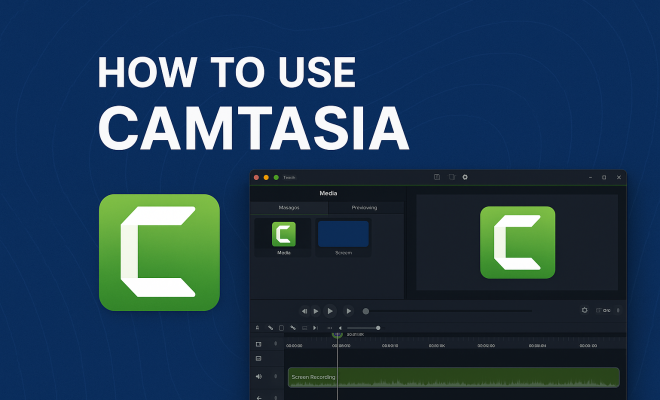
Upon launching Camtasia, you’re greeted with the option to create a new project. You can either start from scratch or utilize pre-existing templates. These templates are especially useful for beginners, offering a framework that you can modify according to your needs. Familiarize yourself with the layout — the media bin, canvas, and timeline are fundamental components that you’ll frequently interact with as you learn how to use Camtasia.
2. Importing Media and Assets
Once you have your project set up, the next step is to import your media assets. This includes video clips, audio, images, and any other content you plan to use in your video. Camtasia supports various file formats, making it versatile for different types of projects. You can either drag and drop files into the media bin or use the import feature in the menu.
Organizing your assets in the media bin can significantly streamline your workflow. You can create folders within the bin to categorize assets by type, such as “Footage,” “Audio,” or “Graphics.” This organizational structure will save you time and reduce frustration as you edit. As you learn how to use Camtasia, developing a systematic approach to asset management will enhance your productivity.
3. Editing Basics: Timeline and Canvas
At the heart of Camtasia’s functionality is the timeline, where you’ll arrange your media assets. Understanding how to manipulate the timeline is crucial for effective video editing. You can trim clips, adjust their lengths, and position them in the order you want them to appear. Dragging a clip onto the timeline allows you to determine its placement and duration, facilitating seamless transitions between video segments.
The canvas area displays your video as you edit, providing a real-time preview of your project. Here, you can resize and reposition clips, as well as add visual elements like text overlays and callouts. Experimenting with different placements can create an engaging viewer experience. Getting comfortable with both the timeline and canvas is essential for mastering how to use Camtasia effectively.
4. Incorporating Effects and Annotations
Once your basic edits are in place, it’s time to add some flair to your video. Camtasia offers a rich library of effects and annotations that can enhance your project. You can add transitions between clips, apply visual effects like fade-ins and fade-outs, and utilize animations to guide viewers’ attention.
Annotations are particularly powerful tools in Camtasia. They allow you to insert text boxes, arrows, and shapes directly onto the canvas. This is perfect for emphasizing key points or providing additional context to your audience. Remember to keep these effects consistent and in line with your overall video theme to maintain a professional look.
5. Recording Screen and Audio
One of Camtasia’s standout features is its built-in screen recording capability. This allows you to capture your screen activity directly within the software. Perfect for creating tutorials or walkthroughs, you can select the recording area and even include webcam footage or audio commentary simultaneously. This feature is essential for anyone needing to demonstrate software or create instructional content. (See: Video editing overview on Wikipedia.)
Once you finish recording, the footage automatically populates in your media bin, ready for editing. Make sure your microphone is set up correctly to ensure high-quality audio. Camtasia can also enhance audio by offering options to remove background noise and adjust volume levels, ensuring that your voice is clear and professional.
6. Exporting and Sharing Your Video
After you’ve finished editing your video, it’s time to export it. Camtasia supports various formats, allowing you to choose the best one for your intended platform—be it YouTube, Vimeo, or a local file for presentations. The export process is straightforward, with options to adjust video quality and dimensions based on your needs.
Additionally, Camtasia facilitates direct sharing to platforms like YouTube and Google Drive, making it easier to distribute your content right from the app. Think about your audience’s preferences when deciding on the format and resolution to ensure your video is accessible and enjoyable for viewers.
7. Advanced Features for Professionals
For those looking to take their Camtasia skills to the next level, the software offers a wealth of advanced features. You can create interactive quizzes, add clickable links throughout your video, and utilize advanced animations to enhance viewer engagement. These tools are particularly beneficial for educational content and marketing videos, where audience interaction can significantly boost retention and comprehension.
Moreover, integrating Camtasia with other tools like TechSmith Knowmia can enhance your video content even further. This integration allows for seamless sharing and analytics, tracking viewer engagement and helping you refine your video strategies over time. Understanding these advanced features can set you apart from the competition and elevate your video production capabilities.
8. Common Challenges and How to Overcome Them
When you’re learning how to use Camtasia, you might encounter a few common challenges. Understanding these can save you time and enhance your editing experience.
8.1 Video Lagging During Playback
Sometimes users report lag during playback while editing. This can happen if your computer doesn’t have enough processing power. To resolve this, close unnecessary applications and consider lowering the playback quality in the Camtasia settings. This will help smooth out the editing process without affecting final export quality.
8.2 Difficulty with Audio Sync
Audio sync issues can be frustrating, especially when combining screen recordings with voiceovers. If you notice a delay, try adjusting the audio track position on the timeline. Make small adjustments until the audio aligns perfectly with your video. Another method is to record audio separately in a quiet environment, allowing for better control over sound quality.
8.3 Learning Curve for Advanced Features
While Camtasia is user-friendly, mastering all its features takes time. The best way to tackle this is through practice and exploring the extensive library of tutorials available online. Websites like YouTube and the TechSmith site host numerous guides that can help you navigate everything from basics to advanced techniques.
9. Tips for Effective Video Creation
Creating a compelling video takes more than just technical know-how. Here are some best practices to keep in mind as you learn how to use Camtasia effectively: (See: CDC on effective communication strategies.)
- Plan Your Content: Having a clear outline or script can save you time during the editing process. Knowing what you want to convey helps in the selection of visuals and audio.
- Engage Your Audience: Use questions, quizzes, or interactive elements in your videos to maintain viewer interest. The more engaged your audience is, the better your video will perform.
- Consistency is Key: Stick to a consistent style in terms of fonts, colors, and transition effects. This helps establish your brand identity and makes your content more professional.
- Seek Feedback: Share your videos with peers or mentors to get constructive feedback. Fresh eyes can provide insights you may not have considered.
10. FAQs About Camtasia
10.1 Is Camtasia suitable for beginners?
Absolutely! Camtasia’s user-friendly interface and helpful tutorials make it an excellent choice for beginners looking to get into video editing.
10.2 Can I use Camtasia for free?
You can download a free trial of Camtasia, which allows you to explore its features. However, the full version requires a purchase for continued use.
10.3 What formats can I export my videos in?
Camtasia allows you to export videos in various formats including MP4, WMV, and GIF, among others. Choose the format that best suits your distribution platform.
10.4 Does Camtasia support subtitles or closed captions?
Yes, Camtasia allows you to add captions and subtitles to your videos, making them more accessible to a wider audience.
10.5 Can I collaborate with others on a project in Camtasia?
While Camtasia doesn’t have real-time collaboration features, you can share project files with others, allowing multiple users to work on different aspects of the project and then combine them later.
11. Utilizing Camtasia for Marketing Videos
If you’re considering how to use Camtasia for marketing, you’re in good company. Many businesses leverage the software to create promotional content that captures attention. Here are some strategies to enhance your marketing videos:
11.1 Storytelling Techniques
Storytelling is a powerful tool in marketing. Use Camtasia’s features to weave a narrative through your video. Start with a hook, develop a storyline, and conclude with a clear call-to-action. Incorporating voiceovers and engaging visuals can enhance the storytelling process and make your message memorable.
11.2 Branding Elements
Make sure to integrate your branding elements throughout your video. This can include your logo, color schemes, and consistent fonts. Camtasia allows you to save your branding elements as assets, which you can easily insert into any project. This consistency not only helps with brand recognition but also builds trust with your audience.
11.3 Analytics and Performance Tracking
When creating marketing videos, don’t forget to analyze their performance. Use Camtasia’s integration features with platforms like Google Analytics to track how your videos are performing. Observing metrics such as viewer retention rates and engagement can provide insights into how to improve future videos. You can also conduct A/B testing with different video formats or styles to see what resonates best with your audience. (See: New York Times guide on making videos.)
12. Educational Content Creation with Camtasia
Camtasia shines when it comes to creating educational content. Here’s how you can effectively utilize it for teaching purposes:
12.1 Interactive Learning
Incorporating quizzes and interactive elements into your educational videos keeps learners engaged. Camtasia allows you to add interactive quizzes that can gauge understanding and encourage participation. This is especially effective in online courses and tutorials.
12.2 Screen Recording for Tutorials
Utilize the screen recording feature to create step-by-step tutorials. For example, if you’re teaching software skills, record your screen while you navigate through the program. This real-time demonstration helps learners follow along with ease. Adding annotations or callouts can highlight important steps and enhance comprehension.
12.3 Feedback and Assessment
After your educational videos are published, gather feedback from learners. Consider using surveys or polls to understand what worked and what didn’t. This feedback can be invaluable in refining your content and teaching methods. You can also assess learner progress through the quizzes you integrated earlier, allowing you to tailor future content to their needs.
13. Tips for Enhancing Your Camtasia Skills
As you navigate how to use Camtasia, consider these tips to enhance your skills:
- Practice Regularly: The more you use Camtasia, the more comfortable you’ll become with its features. Set aside regular time to experiment with different tools and techniques.
- Join Online Communities: Engaging with online forums and communities dedicated to Camtasia can provide support and tips from fellow users. Websites like Reddit and TechSmith forums can be great resources for learning.
- Follow Established Creators: Watch tutorials and videos created by experienced Camtasia users. Observing their techniques can provide inspiration and practical insights to improve your own projects.
- Stay Updated: Keep an eye out for updates and new features in Camtasia. Software updates often come with new tools that can enhance your editing process. Subscribe to TechSmith newsletters or follow them on social media for the latest information.
14. Final Thoughts
Learning how to use Camtasia can open doors to endless creative possibilities. Whether you’re a beginner or an experienced video editor, the software’s intuitive interface and powerful capabilities will cater to your needs. By mastering the basics of importing, editing, and exporting, as well as leveraging advanced features, you’ll be well on your way to producing high-quality videos that resonate with your audience.
As you continue to explore the capabilities of Camtasia, don’t hesitate to check out tutorials and community forums for additional tips and tricks. With practice and creativity, your video projects can truly stand out in today’s content-driven landscape.
“`
Trending Now
Frequently Asked Questions
How do I get started with Camtasia?
To get started with Camtasia, download and install the software on your Windows or Mac device. You can begin with a free trial to explore its features. Upon launching, create a new project using either a blank canvas or pre-existing templates, and familiarize yourself with the interface components like the media bin, canvas, and timeline.
What file formats does Camtasia support?
Camtasia supports a variety of file formats for importing media assets, including video clips, audio files, and images. This versatility allows users to work with different types of content seamlessly, making it easier to create engaging videos for various projects.
Can I use templates in Camtasia?
Yes, Camtasia offers pre-existing templates that are particularly helpful for beginners. These templates provide a structured framework that you can modify according to your project needs, making it easier to start creating videos without starting from scratch.
How do I organize media assets in Camtasia?
You can organize your media assets in Camtasia by creating folders within the media bin. This allows you to categorize your assets by type, such as 'Footage', 'Audio', or 'Graphics', which helps streamline your workflow and makes it easier to locate files during the editing process.
Is Camtasia easy to use for beginners?
Yes, Camtasia is designed to be user-friendly, making it suitable for both beginners and professionals. The intuitive interface, along with prompts and tutorials, helps new users quickly learn how to navigate the software and start their video projects effectively.
Have you experienced this yourself? We’d love to hear your story in the comments.