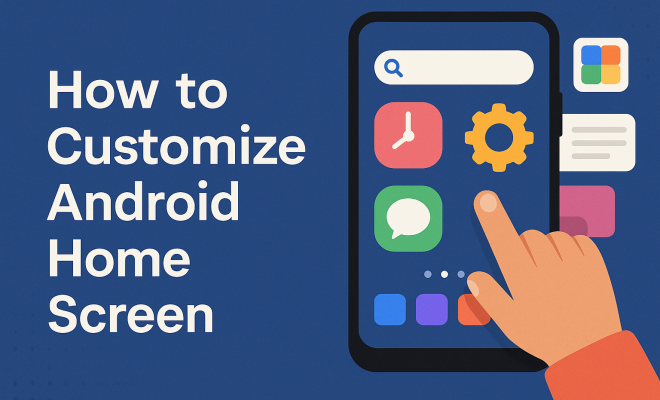
How to customize Android home screen
“`html
In a world where personalization is paramount, your Android home screen is the perfect blank canvas to showcase your style, preferences, and organization skills. But how do you customize your Android home screen effectively? This guide will walk you through eight essential steps that will not only enhance the aesthetic appeal of your device but also improve functionality and usability. Whether you’re a tech novice or a seasoned user, these tips will help you navigate the myriad options available in Android’s customization settings.
1. Choosing the Right Launcher
The foundation of your Android home screen customization starts with selecting a launcher. A launcher serves as the interface between you and your apps, and different launchers can provide various features, themes, and layouts. Popular options include Nova Launcher, Microsoft Launcher, and Action Launcher, each offering unique capabilities. For instance, Nova Launcher is renowned for its extensive customization options, allowing you to tweak icon sizes, grid layouts, and even gestures.
When you choose a launcher, consider what features matter most to you. Do you want advanced gesture controls, diverse icon packs, or enhanced widget support? Take your time experimenting with different launchers to find one that aligns with your needs. Keep in mind that the right launcher can significantly change your Android experience, making it feel more tailored and efficient.
Additionally, some launchers come with built-in app drawers, search functionalities, and customizable grid sizes, which you may find beneficial. For example, if you often have trouble finding apps, a launcher with a robust search function can streamline that process. Furthermore, certain launchers allow for gesture-based access to apps, contributing to a smoother user experience.
2. Personalizing Your Wallpaper
Your wallpaper plays a crucial role in how your Android home screen looks and feels. Choosing the right wallpaper can set the mood for your entire device. There are countless sources for high-quality wallpapers, including apps like Zedge, Unsplash, and Walli. You may also opt for live wallpapers, which add movement and interactivity. If you prefer something more personal, consider using your own photos or artwork.
When selecting a wallpaper, think about color schemes and themes. A bright and vibrant wallpaper can energize your home screen, while muted tones can create a calming environment. Remember that your wallpaper can also affect the visibility of icons and widgets, so ensure there’s enough contrast to keep everything legible and visually appealing. Moreover, you might want to change your wallpaper seasonally or based on your mood, providing a refreshing change to your home screen.
Another interesting approach is to use a rotating wallpaper feature, which automatically changes your wallpaper at set intervals. This can keep your home screen feeling fresh and engaging without the need for constant manual updates. Some apps even allow you to pull wallpapers from online galleries that align with your interests.
3. Arranging Apps and Widgets
How you arrange your apps and widgets can significantly impact how you interact with your device. Start by identifying your most frequently used apps and place them in easily accessible spots on your home screen. Many Android devices allow you to create folders to group similar apps together, reducing clutter and promoting organization.
Widgets are another powerful tool for customization. They provide real-time information and shortcuts directly on your home screen. For instance, a weather widget can offer current conditions at a glance, while a calendar widget can remind you of upcoming events. Experiment with different widget sizes and placements to find a layout that promotes efficiency and enhances your user experience.
Consider the use of color-coded folders for a more aesthetically pleasing arrangement. This visual strategy not only helps in organizing apps but also improves your ability to locate them quickly. Think about which apps you use most often and prioritize their placement. You might want to position essential apps like messaging and contacts in the center, where they’re easiest to reach.
4. Customizing Icon Packs
Icons are the face of your apps, and customizing them can dramatically change the look of your home screen. Icon packs are available through platforms like the Google Play Store and can transform the appearance of all your app icons at once. Popular icon pack options include Whicons, CandyCons, and Moonshine, each bringing a distinct style to your interface.
When choosing an icon pack, consider the overall aesthetic you want to achieve. Whether you prefer sleek and minimalistic designs or vibrant and playful icons, there’s something for everyone. After applying an icon pack, you may also want to adjust individual icons to create a more personalized touch. Many launchers make this process straightforward, allowing you to select and change icons with just a few taps. (See: Overview of the Android operating system.)
As you explore icon packs, keep in mind that some allow for dynamic icons that can change based on notifications or app activities, adding even more personality to your home screen. Additionally, don’t hesitate to mix and match icons from different packs to create a unique vibe that truly represents you.
5. Utilizing Themes
Themes allow you to overhaul the overall look of your Android home screen with a single package. They can change everything from wallpapers and icon styles to fonts and color schemes. Many launchers support themes, enabling users to switch between different looks quickly. For instance, Samsung devices come with their own theme store where users can access a wide range of options.
When exploring themes, think about the mood you want to convey. Are you looking for something bright and cheerful, or dark and sophisticated? Additionally, ensure that the theme you select is compatible with your apps and widgets to maintain functionality. A cohesive theme can elevate the aesthetics of your home screen while reflecting your personal style.
For those who enjoy a creative challenge, consider creating your custom theme using tools available within some launchers. This gives you the flexibility to design a home screen that captures your personality perfectly. You can adjust everything from colors to fonts and even the layout of your widgets. This level of customization is especially rewarding as it makes your home screen truly one-of-a-kind.
6. Employing Smart Widgets
Smart widgets can enhance your Android home screen by providing dynamic information and shortcuts without needing to open apps. For example, you can integrate smart home controls, music players, or even task management widgets. Popular options like Google Keep, Spotify, and Google Maps offer widgets that keep you organized and informed.
When adding smart widgets, think about your daily activities and how these widgets can make your life easier. Do you often check the weather or want quick access to your favorite playlists? Customizing your home screen with relevant smart widgets can streamline your workflow, ultimately saving you time throughout your day. Additionally, many apps offer customizable widgets that allow you to choose what information is displayed, ensuring that it fits your specific needs.
It’s also worth exploring widget stacking or layering features available in some launchers, which let you combine multiple widgets into one space-saving widget. This can help you maintain a clean look while still having access to essential information at your fingertips. Additionally, consider the sizes of widgets you use; larger widgets can be great for critical info, while smaller ones can be used for less frequently needed functions.
7. Incorporating Gesture Controls
Gesture controls can make navigating your Android home screen even more intuitive. Many launchers allow you to assign specific actions to gestures, such as swiping up, double-tapping, or pinching. For instance, you could set up a double-tap to lock your screen or swipe left to open your app drawer. These shortcuts can enhance accessibility and speed up your interaction with the device.
To implement gesture controls, explore the settings of your chosen launcher. Some default Android versions also support gesture customization, so be sure to check your device’s capabilities. By incorporating gestures into your daily routine, you can make your Android experience smoother and more personalized. You might also find gestures that allow you to quickly switch between apps or access your favorite settings, which can greatly enhance your efficiency.
For users who enjoy multitasking, consider employing gestures that allow you to access split-screen mode quickly. This can be especially helpful for tasks such as taking notes while watching a video, combining functionality with comfort.
8. Regular Maintenance and Updates
Finally, maintaining your customized Android home screen is essential for longevity and functionality. Regularly update your apps and launcher to benefit from new features and security fixes. This practice also ensures that your home screen stays fresh and relevant to your changing preferences. Additionally, take time to reorganize your apps and widgets periodically, especially as you install new applications or find yourself using different tools.
Regular maintenance can help you identify what works and what doesn’t on your home screen. For example, if a widget becomes redundant or an app is no longer used, consider removing it to prevent clutter. By continually refining your home screen, you can ensure it remains a personalized and efficient space. You might also find it beneficial to set a reminder for periodic reviews of your home screen setup, helping to keep it aligned with your evolving lifestyle.
9. Advanced Customization Techniques
If you’re looking to take your customization to the next level, there are several advanced techniques you can explore. One popular method is utilizing custom ROMs. A custom ROM replaces the factory-installed operating system on your device, allowing for deeper customization than standard Android provides. Popular custom ROMs like LineageOS and Paranoid Android enable features like advanced theming options and unique interface designs. However, be cautious: installing a custom ROM can void your warranty and may require some technical knowledge. (See: The importance of personalization in technology.)
Another advanced option is using Tasker, a powerful automation app that lets you create custom actions based on certain triggers. For example, you could set up a profile that changes your home screen layout based on your location or time of day. This level of customization requires a bit more setup but can lead to an incredibly personalized experience tailored to your habits and needs. You can automate tasks such as changing your wallpaper, turning on Wi-Fi, or even launching specific apps at designated times.
Furthermore, consider looking into the Android Debug Bridge (ADB) for more advanced tweaks. ADB allows you to modify system settings and features that are otherwise hidden in the standard user interface. With a bit of research, you can unlock features that make your home screen even more efficient and tailored to your preferences.
10. Integrating Third-Party Apps
Exploring third-party apps can greatly enhance your customization journey. Apps like KWGT (Kustom Widget Maker) allow you to create custom widgets from scratch, giving you the freedom to design them exactly how you want. You can display information from various sources, like weather, calendars, or even your social media feeds, all in unique ways that match your aesthetic.
Another great app for customization is Zooper Widget. Like KWGT, Zooper Widget allows for deep widget customization, including options for resizing and designing layouts that fit your personal style. By integrating these apps, you can create a home screen that is not only visually stunning but also highly functional. Additionally, consider apps like UCCW (Ultimate Custom Widget) for creating unique widgets that can display a variety of information, from battery life to stock market updates.
Don’t overlook the potential of automation apps as well, such as IFTTT (If This Then That), which can connect various services and applications to create seamless interactions on your home screen. For instance, you can create a widget that shows the latest photos from your social media feed directly on your home screen or one that reminds you of upcoming events from your calendar.
11. The Importance of User Experience
While aesthetics are essential, it’s vital to prioritize user experience when customizing your Android home screen. The ultimate goal is to create a setup that enhances your productivity and makes navigation intuitive. Regularly assess how your customization choices impact usability. If you find yourself struggling to access apps or information, it might be time to rethink your layout.
For example, if you have multiple social media apps on your home screen but rarely use them, consider moving those icons to a folder or removing them altogether. Your home screen should be a reflection of your current needs, so don’t hesitate to make changes as your habits evolve. It’s also helpful to gather feedback from other users who might have different perspectives on usability, which can provide insights into optimizing your layout.
Additionally, consider how often you switch devices. If you frequently upgrade or change phones, you might want to standardize your customization process. Documenting your favorite layouts, themes, and settings can simplify the transition to a new device, ensuring you maintain an efficient setup.
12. Tips for Specific Needs
Your customization needs might vary significantly based on your lifestyle. For instance, if you’re a student, you might want to prioritize your calendar and note-taking apps for quick access. Consider adding a calendar widget that displays your upcoming classes and assignments. If you’re a professional, focusing on productivity apps like task managers and emails can save you valuable time.
For users who enjoy photography, consider integrating photo-editing apps or creating a dedicated folder for your photography tools. Think about the apps you use most frequently and how easy it is to access them on your home screen. Tailoring your home screen to your specific needs can make a significant difference in your daily interactions with your device. This approach allows you to maximize efficiency by eliminating unnecessary steps in your workflow.
For fitness enthusiasts, incorporating health and activity tracking widgets can keep you motivated and informed throughout the day. You might also want to create a dedicated folder for workout apps or health tracking tools, ensuring that they are readily available when you need them. Customizing your home screen in this way can turn your device into a tool for better productivity and well-being.
FAQ: Customizing Your Android Home Screen
What is a launcher, and why should I use one?
A launcher is an app that changes the way your home screen and app drawer look and function. Using a launcher can provide additional customization options, themes, and features that enhance your overall experience on Android. (See: Research on user interface customization.)
Can I revert back to my original home screen after using a custom launcher?
Yes, you can always revert to your original home screen by uninstalling the custom launcher or switching back to the default one in your device settings.
Are live wallpapers safe to use?
Yes, live wallpapers are generally safe, but they can consume more battery and resources than static wallpapers. If battery life is a concern, consider using static wallpapers.
How do I know which icon pack to choose?
Choosing an icon pack often comes down to personal preference. Consider your overall theme and the design language you want to maintain. Look at previews and user reviews to find a pack that resonates with your style.
What if I don’t like the changes I made?
If you’re unhappy with your customization choices, most launchers and apps allow you to easily revert or adjust settings. You can switch themes, change wallpapers, or reset your home screen layout without hassle.
How often should I update my home screen?
There’s no set rule, but updating your home screen every few months can help keep it fresh and functional. You might also want to reorganize it after installing new apps or changing your usage habits.
Can I use multiple launchers on the same device?
While you cannot have two launchers active at the same time, you can switch between them easily. Just install the new launcher, and when you press the home button, you’ll be prompted to choose which launcher to use. You can set your preferred launcher as default for a seamless experience.
How can I make my home screen more secure?
To enhance security, consider using secure folders or app lockers for sensitive applications. Additionally, setting up a lock screen with a PIN or biometric authentication can further protect your home screen from unauthorized access.
Customizing your Android home screen is a fun and rewarding process that allows you to express your individuality and improve your device’s usability. With these twelve tips and advanced techniques, you’re well on your way to creating a home screen that’s not only beautiful but also functional. So go ahead, unleash your creativity, and make your Android home screen truly your own!
“`
Trending Now
Frequently Asked Questions
How can I customize my Android home screen?
To customize your Android home screen, start by choosing a launcher that suits your style. Then, personalize your wallpaper, arrange your apps, and add widgets. Experiment with different themes and icon packs to enhance the aesthetic and functionality of your device.
What is the best launcher for Android customization?
Popular launchers for Android customization include Nova Launcher, Microsoft Launcher, and Action Launcher. Each offers unique features like customizable grid layouts, gesture controls, and extensive theme options. Choose one that aligns with your preferences and needs.
How do I change the wallpaper on my Android home screen?
To change your wallpaper, long-press on the home screen and select 'Wallpapers.' You can choose from the default wallpapers or select an image from your gallery. Adjust the positioning and then set it as your new home screen background.
Can I use widgets on my Android home screen?
Yes, you can add widgets to your Android home screen for quick access to information and functionalities. Long-press on the home screen, select 'Widgets,' and choose from the available options to drag and drop onto your screen.
What features should I look for in an Android launcher?
When selecting an Android launcher, consider features like customizable icon sizes, grid layouts, app drawer options, and gesture controls. Look for a launcher that enhances usability and aligns with your aesthetic preferences for a more personalized experience.
Agree or disagree? Drop a comment and tell us what you think.