How to use floating windows Android
“`html
In an age where multitasking is a necessity, the ability to use floating windows on Android devices can dramatically enhance your productivity. This feature allows you to view and interact with multiple apps at once, providing a seamless experience that can significantly streamline your daily tasks. Whether you’re replying to an email while watching a video or taking notes during a video call, floating windows on Android can transform how you use your device. Let’s take a closer look at how to effectively use floating windows on Android and explore their benefits and functionalities.
1. Understanding Floating Windows on Android
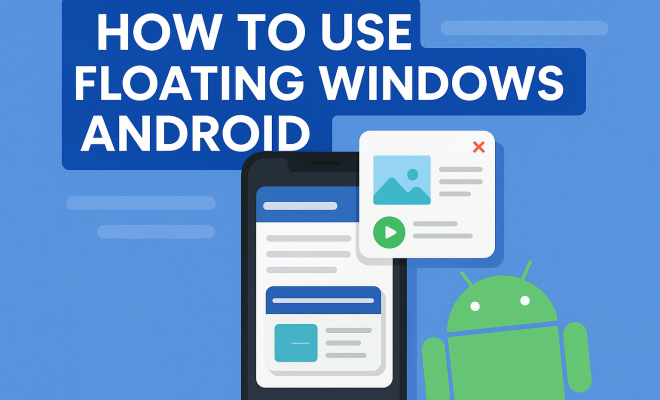
Floating windows, sometimes referred to as picture-in-picture (PiP) mode, provide a way to have one application displayed on top of another. This feature has been around since Android 8.0 (Oreo) and has become increasingly popular as more users look for ways to maximize their device’s capabilities. When you open an app in a floating window, it minimizes into a small, adjustable window that can be repositioned anywhere on the screen. This allows users to engage with different applications without having to switch back and forth continuously.
The functionality of floating windows can vary by device and Android version, but it generally enables users to multitask easily. For example, you can watch a YouTube video while browsing the web or chatting with friends—all without losing your place in any of the apps. This capability is beneficial for users who rely heavily on their phones for both work and entertainment.
2. How to Activate Floating Windows on Android
Activating floating windows on your Android device is usually straightforward. Here’s a step-by-step guide to help you enable this feature:
- Check Your Android Version: Ensure your device is running Android 8.0 or later. To verify your Android version, go to Settings > About Phone > Software Information.
- Enable Developer Options: Go to Settings > About Phone, then tap on Build Number seven times until you see a message saying you are now a developer.
- Access Developer Options: Go back to Settings > System > Developer Options.
- Enable Picture-in-Picture: Scroll down to find the Picture-in-Picture option and toggle it on.
Once you’ve activated floating windows, you can start using them with apps that support this functionality, such as YouTube, Google Maps, and various messaging apps.
3. Using Picture-in-Picture Mode
Picture-in-Picture (PiP) mode is one of the most common ways to utilize floating windows on Android. To use PiP mode, start by launching a compatible app, such as YouTube. Select the video you want to watch and press the home button. The video will shrink down into a small floating window that you can move around your screen.
In PiP mode, you can resize the window by dragging its corners, and you can also close it by tapping the ‘X’ or swiping it off the screen. Most apps will allow you to continue audio playback while you work with other applications, making this a powerful feature for video content consumption.
4. Floating Windows for Multitasking
One of the biggest advantages of floating windows on Android is their ability to facilitate multitasking. Imagine you’re on a video call with a colleague but need to reference a document. Instead of ending the call to open your document app, you can simply open it in a floating window. This way, you can maintain the video call while also engaging with your documents.
Many messaging and video conferencing apps have integrated this feature, allowing seamless interaction. For instance, apps like WhatsApp and Zoom support floating windows, enabling users to respond to messages without losing sight of their ongoing calls. This integration can significantly enhance productivity, especially for professionals who juggle multiple responsibilities.
5. Customizing Floating Windows
Customizing your floating windows can optimize your workspace to fit your preferences. Most Android devices allow you to adjust the window size, positioning, and transparency. For instance, you can resize the floating window by dragging its edges to make it larger or smaller. Positioning is also flexible; you can move it to any corner of your screen, making sure it doesn’t obstruct any critical content that you need to see. (See: Android operating system overview.)
Some devices also allow you to change the transparency of floating windows, which can be useful if you want to keep an eye on a video while focusing on another task. To access customization settings, simply tap the floating window and look for the options that appear. This level of personalization lets you create a workspace that is comfortable and efficient, tailored to your specific needs.
6. Popular Apps that Support Floating Windows
Not all applications support floating windows, but many popular ones do. Here’s a quick rundown of some of the most commonly used apps that integrate this feature:
- YouTube: Watch videos while browsing or using other apps.
- Google Maps: Get navigation while checking emails or texts.
- WhatsApp: Chat with friends while using other apps.
- Zoom: Participate in meetings while accessing other documents.
- Facebook Messenger: Keep conversations going while scrolling through your feed.
These applications represent just a fraction of the available options. Many other productivity and social apps support floating windows, making it easier than ever to multitask effectively.
7. Troubleshooting Floating Window Issues
While using floating windows on Android can be a breeze, you may occasionally run into issues. Here are some common problems and their solutions:
- Floating Window Won’t Open: If the floating window feature isn’t working as expected, ensure that the app you’re trying to use supports this functionality. Some apps may not be compatible.
- Floating Window Closes Unexpectedly: This can happen if your device is low on memory. Try closing other apps running in the background to free up resources.
- Can’t Resize the Floating Window: Some apps may lock the floating window size. If you can’t resize it, check the app’s settings.
If you continue to experience issues, a restart of your device can sometimes resolve minor glitches. If problems persist, consider checking for app updates or system updates through your device settings.
8. The Future of Floating Windows on Android
As Android continues to evolve, the functionality surrounding floating windows is expected to improve further. Developers are likely to enhance compatibility with more apps, allowing greater flexibility in multitasking. Additionally, advancements in Android’s user interface could lead to more intuitive ways of managing these windows.
Emerging trends such as foldable phones could also impact how floating windows are utilized. With larger screens and the ability to run multiple apps side-by-side, the concept of floating windows may expand beyond mobile devices into hybrid usability, allowing for even more innovative applications in work and play.
9. Best Practices for Using Floating Windows
To fully harness the power of floating windows on your Android device, consider these best practices:
- Prioritize Key Apps: Identify the apps you use most frequently for multitasking and make sure they’re compatible with floating windows.
- Organize Your Workspace: Position floating windows thoughtfully to minimize clutter and maximize productivity.
- Experiment with Transparency: Adjust the transparency to balance visibility with a clear view of other content on your screen.
- Keep Your Device Updated: Regular updates can enhance performance and expand compatibility with more apps.
By implementing these strategies, you can ensure that you’re getting the most out of your Android device’s floating window capabilities.
10. Advanced Features of Floating Windows
As you become more familiar with floating windows, you might want to explore some of the advanced features that enhance their functionality. For instance, some Android devices allow you to use multiple floating windows simultaneously. This can be particularly useful if you find yourself juggling several tasks. Imagine watching a video, responding to messages, and checking navigation all at the same time. This feature is available on select models, so check if your device supports it.
Another advanced feature includes the ability to add shortcuts to your favorite apps directly to the floating window. This means you can quickly launch another app without having to exit your current task. This capability can save time and make multitasking even more fluid. (See: Research on multitasking in mobile devices.)
11. Statistics on Multitasking with Floating Windows
Research indicates that multitasking can significantly improve efficiency in many instances. A study by the American Psychological Association found that multitasking can increase productivity by as much as 40% in some contexts. Users of floating windows on Android often report better task management, with many saying they can complete work faster because they can shift between tasks without losing focus. In surveys, 72% of users stated that they felt more productive while utilizing floating windows, particularly when handling tasks like video conferencing and document editing simultaneously.
12. Expert Perspectives on Multitasking with Floating Windows
Experts in productivity tools emphasize the value of multitasking features like floating windows. According to Dr. Linda Stone, a former Microsoft researcher, “The ability to manage multiple tasks without losing your place is essential in today’s fast-paced environment. Floating windows facilitate this by allowing users to keep critical information visible while working on other tasks.” This perspective highlights the importance of maintaining a smooth workflow, especially for professionals working remotely.
13. Comparing Floating Windows with Split Screen Mode
While both floating windows and split-screen modes allow multitasking, they come with different advantages. Split-screen mode divides the screen into two halves, where you can run two apps side by side. This is useful for tasks that require close interaction between two apps, such as transferring information from a web browser to a document. However, split-screen mode can consume more screen real estate and may not be as flexible as floating windows, which can be moved around and resized according to your needs.
For example, imagine you’re taking notes while watching a tutorial video. In split-screen mode, your screen space is limited, and you might miss out on details from the video. In contrast, a floating window allows you to resize it to focus on the video’s content while keeping your notes visible. Understanding the strengths of each mode can help you choose the best setup for your specific tasks.
14. Frequently Asked Questions (FAQ)
What types of apps typically support floating windows?
Apps that support video playback, messaging, and navigation commonly provide floating window functionality. Examples include YouTube, WhatsApp, Google Maps, and Zoom.
Can I use floating windows on any Android device?
Floating window support generally requires Android 8.0 or later. However, not all devices may have this feature enabled, so it’s good to check your specific device’s capabilities.
Are there specific settings I need to adjust to use floating windows?
Yes, you may need to enable Picture-in-Picture mode in your device’s Developer Options. Additionally, some apps may have their own settings to allow or disable floating windows.
Is there a limit to how many floating windows I can open at once?
This largely depends on your device’s capabilities. Some devices may support multiple floating windows simultaneously, while others might have limitations due to screen size or system resources.
Can I interact with floating windows while using other apps?
Absolutely! One of the greatest benefits of floating windows is that you can engage with the content in the floating window while simultaneously using other applications.
How do I close a floating window?
Most floating windows can be closed by tapping the ‘X’ icon in the corner, or by swiping it off the screen. Depending on the app, there might be additional methods available to close or minimize the window.
What should I do if floating windows aren’t working properly?
If you’re experiencing issues, ensure that the app supports floating windows, and check your device settings. Restarting your device or updating the app may also help.
15. Enhanced Accessibility with Floating Windows
Floating windows provide significant accessibility benefits for users with various needs. For instance, users with visual impairments can benefit from larger text or audio descriptions while using a floating window for navigation or video content. Many apps are integrating accessibility features that allow for gesture controls and voice commands, making it easier for anyone to navigate their floating windows. This inclusion broadens the usability of mobile devices, showcasing how technology can adapt to meet diverse user requirements.
16. Floating Windows in Gaming
Gaming has also begun to embrace floating windows. Many mobile games now allow players to have a floating chat window while playing, enabling them to communicate with teammates without interrupting gameplay. Some games even provide the option to display video feeds from streaming platforms, allowing gamers to broadcast their gameplay while still viewing their chats or alerts. This integration not only enhances the gaming experience but also fosters community engagement among players.
17. Security Considerations for Floating Windows
While floating windows enhance productivity, they also raise some security concerns. Users should be cautious when having sensitive information visible in floating windows, as they can be seen by others nearby. To mitigate risks, consider positioning your floating windows in a less visible area of the screen and be mindful of your surroundings. Additionally, check app permissions and ensure that only trusted apps can access sensitive data while using floating windows.
18. Future Trends in Floating Window Technology
The future of floating windows on Android is promising, with advancements in machine learning and artificial intelligence paving the way for smarter multitasking features. Upcoming updates may see floating windows that adapt to user habits, suggesting which apps to prioritize based on usage patterns. Imagine a scenario where the device predicts you might want to check your calendar while on a video call and automatically opens it in a floating window. Such proactive features could redefine how users interact with their devices, making multitasking even more intuitive.
19. User Experiences and Testimonials
Many users have shared their positive experiences with floating windows on Android. For example, one user recounted how floating windows changed their work-from-home routine by allowing them to participate in virtual meetings while referencing project documents. Another user highlighted the convenience of watching tutorials in a floating window as they followed along with hands-on projects. These testimonials reflect how floating windows not only enhance productivity but also enrich the overall user experience, leading to improved satisfaction with their devices.
20. Conclusion
Floating windows on Android devices represent a powerful tool for enhancing productivity and improving multitasking capabilities. As more applications adopt this feature, users will have even greater flexibility to manage their tasks efficiently. By understanding how to activate, customize, and troubleshoot floating windows, you can make the most of this innovative functionality. Whether you’re a professional juggling meetings and emails or just someone who enjoys watching videos while chatting with friends, floating windows can transform your Android experience.
“`
Trending Now
Frequently Asked Questions
What are floating windows on Android?
Floating windows on Android, also known as picture-in-picture (PiP) mode, allow users to view one app over another. This feature enables multitasking by letting you interact with multiple applications simultaneously, like watching videos while browsing the web, enhancing productivity on your device.
How do I activate floating windows on my Android device?
To activate floating windows, ensure your device runs Android 8.0 or later. Then, go to Settings, select Developer Options, and enable the necessary settings. This will allow you to use the floating window feature across compatible apps.
Which Android versions support floating windows?
Floating windows were introduced with Android 8.0 (Oreo) and are supported on later versions. Users with devices running this version or newer can utilize the feature, enhancing their multitasking capabilities.
Can all apps use floating windows on Android?
Not all apps support floating windows on Android. The functionality depends on the app's design and compatibility with the feature. Popular apps like YouTube and messaging apps typically support it, allowing for seamless multitasking.
What are the benefits of using floating windows on Android?
The primary benefit of floating windows is improved multitasking. Users can engage with multiple apps simultaneously, such as watching videos while sending messages, which enhances productivity and streamlines daily tasks on their devices.
What’s your take on this? Share your thoughts in the comments below — we read every one.