Check Your Java Version: A Quick & Essential Guide
“`html
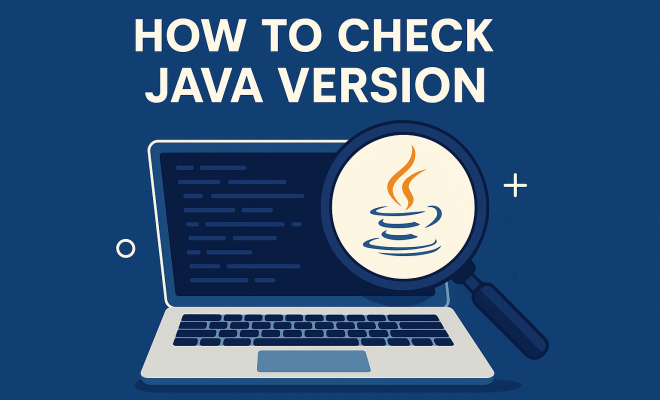
Java is one of the most widely used programming languages in the world, powering everything from mobile applications to large-scale enterprise systems. Whether you’re a developer, IT professional, or just a curious user, knowing how to check Java version on your machine is crucial. With various updates and versions available, understanding your current Java setup can help you troubleshoot issues, optimize applications, and ensure compatibility with other software. This guide will walk you through the process of checking your Java version, providing background details, practical insights, and relevance in today’s tech landscape.
1. Understanding Java Versions
Java has evolved significantly since its inception in 1995. Initially, it was released as Java 1.0, and over the years, numerous updates have been made, leading to major versions like Java 5, Java 8, and beyond. Each version introduces new features, performance improvements, and, importantly, security patches.
As a user or developer, being aware of your installed Java version is critical because many applications depend on specific Java versions to function correctly. For instance, newer versions might support features not available in older ones, while older versions might lack essential security updates. Therefore, regularly checking your Java version is advisable, especially if you’re running applications that rely on it.
2. Why You Need to Check Your Java Version
There are several compelling reasons to check Java version on your machine:
- Compatibility: Some applications only work with specific Java versions. Knowing your version helps prevent compatibility issues.
- Security: Older Java versions can have vulnerabilities. Keeping up with your version ensures you’re protected against known threats.
- Development Standards: If you’re developing Java applications, you’ll want to target the correct version for your users to avoid frustrating run-time errors.
Furthermore, as Java updates frequently, staying informed about your version can help you leverage new language features and enhancements, improving both your development workflow and application performance.
3. Checking Java Version on Windows
If you’re using Windows, checking your Java version is straightforward. Here’s how to do it:
- Open Command Prompt: Click on the Start menu, type “cmd,” and press Enter.
- Type the Java version command: In the command prompt window, type
java -versionand press Enter. - Read the output: You should see a message displaying the version of Java installed, such as “java version \”1.8.0_281\””. It may also include additional details about the Java Runtime Environment.
This method is quick and works for all versions of Windows, making it accessible for both novice and advanced users alike.
4. Checking Java Version on macOS
For macOS users, the process is equally simple. Here are the steps:
- Open Terminal: You can find Terminal in your Applications folder under Utilities, or just search for it via Spotlight.
- Use the Java version command: Type
java -versionand hit Enter. - Review the displayed version: Similar to Windows, the output will show your installed Java version and additional details.
Checking your Java version on macOS is an efficient task, and it echoes the same command used in Windows, making it convenient for users familiar with both systems. (See: Java programming language overview.)
5. Checking Java Version on Linux
If you’re on a Linux system, checking your Java version involves a terminal command as well. The steps are as follows:
- Open the Terminal: Depending on your Linux distribution, you can usually find it in your applications menu or use a keyboard shortcut like Ctrl+Alt+T.
- Input the version command: Enter
java -versionin the terminal and press Enter. - Interpret the results: The terminal will display the version of Java, similar to the other operating systems.
This method is the same across various Linux distributions, making it a universal approach for users of this open-source operating system.
6. Other Java Version Checking Methods
Besides using the command line, there are other ways to check Java version. For instance, if you have a graphical user interface (GUI) installed, you can often find your Java version through the control panel or system preferences. Here are a couple of methods:
- Java Control Panel: On Windows, go to Control Panel > Java (you may need to look under “Programs”). The Java Control Panel will show your version details.
- IDE Integration: If you’re using an Integrated Development Environment (IDE) like Eclipse or IntelliJ IDEA, they often display the Java version in the project settings or the console.
These alternative methods may be easier for users unfamiliar with command-line interfaces or those who prefer a visual approach.
7. Common Issues When Checking Java Version
While checking your Java version is usually straightforward, users can encounter common issues. Here are a few scenarios:
- Command Not Found: If you receive a message stating that “java” is not recognized, it may mean that Java is not installed or not properly configured in your system’s PATH variable.
- Multiple Versions: Some users might have multiple Java versions installed. If you’re running into compatibility issues, consider checking which version is being used by default by running
javac -version. - Outdated Version: If security or compatibility issues arise, you may need to update your Java installation. Always ensure that you’re running a supported version.
Addressing these issues often involves reconfiguring your environment variables or updating your Java installation, both of which are important skills for developers to master.
8. Keeping Your Java Updated
Once you’ve confirmed your Java version, the next step is ensuring that it’s up to date. Java updates frequently include critical security patches and performance enhancements. Here are some tips on keeping your Java installation current:
- Automatic Updates: Enabling automatic updates during installation can help ensure you receive the latest security updates without needing to check manually.
- Regular Manual Checks: Set a reminder to periodically check for updates, especially if you work on applications that depend on the latest features.
- Stay Informed: Follow Oracle’s announcements and other Java-related news. Knowing when new versions are released can help you prepare for updates.
By keeping your Java environment updated, you’ll enhance both security and functionality, ensuring your applications run smoothly.
9. Java Version Compatibility Across Different Platforms
Understanding how different Java versions interact with various platforms is essential, especially for developers. Certain Java features and libraries are not available in older versions, which can lead to compatibility issues if you’re building cross-platform applications.
For instance, Java 8 introduced significant features like lambda expressions and the Stream API, which made it much easier to process collections of data. If a project was built using Java 8 features, it would not run on earlier versions without some adjustments. This highlights the importance of ensuring that all team members are on the same version and that any deployed applications are tested thoroughly against the Java version they will run on.
10. Understanding the Java Versioning System
Java uses a versioning system that may seem complicated at first glance. Each release has a version number that typically consists of three parts: major, minor, and update. For example, in the version number “1.8.0_281”: (See: Importance of Java in technology.)
- 1: The major version, indicating a significant release.
- 8: The minor version, which includes new features and improvements.
- 0: Represents that this is the first build of this minor version.
- 281: The update number, indicating the number of updates that have been released for that version.
Understanding this system helps you interpret what changes have been made and whether you need to update your environment accordingly.
11. Popular Java Versions and Their Features
Here’s a brief overview of some of the most popular Java versions and the key features they introduced:
- Java 8: Introduced lambda expressions, the Stream API, and the java.time package for modern date and time handling.
- Java 11: A long-term support (LTS) version that removed several outdated features and introduced the HttpClient API for making HTTP requests easier.
- Java 17: Another LTS release that brought features such as pattern matching for switch expressions and increased performance and security enhancements.
Depending on what you’re developing, being aware of these features can help you leverage Java’s full capabilities and remain competitive in the field.
12. Common Java Development Tools and Their Version Management
For developers, managing Java versions becomes essential, especially when using various development tools. IDEs such as IntelliJ IDEA and Eclipse offer features that allow you to manage different Java versions easily. For instance, you can configure project SDKs to use specific Java versions. This flexibility ensures that your projects run on the intended Java version, reducing the risk of encountering issues related to version incompatibility.
Additionally, tools like Maven and Gradle can manage dependencies and specify Java versions within the project configuration files. Using Maven, for instance, you can define the Java version in your pom.xml file. This ensures that anyone working on the project uses the correct Java version, streamlining collaboration among team members.
13. Java Version FAQ
Here are some frequently asked questions regarding checking Java versions:
Q1: What should I do if I find multiple Java versions installed?
A1: If you have multiple Java versions, you may need to set your JAVA_HOME environment variable to point to the version you want to use. Additionally, you can manage versions using tools like SDKMAN! or jEnv on UNIX-like systems.
Q2: How do I uninstall an old Java version?
A2: On Windows, you can uninstall Java through the Control Panel. On macOS, you can remove it by deleting the relevant files from the /Library/Java/JavaVirtualMachines/ directory. For Linux, use the package manager specific to your distribution.
Q3: Is it safe to remove older versions of Java?
A3: Yes, it is typically safe to remove older versions of Java, especially if they are no longer required by any applications. However, ensure that you have a backup and verify which applications depend on those versions before uninstalling.
Q4: How often should I check for Java updates?
A4: It’s a good practice to check for updates at least once a month, or more frequently for critical applications that rely on Java for functionality. Enabling automatic updates can also help ensure that you’re always running the latest version.
Q5: What are the risks of running an outdated Java version?
A5: Running an outdated version can expose your system to security vulnerabilities and bugs that have been addressed in newer versions. This can lead to exploits, data loss, or application failures.
14. Advanced Techniques for Managing Java Versions
For those working in diverse environments or on multiple projects, advanced version management techniques can be invaluable. Here are some methods and tools that can help:
- Using Docker: Containerization is a powerful approach for managing dependencies. By using Docker, you can create containers that run specific Java versions along with your applications. This ensures a consistent environment across different systems.
- Version Managers: Tools like SDKMAN! and jEnv allow you to easily switch between different Java versions on the fly. This is especially useful for developers who need to test their code on various versions of Java.
- Custom Scripts: Writing custom shell scripts to automate the installation and switching of Java versions can save time and reduce errors. For instance, you can create scripts that check for the latest version and update accordingly.
15. Java Versioning in the Cloud
As cloud services continue to grow, understanding how to manage Java versions in cloud environments becomes essential. Many cloud providers offer built-in support for various Java versions:
- Cloud Platforms: Platforms like AWS, Google Cloud, and Azure provide Java runtimes that you can use directly in their services, such as Elastic Beanstalk or Google App Engine. Be sure to choose the correct version that matches your application’s needs.
- Continuous Integration/Continuous Deployment (CI/CD): In CI/CD pipelines, specifying the Java version in your build configuration files (like Jenkins or GitHub Actions) ensures that your application is built and tested in the same environment it will run in.
- Performance Monitoring: Using cloud-based monitoring tools can help you identify if a Java version is causing performance bottlenecks, allowing for quicker troubleshooting and fixes.
16. Conclusion: The Importance of Knowing Your Java Version
In conclusion, knowing how to check Java version is an essential skill for anyone interacting with Java applications. Whether you’re maintaining an existing application, developing new software, or simply curious about your system, regularly checking your Java version can save you from a myriad of compatibility and security headaches.
As technology continues to evolve, and as Java plays an integral role in many sectors, staying informed about your Java version will help you make better decisions, both in development and in personal use. So, take a few moments to check your Java version today — it might be more important than you realize.
“`
Trending Now
- this guide on 7 proven strategies to boost your brand visibility in chatgpt for 2026
- the complete explanation
- this guide on why official development assistance is more crucial than ever for global stability
- Why Iran Oil Prices Aren’t Spiking: The Market’s Surprising Reaction Explained
- read the full story
Frequently Asked Questions
How can I check my Java version?
To check your Java version, open a command prompt or terminal and type 'java -version'. This command will display the installed Java version on your machine, including the version number and additional details about the build.
Why is it important to know your Java version?
Knowing your Java version is crucial for compatibility with applications, ensuring security against vulnerabilities, and adhering to development standards. Different applications may require specific Java versions to function correctly, making this information essential for users and developers alike.
What are the different versions of Java?
Java has evolved through numerous versions since its inception in 1995. Major versions include Java 1.0, Java 5, Java 8, and more, each introducing new features, performance enhancements, and crucial security updates that impact application functionality.
How do I update my Java version?
To update your Java version, visit the official Java website and download the latest version compatible with your operating system. Once downloaded, follow the installation instructions to replace the old version with the new one, ensuring you check compatibility with your applications.
What should I do if my Java version is outdated?
If your Java version is outdated, it's recommended to update it to the latest version to avoid security vulnerabilities and ensure compatibility with newer applications. Check the official Java website for the latest updates and follow the installation guidelines provided.
What did we miss? Let us know in the comments and join the conversation.