How to open Task Manager on Windows
“`html
If you’ve ever found yourself facing a sluggish computer or unresponsive applications, you’ve likely turned to the Task Manager for a lifeline. The Task Manager in Windows is not just a tool for closing programs; it’s a powerful resource for monitoring system performance, managing startup programs, and understanding resource allocation. In this article, we’ll explore nine essential ways to open Task Manager on Windows, along with tips on how to utilize it effectively for optimal performance.
1. Using the Keyboard Shortcut: Ctrl + Shift + Esc
One of the quickest methods to open Task Manager Windows is by using the keyboard shortcut Ctrl + Shift + Esc. This combination bypasses the need to navigate through menus and opens Task Manager instantly. For users who prefer a seamless experience, memorizing this shortcut can save a lot of time during troubleshooting.
To use it, simply press and hold the Ctrl and Shift keys, then tap the Esc key. This opens the Task Manager directly, allowing you to immediately assess running applications and processes. It’s especially useful during moments when your computer seems to freeze up, and you need quick access to terminate an application.
2. Accessing via Ctrl + Alt + Delete
Another popular method is the classic Ctrl + Alt + Delete combination. This trio of keys has become synonymous with emergency control in Windows. When you press these keys together, you’ll see a blue screen with several options, including the ability to open Task Manager. By clicking on the ‘Task Manager’ option, you’re directed to the familiar interface.
This method not only opens Task Manager but also gives you the choice to lock your PC, switch users, or log out—making it a versatile option for quick system management. It’s especially handy when dealing with unresponsive applications, as it allows you to choose your next course of action from a broader menu.
3. Through the Start Menu
If you prefer a more visual method, you can easily open Task Manager Windows through the Start menu. Simply click on the Start button (or press the Windows key), then scroll through the list of applications. You can type ‘Task Manager’ in the search bar, and it will appear as one of the top results. Click on it to open.
This approach is particularly useful for those who might not be comfortable with keyboard shortcuts. The Start menu method caters to users of all experience levels, making it a reliable option for anyone needing to manage system resources.
4. Using the Run Command
The Run dialog is another easy way to open Task Manager Windows. To access it, press Windows + R on your keyboard to bring up the Run dialog. Then, simply type ‘taskmgr’ and hit Enter. This command will launch the Task Manager immediately.
This method is fast and efficient, especially for advanced users who enjoy executing commands directly. It’s a great way to open Task Manager without having to navigate through menus or remember keyboard shortcuts, putting you in control with just a few keystrokes.
5. Creating a Desktop Shortcut
If you find yourself frequently needing to open Task Manager Windows, creating a desktop shortcut can simplify the process. Right-click on your desktop, select ‘New’, then choose ‘Shortcut’. In the location field, enter ‘C:\Windows\System32\Taskmgr.exe’ and click Next. Name your shortcut and finish the process.
This method not only provides direct access but also personalizes your desktop for quick navigation. Having a Task Manager shortcut on your desktop means you can effortlessly manage your applications and processes with just a double-click, ensuring efficient system performance at your fingertips.
6. Via Command Prompt or PowerShell
For users who are more familiar with the command line, you can also open Task Manager Windows through Command Prompt or PowerShell. Just type ‘cmd’ or ‘powershell’ in the Start menu search and open it. Once the terminal is up, type ‘taskmgr’ and press Enter. (See: Task Manager on Windows Wikipedia.)
This method appeals to tech-savvy users who prefer direct access to system commands and processes. It’s a powerful way to launch Task Manager, particularly for those who use scripting or batch files to enhance productivity.
7. Accessing from the Taskbar
If your Taskbar is visible, right-clicking it provides a convenient option to open Task Manager Windows. Simply right-click on an empty space on your Taskbar and select ‘Task Manager’ from the menu. This option is great because you don’t need to leave your current window or application, making it a seamless experience.
This method is especially useful when you are in the middle of work and need to quickly manage applications without disrupting your workflow. It’s a simple right-click away, giving you immediate access to monitor your resources.
8. Through Windows Settings
You can also navigate through Windows Settings to open Task Manager. Go to Settings > System > About, and then scroll down to the ‘Related settings’ section. There, you’ll find an option for ‘Task Manager’. While this method takes a few more steps, it’s worth mentioning for users who prefer navigating through the settings menu.
This approach might be more intuitive for users who like to explore system settings thoroughly. It also allows users to familiarize themselves with various options available in Windows, making it a good learning opportunity while accessing Task Manager.
9. Using the Windows Search Feature
Lastly, the Windows search feature is another straightforward way to open Task Manager Windows. Simply click on the search box located in the taskbar and type ‘Task Manager’. Click on the application from the search results, and it will launch instantly.
This method is excellent for users who are accustomed to using the search function for various tasks. It provides an easy way to locate not only the Task Manager but any application or file on your PC, enhancing accessibility and user-friendly experience.
Understanding Task Manager Features
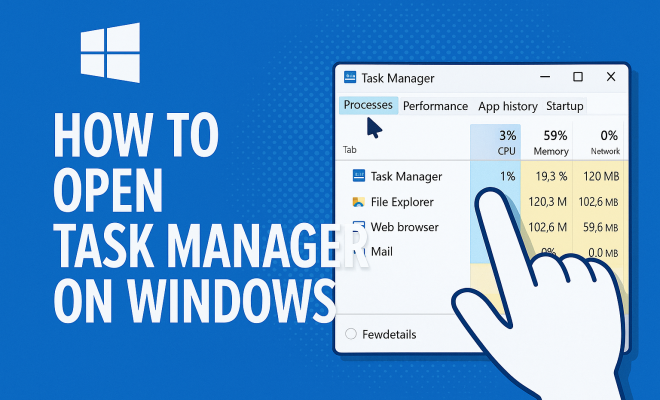
Once you’ve opened Task Manager, you’ll notice that it’s divided into various tabs: Processes, Performance, App history, Startup, Users, Details, and Services. Each of these tabs serves a specific purpose, allowing users to monitor and manage different aspects of the system.
Processes
The Processes tab displays all currently running applications and processes. It shows you the CPU, Memory, Disk, and Network usage for each process, giving you insight into how much of your system’s resources are being utilized. This is especially useful in identifying resource-heavy applications that might be slowing down your PC.
Performance
The Performance tab provides a real-time view of your CPU, Memory, Disk, and Network usage. You can monitor the performance of your hardware in detail, including metrics such as the CPU utilization percentage and memory load. For users interested in system health, this tab gives critical insights into whether your hardware is functioning optimally.
App History
This section is particularly useful for Windows 10 and later versions. It tracks resource usage for Universal Windows Platform (UWP) apps over time. You can view data on CPU time and Network usage, which is helpful for understanding how apps consume resources in the background.
Startup
The Startup tab lists applications that automatically launch when Windows starts. Disabling unnecessary startup programs can significantly improve boot time and overall system performance. If you notice your PC takes a while to start up, reviewing this tab is a good first step to streamline your system.
Users
For systems with multiple user accounts, the Users tab shows which users are currently logged in and the resources they’re using. This can help in managing resource allocation in multi-user environments, ensuring that no single account is hogging system resources.
Details
The Details tab offers a more granular view of running processes, showing you the executable names and their associated resource usage. Advanced users can utilize this tab to manage processes more precisely, whether it’s setting process priorities or ending specific processes that may not be responding.
Services
Finally, the Services tab provides a view of all services running on your system, indicating which are running or stopped. This is useful for troubleshooting or configuring services that may be impacting system performance. You can start or stop services directly from this tab, which gives you more control over your Windows environment.
Common Issues and Troubleshooting with Task Manager
While Task Manager is a powerful tool, users may encounter a few common issues when using it. Here are some troubleshooting tips to help you navigate these situations effectively.
Task Manager Not Opening
If you find that Task Manager is not opening at all, it could be due to various reasons, such as corrupted system files or user account issues. You can try restarting your computer or creating a new user account to see if the problem persists.
High Resource Usage
Sometimes, Task Manager may reveal that your computer is using a high percentage of CPU or memory. This can happen due to background applications or malware. If you see an unfamiliar process consuming resources, consider researching it online to determine its purpose. Ending non-essential processes can free up resources, but be cautious not to terminate critical system processes.
Unresponsive Applications
In cases where an application becomes unresponsive, you can use the Task Manager to forcefully close it. Simply locate the application under the Processes tab, right-click on it, and select ‘End Task’. This action can save you from having to restart your computer in many situations.
Resource Monitoring and System Performance
Regularly monitoring your system’s resources using Task Manager can help you maintain optimal performance. If you notice consistent high resource usage, it may be time to consider system upgrades, such as adding more RAM or replacing a mechanical hard drive with an SSD for faster data access.
FAQ about Task Manager
Q: What is Task Manager used for?
A: Task Manager is used to view and manage applications, processes, and system performance. It allows users to monitor resource usage, end unresponsive tasks, and control startup programs.
Q: Is it safe to end tasks in Task Manager?
A: Yes, but you should be cautious. Ending tasks associated with critical system processes can lead to instability. Always research unfamiliar processes before terminating them.
Q: Can I use Task Manager to uninstall programs?
A: No, Task Manager cannot uninstall programs. However, you can end a program’s task if it’s unresponsive. To uninstall programs, use the “Apps & Features” section in Windows Settings.
Q: What should I do if Task Manager is not responding?
A: If Task Manager freezes or does not respond, try closing it using Alt + F4, then reopen it using one of the methods described above. If the issue persists, consider restarting your computer.
Q: How can I improve my computer’s performance using Task Manager?
A: You can use the Task Manager to identify resource-hogging applications, disable unnecessary startup programs, and monitor system performance. Regularly checking these metrics can help you maintain a smooth-running computer.
Advanced Task Manager Features
Beyond the basic usage of Task Manager, there are several advanced features that can enhance your experience and improve your system’s performance. Understanding these can help you make the most of this powerful tool.
Creating Custom Views
Task Manager allows you to customize which columns are displayed in the Processes tab. By right-clicking the header row, you can select or deselect various columns such as ‘GPU’, ‘IO Write’, and ‘IO Read’, giving you more targeted insights into your system’s performance. Tailoring these views can help you focus on the data that matters most to you, making it easier to detect issues or inefficiencies.
Resource Monitor Integration
Within Task Manager, you have access to Resource Monitor. By navigating to the Performance tab and clicking on ‘Open Resource Monitor’, you can dive deeper into resource usage for CPU, Memory, Disk, and Network. Resource Monitor provides detailed graphs and statistics that can help you pinpoint performance bottlenecks, track down problematic applications, or understand how various processes interact with your system’s hardware.
Monitoring Network Activity
The Network section in the Performance tab reveals valuable data about your internet and network usage. You can track which applications are consuming bandwidth, see your current network speed, and monitor sent and received bytes. This information is particularly useful when troubleshooting slow internet connections or determining if an application is using more data than expected.
Tips for Using Task Manager Effectively
To maximize your productivity and enhance your system’s performance with Task Manager, consider the following tips:
Be Cautious with End Task
While it might be tempting to end processes that appear to be consuming too many resources, make sure you know what you’re terminating. Ending critical processes can result in system instability or crashes. If unsure, do a quick online search to understand what a process does before ending it.
Regular Clean-Up of Startup Items
Check your Startup tab regularly to disable applications that you don’t need to start with Windows. This will shorten your boot time and improve performance. A clean startup ensures that your system runs only the necessary applications, saving resources for when you need them most.
Use Performance Reports for Long-Term Monitoring
If you use your computer for demanding tasks like gaming or video editing, consider running performance reports. You can use the ‘Performance Monitor’ tool alongside Task Manager to check on historical performance trends. This data can help you identify when and why your performance dips, allowing you to address potential issues proactively.
Conclusion
The Task Manager is an invaluable tool for managing your Windows operating system. Whether you’re battling slow performance or just want to keep an eye on resource usage, knowing how to open Task Manager Windows through these various methods can empower you to take control of your computing experience. From keyboard shortcuts to command prompts, these techniques cater to a wide range of user preferences, ensuring everyone can efficiently manage their systems.
“`
Trending Now
Frequently Asked Questions
How do I open Task Manager on Windows?
You can open Task Manager on Windows using several methods. The quickest is the keyboard shortcut Ctrl + Shift + Esc. Alternatively, you can press Ctrl + Alt + Delete and select 'Task Manager' from the menu, or access it through the Start Menu by searching for 'Task Manager'.
What is the shortcut to open Task Manager?
The keyboard shortcut to open Task Manager is Ctrl + Shift + Esc. This combination allows you to bypass menus and access Task Manager directly, making it a convenient option for troubleshooting unresponsive applications.
Can I open Task Manager without a keyboard?
Yes, you can open Task Manager without using a keyboard by navigating through the Start Menu. Simply click on the Start button, type 'Task Manager' in the search bar, and select it from the search results to open the application.
What can I do with Task Manager?
Task Manager is a powerful tool that allows you to monitor system performance, manage running applications, and terminate unresponsive programs. You can also manage startup programs and view resource allocation to optimize your computer's performance.
Why would I need to use Task Manager?
You might need to use Task Manager when your computer is sluggish or when applications become unresponsive. It helps you identify resource-heavy processes, terminate frozen applications, and manage system performance effectively.
Have you experienced this yourself? We’d love to hear your story in the comments.