How to disable startup programs Windows 10
“`html
Are you tired of waiting for your Windows 10 computer to boot up? Do you wish it could start faster and run more efficiently? One of the most effective ways to achieve this is to disable startup programs in Windows 10. By managing which applications launch alongside your operating system, you can significantly enhance performance and speed. In this article, we’ll walk you through everything you need to know about disabling startup programs, including detailed steps, tips, and insights that will help you optimize your system.
1. Understanding Startup Programs
Before we delve into how to disable startup programs in Windows 10, it’s essential to understand what they are. Startup programs are applications that automatically run when your computer boots up. While some of these programs are necessary for the smooth operation of your system, many are not, and they can contribute to longer boot times and sluggish performance.
Common examples of startup programs include antivirus software, cloud storage applications like Dropbox or OneDrive, and various system utilities. While these applications can be helpful, they can also slow down your computer if too many are set to launch at startup. By managing these programs, you can streamline your boot process and improve your overall user experience.
2. Why Disable Startup Programs?
Disabling unnecessary startup programs can lead to several significant benefits. First and foremost, it often results in faster boot times. Your computer loads fewer applications, which means it has more resources available for essential processes. If you’re frequently annoyed by how long it takes for your machine to become usable after powering on, this is a crucial step.
Additionally, disabling startup programs can free up RAM and CPU usage, leading to better overall performance. When too many programs run concurrently, your system may become sluggish, impacting everything from opening applications to browsing the web. By cutting down on these resource hogs, you ensure that your computer runs more smoothly and efficiently.
3. How to Access the Task Manager
The Task Manager is a powerful tool built into Windows 10 that allows you to monitor system performance and manage startup programs. To access the Task Manager, you can follow one of these methods:
- Press Ctrl + Shift + Esc on your keyboard.
- Right-click on the taskbar and select Task Manager.
- Press Ctrl + Alt + Delete and then select Task Manager.
Once you have the Task Manager open, you may notice that it looks different than previous versions. By default, it opens in a simplified view. If you need to see more details, click on the More details button to expand the view.
4. Navigating the Startup Tab in Task Manager
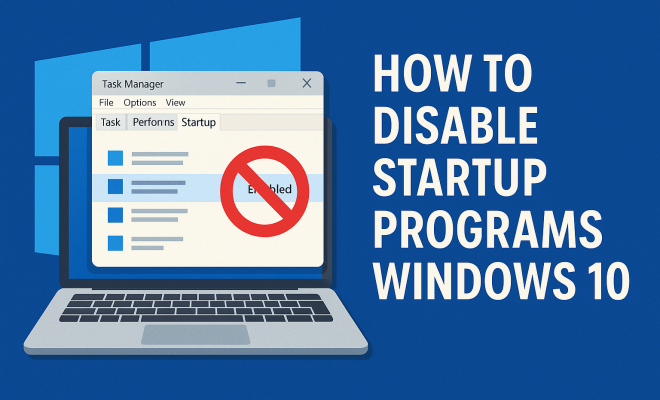
After opening the Task Manager and expanding it, you’ll need to locate the Startup tab. This tab lists all applications that are set to launch when your computer starts. Here, you’ll find the name of each program, its status (enabled or disabled), and its impact on startup performance, which can be low, medium, or high.
Take a moment to review this list. You might be surprised by how many applications are set to run on startup. Understanding which applications are essential versus which can be safely disabled is key. For instance, while your antivirus software is crucial, a program for a printer you rarely use might not be necessary to start with Windows.
5. Disabling Startup Programs
To disable a startup program, simply right-click on the application name in the Task Manager’s Startup tab and select Disable. Alternatively, you can select the program and click the Disable button in the bottom-right corner of the window. This action does not uninstall the program; it merely prevents it from running at startup.
Remember, it’s wise to only disable programs that you recognize and don’t need immediately upon startup. If you’re unsure about a specific program, a quick online search can provide insights into whether it’s necessary for your system. Additionally, if you find yourself needing a program later, you can always re-enable it using the same method.
6. Utilizing Windows Settings to Manage Startup Programs
In addition to the Task Manager, you can also manage startup programs through Windows Settings. To do this, go to Settings > Apps > Startup. Here, you’ll see a list of applications that can start with Windows. This settings page is particularly useful for users who prefer a more visual approach.
Similar to the Task Manager, you can toggle the switch next to each application to enable or disable it. This interface may be more accessible for some users, particularly those who are less familiar with the Task Manager. Plus, it offers a clear view of which applications will run at startup without the technical jargon that might confuse some users.
7. Consider Third-Party Software
If you’re looking for a more robust way to manage startup programs, consider third-party software solutions. Applications like CCleaner and Startup Delayer provide comprehensive tools for managing your startup experience. They often come with additional features such as system cleaning, registry fixing, and performance optimization.
Using third-party software can give you more control over your system. For example, some programs allow you to delay certain applications from launching immediately, which can help you manage resource usage even further. While these tools can be beneficial, ensure you download them from reputable sources to avoid malware.
8. Common Startup Programs to Disable
When assessing which startup programs to disable, it helps to know some common culprits that can be safely turned off without impacting system functionality. Here are a few you might consider:
- Skype: Unless you use Skype frequently, it’s often unnecessary for it to load at startup.
- Adobe Creative Cloud: This can take up significant resources and is typically not needed until you’re ready to use it.
- Java Update Scheduler: This program can be disabled without any significant impact on your overall system.
- Cloud Storage Apps: Applications like Dropbox or Google Drive can be initiated manually when you need them.
- Printer Software: Unless you print regularly, you can disable these to improve boot time.
Of course, the best approach is always to analyze your specific situation. You’ll want to weigh the convenience of having certain applications ready at boot against the potential lag caused by having too many programs loaded simultaneously.
9. After Disabling Startup Programs
Once you’ve made the changes, it’s a good practice to restart your computer to see the effects. Pay attention to the boot time and how quickly your desktop loads after you log in. If you notice a significant improvement, you’ve made the right choices! Remember that you can always return to the Task Manager or Windows Settings to make further adjustments as needed.
It’s also advisable to periodically check your startup programs. New software installations can sometimes add themselves to your startup list without your knowledge. Regularly managing these settings is a proactive way to keep your system running smoothly.
10. The Impact on Overall System Performance
Disabling startup programs can lead to a noticeable improvement in your system’s performance over time. A leaner startup process not only speeds up boot times but also frees up valuable resources for other tasks. This impact can be particularly significant for users with older hardware or systems with limited RAM.
In addition to faster performance, you’ll benefit from a cleaner, less cluttered interface. A system that doesn’t load unnecessary applications is easier to manage and use. You can focus on what truly matters, whether that’s productivity at work, gaming, or simply enjoying media without interruptions.
In conclusion, taking the time to disable startup programs in Windows 10 is a straightforward yet effective strategy for optimizing your computer’s performance. By following the steps outlined in this guide, you can streamline your boot process, improve speed, and enhance your overall user experience. So why wait? Start assessing your startup programs today for a faster tomorrow!
11. How Startup Programs Affect Battery Life
If you use a laptop or a portable device, you might be concerned about battery life as well. Startup programs can significantly drain your battery, especially if they include applications that run in the background and consume resources continuously. By disabling unnecessary startup programs, you not only enhance performance but also extend battery life.
For example, applications like video conferencing tools or cloud storage services tend to run background processes that can drain power. By disabling these applications from starting automatically, you can minimize their impact on battery consumption, allowing your device to last longer between charges.
12. Advanced Techniques for Managing Startup Programs
If you’re looking to take your optimization efforts even further, there are advanced techniques you might consider. One such technique involves using the Windows Registry to manage startup programs. However, this method should be approached with caution as incorrect changes can impact system stability.
To access the Windows Registry, type regedit in the Start menu search and hit Enter. Navigate to HKEY_CURRENT_USER\Software\Microsoft\Windows\CurrentVersion\Run and HKEY_LOCAL_MACHINE\SOFTWARE\Microsoft\Windows\CurrentVersion\Run. These locations contain entries for programs that start when your computer boots up.
Always back up the registry before making changes. To do this, go to File > Export and save a copy. If things go wrong, you can restore this backup. While this approach allows for fine-tuning of startup programs, it’s usually best suited for advanced users comfortable with navigating the Windows Registry.
13. Comparative Analysis: Windows 10 vs. Other Operating Systems
When it comes to managing startup programs, Windows 10 offers tools that might differ from those found in other operating systems. For instance, macOS provides a straightforward way to manage startup items through System Preferences under Users & Groups, where you can easily see and manage applications that launch upon login.
In Linux distributions, startup applications can be managed through various interfaces depending on the desktop environment. For example, Ubuntu users can access the Startup Applications tool, which provides a simple interface to add or remove startup entries. Each operating system has its strengths and weaknesses in this regard, but Windows 10 remains user-friendly and robust for most users.
14. Common Myths About Startup Programs
As you navigate the process of managing startup programs, you might encounter a few common myths. One prevalent myth is that disabling startup programs will uninstall them. This couldn’t be further from the truth—disabling a program merely prevents it from launching at startup without affecting its installed status. It’s also a myth that all startup programs are vital; many applications include startup entries that are not necessary for basic functionality.
15. FAQs about Disabling Startup Programs in Windows 10
Q: How do I know which startup programs are safe to disable?
A: Generally, programs that you don’t use frequently or that are not essential for your daily tasks can be disabled. Common example categories include cloud storage services, instant messaging apps, and update checkers.
Q: Will disabling startup programs speed up my computer?
A: Yes, disabling unnecessary startup programs can lead to faster boot times and improved system performance as it frees up RAM and CPU resources.
Q: Can I re-enable a program after disabling it?
A: Absolutely! You can easily re-enable any startup program by following the same steps you used to disable it in the Task Manager or Windows Settings.
Q: Is there a risk in disabling startup programs?
A: The primary risk is inadvertently disabling a necessary program. If you find that something isn’t functioning correctly after disabling a program, you can re-enable it easily.
Q: How often should I check my startup programs?
A: It’s a good idea to review your startup programs periodically, especially after installing new software, as many applications add themselves to the startup list automatically.
Q: Are there any tools that can help manage startup programs?
A: Yes, there are several third-party applications like CCleaner and Autoruns that can help you manage startup entries more effectively, providing additional features and insights.
16. Advanced Troubleshooting for Startup Issues
If you’ve disabled startup programs but still experience slow boot times or performance issues, it may be time to consider other troubleshooting steps. These might involve checking your hard drive for errors, running a malware scan, or updating your system drivers. Each of these factors can affect overall performance significantly.
For instance, a failing hard drive can cause significant delays. You can check your hard drive’s health by using built-in Windows tools like CHKDSK. Run this by opening a Command Prompt with administrative privileges and typing chkdsk /f. This command checks for file system errors and attempts to fix them, which can help improve boot speed when performed regularly.
Additionally, ensuring your system drivers are up to date is crucial. Outdated drivers can lead to compatibility issues, causing programs to hang or crash during startup. You can check for driver updates through Device Manager, or you might consider using a driver updater tool to simplify the process.
17. Real-World Examples: Impact of Disabling Startup Programs
Many users have reported significant improvements in their system’s performance after disabling unnecessary startup programs. For instance, a user transitioning from a standard HDD to an SSD noticed a 50% reduction in boot time after disabling various startup applications. Another user shared that their gaming performance improved drastically, eliminating lag and providing a smoother experience.
Statistics also support these observations. A study conducted by TechRadar showed that the average user could cut their boot time by up to 30% by effectively managing startup programs. This can be especially beneficial for users who rely on their computers for demanding tasks such as gaming, graphic design, or video editing.
18. Community Insights: User Experiences
Exploring community forums and discussions can provide useful insights into which startup programs users found most beneficial to disable. Websites like Reddit and tech forums often contain threads where users share their experiences, helping others make informed decisions. For example, many gamers have identified several common gaming-related programs that can be safely disabled to improve performance noticeably.
Moreover, some users even recommend creating a checklist of programs to disable based on their experiences. This crowdsourced knowledge can save you time and help you avoid common pitfalls. If you’re part of a community, sharing your findings can also be beneficial for others looking to optimize their systems.
19. Final Thoughts
Optimizing your Windows 10 experience by managing startup programs is not only simple but also highly effective. By understanding how startup processes work, you can make informed decisions on which applications to disable, leading to a faster, more efficient system. Whether you opt for built-in tools or third-party software, taking control of your startup programs is a proactive step towards enhancing your computing experience. So take a moment to assess your setup, disable those unnecessary programs, and enjoy a smoother startup every time.
“`
Trending Now
Frequently Asked Questions
How do I disable startup programs in Windows 10?
To disable startup programs in Windows 10, right-click the taskbar and select 'Task Manager.' Go to the 'Startup' tab, where you'll see a list of programs that start with Windows. Right-click on any program you want to disable and select 'Disable.' This will prevent the program from launching at startup, helping to speed up your boot time.
What are startup programs in Windows 10?
Startup programs in Windows 10 are applications that automatically run when the computer boots up. While some are essential for system operations, many are not necessary and can slow down your startup process and overall performance. Common examples include antivirus software and cloud storage applications.
Why should I disable unnecessary startup programs?
Disabling unnecessary startup programs can significantly improve your computer's boot time and overall performance. By reducing the number of applications that load on startup, you free up RAM and CPU resources, resulting in a faster and more efficient system.
Can disabling startup programs speed up my computer?
Yes, disabling startup programs can speed up your computer. Fewer programs running at startup mean quicker boot times and reduced resource consumption, which enhances performance for other tasks like application launching and web browsing.
How can I identify which startup programs to disable?
To identify which startup programs to disable, open Task Manager by right-clicking the taskbar and selecting 'Task Manager.' Navigate to the 'Startup' tab, where you'll see a list of programs along with their impact on startup performance. Focus on disabling those with a 'High' impact that you don't need immediately upon booting.
What did we miss? Let us know in the comments and join the conversation.