Create a Local Network: Essential Steps for Home & Business
“`html
In today’s interconnected world, the ability to create a local network is more crucial than ever. Whether you’re setting up a home office, connecting devices in your smart home, or configuring a small business network, understanding the fundamentals of local networks can greatly enhance your productivity and security. This guide will take you through the essential steps to create a local network that meets your needs.
1. Understanding Local Networks
Before diving into the technicalities, it’s important to grasp what a local network is. A local area network (LAN) connects computers and devices within a limited geographical area, such as a home, school, or office. Unlike wide area networks (WANs), which span large distances and often involve internet connectivity, LANs focus on local connectivity. This allows for fast data transfer, resource sharing, and improved communication among connected devices.
The advantages of establishing a local network are manifold. You can share files seamlessly, access shared printers, and enjoy faster internet speeds without the latency typically associated with internet-based services. Now that we have a solid foundation, let’s explore how to create a local network step by step.
2. Gathering the Necessary Equipment
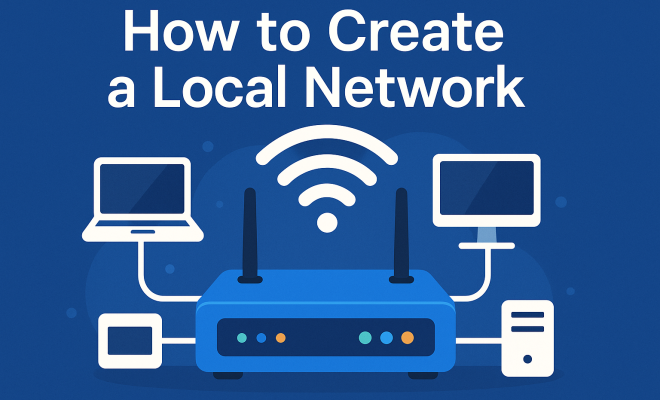
To create a local network, you’ll need some essential equipment. At a minimum, you will require:
- Router: This is the heart of your network, directing traffic between devices and managing connections to the internet.
- Switch: For larger networks, a switch helps expand the number of available ports, allowing more devices to connect.
- Cables: Ethernet cables are crucial for wired connections, offering faster speeds and lower latency.
- Network Interface Cards (NICs): Most modern devices come with built-in NICs, but for older hardware, you may need to install one.
Choosing quality equipment is essential. Look for routers that support the latest Wi-Fi standards (such as Wi-Fi 6) to ensure optimal performance. Once you have your equipment ready, you can move on to the next step.
3. Connecting Your Devices
With your equipment in hand, the next step is to connect your devices. Start by placing your router in a central location within your network area to maximize coverage. Connect the router to the internet using your ISP’s modem. Then, connect your computers, printers, and other devices using Ethernet cables or Wi-Fi.
If you’re using a switch, connect it to the router with an Ethernet cable, and then connect additional devices to the switch. It’s crucial to ensure that all physical connections are snug and secure to prevent any connectivity issues later on. Once everything is connected, you’re ready to configure your network settings.
4. Configuring Your Router
Now that your devices are physically connected, it’s time to configure your router. Access your router’s interface by entering its IP address into a web browser. This is usually printed on a label on the router itself. Log in using the default credentials (which you should change immediately for security purposes).
Within the router settings, configure your network name (SSID) and password. It’s crucial to choose a strong password to prevent unauthorized access. Additionally, consider enabling WPA3 encryption for enhanced security. You can also set up guest networks for visitors without compromising your primary network’s security.
5. Setting Up Network Sharing
To maximize the benefits of your local network, you’ll want to set up network sharing. This allows devices to access shared resources, such as files and printers. On a Windows computer, you can enable file sharing by going to the Network and Sharing Center and selecting ‘Change advanced sharing settings’.
For macOS users, enabling file sharing is done through System Preferences under the Sharing section. Be selective about what you share and with whom to maintain privacy and security. Setting permissions correctly ensures that only authorized users can access sensitive files.
6. Implementing Security Measures
Security is paramount when creating a local network. Start by keeping your router firmware updated, as manufacturers regularly release updates to patch vulnerabilities. Enable a strong firewall on your router, and consider using network monitoring tools to keep an eye on connected devices. (See: Local area network overview.)
Additionally, implement a virtual private network (VPN) for secure remote access to your local network. This adds an extra layer of protection, especially if you’re accessing your network remotely. Educating all users about safe online practices, such as recognizing phishing attempts, is equally important for maintaining network security.
7. Optimizing Network Performance
Once your network is set up and secured, consider optimizing its performance. Start by checking the placement of your router and devices. Avoid physical obstructions, which can interfere with signals. For Wi-Fi networks, consider using a Wi-Fi extender or mesh network system if you experience dead zones.
Regularly test your network speed to identify potential bottlenecks. You can use tools like Speedtest.net to check your connection speed. If certain devices are hogging bandwidth, consider setting Quality of Service (QoS) settings on your router to prioritize critical applications.
8. Managing Network Devices
As your local network grows, managing connected devices becomes essential. Most routers offer a web interface that displays all connected devices, their IP addresses, and their connection status. By regularly reviewing this list, you can identify unfamiliar devices and take action if necessary.
Consider using device labels to keep track of which devices are connected. For businesses, implementing a network management system can streamline this process, allowing for easier tracking and maintenance of devices across the network.
9. Preparing for Future Needs
Your network should be adaptable to future needs, whether that means adding new devices or upgrading existing ones. As technology evolves, be prepared to invest in newer equipment that supports higher speeds and improved security features.
Establish a routine for reviewing your network setup and performance. This will allow you to make adjustments as your needs change, ensuring that your local network remains efficient and effective over time. Regular audits can help identify areas for improvement and necessary upgrades.
10. Regular Maintenance and Troubleshooting
Finally, maintaining your local network is vital for its longevity. Routinely check your router’s firmware, inspect cables for wear and tear, and review security settings. If you encounter issues, troubleshoot methodically by checking connections, resetting devices, and consulting your router’s documentation for guidance.
Don’t hesitate to seek online communities for support; forums and tech support websites can offer valuable insights. By staying proactive about maintenance and troubleshooting, you can ensure that your local network runs smoothly for years to come.
11. Common Local Network Configurations
Understanding various types of local network configurations can help you select the right setup for your environment, whether it’s a home, office, or enterprise scenario. Below are some popular configurations:
- Star Topology: This is the most common layout, where all devices are connected to a central hub or switch. It’s easy to manage and troubleshoot since devices can be added or removed without affecting the entire network.
- Bus Topology: In this setup, all devices share a single communication line. It’s less expensive but can be harder to troubleshoot since a failure in the main cable can take down the entire network.
- Mesh Topology: This configuration provides multiple paths for data, which enhances reliability and speed. Each device is interconnected, making it an excellent choice for larger networks but also more complex and costly to set up.
Knowing these configurations allows you to tailor your local network to your specific needs. For instance, a star topology may suit a small home office, while a mesh topology might be ideal for a larger corporate environment.
12. Wireless Networks vs. Wired Networks
When you create a local network, deciding between wired and wireless connections is crucial. Both have their advantages and disadvantages. Here’s a breakdown:
Wired Networks:
- Reliability: Wired connections offer more stable and faster speeds, making them ideal for bandwidth-intensive activities like gaming or streaming.
- Security: It’s generally harder for unauthorized users to access a wired network, as they need physical access to connect.
- Latency: Wired connections usually experience lower latency, which is beneficial for real-time applications.
Wireless Networks:
- Flexibility: Wireless networks allow devices to connect from anywhere within the network’s range, offering greater mobility.
- Ease of Setup: Setting up a wireless network can be simpler since there’s no need for extensive cabling.
- Device Compatibility: Most modern devices come with Wi-Fi capabilities, making them compatible with wireless networks out of the box.
Ultimately, the choice between wired and wireless will depend on your specific needs. Many users opt for a hybrid approach, using both types to optimize their local network. (See: Ergonomics in the workplace.)
13. Advanced Networking Concepts
Once you’re comfortable with the basics, you might want to explore some advanced networking concepts that can further enhance your local network’s efficiency and capabilities:
- VLANs (Virtual Local Area Networks): VLANs allow you to segment a physical network into multiple logical networks. This can improve security and reduce congestion by separating traffic types.
- Network Address Translation (NAT): NAT helps conserve IP addresses and enhances security by allowing multiple devices on a local network to share a single public IP address.
- DHCP (Dynamic Host Configuration Protocol): DHCP automates the IP address assignment process, ensuring that each device receives a unique address without manual configuration.
Diving into these advanced topics can provide you with a greater understanding of how networks function, which can be beneficial for both personal and professional settings.
14. Frequently Asked Questions (FAQ)
What is a local network?
A local network is a network that connects devices within a limited geographical area, allowing for efficient communication and resource sharing.
How do I connect a printer to my local network?
Most modern printers have built-in Wi-Fi capabilities. Simply connect your printer to the network using the printer’s settings menu and ensure your computer is connected to the same network.
Can I create a local network without an internet connection?
Yes, you can create a local network for file sharing and other resources without internet access. Devices will still be able to communicate with each other over the local network.
What is the best router for a home network?
The best router for you depends on your specific needs. Consider factors like the size of your home, the number of devices, and your internet usage. Routers that support Wi-Fi 6 are generally more future-proof and provide better performance.
How do I troubleshoot a slow local network?
Start by checking your router’s placement, ensuring it’s not obstructed. Run speed tests to identify bottlenecks, and check for bandwidth hogging applications. If necessary, reboot your router and connected devices.
How often should I update my network equipment?
It’s a good idea to review your network equipment every few years, especially as technology evolves. Regular firmware updates are also necessary to maintain security and performance.
What should I do if I have a lot of devices on my network?
If you have many devices connected, consider a dual-band router that can handle both 2.4GHz and 5GHz frequencies. This allows for better distribution of traffic and can help reduce congestion. You might also look into upgrading to a mesh network system if coverage becomes an issue.
How can I enhance the security of my local network?
Besides using a strong password and enabling WPA3, you can enhance security by regularly updating device firmware, disabling WPS, and hiding your SSID to make it less visible to unauthorized users. Using a network monitoring tool can also help identify any unusual activity.
What is the difference between a switch and a hub?
A switch is more intelligent than a hub. While a hub simply broadcasts data to all connected devices, a switch sends data only to the specific device that needs it, which greatly improves efficiency and reduces network collisions.
What considerations should I have when creating a network for remote work?
If you’re creating a local network for remote work, consider the reliability of your internet connection, the number of devices, and the need for security. Implementing a VPN for secure access and ensuring that critical resources are available even without internet access can also be crucial. (See: Home networking tips.)
Creating a local network may seem daunting, but with the right steps and a bit of patience, you can establish a robust and efficient setup that caters to your home or business needs. Refer back to this guide whenever you feel the need to refresh your knowledge or tackle a new networking challenge.
15. Understanding Network Protocols
Another essential aspect of creating a local network is understanding the various network protocols, which dictate how data is transmitted and received. Here are some key protocols you should know:
- TCP/IP (Transmission Control Protocol/Internet Protocol): This is the fundamental suite of protocols that governs the internet and most local networks. It ensures reliable delivery of data packets across networks.
- HTTP/HTTPS (Hypertext Transfer Protocol/Secure): These protocols are used for transferring web pages. HTTPS is the secure version that encrypts data for security.
- FTP (File Transfer Protocol): This protocol is used for transferring files between devices on a network. It’s commonly used for uploads and downloads on the internet.
- SMB (Server Message Block): This protocol allows applications to read and write to files and request services from server programs, particularly on Windows networks.
Understanding these protocols can help you troubleshoot issues and optimize your network for specific applications.
16. Network Performance Testing Tools
Testing the performance of your network can help identify issues and ensure everything runs smoothly. Here are some tools you might find useful:
- Ping: This simple tool tests the reachability of a host on a network and measures the round-trip time for messages sent from the originating host to a destination computer.
- Traceroute: This tool shows the route data takes to reach a specific destination, which can help identify network bottlenecks or failures.
- Wireshark: A powerful network protocol analyzer that lets you capture and interactively browse traffic on your network in real-time.
- NetSpot: A wireless site survey software for planning, managing, and optimizing your Wi-Fi network.
Regular use of these tools can keep your network running efficiently and help you quickly resolve any issues.
17. Exploring IoT in Local Networks
With the rise of the Internet of Things (IoT), more devices than ever are connecting to local networks. Smart home devices like thermostats, lights, and security cameras can all be managed through your local network. However, managing IoT devices comes with its own set of challenges:
- Security Risks: IoT devices can be vulnerable to hacking if not properly secured. Ensure all devices have strong passwords and are regularly updated.
- Network Congestion: As you add more devices, watch for increased traffic that could slow down your network. Consider upgrading your router or implementing QoS settings.
- Compatibility Issues: Not all IoT devices play well together. Research compatibility before adding new devices to your network.
Embracing IoT can enhance your local network’s functionality, but it requires careful planning and management.
18. Conclusion
Building and managing a local network is a vital skill in our technology-driven age. Whether for personal use or professional purposes, the knowledge of how to create local network connections can significantly enhance your connectivity, security, and overall productivity. With the right equipment, configurations, and security practices in place, you can establish a robust local network that meets your needs now and into the future.
“`
Trending Now
Frequently Asked Questions
What is a local network?
A local network, or local area network (LAN), connects devices within a limited area, such as a home or office. It allows for fast data transfer, resource sharing, and improved communication among connected devices, unlike wide area networks (WANs) that cover larger distances.
What equipment do I need to create a local network?
To create a local network, you will need a router, which directs traffic between devices, a switch for expanding connectivity, Ethernet cables for wired connections, and network interface cards (NICs) if your devices don't have built-in ones.
How do I set up a local network?
Setting up a local network involves gathering necessary equipment like a router and switches, connecting devices using Ethernet cables or Wi-Fi, configuring network settings, and ensuring proper security measures are in place to protect your network.
What are the benefits of a local network?
Benefits of a local network include faster data transfer speeds, seamless file sharing, access to shared printers, and improved communication among devices without the latency associated with internet-based services.
Can I create a local network without the internet?
Yes, you can create a local network without an internet connection. A LAN allows devices to communicate and share resources locally, making it ideal for file sharing and printer access even when not connected to the internet.
What did we miss? Let us know in the comments and join the conversation.