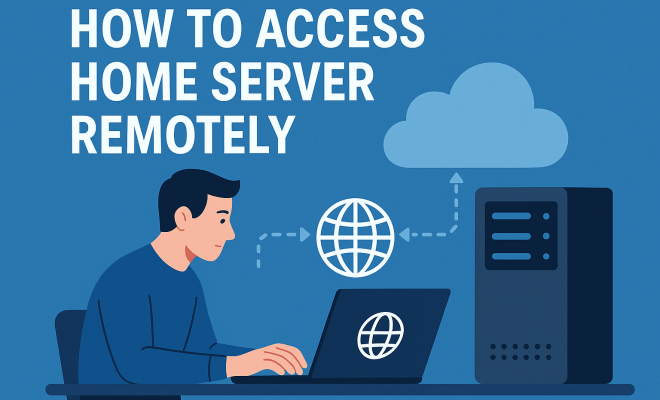
How to access home server remotely
“`html
1. Understanding the Basics of Home Servers
At the core of accessing your home server remotely lies a solid grasp of what a home server is. Essentially, a home server is a centralized computer that stores and shares data across different devices within your home network. This could include media files, documents, backups, and even smart home configurations. With the surge in remote work and digital lifestyles, having a home server is increasingly relevant.
But why would you want to access it remotely? Imagine being on vacation but needing to retrieve important files or stream a movie stored on your server. Remote access allows you to seamlessly connect to your home server from anywhere, anytime, making it an invaluable tool for both personal and professional use.
2. Setting Up Your Home Server for Remote Access
The first step in the process is ensuring your home server is configured correctly. Depending on whether you’re using a dedicated server, a NAS (Network Attached Storage), or a home computer, the setup can vary. Most commonly, users will opt for a NAS due to its user-friendly interface and dedicated functions.
Start by installing the necessary software. Popular options like FreeNAS, OpenMediaVault, or Plex can facilitate easy access and management of your files. Once your server is operational, ensure that it’s connected to your network and that you can access it locally before attempting to configure remote access.
Consider the hardware specifications as well. A home server typically requires a decent processor, ample RAM, and enough storage space to fulfill your needs. For example, if you plan to host a media server for streaming, investing in a more powerful processor and larger hard drives will pay off in performance.
Keep in mind that the operating system you choose can influence the ease of remote access. Windows, Linux, and macOS all have different capabilities and services tailored for remote access. For instance, Windows Server offers remote desktop capabilities built into the OS, while Linux often requires additional software installations.
3. Using Dynamic DNS for Easier Access
One of the obstacles when trying to access your home server remotely is dealing with a dynamic IP address. Most residential internet connections provide dynamic IPs that change periodically, which can complicate remote access. This is where Dynamic DNS (DDNS) comes into play.
DDNS services allow you to map a domain name to your dynamic IP address, ensuring that you can always access your server using the same hostname, even if your IP changes. Common DDNS providers include No-IP and DynDNS. After setting up DDNS, you can easily log in to your server without worrying about changes in your network configuration.
Additionally, some routers come with built-in DDNS support, allowing you to set up a DDNS service directly from the router interface. This feature simplifies the process and can save you time during the initial setup.
When choosing a DDNS provider, consider the cost and reliability of the service. Some offer free tiers but may have limitations on how often the IP address can be updated. Paid plans often provide better performance and additional features, such as email alerts when your IP changes.
4. Port Forwarding: Opening the Gateway
Port forwarding is an essential technique for remote access. It involves configuring your router to forward requests from the internet to specific devices within your home network. For instance, if you want to access your home server’s web interface, you’ll need to forward a specific port (usually port 80 or 443 for web services) from your router to the local IP address of your server. (See: Understanding home servers.)
To set this up, log into your router’s administrative panel, locate the port forwarding section, and create a new rule that points to your server’s local IP address. Remember to choose a strong password for any service exposed to the internet to mitigate security risks.
Additionally, it’s crucial to be aware of the security implications of port forwarding. Exposing certain ports can make your home network vulnerable to attacks. It’s advisable to keep track of which ports are open and limit exposure to only those necessary for your use case.
Another aspect to consider is the possibility of using a reverse proxy. This can add an extra layer of security by allowing you to access your services through a single, secure endpoint. Tools like Nginx or Apache can be configured to act as reverse proxies for your home server applications.
5. VPNs: The Secure Way to Access Your Home Server Remotely
If security is a top concern—and let’s be honest, it should be—a Virtual Private Network (VPN) is one of the best ways to access your home server remotely. A VPN creates a secure connection over the internet, encrypting your data and making it significantly harder for hackers to intercept your information.
Setting up a VPN on your home server can be done through software solutions like OpenVPN or WireGuard. Once you have it configured, you can connect to your home network securely from any remote location, giving you access to your server and other network devices as if you were at home.
Moreover, a VPN not only secures your connection but also allows you to access geo-restricted content. For instance, if you’re traveling abroad and want to watch shows available only in your home country, connecting to your home server via a VPN can help you bypass those restrictions.
It’s worth noting that some routers come with built-in VPN support, allowing you to set up a VPN directly on the router. This means all devices connected to your home network can access the VPN with minimal setup on individual devices.
6. Remote Desktop and Other Access Methods
Aside from VPNs, there are several other methods to access your home server remotely. One popular option is Remote Desktop Protocol (RDP), which allows you to connect to your server’s desktop environment. Windows users can leverage the built-in Remote Desktop feature, while Linux users can use tools like VNC or xRDP.
Additionally, web-based solutions such as TeamViewer or AnyDesk can also facilitate remote connections without complex network configurations. While these methods are convenient, they may not offer the same level of security as a VPN, so it’s wise to assess your needs and choose accordingly.
There’s also the option to use SSH (Secure Shell) for a command-line interface connection, which is particularly useful for tech-savvy users who prefer managing their servers without a graphical interface. SSH provides strong encryption and is widely used for secure remote administration of systems.
Each access method has its own strengths and weaknesses. RDP is user-friendly but can be more susceptible to malware attacks. On the other hand, SSH is incredibly secure but may not be as user-friendly for those unfamiliar with command-line interfaces.
7. Troubleshooting Common Remote Access Issues
Even with everything set up correctly, you may still run into a few hiccups when trying to access your home server remotely. Common issues include connectivity problems, incorrect configurations, or firewall settings preventing access.
Start by double-checking your server’s local IP address and your router’s port forwarding settings. Ensure that your server is turned on and that any necessary services are running. If you’re using a VPN, verify that the VPN connection is active and that your firewall isn’t blocking the traffic. Many of these issues can be resolved quickly with a little troubleshooting. (See: Technology and health impacts.)
Another common problem is ISP-level restrictions. Some Internet Service Providers block certain ports to prevent misuse or unauthorized access. If you find that you’re unable to set up port forwarding as expected, it may be worth contacting your ISP to determine if this is the case.
Sometimes, local firewalls on your server may also prevent remote access. Check that the firewall settings are configured to allow traffic on the ports you need open. Experimenting with temporary disabling of the firewall can help diagnose if it’s the source of the problem.
8. Security Best Practices for Remote Access
When you’re accessing your home server remotely, security should always be a priority. Here are some best practices to keep your data safe:
- Strong Passwords: Always use complex passwords that include a mix of letters, numbers, and symbols. Change them regularly.
- Two-Factor Authentication: If your server software supports it, enable two-factor authentication for an additional layer of security.
- Regular Updates: Keep your operating system and server software up to date to protect against vulnerabilities.
- Monitor Access Logs: Regularly check your server’s access logs for any unauthorized attempts to access your data.
- Use a Firewall: Enable firewall features on your router and server to filter out unwanted traffic.
Also, consider implementing a security audit periodically. This could involve checking all your remote access methods for vulnerabilities, ensuring that only necessary ports are open, and reviewing user accounts that have access to your server.
9. Practical Uses for Remote Access
The ability to access your home server remotely opens up a world of possibilities. Here are some practical applications:
- File Storage and Sharing: Store important documents and share them with friends or colleagues without needing to email large files.
- Media Streaming: Stream your favorite movies and music from your home server to your devices wherever you are.
- Home Automation: Manage smart home devices and configurations remotely, ensuring everything is running smoothly.
- Remote Work: Access work files and applications, enabling a seamless transition between home and remote work.
- Data Backup: Set up automated backups for important data, giving you peace of mind that your files are safe and accessible wherever you are.
For instance, if you’re a photographer, you can upload images to your home server from any location, and then access those files later for editing without needing to store everything on your laptop or external drives.
10. Comparing Different Remote Access Methods
When it comes to accessing your home server remotely, you have several options at your disposal. Here’s a comparison of the most popular methods:
| Access Method | Security Level | Ease of Setup | Best For |
|---|---|---|---|
| VPN | High | Moderate | Secure access to full home network |
| RDP | Moderate | Easy | Full desktop access |
| VNC | Moderate | Easy | Remote desktop control on Linux |
| SSH | High | Moderate | Command-line access for tech users |
| TeamViewer/AnyDesk | Moderate | Very Easy | Quick remote support |
Choosing the right method for accessing your home server ultimately depends on your specific needs—whether that’s security, ease of use, or access type. If you’re managing sensitive information, a VPN or SSH would likely be your best bet. If you just need occasional access or support, services like TeamViewer may suffice.
11. Frequently Asked Questions (FAQ)
What is a home server?
A home server is a centralized computer that stores, shares, and manages data, providing access to various devices on your home network. It can serve many functions, including media storage, file sharing, and even running applications for smart home devices.
Can I access my home server from anywhere?
Yes, as long as your server is set up for remote access, you can connect to it from anywhere with an internet connection. However, the method of access will depend on how you’ve configured your server (VPN, RDP, etc.). (See: Setting up a home office.)
Do I need technical skills to set up remote access?
While some technical knowledge can be beneficial, many home server solutions come with user-friendly interfaces that guide you through the setup process. Basic networking knowledge will help, but there are plenty of resources available online.
Is my home server safe from hackers?
With the right security measures in place, such as strong passwords, VPNs, and firewalls, you can significantly reduce the risk of unauthorized access. Always stay informed about best practices for securing your server.
What happens if my ISP changes my IP address?
If you’re using Dynamic DNS, your domain name will automatically point to your new IP address, ensuring uninterrupted access to your home server. Without DDNS, you’d need to manually update your connection settings.
Can I access my home server on mobile devices?
Absolutely! Many server applications have mobile versions or web interfaces, allowing you to access your files and services from smartphones or tablets while you’re on the go.
What should I do if I forget my home server password?
If you forget your home server password, most systems have a reset option. This may involve accessing the server physically and resetting it to default settings, but be cautious—this could erase all custom configurations.
How do I back up my home server data?
Backing up your home server data can be done in several ways, such as using external hard drives, cloud storage solutions, or even setting up automated backup scripts to ensure your data is regularly saved to a safe location.
Final Thoughts: Why You Should Access Your Home Server Remotely
In a world where digital access is increasingly relevant, knowing how to access your home server remotely offers significant advantages. From accessing vital documents while traveling to securely managing your media library, remote access makes your data more accessible than ever before. By setting up your server with the right tools and taking the necessary precautions, you can enjoy peace of mind knowing that your information is within reach, no matter where life takes you.
So, whether you’re a digital nomad, a remote worker, or just someone who wants to keep their files at their fingertips, mastering the art of remote access to your home server could be one of the smartest decisions you make.
“`
Trending Now
Frequently Asked Questions
How can I access my home server from outside my network?
To access your home server remotely, ensure it's configured correctly with remote access software like FreeNAS or Plex. You'll need to set up port forwarding on your router and possibly use a dynamic DNS service to manage your IP address. Once set up, you can connect to your server using its external IP address or domain name.
What software do I need for remote access to my home server?
Popular software options for remote access to home servers include FreeNAS, OpenMediaVault, and Plex. These applications facilitate easy file management and streaming capabilities, allowing you to access your data from anywhere. Choose the one that best fits your needs based on the type of server you are using.
What hardware do I need for a home server?
A basic home server requires a decent processor, sufficient RAM, and ample storage space. If you plan to stream media, a more powerful processor and larger hard drives are recommended. Additionally, ensure your server is connected to your network and configured properly for optimal performance.
Can I access my home server while on vacation?
Yes, you can access your home server while on vacation by setting up remote access. With the right software and configuration, you can retrieve files or stream media stored on your server from anywhere with an internet connection, making it a convenient option for travelers.
What is the best operating system for a home server?
The best operating system for a home server depends on your specific needs. Windows, Linux, and macOS all offer different capabilities for remote access. Windows Server is user-friendly for beginners, while Linux distributions like Ubuntu can be more customizable for advanced users. Choose based on your comfort level and requirements.
Agree or disagree? Drop a comment and tell us what you think.