How to enable picture in picture Android
“`html
In today’s digital age, multitasking isn’t just a skill; it’s a necessity. Whether you’re replying to emails while keeping an eye on a video stream or browsing social media during a video call, the ability to enable picture in picture Android can significantly enhance your smartphone experience. This feature allows you to watch videos while using other apps, a game-changer for productivity. In this article, we’ll explore how to set up and use this feature effectively, along with some tips and tricks to make the most of it.
1. Understanding Picture in Picture (PiP)
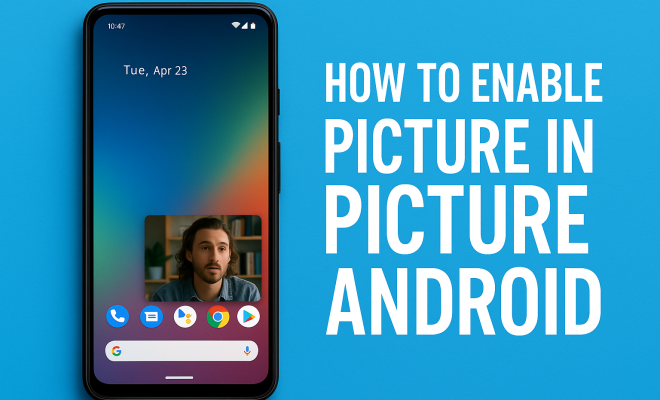
Picture in Picture mode, or PiP, is a feature that allows apps to display content in a small window on your screen while you continue to navigate other applications. This functionality is particularly popular among video streaming services, video calls, and navigation apps, enhancing the user experience by allowing users to engage with multiple tasks simultaneously.
Introduced in Android 8.0 (Oreo), the picture in picture feature has evolved over time, becoming an essential tool for many Android users. It supports various applications, and its implementation has made it easier to maintain productivity without sacrificing the enjoyment of multimedia content.
2. How to Enable Picture in Picture on Android
Enabling PiP on your Android device is a straightforward process. Here’s how to do it:
- Open the Settings App: Start by locating the Settings app on your device. You can find it in your app drawer or by swiping down from the top of your screen and tapping the gear icon.
- Navigate to Apps & Notifications: Within the Settings menu, tap on “Apps & notifications.” This section allows you to manage all your applications.
- Advanced Settings: Tap on “Advanced” to expand the menu, where you will find the “Special app access” option.
- Picture-in-picture: In the Special app access section, find and select “Picture-in-picture.”
- Select Apps: You’ll see a list of apps that support this feature. Tap on the app you want to enable PiP for, and toggle the switch to allow PiP.
Once you’ve completed these steps, the selected app will be able to use the picture in picture feature.
3. Supported Apps for Picture in Picture
Not every app supports the PiP mode, but many popular applications do. Here’s a list of some of the most widely used apps that allow you to enable picture in picture Android:
- YouTube: Available for all users with a premium subscription, allowing video play in a small window.
- Google Maps: Perfect for navigating while you listen to music or watch content.
- Netflix: Stream your favorite shows while checking messages or browsing the web.
- WhatsApp: Conduct video calls while continuing to use other apps.
- Zoom and Microsoft Teams: Great for multitasking during work meetings.
Each app has unique functionalities when in PiP mode, so it’s worth experimenting to see how they can best fit into your workflow.
4. Using Picture in Picture: Tips and Tricks
Once you’ve enabled PiP and selected your apps, the next step is learning how to use it effectively. Here are some handy tips: (See: Understanding Picture in Picture feature.)
- Resize the PiP Window: You can often resize the PiP window by dragging the corners. This helps you customize the display based on your needs.
- Move the PiP Window: You can drag the PiP window to different corners of your screen, allowing you to position it where it won’t obstruct your view of other content.
- Close the PiP Window: To close the PiP window, simply tap on the small ‘X’ or drag it to the bottom of the screen. This action will take you back to the app in full-screen mode.
By mastering these simple techniques, you can enhance your multitasking ability and get more done on your Android device.
5. Troubleshooting Picture in Picture Issues
While enabling picture in picture on Android is usually a smooth process, some users may encounter issues. Here are common problems and their solutions:
- App Not Supporting PiP: If an app doesn’t seem to work in PiP mode, it may not support the feature yet. Check for app updates or look up the official support page for specific apps.
- PiP Window Not Displaying: Ensure that the app is open and playing content. Sometimes, switching between apps can cause the PiP window to freeze; try reopening the app.
- Permissions Issues: If you’ve enabled PiP but it still doesn’t work, check to ensure that the app has the required permissions to display in PiP mode in the settings.
If problems persist, restarting your device can often resolve random glitches. Keeping your software up to date ensures compatibility with the latest features as well.
6. The Future of Picture in Picture
The PiP feature has become a staple in user experience on Android, but what does the future hold? As app developers continue to innovate, we can expect enhanced functionalities. For instance, the integration of augmented reality or even improved AI capabilities may come into play, allowing for smarter multitasking and more seamless transitions between apps.
Moreover, as more users adopt 5G technology, we should see improvements in streaming quality during PiP usage, enabling smoother video playback even in smaller windows. This evolution will likely push developers to create even more engaging applications that leverage the PiP feature.
7. Real-Life Applications of Picture in Picture
The benefits of PiP mode extend beyond casual usage; it has profound implications for professionals and creatives as well. Here are some scenarios where PiP can be a game-changer:
- Remote Work: During video calls, employees can glance at their emails or notes without interrupting the meeting flow.
- Content Creation: YouTube creators can monitor their analytics while editing videos, streamlining their workflow.
- Education: Students can watch lectures in PiP mode while taking notes or researching, maximizing study efficiency.
These examples illustrate how PiP can enhance both personal and professional productivity.
8. Comparing Picture in Picture with Other Multitasking Features
While PiP is a powerful tool, it’s not the only multitasking feature available on Android devices. Let’s compare it with some others:
- Split-Screen Mode: This feature allows users to run two apps side by side. It’s great for comparing information, but it takes up more screen real estate compared to PiP.
- Floating Apps: Some applications can be run as floating windows, offering similar benefits to PiP. However, they may not always support video playback like PiP does.
- Quick Switch: The quick switch feature allows users to toggle between apps quickly, but it doesn’t allow for simultaneous viewing like PiP does.
Each feature has its strengths and weaknesses, but PiP stands out for its ability to keep video content accessible while you focus on other tasks.
9. Frequently Asked Questions about Picture in Picture
1. Can I enable picture in picture for all apps?
No, not all apps support Picture in Picture mode. Only specific applications that have been updated to include this functionality can utilize PiP. Check the app’s settings or official documentation to see if it supports this feature.
2. How do I know if an app supports Picture in Picture?
Generally, if an app can utilize PiP, it will have an option in its settings. You can also refer to the app’s description in the Google Play Store or check its official website for information regarding PiP support.
3. Is there a way to use Picture in Picture without enabling it in settings?
Unfortunately, to use PiP, you must enable it in the settings for each app that you want to utilize this feature. There’s currently no workaround to bypass these settings.
4. Does Picture in Picture drain my battery faster?
Using PiP may consume more battery, especially if you’re streaming high-definition video content. However, the impact on battery life will depend on your device and how many apps are running simultaneously.
5. Can I customize the PiP window’s appearance?
Currently, customization options for the PiP window are quite limited. You can resize and move it around the screen, but options for changing its appearance, such as color or transparency, are not available in most apps.
6. What can I do if Picture in Picture doesn’t work on my device?
If PiP isn’t working, make sure your app is updated, and check the settings to ensure that PiP is enabled. If it still doesn’t work, you might want to consider reinstalling the app or contacting the app’s support for assistance.
7. Can I use Picture in Picture while on calls?
Yes, many apps that allow video calls, like WhatsApp or Zoom, support PiP while you’re on a call. This way, you can keep the call active while engaging with other apps.
10. Enhancing Your Experience with Picture in Picture
To get the most out of the Picture in Picture feature, consider the following recommendations:
- Experiment with Different Apps: Try out various apps that support PiP to find the best fit for your workflow. Each app may offer a unique experience that could improve your multitasking.
- Stay Organized: Keep your most-used apps easily accessible. This way, when you enable PiP, you can quickly switch to the app you need without wasting time searching.
- Monitor Your Usage: Pay attention to how often you use PiP and for what tasks. This will help you identify when it’s most beneficial and when it might be better to focus on one task alone.
11. Common Misconceptions about Picture in Picture
As with any feature, there are some misconceptions surrounding Picture in Picture that can lead to confusion. Here are a few of the most common ones:
- Myth: PiP only works with video apps. While PiP is primarily associated with video content, certain apps that utilize visual content, like video calls or navigation, also support this feature. It’s important to check the app capabilities.
- Myth: PiP mode is difficult to use. Many users find PiP intuitive after a short period. Its drag-and-drop functionality allows for easy movement and resizing, making it user-friendly once you get the hang of it.
- Myth: Using PiP makes my phone slow. PiP is designed to work seamlessly without straining your device’s resources. However, running too many applications simultaneously can lead to performance issues, not PiP itself.
12. Advanced Features of Picture in Picture
While the basic functionality of PiP is to allow videos to play in a smaller window, some apps offer advanced features that enhance the experience:
- Audio Control: Some apps allow you to control the audio settings directly from the PiP window, making it easy to adjust volume without switching back to the main app.
- Gesture Controls: Certain applications have gesture controls that let you perform actions such as play, pause, or skip tracks by tapping on the PiP window.
- Notifications Integration: Some apps will integrate notifications directly into the PiP view. For instance, while watching a video, you may see incoming message notifications without disrupting your view.
13. Privacy Considerations with Picture in Picture
While PiP can be incredibly useful, it’s essential to consider privacy implications, especially during video calls or while watching sensitive content. Here are some points to contemplate:
- Screen Visibility: Be mindful of your surroundings when using PiP. A video playing in a small window can still be visible to others nearby, potentially leading to privacy breaches.
- Content Sensitivity: If you’re watching sensitive or private content, consider whether PiP is appropriate. Sometimes, it may be better to view such content in full-screen mode to maintain privacy.
- Notification Settings: Adjust your notification settings to prevent potentially sensitive information from appearing while using PiP. Keep distractions to a minimum for a more focused experience.
14. Conclusion
Enabling picture in picture on Android devices is a straightforward process that opens up a world of multitasking possibilities. By following the steps outlined above, you can seamlessly integrate this feature into your daily routine, enhancing productivity and making the most of your time. Whether for work or leisure, PiP allows you to keep crucial content at your fingertips while engaging with other applications, making it an invaluable feature in the modern smartphone experience. As technology continues to evolve, we can expect even more exciting developments surrounding PiP, ensuring it remains a staple for years to come.
“`
Trending Now
Frequently Asked Questions
How do I enable picture in picture mode on Android?
To enable Picture in Picture (PiP) mode on your Android device, go to Settings, then Apps & Notifications. Tap on Advanced, select Special app access, and then choose Picture-in-picture. From there, you can select which apps you want to allow to use this feature.
What is picture in picture mode on Android?
Picture in Picture (PiP) mode is a feature that allows apps to display video content in a small, movable window while you use other applications. It enhances multitasking by letting you watch videos or attend calls without interrupting other tasks.
Which apps support picture in picture mode on Android?
Many apps support Picture in Picture mode, particularly video streaming services, video calling apps, and navigation tools. Popular examples include YouTube, Google Duo, and Netflix, allowing users to multitask effectively.
Can I use picture in picture mode on any Android device?
Picture in Picture mode is available on Android devices running version 8.0 (Oreo) and above. If your device meets this requirement, you should be able to enable and use this feature with compatible apps.
What are the benefits of using picture in picture mode?
Using Picture in Picture mode allows for enhanced productivity by enabling users to watch videos while using other apps. This feature is particularly useful for multitasking, as it helps you stay engaged with content without interrupting your workflow.
What’s your take on this? Share your thoughts in the comments below — we read every one.