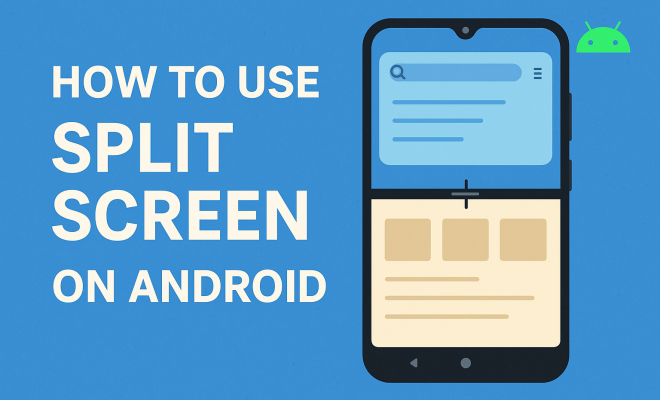
How to use split screen on Android
“`html
In an age where multitasking is not just a skill but a necessity, knowing how to utilize features like split screen on Android can significantly enhance your productivity. This powerful functionality allows users to run two applications side by side on their device, providing an efficient way to manage tasks, communicate, and consume media simultaneously. Let’s explore how to use split screen on Android, its features, benefits, and tips to maximize this handy tool.
1. Understanding Split Screen Functionality
Split screen is a feature that lets you view and interact with two apps at the same time on your Android device. This capability is particularly beneficial for users who wish to compare information, such as reviewing emails while taking notes or watching a video while texting a friend. The feature first appeared in Android Nougat (Android 7.0), but it’s now a standard in most Android versions, making it widely accessible for users across different devices.
Using split screen can also save time. Instead of switching back and forth between apps, you can have them both open, which streamlines your workflow. It’s especially handy for those who work remotely or are students balancing various tasks.
2. How to Enable Split Screen on Android
Enabling split screen on Android is straightforward, although the process might vary slightly depending on your device’s manufacturer and the version of Android you are using. Here’s a step-by-step guide to get you started:
- Open Recent Apps: Tap the square button (or swipe up from the bottom) to view your recently used applications.
- Select an App: Find the app you want to use in split screen. Tap the app’s icon at the top of its preview.
- Choose Split Screen: From the options that appear, select “Split screen.” Your app will now take up the top half of your screen.
- Select the Second App: In the bottom half of the screen, scroll through your recent apps or choose another app from your app drawer.
- Adjust the Divider: You can adjust the size of each app display by dragging the divider between them.
And that’s it! You’re now ready to work with two apps simultaneously.
3. Using Split Screen on Different Devices
It’s essential to note that while the split screen feature is available on many devices, the implementation may differ. For example, Samsung Galaxy devices have a slightly different approach. Users can enable split screen by tapping on the multitasking button and then selecting the app icon for split-screen options. Other manufacturers like Google Pixel or OnePlus may have their own specific steps, though the general process remains consistent.
Additionally, some apps may not support split screen. Popular applications like YouTube and Google Chrome typically do, while others may not. Always check if the app you want to use is compatible with this feature to avoid frustration.
4. Benefits of Using Split Screen on Android
There are several advantages to using split screen on Android devices. First and foremost, it enhances productivity. Imagine being able to respond to emails while participating in a video call or researching information without having to switch between apps constantly. This capability reduces the time it takes to accomplish tasks.
Moreover, split screen is excellent for educational purposes. Students can watch lecture videos while taking notes or researching topics simultaneously, making learning more interactive and less isolative. This feature also benefits professionals who often need to refer to multiple documents or sources while working on a project.
5. Practical Uses of Split Screen on Android
What exactly can you do with split screen on Android? The options are virtually endless, but here are a few practical examples: (See: Overview of Android operating system.)
- Social Media Management: Manage your social media accounts while browsing the web for content ideas. Open Twitter or Facebook on one side while using your browser on the other.
- Video Calls: Conduct a video call on one half while taking notes on a document or responding to emails on the other half.
- Online Shopping: Compare prices and read reviews from multiple websites without having to switch back and forth repeatedly.
- Cooking: Use a recipe app on one side while keeping a timer app open on the other to ensure your meals are cooked perfectly.
The ability to combine tasks like this can streamline the way you use your Android device and make daily tasks feel less daunting.
6. Troubleshooting Common Issues
While using split screen on Android is generally smooth, you might encounter some issues. For example, some users notice that certain applications crash or do not function correctly in split screen mode. If you experience this, here are a few solutions to consider:
- Check App Compatibility: Not all apps support split screen. Make sure the apps you’re trying to use together are compatible.
- Restart Your Device: Sometimes, a simple restart can resolve unexpected glitches. This can refresh the device and clear temporary files that may be causing issues.
- Update Your Software: Ensure that your Android software and applications are up to date, as updates often fix bugs and improve functionality.
If these solutions don’t work, consider reaching out to the app developers or your device manufacturer for further assistance.
7. Enhancing Your Split Screen Experience
To get the most out of the split screen functionality, consider these tips:
- Use Edge Panels (for Samsung Users): If you’re using a Samsung device, enable Edge Panels to quickly access your most-used apps and switch between them with ease.
- Utilize Picture-in-Picture Mode: For apps that support Picture-in-Picture mode, you can watch videos in a small floating window while working in another app.
- Experiment with App Combinations: Try different app combinations to find what works best for your workflow. You might discover new ways to enhance your productivity.
These enhancements can make the split screen feature even more effective and tailored to your needs.
8. The Future of Multitasking on Android
The split screen feature has evolved significantly over the years, and it’s likely to continue improving as Android develops. With the rise of foldable smartphones and larger screens, the demand for effective multitasking features is increasing. Future updates may introduce more sophisticated split-screen options, such as customizable layouts or even the ability to run three apps simultaneously.
As technology advances, you can expect Android to adapt to user needs, making multitasking even more intuitive and seamless. Staying informed about these updates will help you maximize the potential of your device.
9. Split Screen vs. Picture-in-Picture
While both split screen and Picture-in-Picture (PiP) modes enhance multitasking, they serve different purposes and are suited for various tasks. Split screen is ideal for comparing two apps side by side, which is perfect for tasks like research or communication. On the other hand, PiP allows you to watch a video in a floating window while you engage with other applications. This can be particularly useful for following video tutorials while trying out new skills or keeping up with a show while texting your friends.
The choice between these modes often depends on your specific needs. For instance, if you’re a student, split screen might help you take notes during lectures while keeping an online resource open. If you’re a casual user wanting to catch up on a show while browsing social media, PiP might be the better option. Understanding the strengths of each can help you leverage them effectively to enhance your productivity and enjoyment while using your Android device.
10. Statistical Insights on Multitasking
According to a 2022 study by the American Psychological Association, multitasking can lead to a 40% decrease in productivity as the brain struggles to switch between tasks. However, effective multitasking strategies, such as using split screen, can alleviate some of these issues. The same study found that individuals who employed technology to facilitate multitasking were able to increase their output by approximately 25% compared to those who did not.
This data highlights the importance of using tools like split screen. By enabling users to work on multiple tasks simultaneously, it helps mitigate some drawbacks associated with multitasking. Additionally, the study emphasized that users reported feeling less overwhelmed and more organized, which can lead to a more satisfying work or study experience. (See: CDC guidelines on multitasking.)
11. Expert Perspectives on Multitasking Tools
Experts in productivity, like Dr. David Meyer, a cognitive psychologist, argue that tools like split screen can enhance efficiency. “The key is not to force yourself to do everything at once but to use technology to manage your tasks more effectively,” he notes. This perspective aligns with findings that suggest using split screen can help people manage their attention better, allowing them to focus on multiple streams of information without becoming overwhelmed.
Dr. Meyer suggests that users should be mindful of their own working styles. “Not everyone benefits from multitasking equally,” he adds, “so it’s important to know when to use these tools and when to focus on one task at a time.” This insight is crucial, as it reminds users that while split screen can be beneficial, understanding one’s personal productivity style is key to maximizing its effectiveness.
12. Frequently Asked Questions (FAQ)
What devices support split screen on Android?
Most modern Android devices support split screen, but the feature may vary slightly by manufacturer. Brands like Samsung, Google, OnePlus, and LG all include this functionality. Older devices may not support it, especially those running on Android versions prior to Nougat (7.0).
Can I use split screen with any app?
Not all apps support split screen. Most popular apps like web browsers, social media platforms, and productivity tools do, but some games or older apps may not be compatible. Always check if an app can run in split screen mode by looking for the option in the recent apps view or checking the app settings.
How do I exit split screen mode?
To exit split screen mode, you can simply drag the divider all the way to the top or bottom of your screen, depending on which app you want to keep open. Alternatively, you can also tap the recent apps button and swipe away the app you want to close.
Does using split screen drain battery faster?
Using split screen may use more battery than running a single app, as more resources are being utilized. However, the difference in battery consumption is generally minimal. If you’re concerned about battery life, consider closing apps that you aren’t using.
Are there any apps specifically designed for split screen use?
Yes, there are apps designed to take advantage of split screen functionality more effectively. Tools like “Split Screen Creator” allow users to create shortcuts for apps they frequently use in split screen mode, making the process smoother and more efficient.
Can I use split screen with a third-party launcher?
Yes, many third-party launchers support split screen functionality. However, performance may vary based on the launcher and how it integrates with Android’s underlying system. Always check user reviews and compatibility before installing a new launcher.
Can I run multiple instances of the same app in split screen?
Running multiple instances of the same app in split screen is not natively supported in Android. However, some apps, like messaging platforms, allow multiple accounts to be opened simultaneously on certain devices. If you need to use two instances of an app, consider using the app’s built-in features or look for specific apps that allow for multi-account support.
Can I customize the split screen ratio?
Yes, you can adjust the size of the apps in split screen mode by dragging the divider between the two app windows. This allows you to allocate more screen space to one app depending on your needs, whether you prefer a larger view for reading or more space for typing. (See: New York Times on smartphone multitasking.)
Does split screen work with Android Auto?
Split screen functionality does not work in Android Auto as it is designed for driving. Android Auto focuses on providing a simplified interface that limits distractions. However, when you’re parked, some features that allow for multitasking may be available, depending on the app.
13. Tips for Effective Multitasking Using Split Screen
To really make the most of your split screen capabilities, consider these strategies:
- Prioritize Tasks: Identify what tasks can be efficiently managed side by side. For instance, if you’re preparing a report, you might keep reference materials open on one side while drafting the report on the other.
- Shortcuts for Common Tasks: If you frequently use certain app combinations, consider creating shortcuts or using widgets that allow you to quickly set up your split screen layout.
- Accessibility Features: Explore accessibility settings on your device to enhance your experience. Features like gesture controls can make switching between apps easier while multitasking.
14. Real-World Use Cases for Split Screen
Split screen is not just a feature; it’s a tool that can transform how you interact with your device in various scenarios:
- Content Creation: Bloggers can work on their CMS while conducting research on the web without losing context, improving both speed and quality of content creation.
- Language Learning: Use a language translation app on one side while practicing speaking or listening exercises on another, allowing for a more immersive learning experience.
- Event Planning: Manage your calendar on one half while communicating with others via messaging apps about event details, making it easier to coordinate schedules.
15. The Impact of Split Screen on Daily Life
In a world that constantly demands more from us, split screen helps bridge the gap between efficiency and effectiveness. Users can balance personal and professional tasks without feeling overwhelmed. Research indicates that individuals who incorporate multitasking features like split screen often report higher satisfaction in their daily lives, as they can accomplish tasks without the mental exhaustion associated with constant app switching.
Moreover, the flexibility of split screen lends itself well to various lifestyles, from busy professionals to students. It adapts to your unique needs, allowing you to tailor how you interact with information and manage your time. As the landscape of digital productivity continues to evolve, features like split screen are likely to play a pivotal role in shaping how we engage with technology.
16. Final Thoughts
Mastering split screen on Android can elevate your daily tasks, making you more efficient and organized. Whether you’re a student juggling assignments, a professional managing multiple projects, or simply a multitasker wanting to make the most of your device, this feature is indispensable. By understanding how to enable and use split screen functionality effectively, you can enhance your Android experience and unlock new levels of productivity.
So, why not give it a try? Experiment with different apps and workflows today to see how split screen can benefit you!
“`
Trending Now
Frequently Asked Questions
How do I enable split screen on my Android phone?
To enable split screen on your Android phone, open Recent Apps by tapping the square button or swiping up. Select the app you want to use, tap its icon at the top, and choose 'Split screen.' Then, select a second app from your recent apps or app drawer to run alongside.
What is split screen on Android used for?
Split screen on Android allows users to view and interact with two applications simultaneously. This feature is useful for multitasking, such as taking notes while reviewing emails, or watching videos while messaging, enhancing overall productivity.
Can all apps be used in split screen mode on Android?
Not all apps support split screen mode on Android. Most modern apps are compatible, but some may not function properly or may have limitations when running in a split screen view. It's best to check if an app has this capability.
Is split screen available on all Android devices?
Split screen functionality is available on most Android devices running Android Nougat (7.0) or later. However, the exact method to enable it may vary depending on your device's manufacturer and the specific version of Android.
How does split screen improve productivity on Android?
Using split screen on Android improves productivity by allowing users to multitask efficiently. Instead of switching between apps, you can have two open side by side, making it easier to manage tasks, communicate, and consume content simultaneously.
What did we miss? Let us know in the comments and join the conversation.