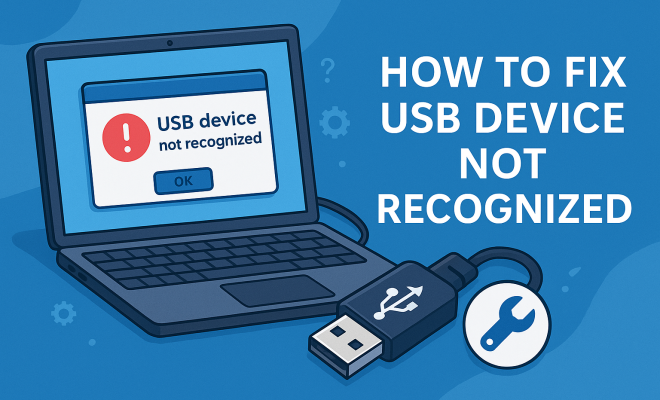
How to fix USB device not recognized
“`html
USB devices have become a cornerstone of our daily technology usage, from flash drives to external hard drives and even smartphones. However, encountering the frustrating error message “USB device not recognized” can disrupt your workflow and lead to unwanted stress. If you’re tired of seeing that pesky notification every time you connect a USB device to your computer, you’re in the right place. Here, we’ll explore seven effective methods to fix the USB device not recognized issue, ensuring you can quickly get back to your tasks.
1. Check the USB Port and Device
The first step in resolving the USB device not recognized error is to inspect both the USB port and the device itself. A simple yet often overlooked step is checking for any visible damage. Look at the USB port on your computer for bent pins or debris. Sometimes, a quick clean using compressed air can resolve connectivity issues.
If you have access to another USB device, try plugging it into the same port. If that device works, then you can rule out the USB port as the issue and focus on the original device. Conversely, if neither device is recognized, the problem may lie with the port itself or the computer’s settings.
2. Use a Different USB Cable
Believe it or not, the cable connecting your USB device to your computer could be the culprit behind the error. Cables can become frayed, damaged, or just plain worn out over time. If you have a spare cable handy, switch it out and see if that resolves the problem. This is particularly relevant for devices that require a dedicated power supply, as improper voltage delivery can prevent proper recognition.
Additionally, ensure that the cable is securely connected to both the device and the computer. Loose connections might lead to inconsistent performance, causing your computer to struggle with recognizing the device. Always keep some spare cables around; they can be lifesavers when troubleshooting connectivity issues.
3. Update or Reinstall USB Drivers
Driver issues are one of the most common causes of the USB device not recognized error. Your computer relies on drivers to communicate with hardware components. If the drivers are outdated, corrupted, or missing, your USB device might not be recognized. To fix this, navigate to the Device Manager on your system.
To access Device Manager, right-click on the Start menu and select Device Manager. Look for “Universal Serial Bus controllers” and expand it. From there, you can right-click each device listed and select either Update driver or Uninstall device. If you choose to uninstall, don’t worry—the system will automatically reinstall the drivers upon reboot. This process can solve underlying issues with driver compatibility.
4. Change Power Management Settings
Windows includes power management settings that can inadvertently disable USB ports to save energy. This can lead to the device not being recognized. To adjust these settings, go back to Device Manager, right-click on your USB Root Hub, and select Properties. Under the Power Management tab, uncheck the option that allows the computer to turn off this device to save power.
After making this change, click OK and restart your computer. This adjustment can often resolve the USB device not recognized error by ensuring that your USB ports remain powered on, especially after periods of inactivity.
5. Try the Device on Another Computer
If you’ve tried the previous steps and are still facing the USB device not recognized error, it’s time to test your USB device on another computer. This can help determine whether the issue lies with the device itself or your original computer. If the device works on another system, the problem may be isolated to your computer’s settings or hardware. (See: USB device troubleshooting information.)
Conversely, if it’s not recognized on any computer, you may need to consider the possibility of a hardware failure in the USB device. In such cases, exploring data recovery options may be necessary if the device holds critical information.
6. Run the Hardware and Devices Troubleshooter
Windows offers built-in troubleshooters that can automatically detect and fix various issues, including USB-related problems. To access the Hardware and Devices troubleshooter, navigate to Settings > Update & Security > Troubleshoot. From there, select Additional troubleshooters and find Hardware and Devices.
Running this troubleshooter can sometimes identify underlying issues that you might have missed. It will automatically attempt to apply fixes, so it’s a good idea to let it run its course. Even if it doesn’t directly solve the USB device not recognized issue, it can provide insights into other potential problems your computer may be experiencing.
7. Check for Windows Updates
Finally, keeping your operating system up to date is crucial for optimal performance. Sometimes, the USB device not recognized error can stem from software glitches that are resolved in later updates. Make it a habit to check for updates regularly. To do this, navigate to Settings > Update & Security > Windows Update and click on Check for updates.
Installing pending updates can improve system stability and compatibility with various devices. If updates are available, allow your computer to install them and then restart your system. Once it’s back up, try connecting your USB device again to see if the problem persists.
8. Consider USB Device Format and Compatibility
Sometimes the issue might not be with your computer but rather how the USB device is formatted. USB devices can be formatted in various file systems, such as FAT32, NTFS, or exFAT. Some systems may not recognize devices formatted in a specific file system. For instance, macOS does not natively support NTFS, which can lead to recognition issues.
If you suspect this might be the case, you can connect the device to a different operating system or use a different computer to verify if it recognizes the drive. If it works, you may want to reformat the USB device to a more universally compatible file system, like FAT32, which is widely accepted across different platforms. Just be sure to back up any important data before reformatting, as this process will erase all data on the drive.
9. Inspect Device for Hardware Issues
Physical defects in the USB device itself can cause recognition problems. Check for any signs of wear, such as cracks, extreme bending, or internal damage. If the device has been dropped or exposed to moisture, it could lead to failure.
For external hard drives, listen for unusual sounds when connecting. Clicking or grinding noises may indicate a mechanical failure. If physical damage is suspected, consult with a data recovery professional to explore options for retrieving data, as attempting to connect a failing device can further complicate recovery efforts.
10. Explore Alternative USB Ports
Sometimes, the issue may simply be related to specific USB ports themselves. Most computers come with multiple USB ports, and some may be connected to different controllers. If you encounter issues with one port, try connecting the device to another port. Preferably, use ports on different sides of the computer or USB ports directly on the motherboard, if accessible, as these often provide better power and data transfer reliability.
Additionally, avoid using USB hubs or extension cables initially, as they can introduce additional points of failure or degrade signal quality. Once you establish that the device works on a direct connection, you can troubleshoot the hub or extension for further connection issues. (See: Common USB device problems explained.)
11. Utilize Command Prompt for USB Fixes
If you’re feeling a bit tech-savvy, you can use Command Prompt to troubleshoot USB issues. This method can help reset the USB controller or provide insights into potential driver issues. Start by searching for the Command Prompt, right-click it, and select “Run as Administrator.” Then, you can type in certain commands to reset your USB devices.
One useful command is “SET DEVMGR_SHOW_NONPRESENT_DEVICES=1” followed by “devmgmt.msc,” which opens Device Manager with the ability to see hidden devices. From there, you can uninstall any non-present devices which may be causing confusion for your system. Once done, restart your computer and reconnect the USB device.
12. Frequently Asked Questions (FAQ)
What should I do if my USB device is still not recognized after trying all these steps?
If your USB device remains unrecognized after trying these methods, it might indicate a more serious hardware issue. Consider seeking professional assistance or contacting the manufacturer for support options.
Can a USB device be recognized if it’s damaged?
It depends on the extent of the damage. Minor issues might be resolvable, but severe damage often leads to complete failure. If physical damage is suspected, refrain from using the device to avoid further data loss.
Is it possible for a virus to cause USB connection issues?
While it’s not common, malware can sometimes interfere with device recognition. Running an antivirus scan can help identify and remove threats that might be affecting USB functionality.
How can I prevent USB connection issues in the future?
To minimize future issues, handle USB devices carefully, keep them free from dust, and regularly update your system software. Additionally, using high-quality cables and connecting directly to the computer can help maintain reliable connections.
What types of USB devices might have compatibility issues?
Devices that require specific drivers or are designed for different operating systems may face compatibility issues. Always check the system requirements of your USB device before purchasing or connecting it to your computer.
13. Understanding USB Standards and Their Implications
The USB standard has evolved significantly since its inception, leading to various types of connectors and transfer speeds. The most common standards today are USB 2.0, USB 3.0, USB 3.1, and USB-C. Each has its specifications, and using a device with a different USB standard than the port can sometimes lead to recognition issues.
For example, a USB 3.0 device can work with a USB 2.0 port, but it will operate at a reduced speed. However, if a device is designed for USB-C and you try to connect it to an older USB-A port, it won’t be recognized at all without the proper adapter. Understanding these standards can help you ensure you have the right equipment to avoid potential issues.
14. Consider System and Hardware Limitations
Sometimes, the hardware configuration of your computer can limit the recognition of USB devices. Older computers may not support newer protocols or may struggle with power management for multiple devices. For example, if you connect several high-power devices simultaneously, the system may fail to recognize additional devices due to power constraints.
Checking the specifications of your motherboard and the USB controller can provide insights into what types of devices it can support. If you’re frequently facing recognition issues, it might be worth considering an upgrade or adding a dedicated USB expansion card to improve performance.
15. Analyzing User Experiences and Common Pitfalls
User forums and tech support communities are filled with real-life experiences that can shed light on what works and what doesn’t. Common pitfalls include not securely connecting devices, using faulty or incompatible cables, and not recognizing when a USB port is malfunctioning.
For instance, many users report issues when using generic cables that do not meet the specifications of their devices. If you have a premium device, using a low-quality cable can lead to data transfer issues or complete failure to recognize the device. Always try to match the cable quality to the device quality.
16. Safety Tips for USB Device Handling
To prevent damage and ensure the longevity of your devices, follow some basic safety tips. Avoid pulling the USB device out of the port without safely ejecting it first, as this can lead to data corruption. Additionally, store USB devices in protective cases when not in use to guard against physical damage and dust accumulation.
Also, be mindful of the environments in which you use your devices. Extreme temperatures, moisture, and magnetic fields can all negatively impact USB devices. Keeping them in controlled environments can go a long way in protecting your data and the device’s lifespan.
17. Final Thoughts on USB Device Recognition Issues
Encountering the USB device not recognized error can be frustrating, but with these twelve troubleshooting methods, you have the tools to tackle the issue head-on. From checking physical connections to updating drivers, adjusting power management settings, and even utilizing Command Prompt, these steps provide a comprehensive approach to identifying and fixing connectivity problems. Remember, technology can be unpredictable, but a little persistence and the right information can go a long way in resolving most issues.
“`
Trending Now
Frequently Asked Questions
What does it mean when a USB device is not recognized?
When a USB device is not recognized, it means that your computer cannot detect the device when it is plugged in. This can be caused by issues with the USB port, cable, device itself, or computer settings. It often results in an error message that interrupts your workflow.
How can I troubleshoot a USB device not recognized error?
To troubleshoot the USB device not recognized error, start by checking the USB port and device for damage. Try using a different USB cable or port, and ensure that the device is powered on. Additionally, updating drivers and checking for software conflicts can help resolve the issue.
What should I do if my USB device is not recognized on Windows 10?
If your USB device is not recognized on Windows 10, first check the physical connections and try a different USB port. You can also update the USB drivers through Device Manager, disable USB selective suspend in power settings, or run the Windows troubleshooter for hardware and devices.
Can a damaged USB cable cause recognition issues?
Yes, a damaged USB cable can definitely cause recognition issues. Frayed or worn-out cables can lead to poor connectivity, preventing your device from being detected. Always try using a different, known working cable to see if that resolves the problem.
How do I reset USB ports on my computer?
To reset USB ports on your computer, you can try unplugging the computer from power for a few minutes. For a more immediate solution, go to Device Manager, find the Universal Serial Bus controllers section, right-click each entry, and select 'Uninstall device.' Restart your computer to reinstall them automatically.
Agree or disagree? Drop a comment and tell us what you think.