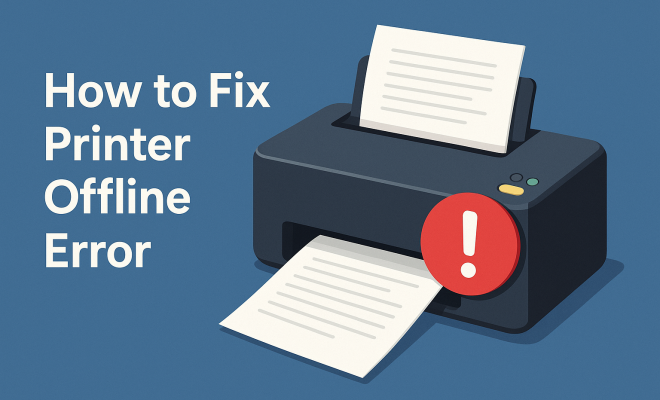
How to fix printer offline error
“`html
If you’ve ever found yourself in a frustrating situation where your printer is offline, you’re not alone. This common issue plagues many users, disrupting workflow and causing unnecessary headaches. But fear not, as we delve into some effective methods to fix printer offline errors and get your device back to work in no time. In this article, we’ll explore various strategies, tips, and tricks to troubleshoot and resolve the printer offline problem.
1. Check the Printer Connection
The first step to resolve any printer offline issue is to ensure that your printer is properly connected to your computer or network. If you’re using a USB printer, check that the cable is securely plugged into both the printer and the computer. For wireless printers, confirm that your printer is connected to the same Wi-Fi network as your computer. You can do this by printing a network configuration page, which is usually accessible from the printer’s control panel.
If you find that the connection is loose or the printer is not on the correct network, re-establish the connection. After checking the physical connections, restart both your printer and your computer to refresh the connection and see if that resolves the offline status.
2. Set the Printer as the Default Device
Sometimes, a printer may show as offline simply because it’s not set as the default printing device. If you have multiple printers installed on your computer, Windows may default to another printer. To fix this, go to your computer’s Control Panel, navigate to Devices and Printers, and right-click on your desired printer. Select “Set as Default Printer” to ensure it is the primary device for printing.
After setting it as default, try printing a test page. This often resolves the offline error, as Windows will now direct print jobs to the correct printer.
3. Restart the Print Spooler Service
The Print Spooler is a Windows service that manages all print jobs sent to the printer. If there’s a problem with the spooler, it can lead to your printer being marked as offline. To restart the Print Spooler, press the Windows key and type “services.msc” to open the Services window. Look for the Print Spooler service, right-click it, and select “Restart”. This can often clear any jams in the print queue that may be causing the offline issue.
After restarting the service, check your printer status again. If it’s still offline, you might need to clear the print queue to ensure any stuck jobs are removed.
4. Update or Reinstall Printer Drivers
Outdated or corrupt printer drivers are frequent culprits behind printer offline issues. Ensuring you have the latest drivers installed can often resolve connectivity problems. Visit the manufacturer’s website to download the appropriate driver for your printer model. If you’re unsure, you can use Windows Update to check for driver updates, which can be found in the Device Manager under “Printers”.
If updating doesn’t solve the problem, consider uninstalling and then reinstalling the printer driver. This can help if the driver has become corrupted. After reinstalling, restart your computer and try printing again.
5. Disable Offline Mode
Windows offers an option to set a printer to offline mode, which can be helpful but may also lead to confusion if it’s accidentally enabled. To check if your printer is in offline mode, go back to your Devices and Printers in the Control Panel. Right-click on your printer and see if there’s an option that says “Use Printer Offline”. If this option is checked, click it to disable offline mode. (See: printer maintenance tips from CDC.)
After making this change, attempt to print a document. This simple fix can often resolve the frustrating offline error.
6. Check Your Network Connection
For printers connected over Wi-Fi, a weak or intermittent network connection can lead to the printer appearing offline. Ensure that your printer is receiving a strong Wi-Fi signal and that your router is functioning correctly. You might want to restart your router to reset the connection.
Additionally, check for any network issues that may be affecting your printer. If you have a dual-band router, make sure the printer is connected to the correct band (2.4 GHz or 5 GHz), as some printers work better with one than the other. A consistent network connection can significantly reduce the chances of encountering offline errors.
7. Perform a Printer Reset
If all else fails, performing a factory reset on your printer can sometimes resolve persistent offline issues. Resetting your printer will restore it to its original factory settings, which may eliminate any configuration errors that could be causing the problem. Refer to your printer’s manual for specific instructions on how to perform a reset.
After the reset, you’ll need to set up your printer again, including reconnecting it to your Wi-Fi network and reinstalling any necessary drivers. While this option may require some effort, it can often clear up any remaining issues that are making your printer appear offline.
8. Check for Windows Updates
Sometimes, the issue of a printer being offline can stem from pending Windows updates that need to be installed. Microsoft frequently releases updates that can improve hardware compatibility, including for printers. To check for updates, go to Settings > Update & Security > Windows Update and click on “Check for updates”. Install any available updates, and then restart your computer.
After updating Windows, check your printer status again. This can resolve underlying compatibility issues that may have resulted in your printer becoming unresponsive or offline.
9. Consult Manufacturer Support
If you’ve tried all of the above methods and your printer is still showing as offline, it may be time to reach out to the manufacturer’s support team. They can provide specialized troubleshooting steps that are specific to your printer model. Many manufacturers offer online chat support, phone support, or community forums where you can get help from other users.
Before contacting support, gather important information such as your printer model, any error messages you received, and the troubleshooting steps you have already tried. This will help the support team assist you more efficiently.
10. Network Configuration and Firewall Settings
Sometimes, configurations in your network settings or firewall can block communication between your printer and your computer. Ensure that the firewall isn’t preventing your printer from accessing the local network. For Windows users, you can check this by going to Control Panel > System and Security > Windows Defender Firewall. Add your printer’s IP address or the printer software to the list of allowed apps.
Also, check if your router’s settings have any security configurations that might affect the printer’s connectivity. If you’re using a VPN or other network tools, temporarily disable them to see if they’re causing any disruptions.
11. Using the Windows Troubleshooter
If you’re still stuck, don’t overlook the built-in Windows Troubleshooter. It’s designed to automatically diagnose and fix common problems, including printer issues. To run the troubleshooter, head to Settings > Update & Security > Troubleshoot > Additional troubleshooters, and select “Printer”. Follow the on-screen instructions, and let Windows try to identify and fix the problem. (See: troubleshooting printers by NY Times.)
This tool can be incredibly useful, especially if the problem is not easily identifiable. It may catch issues that you might have overlooked and offer solutions tailored to your specific problem.
12. Common Causes of Offline Printers
Understanding common causes can help you prevent future issues. Some frequent reasons include:
- Loose Connections: USB or network cables may become loose or damaged over time.
- Software Conflicts: Other installed software can sometimes interfere with printer communication.
- Network Issues: Wi-Fi disruptions can cause printers to lose connection.
- Driver Issues: Not having the correct driver can result in an offline status.
- Power Issues: Ensure your printer is powered on and not in power-saving mode.
Being aware of these factors can help you troubleshoot faster if an offline issue arises again.
13. Printer Offline on Mac OS
If you’re a Mac user, the approach to fixing an offline printer can differ slightly. First, check the printer status in System Preferences by clicking on “Printers & Scanners”. If your printer appears to be offline, right-click on it and select “Reset printing system”. This will remove all printers and scanners from your list, allowing you to start fresh.
After resetting, add your printer again by clicking the “+” button and following the prompts. This often resolves issues caused by outdated configurations or communication errors.
14. Using Third-Party Software
In some cases, third-party software solutions can help in fixing printer offline issues. These programs often provide more detailed diagnostics and can help you adjust settings that might not be easily accessible through standard operating system tools. Ensure you choose reputable software to avoid security risks.
One popular option is the “Printer Repair Tool,” which can automatically scan for issues and apply fixes. However, always research any software before downloading to ensure it’s safe and effective.
15. Statistics on Printer Offline Issues
According to recent surveys, approximately 30% of workplace printer problems are attributed to offline statuses. Furthermore, nearly 40% of users reported that they spend more than 30 minutes troubleshooting printer issues weekly. These statistics highlight the importance of understanding common printer issues and how to address them quickly.
16. Frequently Asked Questions (FAQ)
Q1: Why does my printer keep going offline?
A: Your printer may go offline due to network issues, loose connections, software conflicts, or outdated drivers. Regular maintenance and checks can help mitigate this.
Q2: How can I tell if my printer is truly offline?
A: You can check the printer’s status on your computer by navigating to Devices and Printers. If it’s listed as offline, you may also see an error message on the printer’s display if it has one.
Q3: Does restarting my printer fix offline problems?
A: Yes, often restarting your printer can clear temporary glitches and re-establish connections with your computer or network.
Q4: Can I fix offline printer issues without technical knowledge?
A: Many of the steps provided are user-friendly and don’t require technical expertise. However, consulting your printer’s manual or support may be necessary for complex issues.
Q5: What should I do if none of these solutions work?
A: If you’ve exhausted all troubleshooting options, contacting your printer’s manufacturer support may be your best bet. They can provide advanced assistance tailored to your specific issue.
17. Additional Troubleshooting Tips
Sometimes, the solutions to fix printer offline issues can be more nuanced. Here are a few additional tips that might help:
- Check for Windows or MacOS Updates: Keeping your operating system updated ensures compatibility with your printer drivers and software. Occasionally, manufacturers release patches that address specific connectivity issues.
- Specific Printer Settings: Some printers come with specific settings that might affect communication, such as “Eco Mode” or “Quiet Mode.” Ensure these settings aren’t causing your printer to behave unexpectedly.
- Investigate Your Router Settings: Occasionally, routers can block devices from communicating with one another. Check the settings to ensure that your printer’s IP address is not being blocked by MAC filtering or other security settings.
18. Common Printer Models and Their Offline Issues
Different printer brands and models may encounter specific offline issues based on their design and architecture. Here’s a brief overview of common models and typical offline problems:
- HP Printers: Many users report issues with HP printers going offline due to driver problems or incorrect USB connections. Using the HP Print and Scan Doctor can help resolve many of these issues.
- Canon Printers: Canon printers may show offline statuses when there are network disruptions. Resetting the network settings can often remedy the situation.
- Epson Printers: Issues with Epson printers often stem from outdated firmware or driver problems. Keeping the firmware updated is crucial for avoiding offline errors.
19. When to Consider a New Printer
While many printer offline issues are fixable, there comes a point when it may be more practical to consider purchasing a new printer. Here are a few indicators:
- Frequent Offline Problems: If you find yourself troubleshooting your printer regularly, it may be time for an upgrade.
- Incompatibility with New Software: Older printers may not be compatible with the latest operating systems, which can lead to persistent offline issues.
- Maintenance Costs: If repair costs exceed the price of a new printer, investing in a new model could save you money in the long run.
20. Final Thoughts on Fixing Printer Offline Issues
Fixing a printer offline error can seem daunting at first, but with the right steps, you can swiftly resolve the issue. Whether it’s a simple connection problem or a more complex driver issue, addressing these factors can help you get back to seamless printing. Regular maintenance of your printer and keeping your software up to date can help prevent these issues from occurring in the future. Remember that patience is key! If troubleshooting doesn’t work, don’t hesitate to seek professional help. Happy printing!
“`
Trending Now
Frequently Asked Questions
Why does my printer say it's offline?
Your printer may show as offline due to a variety of reasons, including a loose connection, it not being set as the default printer, or issues with the Print Spooler service. Checking these factors can help you troubleshoot and resolve the issue.
How do I get my printer back online?
To bring your printer back online, start by checking the physical connections, ensuring it’s connected to the correct network. Set it as the default printer in your computer’s settings and restart the printer and computer to refresh the connection.
What does it mean when my printer is offline?
An offline printer status means that your computer cannot communicate with the printer. This can occur due to connectivity issues, incorrect settings, or problems with the printer itself. Troubleshooting is necessary to resolve the issue.
How can I reset my printer connection?
To reset your printer connection, unplug the printer from the power source, wait for about 30 seconds, and then plug it back in. Also, restart your computer to refresh the connection, ensuring both devices can communicate effectively.
What is the Print Spooler service?
The Print Spooler is a Windows service that manages print jobs sent to your printer. If this service is not running or encounters issues, it can lead to your printer appearing offline. Restarting the Print Spooler can often resolve related problems.
Agree or disagree? Drop a comment and tell us what you think.