How to unpair Apple Watch
“`html
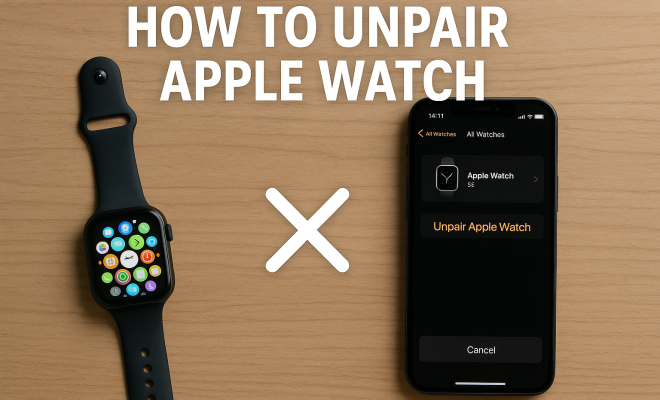
Whether you’re upgrading to a new model or simply need to reset your device for troubleshooting, knowing how to unpair your Apple Watch is crucial. This guide dives deep into the process of unpairing your Apple Watch, offers key tips, and provides insights on what to expect after you’ve done it. So, let’s explore the essential steps and considerations when it comes to unpairing your beloved device.
1. Understanding the Need to Unpair
Before diving into the how-to, it’s essential to understand why you might want to unpair your Apple Watch. There are several scenarios where unpairing is necessary. For instance, if you’re switching to a new Apple Watch, you’ll need to unpair the old one. Additionally, unpairing is often the first step in troubleshooting various issues, such as connectivity problems or software glitches.
Unpairing your Apple Watch is not only about disconnecting it from your iPhone; it also involves ensuring your data is backed up. When you unpair, the iPhone automatically creates a backup of the watch data, allowing you to restore it later if needed. Understanding these nuances will prepare you for a smoother transition.
2. Preparing for Unpairing
Before you unpair your Apple Watch, consider these preparatory steps to ensure a seamless process. First, make sure both your iPhone and Apple Watch are charged. A low battery on either device might interrupt the unpairing process, potentially leading to data loss.
Next, ensure your iPhone is running the latest version of iOS, as software updates often include bug fixes that can improve connectivity and functionalities between devices. Lastly, note down any important information or settings you’d like to remember, as unpairing may reset some preferences on your Apple Watch.
3. Steps to Unpair Your Apple Watch Using the iPhone
The most common method to unpair your Apple Watch is through the paired iPhone. Here’s a step-by-step guide to do it:
- Open the Watch app on your iPhone.
- Go to the “My Watch” tab, then tap on your watch at the top of the screen.
- Tap the info button (the ‘i’ icon) next to the watch you wish to unpair.
- Select “Unpair Apple Watch.”
- If you have a GPS + Cellular model, you’ll be asked whether to keep or remove your cellular plan. Choose accordingly.
- Enter your Apple ID password to disable Activation Lock, if prompted.
Following these steps will unpair your Apple Watch and create a backup on your iPhone automatically, ensuring that your data is safe should you decide to pair it again in the future.
4. Unpairing Directly from the Apple Watch
In some cases, you might prefer to initiate the unpairing process directly from the Apple Watch itself. This method can be particularly useful if you’re having trouble with your iPhone. To unpair using the watch, follow these steps:
- Open the Settings app on your Apple Watch.
- Tap on “General” and then “Reset.”
- Select “Erase All Content and Settings.”
This action will also unpair your Apple Watch from your iPhone, but keep in mind that it will erase all content on the watch. Make sure any essential data is backed up on your iPhone before proceeding.
5. After Unpairing: What to Expect
Once you’ve successfully unpaired your Apple Watch, there are a few things to keep in mind. First, your Apple Watch will reset to factory settings, meaning all apps, data, and settings will be erased. However, as mentioned earlier, your iPhone will have created a backup of your watch data, which you can restore later.
If you plan to sell or give away your Apple Watch, unpairing ensures that your personal data is wiped clean, and the new user can set it up as a new device. This step is vital to maintain your privacy and security. (See: CDC Healthy Pets Resources.)
6. Troubleshooting Common Issues
Sometimes, you might run into issues when trying to unpair your Apple Watch. Here are some common problems and their solutions:
- Unable to Connect: Ensure both devices are within close proximity and connected to the same Wi-Fi network. Restarting both devices can often resolve connectivity issues.
- Apple Watch Not Responding: If your watch is frozen, try restarting it by holding down the side button until the power off slider appears. Slide to power off, wait a few seconds, then power it back on.
- Activation Lock Issues: If you encounter Activation Lock after unpairing, you’ll need to enter your Apple ID and password to proceed. Make sure you remember your login credentials.
Addressing these issues promptly can save you time and frustration, ensuring a smoother unpairing experience.
7. Restoring Your Apple Watch After Unpairing
If you’re planning to pair your Apple Watch again after unpairing, you’ll want to know how to restore your previous settings and data. When you pair the watch back to your iPhone, you will be prompted to set it up as a new device or restore from a backup. Choose the backup option to retrieve your data.
Keep in mind that the restoration process may take some time, depending on the amount of data stored on your Apple Watch. Once restored, you’ll find your apps, settings, and preferences back to how you had them before unpairing.
Unpairing your Apple Watch can seem daunting, but with the right steps and understanding, it becomes a simple task. Whether you’re troubleshooting, upgrading, or simply resetting your device, knowing how to effectively unpair your Apple Watch equips you with the necessary skills to manage your device efficiently.
8. Understanding Activation Lock
Activation Lock is a critical feature designed to keep your Apple Watch secure. This feature is automatically enabled when you pair your Apple Watch with your iPhone. If your device is lost or stolen, Activation Lock prevents anyone from using it without your Apple ID and password. This adds an extra layer of security for your personal data.
When unpairing, it’s important to remember that you might need to disable Activation Lock by entering your Apple ID and password. If you forget your Apple ID, you can recover it through the Apple ID account page. Make sure to keep your login information secure and accessible.
9. Data Backup and Restoration
Backing up your Apple Watch data is crucial, especially if you plan to switch devices or reset your watch. When you unpair the watch, your iPhone automatically creates a backup of your watch data. However, if you want to manually back it up, here’s how you can do it:
- Ensure your Apple Watch is connected to your iPhone.
- Open the Watch app on your iPhone.
- Go to “My Watch” then scroll down to “General.”
- Tap on “Reset” and select “Erase All Content and Settings.”
This method ensures that all your health data, activity progress, and app settings are saved. After unpairing, when you pair the Apple Watch again, you will have the option to restore from this backup, ensuring a seamless transition.
10. Considerations for GPS + Cellular Models
If you own a GPS + Cellular model of the Apple Watch, unpairing comes with additional considerations. When you unpair, you will be prompted to decide whether to keep or remove your cellular plan. If you plan to use the cellular features again, keeping the plan is a good idea, as it saves you from having to contact your carrier again to reactivate it.
However, if you’re selling or gifting the watch, it’s wise to remove the cellular plan to avoid complications for the new user. They will need to set up their plan independently. Always consult your carrier for specific instructions on handling cellular settings before unpairing.
11. FAQs About Unpairing Your Apple Watch
What happens when I unpair my Apple Watch?
When you unpair your Apple Watch, all data, apps, and settings will be erased from the watch. However, your iPhone automatically creates a backup of your watch’s data, allowing you to restore it later.
Can I unpair my Apple Watch without my iPhone?
Yes, you can unpair your Apple Watch directly from the watch itself by going to Settings > General > Reset > Erase All Content and Settings. However, this method will erase all data on the watch.
Will unpairing affect my health data?
As long as you’ve backed up your Apple Watch data on your iPhone before unpairing, your health data will not be lost. After re-pairing the watch, you can restore this data.
Do I need to turn off my Apple Watch before unpairing?
No, you do not need to turn off your Apple Watch to unpair it. The device will handle disconnection automatically during the unpairing process.
What if I forget my Apple ID password when unpairing?
If you forget your Apple ID password, you can reset it via the Apple ID account page. It’s essential to recover your credentials if you encounter Activation Lock after unpairing.
How long does it take to unpair an Apple Watch?
The unpairing process typically takes only a few minutes. The duration may vary depending on the amount of data stored on your Apple Watch and the speed of your iPhone.
Can I unpair my Apple Watch from the Apple Watch app on my iPad?
No, the Apple Watch app is only available on iPhones. You’ll need to use your iPhone to unpair your Apple Watch.
12. Final Thoughts
Unpairing your Apple Watch is a straightforward process, but knowing the nuances can save you time and headaches. Whether you’re troubleshooting, upgrading, or simply resetting your device, understanding how to effectively unpair your Apple Watch empowers you to manage your tech more efficiently. With these tips and insights, you’re now ready to tackle unpairing like a pro!
13. Additional Insights on Apple Watch Unpairing
Aside from the straightforward unpairing process, there are several considerations that can enhance your experience or prevent potential issues. For example, if you’re planning to switch to a different model, there are benefits to be aware of, particularly regarding your data and settings.
Many users find that when they purchase a new Apple Watch, the transition is smoother when the unpairing process is done correctly. Apple provides a significant amount of cloud storage, which enables you to back up everything. This not only means you won’t lose your preferences but can also keep your fitness and health data intact. Studies have shown that maintaining a record of health-related metrics can be beneficial for long-term health tracking.
14. Keeping Your Apple Watch Secure During Unpairing
Your Apple Watch contains personal information, from health metrics to app data. When you unpair it, ensuring that this data remains secure is paramount. Always perform a complete unpairing through the iPhone when possible to ensure that all data is backed up properly. This is especially critical if you plan to sell or give the watch away.
The importance of data security cannot be overstated. According to a recent survey, 45% of users expressed concerns about privacy when selling their devices. Make sure you take the necessary steps to protect your information and remove any links to your personal accounts.
15. Understanding the Unpairing Process in Different Scenarios
Depending on your situation, the unpairing process may differ slightly. For example, if you’re upgrading to a newer model, you might find that immediately unpairing and re-pairing leads to issues with app data or settings. It’s often recommended to take your time during this transition, making sure each step is correctly followed.
Likewise, if you are experiencing issues such as battery drain or app crashes, unpairing and re-pairing can sometimes resolve these. Understanding the underlying cause of these problems can help, so don’t hesitate to connect with Apple Support if you run into persistent issues.
16. Apple Watch Comparisons: Different Models and Unpairing
When discussing unpairing, it’s valuable to consider the different models of the Apple Watch. The unpairing process remains largely the same across models, but some features differ, especially in cellular options. For instance, the Apple Watch Series 7 and newer models offer enhanced features, including improved connectivity options that can change how unpairing might impact your usage.
For models with cellular capabilities, the choice of whether to keep the cellular plan can be particularly impactful. Users who frequently switch between devices may want to keep the plan for continuous service, while those who are upgrading may find it easier to remove it and start fresh.
17. Tips for a Smooth Unpairing Experience
To ensure that your unpairing experience is as smooth as possible, consider the following tips:
- Backup Your Data: Always ensure your data is backed up before unpairing. You can do this automatically through the iPhone app.
- Update Software: Make sure both your Apple Watch and iPhone are updated to the latest software version to avoid compatibility issues during the process.
- Clear Cache: If you’re having trouble unpairing, clearing the cache on your iPhone can resolve some underlying issues.
- Document Settings: Write down your important settings or preferences, especially if they are numerous, to re-apply them after re-pairing.
18. Conclusion
In summary, unpairing your Apple Watch doesn’t have to be a hassle. Whether you’re troubleshooting, upgrading, or preparing for a new user, understanding the steps and implications of unpairing can make all the difference. Remember to back up your data, ensure your devices are updated, and approach the process thoughtfully. With these considerations in mind, you’re fully equipped to handle any unpairing scenario confidently!
“`
Trending Now
Frequently Asked Questions
How do I unpair my Apple Watch from my iPhone?
To unpair your Apple Watch from your iPhone, open the Watch app on your iPhone, select your watch, and tap the 'i' icon. Then, choose 'Unpair Apple Watch' and confirm your decision. This process automatically backs up your watch data to your iPhone.
What happens when you unpair your Apple Watch?
When you unpair your Apple Watch, it disconnects from your iPhone and creates a backup of your watch data. This allows you to restore your settings and data if you decide to pair the watch again or move to a new one.
Do I need to back up my Apple Watch before unpairing?
No, you don't need to manually back up your Apple Watch before unpairing, as the iPhone automatically creates a backup of your watch data during the unpairing process.
Can I unpair my Apple Watch without my iPhone?
Yes, you can unpair your Apple Watch directly from the watch itself. Go to Settings > General > Reset > Erase All Content and Settings. However, this method won't create a backup of your data.
Why would I need to unpair my Apple Watch?
You might need to unpair your Apple Watch if you're upgrading to a new model, troubleshooting connectivity issues, or resetting the watch to factory settings for other reasons.
What’s your take on this? Share your thoughts in the comments below — we read every one.